How to Configure Startup Applications with Task Manager in Windows 11

Startup applications are programs that automatically start when your PC turns on, ready for you to log in.
Some are essential, like your antivirus or cloud storage, but others can slow down your computer significantly. Windows 11 Task Manager helps you manage these.
More apps running at startup means your PC takes longer to become usable and uses more system resources. By controlling startup programs, you can make your Windows 11 PC boot up faster.
Task Manager lets you see exactly which applications want to launch when Windows starts.
Managing Startup Apps with Task Manager
Waiting for your computer to be ready can be annoying. Task Manager helps you control which programs start when you turn on your PC. It shows you what’s starting up and lets you decide if each app should run or wait.
Accessing Task Manager
Opening Task Manager in Windows 11 is simple and can be done in a few quick ways. You can right-click the Start button and select Task Manager, use the Ctrl+Shift+Esc keyboard shortcut, or type “Task Manager” into the Windows search bar.
- Right-click the Start Button: Move your mouse to the Windows icon in the bottom-left corner. Click the right mouse button. A menu will appear. Click on “ Task Manager.”
- Keyboard Shortcut: Press Ctrl+Shift+Esc all at the same time. Task Manager will open.
- Search: Type “ Task Manager” into the Windows search bar (next to the Start button). Click on it when it appears in the results.
Navigating to Startup Apps
When Task Manager opens, you might see a simple view. If so, click the “More details” button at the bottom. This shows all of Task Manager’s features. You will see tabs across the top. Click the “Startup apps” tab.
Understanding the Startup Apps List
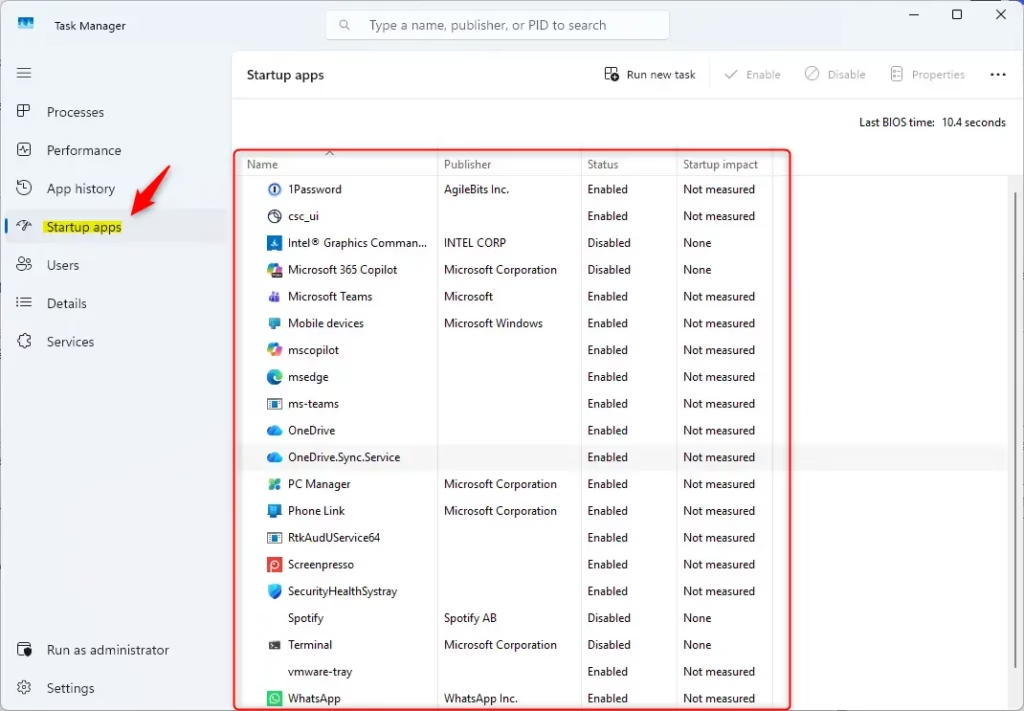
The Startup Apps list in Task Manager shows you all the programs set to launch automatically when Windows starts. For each app, you’ll see its name, who published it, its current status (enabled or disabled), and a helpful “Startup Impact” rating that tells you how much it slows down your computer’s startup.
- App Name: The name of the program.
- Publisher: Who made the software. This helps identify trusted programs.
- Status: Shows if the app is “Enabled” (starts with Windows) or “Disabled” (does not start automatically).
- Startup Impact: This is very helpful! Windows shows how much each app affects your startup time. You might see “None,” “Low,” “Medium,” or “High.” A “High” impact means the app significantly slows down your startup.
Enabling or Disabling Apps
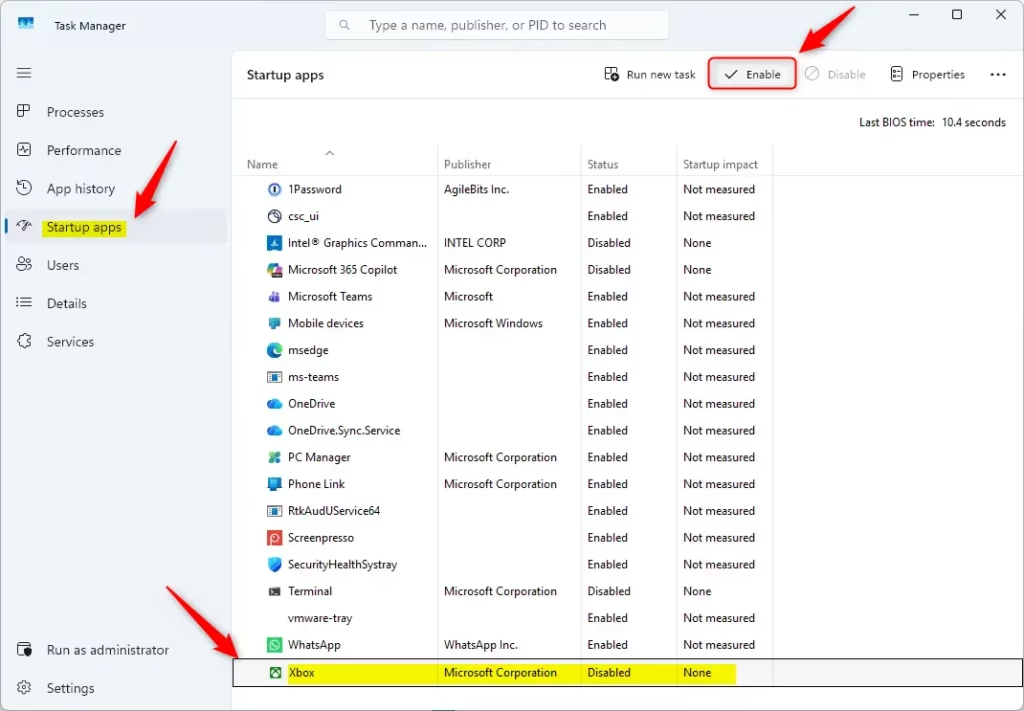
Managing your startup applications in Windows 11 involves simply enabling or disabling them directly from the Task Manager. To stop an app from starting automatically, click on its name in the list and then click the “Disable” button; its status will change from “Enabled” to “Disabled.”
- To stop an app from starting automatically: Click on the app’s name in the list. Then, click the “Disable” button in the bottom-right corner of Task Manager. The status will change from “Enabled” to “Disabled.”
- To let an app start automatically: If you disabled an app before and want it to start with Windows again, select it. Then, click the “Enable” button. Its status will change back to “Enabled.”
Important Tip: Be careful when disabling apps you don’t recognize. If an app is from your computer maker or Microsoft, it might be needed for your system to work correctly. If you are unsure, it’s best to leave it enabled or search online for the app’s name before disabling it.
Reference:
Summary
Managing startup applications using Task Manager in Windows 11 can significantly speed up your computer’s boot time. By disabling unnecessary programs that launch automatically, you free up system resources and reduce the strain on your PC during startup, making your computer start faster.
Was this guide helpful?

About the Author
Richard
Tech Writer, IT Professional
Richard, a writer for Geek Rewind, is a tech enthusiast who loves breaking down complex IT topics into simple, easy-to-understand ideas. With years of hands-on experience in system administration and enterprise IT operations, he’s developed a knack for offering practical tips and solutions. Richard aims to make technology more accessible and actionable. He's deeply committed to the Geek Rewind community, always ready to answer questions and engage in discussions.
No comments yet — be the first to share your thoughts!