How To Fix Windows 11 File Explorer Crashing Or Freezing

It’s incredibly frustrating when you try to open a folder and your computer freezes up. You might see a white screen, a spinning circle, or your taskbar might blink and restart. This is a common problem in Windows 11, and thankfully, it’s usually fixable.
Why does this happen? File Explorer is the main tool you use to manage your files. This usually happens because of a conflict with another app running in the background, a damaged system file, or a new menu item added by a program that isn’t working right.
What’s the outcome? After trying these steps, you’ll have cleared out whatever was causing the freezes. Your folders should open much faster, and your PC will feel smooth and reliable again.
Restart Windows Explorer through Task Manager by pressing Ctrl+Shift+Esc, right-clicking “Windows Explorer,” and selecting “Restart.” Clear File Explorer history via File Explorer Options, or run the System File Checker tool using `sfc /scannow` in an administrator Command Prompt.
Step 1Restart Windows Explorer via Task Manager
Restarting Windows Explorer through Task Manager is the fastest way to fix a crashing or freezing File Explorer without needing to restart your whole computer.
- Press Ctrl+Shift+Esc on your keyboard to open Task Manager.
- Click on the Processes tab.
- Scroll down until you find Windows Explorer.
- Right-click it and select Restart.
Your taskbar and open folders will disappear for a moment and then come back. This is normal.
Step 2Clear File Explorer History
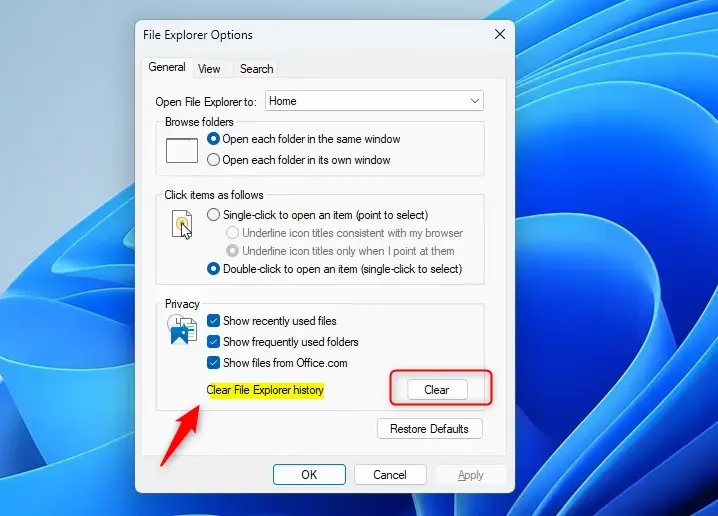
Clearing your File Explorer history can fix issues where the window locks up because a corrupted list of recently opened files is causing problems.
- Press the Windows Key, type File Explorer Options, and press Enter.
- Under the General tab, look for the Privacy section.
- Click the Clear button next to “Clear File Explorer history.”
- Click Apply and then OK.
Step 3Run System File Checker (SFC)
Running the System File Checker (SFC) tool can repair damaged Windows files that might be causing File Explorer to crash or freeze.
- Click the Start button and type CMD.
- Right-click Command Prompt and select Run as administrator.
- In the black window, type:
sfc /scannowand press Enter. - Wait for the process to reach 100%. It will fix any errors it finds.
Step 4Disable Context Menu Extensions
When you right-click a file, a menu appears. Sometimes apps like cloud storage or antivirus software add extra items to this menu. If one of these is broken, it can crash your window. Try uninstalling recently added software to see if the crashing stops.
Step 5Configure Advanced Startup Settings
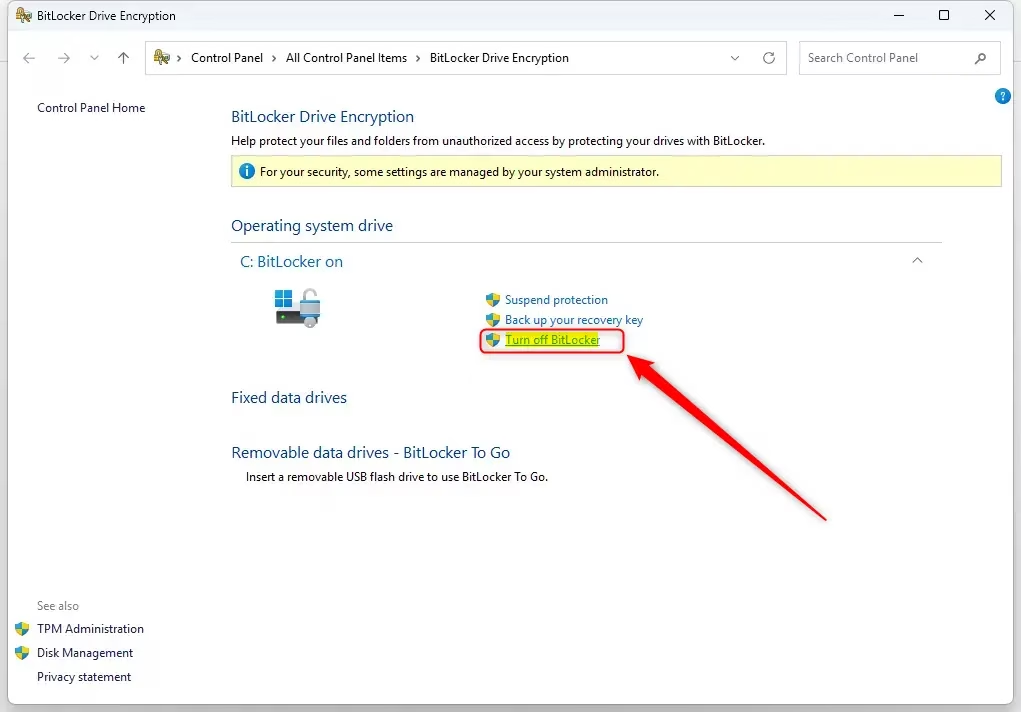
Configuring advanced startup settings, like managing BitLocker or TPM, can help resolve File Explorer issues related to security features blocking access to your files.
- Click Start and type Manage BitLocker.
- Select the option to Turn off BitLocker if you think it is blocking your files.
- To manage security hardware, press ⊞ Win+R, type
tpm.msc, and press Enter. - In the window that opens, you can check the status of your security hardware to ensure it is working correctly.
Step 6Update Your Graphics Drivers
File Explorer uses your graphics card to display windows. If your driver is outdated, the window might freeze. Go to the website for your graphics hardware (like NVIDIA, AMD, or Intel) and download the latest driver.
Step 7Check for Windows Updates
Microsoft often releases fixes for these exact problems. Keep your system current:
- Press ⊞ Win+I to open Settings.
- Select Windows Update from the left menu.
- Click Check for updates.
Bonus Tips
Bonus tips for fixing File Explorer crashing include checking disk health with the chkdsk command and using a tool like ShellExView to disable problematic shell extensions.- Shell Extensions: These are small background programs that add icons to your folders. You can use a free tool called ShellExView to disable them one by one to find the one causing the crash.
- Check Disk Health: If your hard drive is having trouble, File Explorer will often freeze. Open Command Prompt as an administrator and run
chkdsk C: /f /rto check your drive for physical errors.
Summary
To fix a crashing File Explorer in Windows 11, start by restarting the process in Task Manager and clearing your history, then use System File Checker and check disk health if needed.
Why does my File Explorer keep freezing in 🪟 Windows 11?
File Explorer typically freezes in Windows 11 due to conflicts with background applications, corrupted system files, or incompatible third-party shell extensions. These issues often occur when an external program adds a faulty menu item or when temporary cache data becomes corrupted, causing the interface to stop responding during folder navigation.
How to fix a crashing File Explorer?
To fix a crashing File Explorer, begin by restarting the Windows Explorer process using Task Manager, then clear your history or run the System File Checker tool.
How to repair File Explorer in 🪟 Windows 11?
You can repair File Explorer in Windows 11 by running the System File Checker (SFC) command in an administrator Command Prompt, which scans and replaces corrupted files.
Why does File Explorer keep going unresponsive?
File Explorer becomes unresponsive when it has trouble loading directory contents, often caused by a full history, damaged thumbnail caches, or conflicting software extensions.
Was this guide helpful?

About the Author
Richard
Tech Writer, IT Professional
Richard, a writer for Geek Rewind, is a tech enthusiast who loves breaking down complex IT topics into simple, easy-to-understand ideas. With years of hands-on experience in system administration and enterprise IT operations, he’s developed a knack for offering practical tips and solutions. Richard aims to make technology more accessible and actionable. He's deeply committed to the Geek Rewind community, always ready to answer questions and engage in discussions.



No comments yet — be the first to share your thoughts!