How to Restart Start Menu Process in Windows 11

You can restart the Start menu process in Windows 11 by ending the “Shell Experience Host” task through Task Manager.
The Start Menu process is a key part of Windows 11. It controls how your Start menu and taskbar look and work. When this process has an error, your Start menu might freeze or stop responding.
Restarting it can quickly fix many common Start menu problems without needing to reboot your entire system. This is especially helpful after a Windows update, like the recent KB5034201 update, which can sometimes cause temporary glitches.
Press Ctrl+Shift+Esc to open Task Manager. Find “StartMenuExperienceHost.exe” or “Start” in the Processes or Details tab, right-click it, and select “End task.” Windows will automatically restart the process.
What is the difference between restarting StartMenuExperienceHost and Windows Explorer?
Restarting StartMenuExperienceHost.exe only refreshes the Start menu interface. Restarting explorer.exe, however, refreshes your whole Windows desktop, including the taskbar, File Explorer windows, and icons. It’s best to try restarting the Start menu process first, as it’s less disruptive to your ongoing work.
Pro Tip: Accessing Task Manager
If your mouse isn’t working or your screen is frozen, press Ctrl+Shift+Esc on your keyboard. This shortcut opens Task Manager right away, letting you fix interface issues without needing to click the Start button.
Restarting the Start Menu via Task Manager
If your Windows 11 Start menu is stuck or not working right, you can easily restart its process using Task Manager.
2. Click the Processes or Details tab.
3. Find ‘Start’ in the list. Right-click it and choose ‘End task’.
4. Windows will automatically restart the process for you.
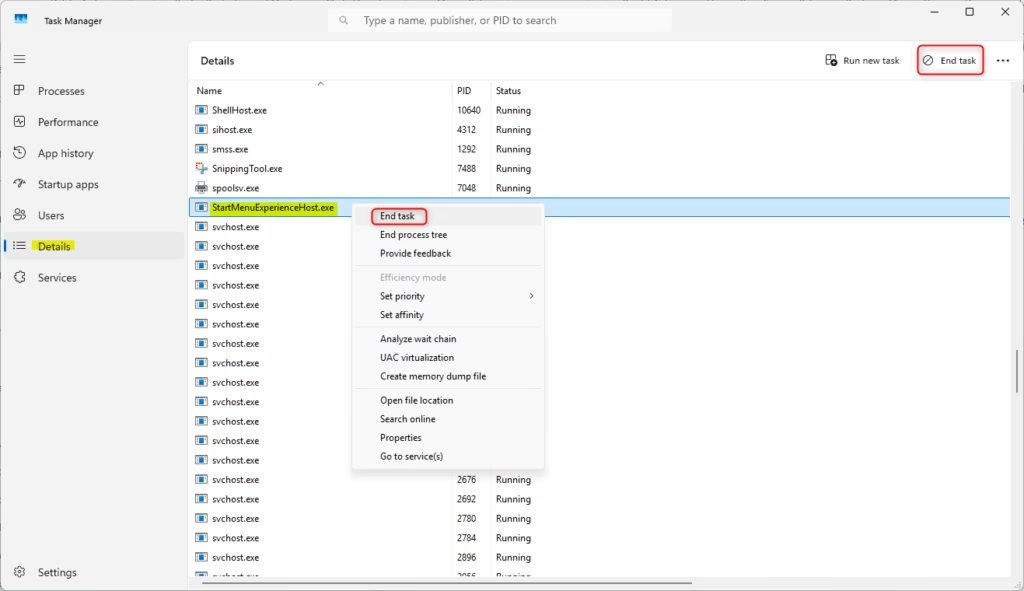
If it doesn’t restart on its own, press ⊞ Win+R, paste the following path, and hit Enter:
C:\Windows\SystemApps\Microsoft.Windows.StartMenuExperienceHost_cw5n1h2txyewy\StartMenuExperienceHost.exe
Using Command Prompt or PowerShell
If you want to use the Command Prompt or PowerShell, open the Windows Terminal app and run the command below:
Command Prompt:
taskkill /f /im StartMenuExperienceHost.exe
PowerShell:
Stop-Process -Name "StartMenuExperienceHost" -Force
Advanced Repair: System File Checker
If your Start menu keeps acting up even after restarting, the System File Checker can help fix any broken Windows files that might be causing the trouble.
- Press the Windows Key, type cmd, right-click it, and select Run as administrator.
- Type
sfc /scannowand press Enter. - Wait for the scan to complete. It will automatically repair missing or corrupted files.
Summary
The Start menu in Windows 11 is a process called StartMenuExperienceHost.exe that you can restart using Task Manager or Command Prompt if it freezes.
How do I restart the Start menu?
To restart the Start menu, press Ctrl+Shift+Esc to open Task Manager. Navigate to the Processes or Details tab, locate 'StartMenuExperienceHost.exe' or 'Start', right-click it, and select 'End task'. Windows will automatically restart the process, which should resolve any temporary freezing or unresponsiveness without requiring a reboot.
Which is better, restart or shutdown?
Restarting your computer is generally better for fixing software glitches because it clears memory and reloads everything, while shutting down is best for saving power.
Do you press f5 or F8 for safe mode?
Neither F5 nor F8 is used to enter Safe Mode in modern Windows versions like Windows 11; instead, you access it through the advanced startup options in Settings.
How to fix if the Start menu is not working?
If your Start menu isn’t working in Windows, try restarting the ‘StartMenuExperienceHost’ process first, then the Windows Explorer process, before checking for updates or running system tools.
Was this guide helpful?

About the Author
Richard
Tech Writer, IT Professional
Richard, a writer for Geek Rewind, is a tech enthusiast who loves breaking down complex IT topics into simple, easy-to-understand ideas. With years of hands-on experience in system administration and enterprise IT operations, he’s developed a knack for offering practical tips and solutions. Richard aims to make technology more accessible and actionable. He's deeply committed to the Geek Rewind community, always ready to answer questions and engage in discussions.


No comments yet — be the first to share your thoughts!