Microsoft is Making Taskbar and Start more personal in Windows 11

Microsoft is making your Windows 11 experience more personal. They’re improving the Start menu and the taskbar, giving you more control to set them up exactly how you like them.
You can personalize your Windows 11 taskbar and Start menu by navigating to Settings > Personalization. In Taskbar settings, you can adjust the taskbar’s position, icon alignment, and choose a smaller taskbar size. The Start menu allows for more control over its layout and pinned apps.
Making the Taskbar More Personal
Your taskbar is that bar at the bottom of your screen, showing your open apps and shortcuts. Microsoft wants you to have more say in how it looks and functions.
Taskbar Positions
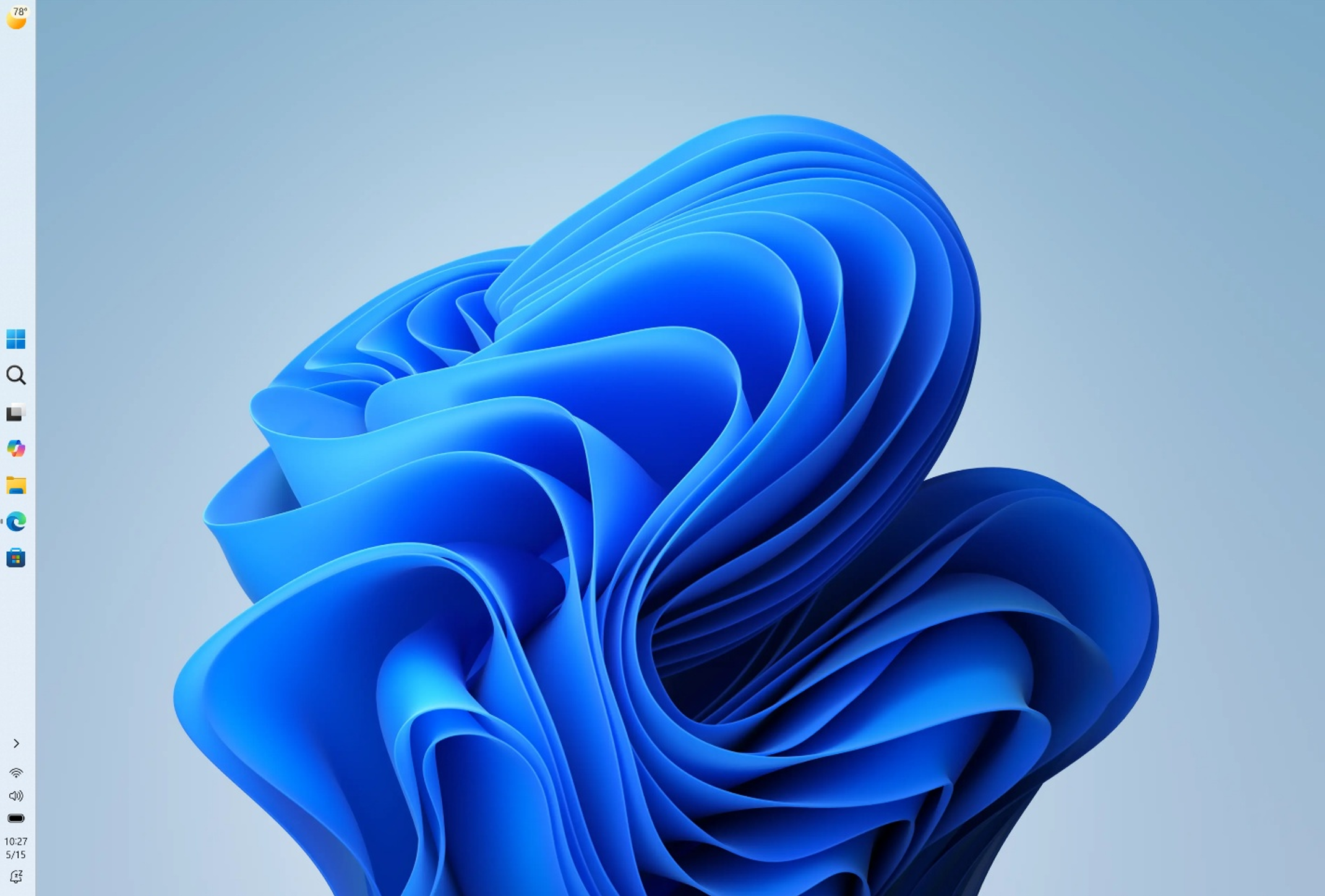
You can now change your Windows 11 taskbar position to the top, bottom, left, or right side of your screen. This lets you put the taskbar where it feels most natural for how you use your computer, a change many people have wanted.
Starting now, you can:
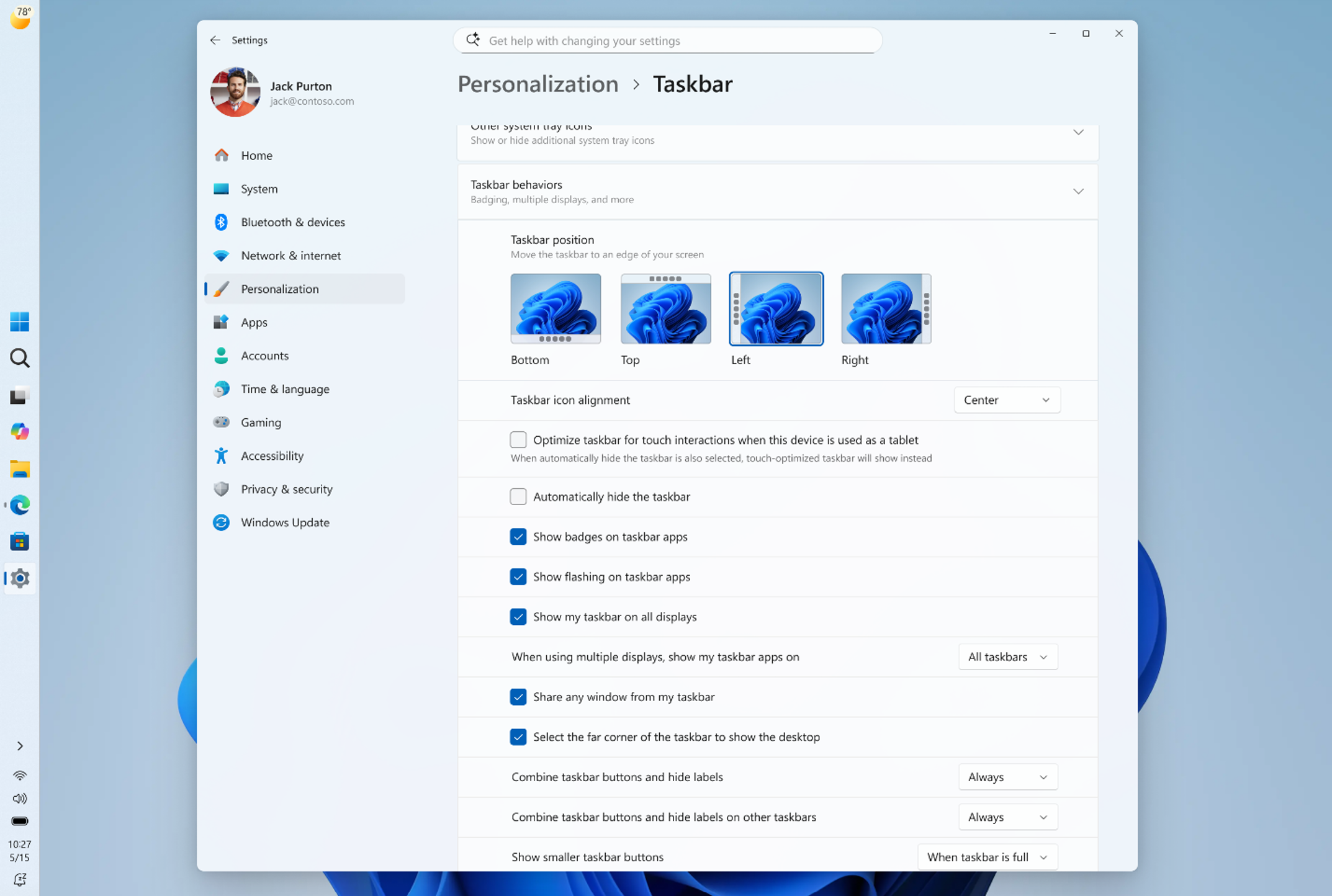
- Put the taskbar on the top, bottom, left, or right side of your screen. (See Figure 1).
- Choose how icons line up on the taskbar. When the taskbar is on the left or right, icons can be on the top or in the center. When the taskbar is on the top or bottom, icons can be on the left or in the center.
- Have Start, Search, and other menus open near the taskbar. For example, if the taskbar is at the top, the Start menu will open from the top. (See Figure 2).
- See every window clearly. If you have the taskbar on the side and choose “Never combine” for taskbar buttons, each app window will show up as its own button. This makes it easier to find and switch between apps. (See Figure 3).
Why is this useful? If you prefer to see more of your code, moving the taskbar to the side can give you more screen real estate. If reaching the top of your screen is more comfortable, you can place the taskbar there. For those who use the taskbar to keep track of multiple tasks, a side taskbar with separate buttons for each app window can really help you stay organized.
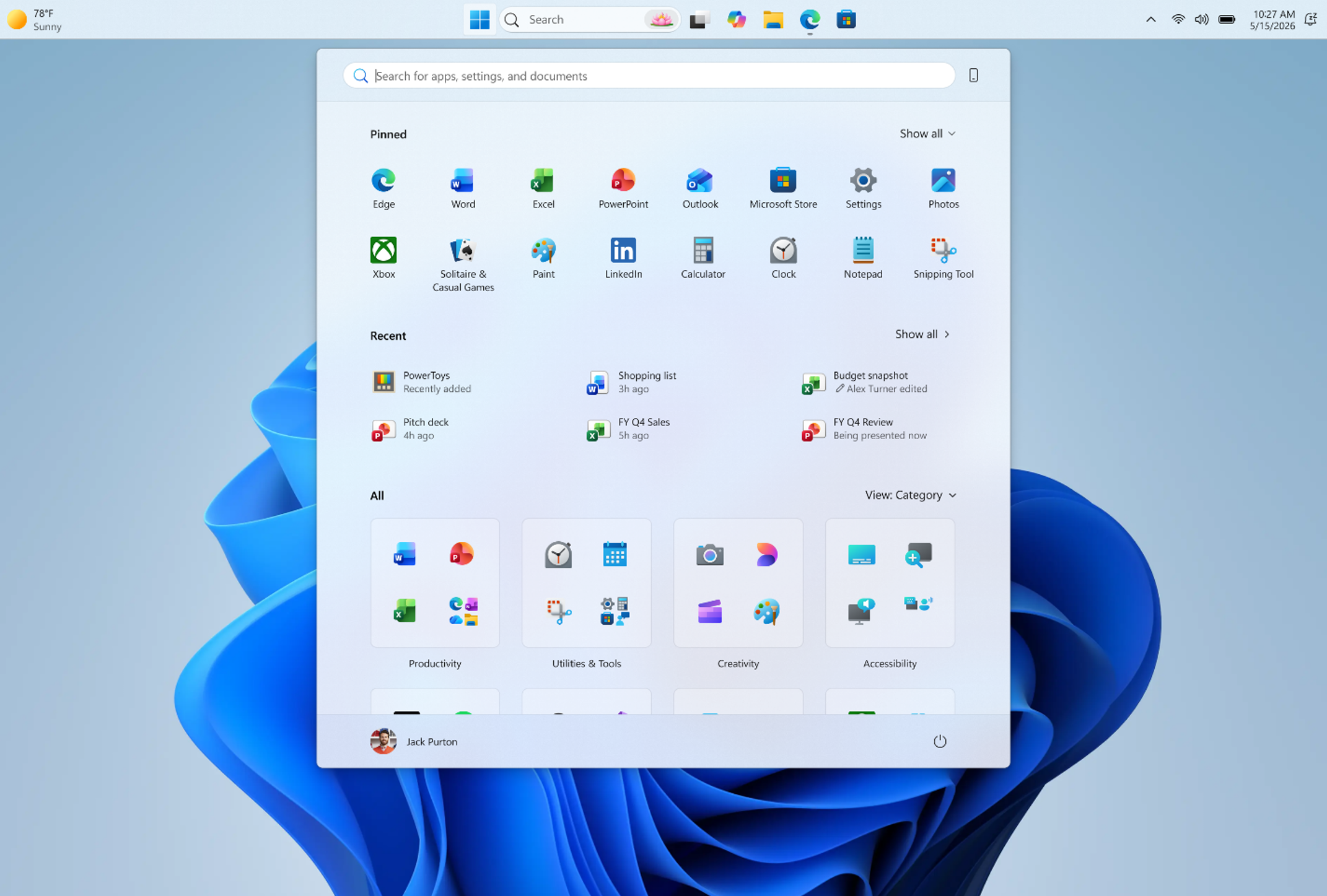
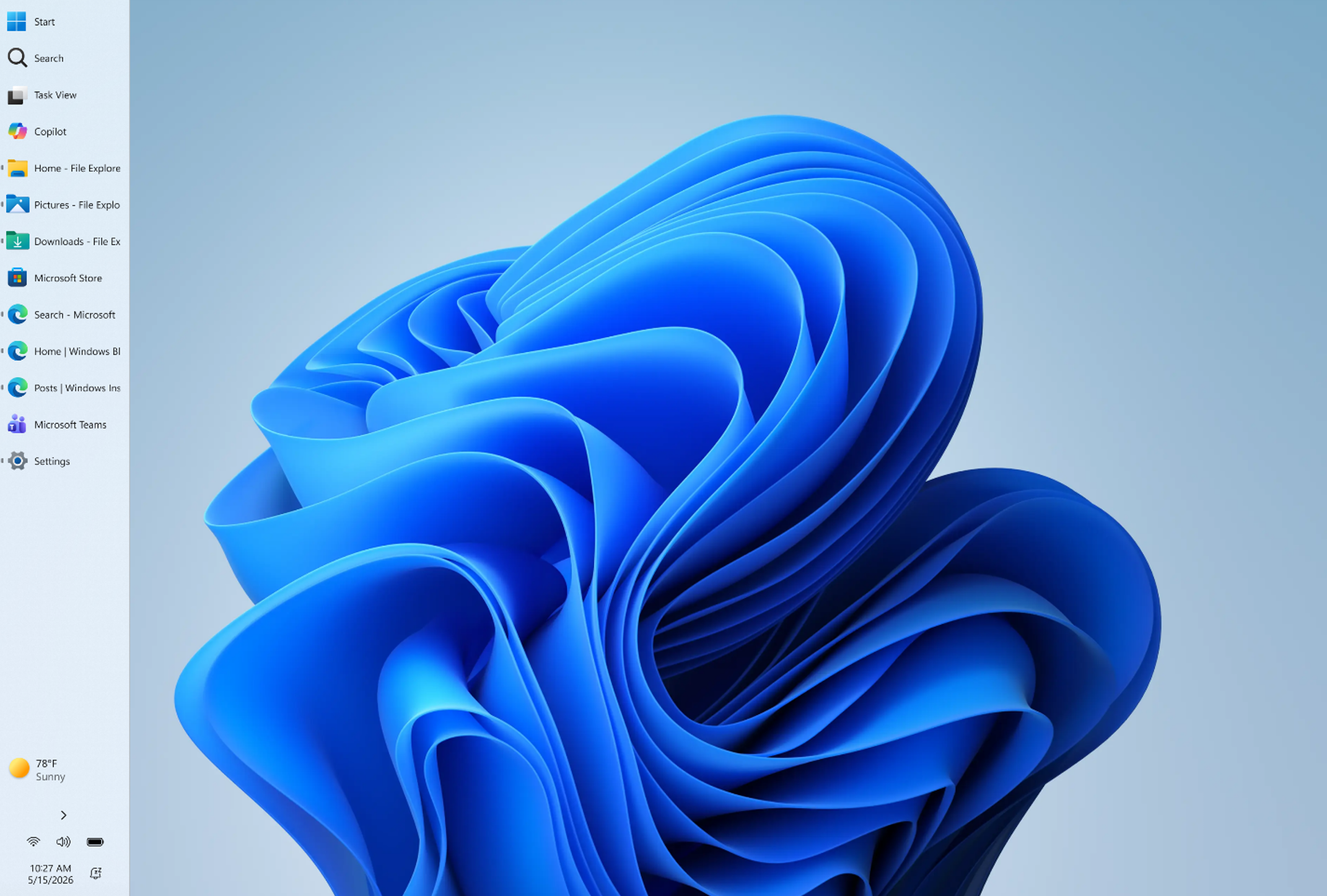
To reposition your taskbar, navigate to Settings > Personalization > Taskbar > Taskbar behaviors. You’ll find new options there for taskbar placement and icon alignment.
Microsoft is continuing to refine these features for better appearance and performance. Some aspects aren’t quite ready yet, but they’re coming soon:
- The taskbar automatically hiding and how it works with touch screens are not ready for these new positions.
- Touch gestures for these new positions are still being worked on.
- Search boxes are not ready for these new positions. For now, you will see a search icon instead.
Microsoft is also exploring other possibilities, like enabling different taskbar positions across multiple monitors and allowing you to drag and drop items onto the taskbar. Their priority is ensuring the core features work reliably and provide a smooth user experience.
Smaller Taskbar
If your Windows 11 taskbar feels too big, you can now make it smaller to get more screen space. This option reduces the size of the icons and the taskbar itself, which is great for smaller monitors or if you just want more room for your apps.
With this update, you can opt for a smaller taskbar. This means smaller icons and a reduced taskbar height, freeing up more space for your applications. You won’t need to restart your PC for this change to take effect.
This feature is now available for those testing Windows. To shrink your taskbar, go to Settings > Personalization > Taskbar > Taskbar behaviors > Show smaller taskbar buttons. Selecting “Always” will make both the icons and the taskbar height smaller.

Putting You in Control of Start
We all use the Start menu a bit differently. Maybe you prefer it clean with just your favorite apps, or perhaps you want quick access to recent files or everything all at once. Microsoft is updating it so you have more control.
More Control Over Your Layout
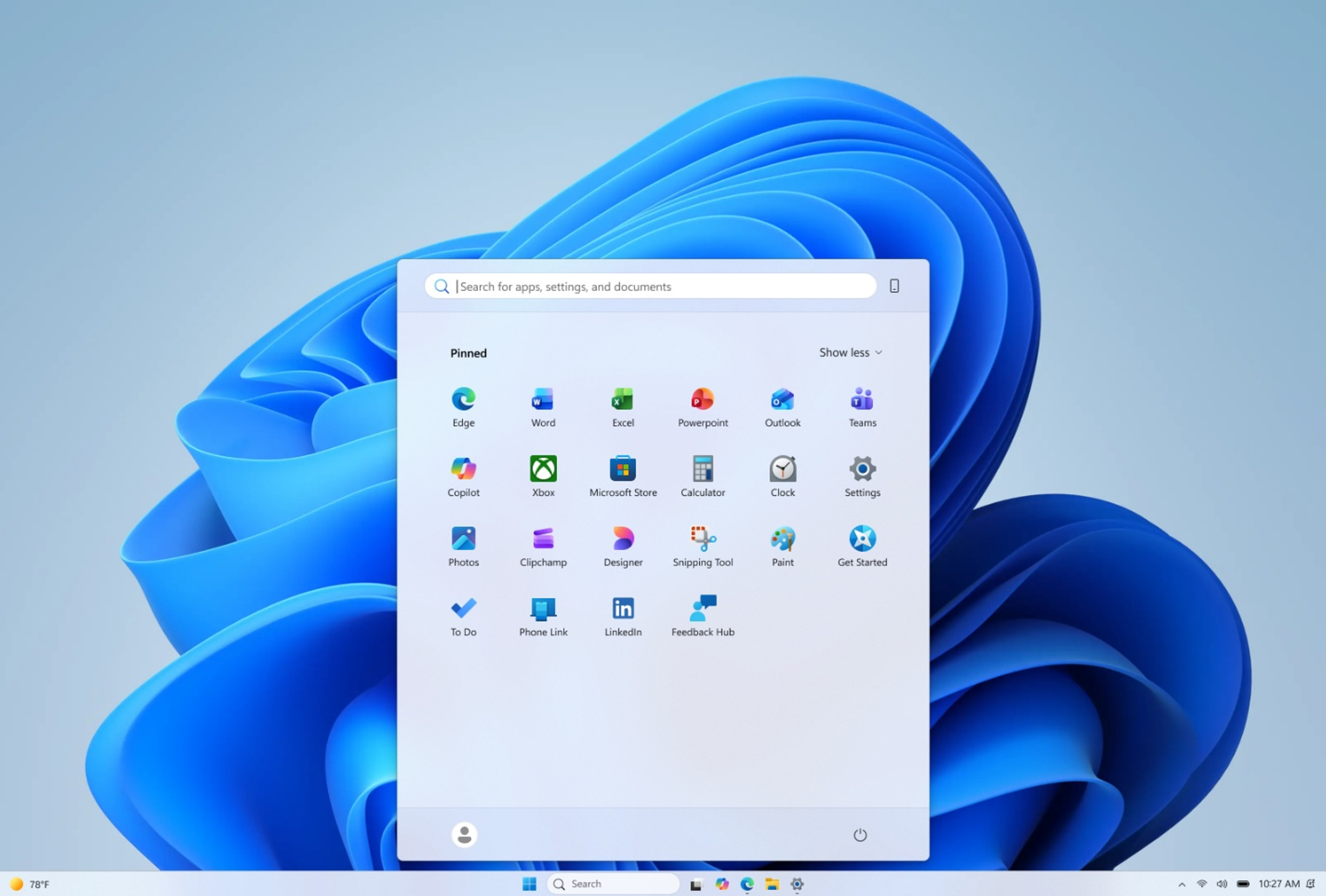
You can now customize your Windows 11 Start menu more easily to show only what you need. This means you can choose to hide things like recommended apps or unpin ones you don’t use often, giving you a cleaner, more personal Start screen.
Microsoft is streamlining this process. Soon, you’ll be able to:
- Independently show or hide sections like Pinned apps, Recommended items, and All apps. There will be one simple setting for each section.
- Have a separate setting for file recommendations. Right now, turning off “Recommended” in Start also turns off recent files in other places like File Explorer. With this change, you can stop seeing file recommendations in Start without affecting recent files elsewhere.
- Choose the size of your Start menu. You can pick Small or Large. This will help your Start menu look the same size on different screens.
- Hide your name and profile picture in Start. This is good for privacy when you are sharing your screen or streaming.
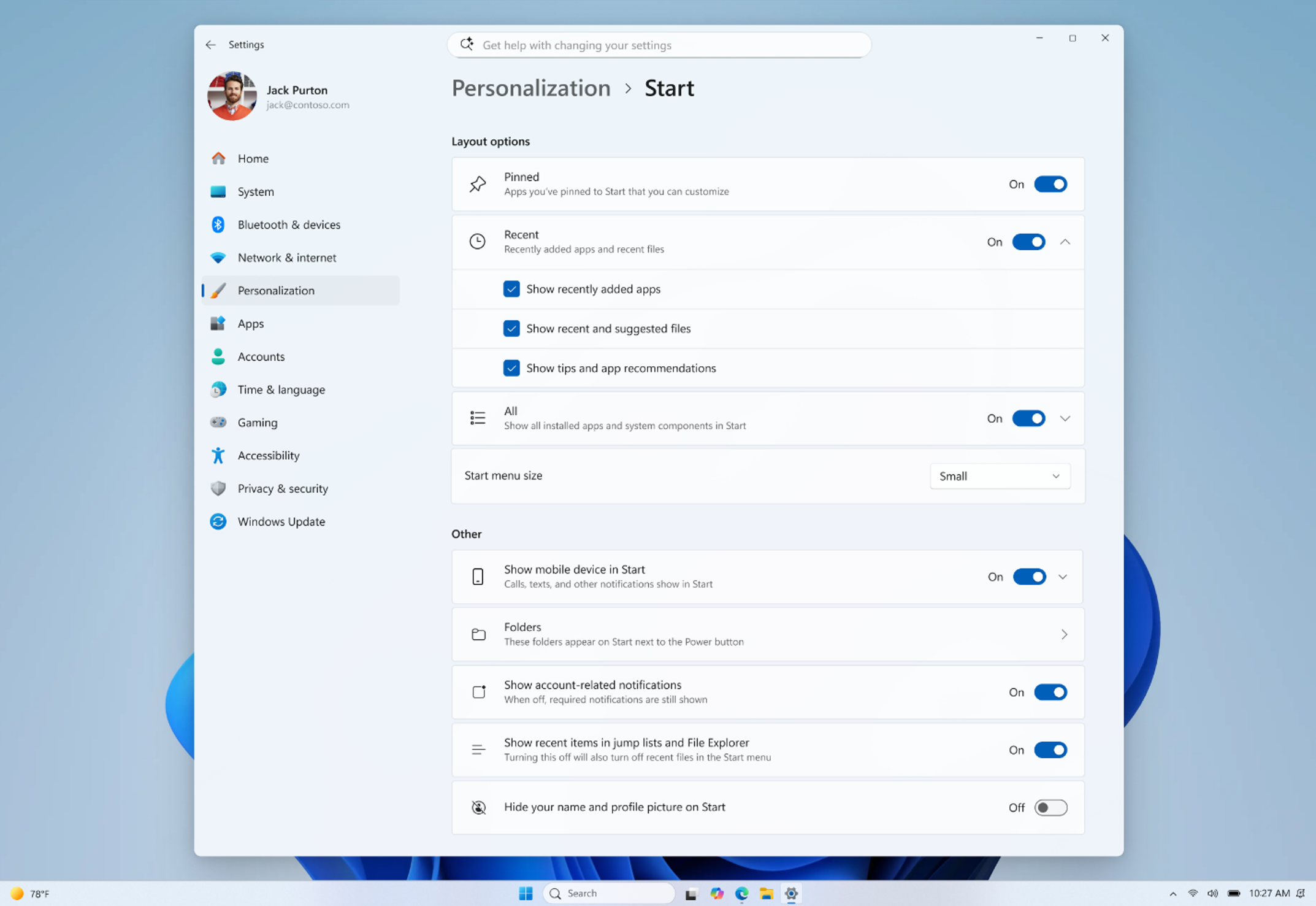
These settings are designed to work in harmony. If you want only your pinned apps to show, you can disable “Recommended” and “All apps.” If you prefer to see everything, you can keep all options enabled. The aim is to provide you with a flexible way to configure Start to suit your needs.
Reference:
Summary
Microsoft is adding new personalization options for your Windows 11 taskbar and Start menu, letting you move the taskbar anywhere, choose its size, and better control what appears in the Start menu.
What is the default position of the taskbar in 🪟 Windows 11?
Note: By default, the taskbar sits in the center of your screen in Windows 11. If you prefer it aligned to the left, check out the ‘Change the taskbar alignment’ guide.
Was this guide helpful?

About the Author
Richard
Tech Writer, IT Professional
Richard, a writer for Geek Rewind, is a tech enthusiast who loves breaking down complex IT topics into simple, easy-to-understand ideas. With years of hands-on experience in system administration and enterprise IT operations, he’s developed a knack for offering practical tips and solutions. Richard aims to make technology more accessible and actionable. He's deeply committed to the Geek Rewind community, always ready to answer questions and engage in discussions.

No comments yet — be the first to share your thoughts!