How to Switch Between Open Windows in Windows 11

Want to quickly jump between your open programs in Windows 11? That’s called task switching. It’s the process of shifting your focus from one app or document to another on your desktop. Luckily, Windows 11 gives you several great ways to do this, like keyboard shortcuts and the handy Task View.
For instance, the Alt+Tab shortcut lets you cycle through your open applications instantly. Mastering these techniques will significantly boost your productivity and help you manage your digital workspace seamlessly.
You can switch between open windows in Windows 11 using the Alt+Tab keyboard shortcut to cycle through applications or by pressing ⊞ Win+Tab to open Task View and visually select a window. Both methods allow for quick access to your running programs.
Switch Between Open Windows in Task View
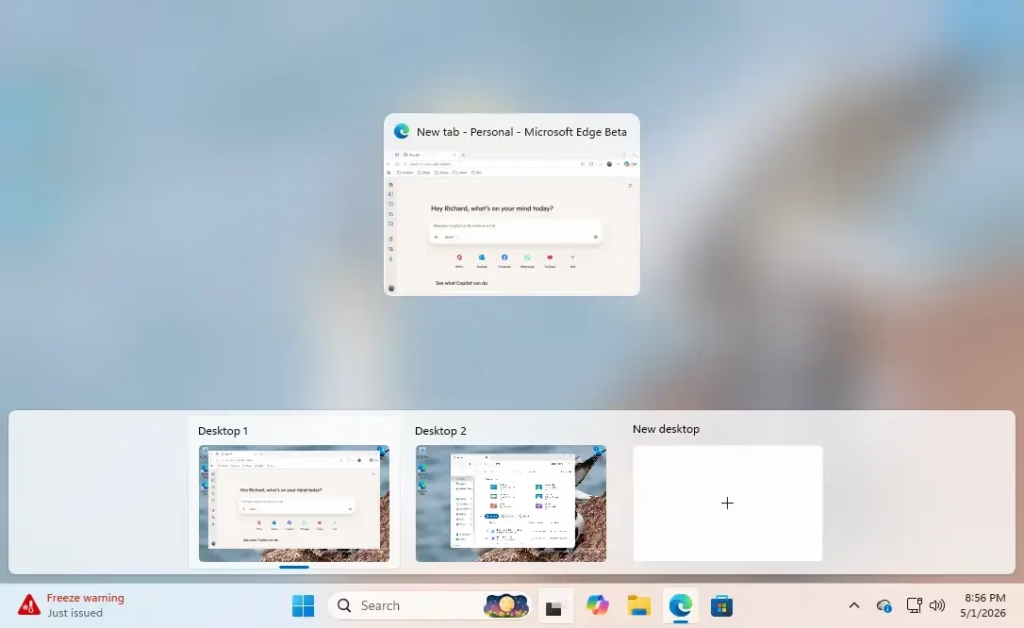
Let’s start with Task View. It’s a visual way to see everything you have open. Press Win+Tab to open it. If you use multiple virtual desktops, you can select the specific desktop containing your window. Click the window to jump to it.
Mastering Alt+Tab
The Alt+Tab shortcut is the fastest way to switch. Hold Alt and tap Tab to cycle through your open windows. Release Alt to select the highlighted window.
Snap Layouts and Groups
Snap Layouts are a handy feature that helps you arrange your windows into neat grid positions. Hover your mouse over the maximize button of any window to see layout options. Once snapped, these windows form a Snap Group. You can find your group in the taskbar later to restore all windows at once.
Managing Virtual Desktops
Virtual Desktops allow you to separate your work from your personal life. Open Task View and click New desktop. You can move windows between them by dragging the thumbnail in Task View to the desired desktop.
Frequently Asked Questions
How do I disable Alt+Tab showing browser tabs?
Head to Settings > System > Multitasking. In the Alt+Tab section, you can switch the setting from ‘Open windows and all tabs in Edge’ to ‘Open windows only’ if you prefer not to see individual browser tabs in your switcher.
Can I change the number of desktops in 🪟 Windows 11?
Windows 11 doesn’t have a fixed limit on the number of virtual desktops you can create. You can add as many as your system memory can handle by clicking the ‘New desktop’ button in the Task View interface.
What is the difference between Task View and Alt+Tab?
Alt+Tab is best for quickly switching between recent windows. Task View gives you a broader overview of all open windows and virtual desktops, which is really helpful for managing complex workflows and organizing your workspace.
Summary
Switching windows in Windows 11 gets much smoother once you know the shortcuts. Use Alt+Tab for speed, Task View for organization, and Snap Layouts to keep your screen tidy. By mastering these tools, you’ll improve your workflow efficiency and maintain a clean digital workspace.
Was this guide helpful?

About the Author
Richard
Tech Writer, IT Professional
Richard, a writer for Geek Rewind, is a tech enthusiast who loves breaking down complex IT topics into simple, easy-to-understand ideas. With years of hands-on experience in system administration and enterprise IT operations, he’s developed a knack for offering practical tips and solutions. Richard aims to make technology more accessible and actionable. He's deeply committed to the Geek Rewind community, always ready to answer questions and engage in discussions.




No comments yet — be the first to share your thoughts!