How to Share Windows from Taskbar in Windows 11

You can share individual application windows directly from the Windows 11 taskbar to simplify screen sharing during virtual meetings.
This feature allows you to present a single app without showing your entire desktop or switching between applications, keeping your focus sharp.
This functionality was introduced in Windows 11 Insider Preview Build 22557, giving you a more efficient way to share your screen.
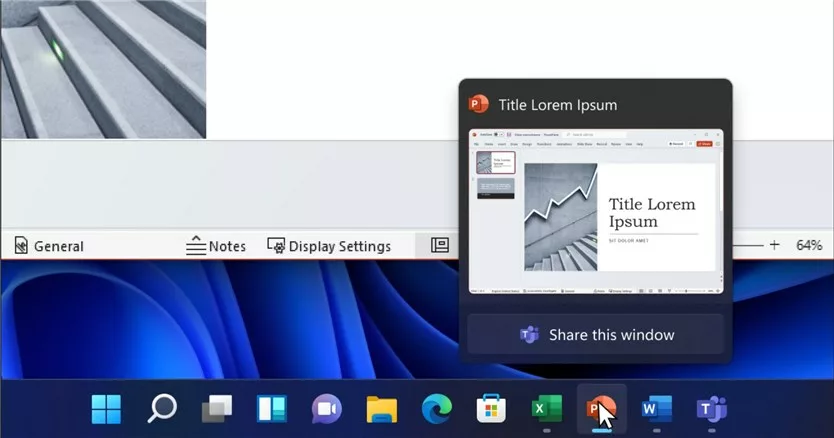
When you use an app like Microsoft Teams, simply hover over its icon on the taskbar. A sharing button appears, letting you select just that window to share with others.
To end the screen share, hover over the app icon again and click the “Stop Sharing” button.
Share specific app windows directly from your Windows 11 taskbar by hovering over an open app icon and clicking the share button that appears. To stop sharing, hover over the same icon again and click “Stop Sharing.” This feature is available for compatible applications.
Comparison of Configuration Methods
| Method | Ease of Use | Best For |
|---|---|---|
| Settings App | Easy | Individual Users |
| Registry Editor | Advanced | Power Users |
| Group Policy | Expert | System Administrators |
Enable or Disable via Settings
You can turn the share window from my taskbar feature on or off directly in Windows Settings. This is the simplest way to manage the taskbar sharing option in Windows 11.
- Open the Windows Settings app. Press the Windows key + I on your keyboard.
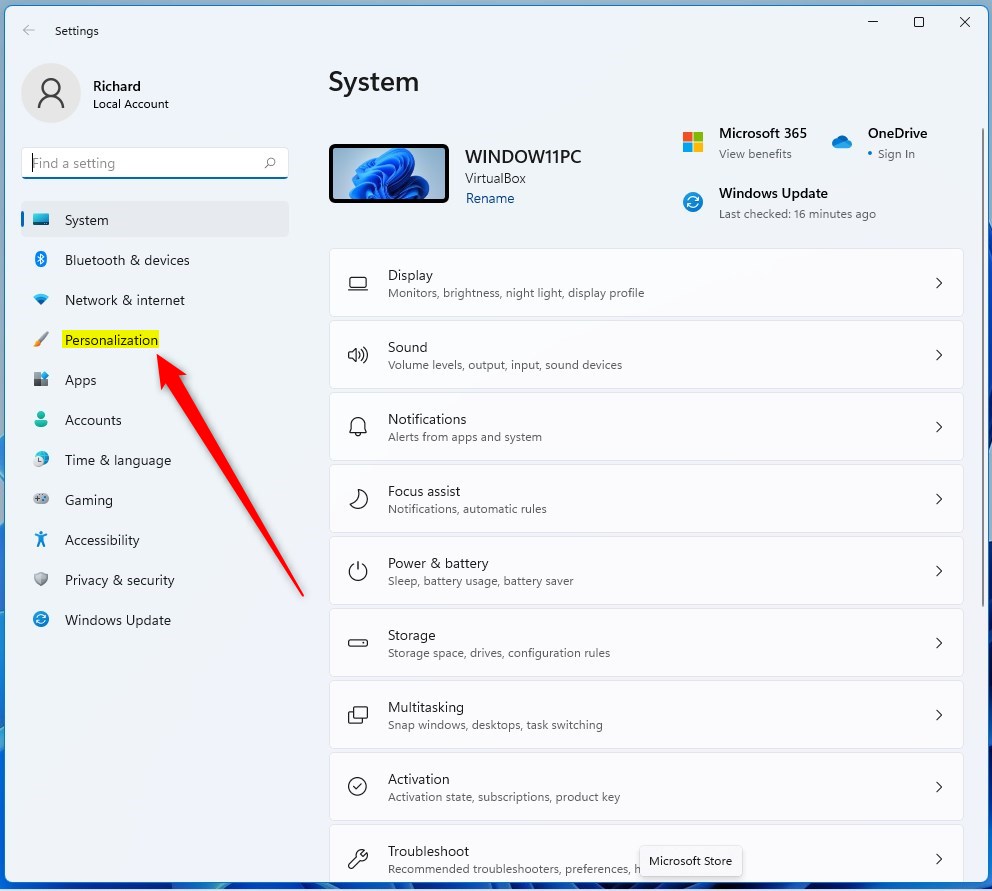
- Click on Personalization in the left menu.
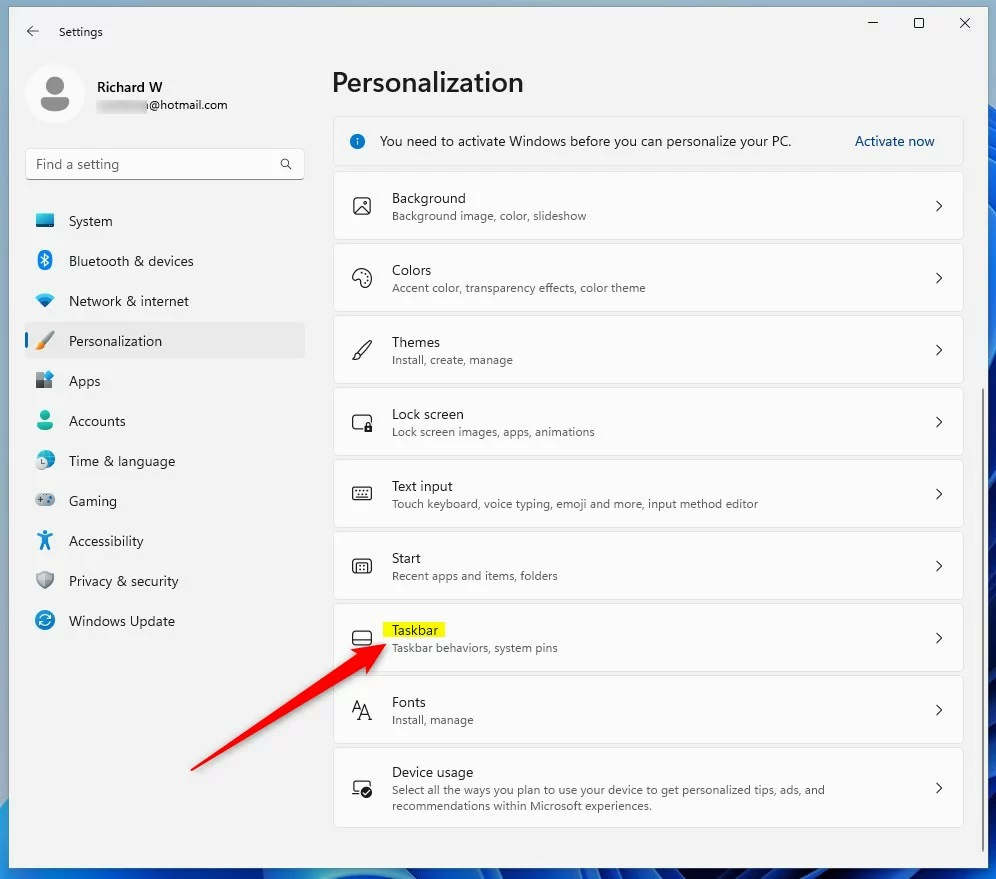
- Click the Taskbar tile on the right.
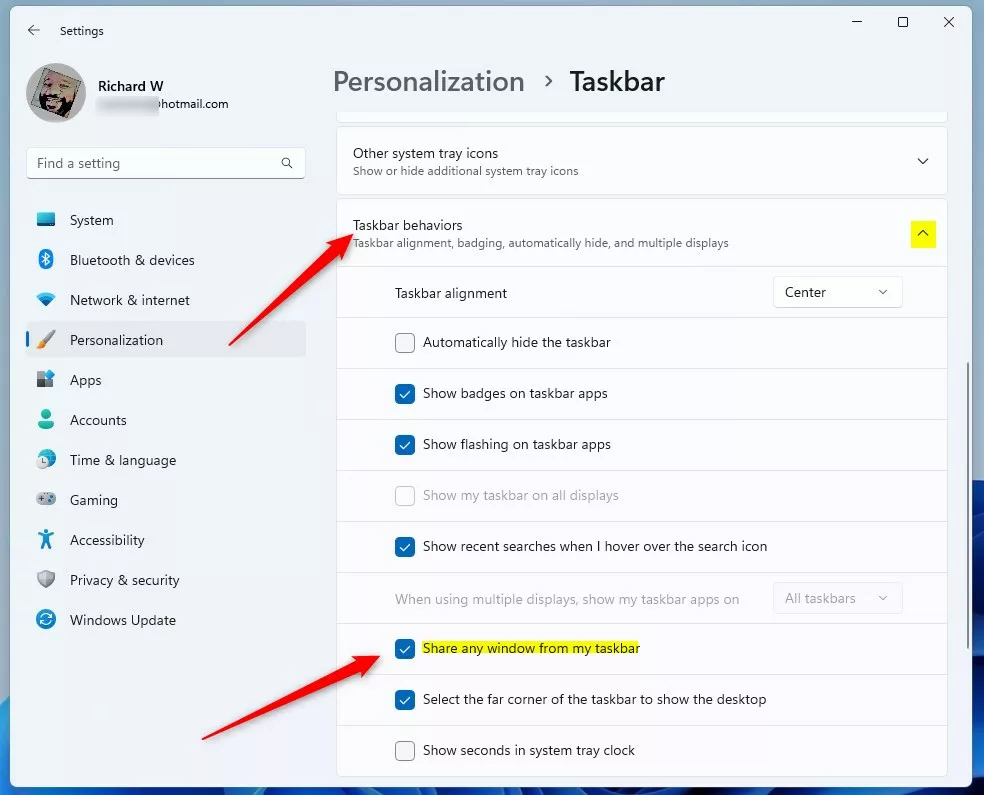
- Click Taskbar behaviors to expand the section.
- Check the box next to Share any window from my taskbar to turn it on. Uncheck it to turn it off.
Enable or Disable via Registry Editor
If you’re comfortable with advanced changes, you can turn the share window from my taskbar option on or off using the Windows Registry Editor. This method lets you control the taskbar sharing feature through system settings.
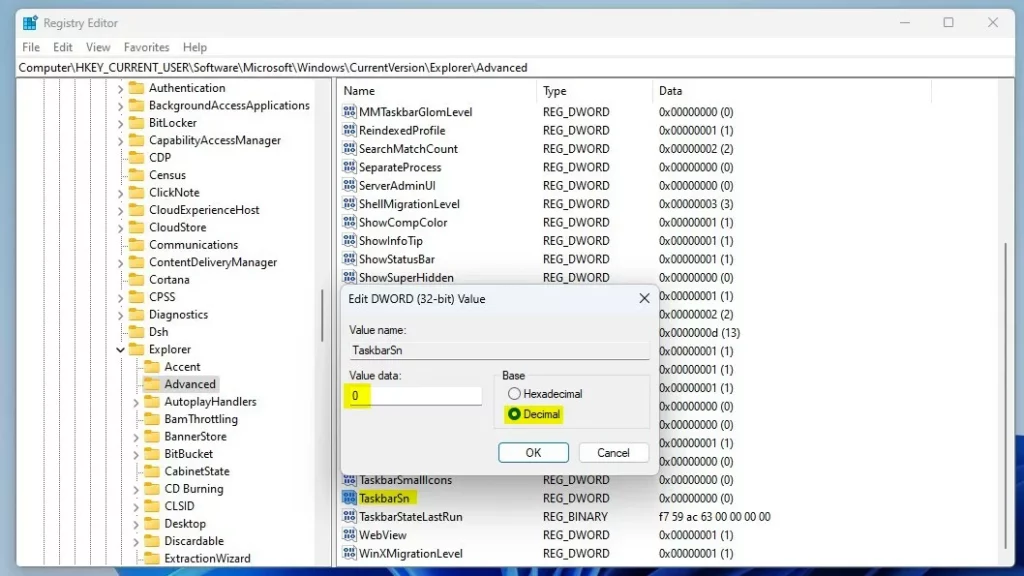
- Open the Windows Registry by pressing the Windows key + R, typing
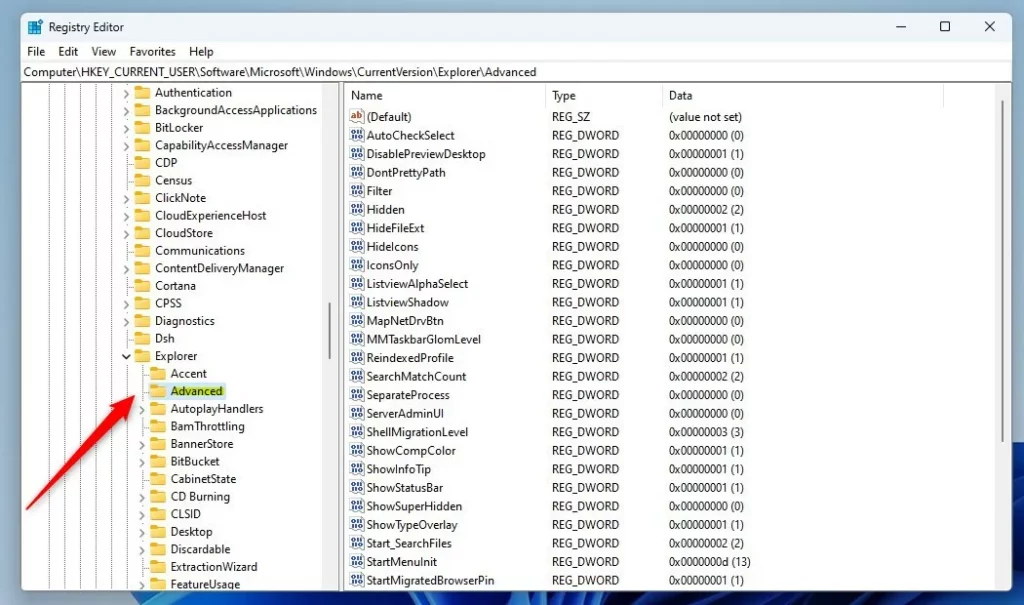
regedit, and pressing Enter. - Navigate to the following path:
HKEY_CURRENT_USER\Software\Microsoft\Windows\CurrentVersion\Explorer\Advanced
- In the right pane, right-click an empty space and select New > DWORD (32-bit) Value.
- Name the value
TaskbarSn. - Double-click
TaskbarSnand set the Value data to1to enable the feature, or0to disable it .
Enterprise Management and GPO
System administrators can manage the share window from my taskbar setting for many computers at once using Group Policy.
What are the security implications of sharing windows from the taskbar?
Sharing windows directly can lead to accidental exposure of sensitive information if you click the wrong window. Always ensure you are only sharing the intended application. In enterprise environments, administrators may disable this feature to prevent data leakage during sensitive video conferencing sessions.
Does this feature work with all video conferencing software?
The taskbar sharing feature is primarily optimized for Microsoft Teams. While it may appear in other applications, integration depends on whether the specific video conferencing app supports the Windows 11 taskbar API. Most third-party apps still require you to use their internal screen-sharing controls rather than the taskbar button.
How do I troubleshoot if the share window option is missing?
If the option is missing, first ensure your Windows 11 is fully updated. Check your Taskbar settings to see if the toggle is present. If it is missing from the Registry, you may need to manually create the DWORD value or check if a company policy has disabled this feature.
Summary
The “Share any window from my taskbar” feature allows you to quickly broadcast specific apps during meetings. You can toggle this setting using the Windows Settings menu, Registry Editor, or Group Policy. These steps help you customize your workflow for better meeting efficiency and professional communication.
Was this guide helpful?

About the Author
Richard
Tech Writer, IT Professional
Richard, a writer for Geek Rewind, is a tech enthusiast who loves breaking down complex IT topics into simple, easy-to-understand ideas. With years of hands-on experience in system administration and enterprise IT operations, he’s developed a knack for offering practical tips and solutions. Richard aims to make technology more accessible and actionable. He's deeply committed to the Geek Rewind community, always ready to answer questions and engage in discussions.



No comments yet — be the first to share your thoughts!