How to Turn On or Off “Share Any Window” from the Taskbar in Windows 11

You can turn the “Share Any Window” feature on or off. This controls whether you see app sharing options directly on your taskbar during calls.
This Windows 11 feature lets you quickly share an open application window without switching programs. It makes collaboration smoother.
You’ll find this option in Taskbar settings, under Taskbar behaviors. You can toggle its visibility whenever you like.
For instance, when enabled, a small “share” icon might appear on the taskbar preview of an app you’re using in a meeting. This lets you select it for screen sharing instantly.
Open Settings, go to Personalization, then Taskbar, expand Taskbar behaviors, and toggle “Share any window from my taskbar” on or off. You can also select which apps can use this feature.
What Is This Feature?
The “Share Any Window” feature in Windows 11 lets you easily share an open app directly from your taskbar during meetings, especially useful with apps like Microsoft Teams.
Here’s how it works in a Microsoft Teams meeting:
- Hover your mouse over an app icon on the taskbar.
- A small preview of the app window pops up.
- You will see a new button like “Share this Window” to share it instantly.
- To stop sharing, hover again and click “Stop Sharing.”
Even if you’re in a full-screen PowerPoint, moving your mouse to the bottom reveals the taskbar. You can then manage sharing without viewers noticing.
Other apps used for meetings or chats can also support this sharing feature.
New in 🪟 Windows 11 Builds 26100.7309 and 26200.7309
Hovering over taskbar icons now also shows a “Share with Copilot” button. This feature allows Copilot Vision to analyze your app’s content and offer helpful suggestions.
How to Turn On or Off “Share Any Window” from the Taskbar
Option 1Using Windows Settings (Easy Way)
- Press ⊞ Win+I on your keyboard to open Settings.
- Click Personalization on the left menu.
- Click Taskbar on the right side.
- Scroll down and click Taskbar behaviors to open more options.
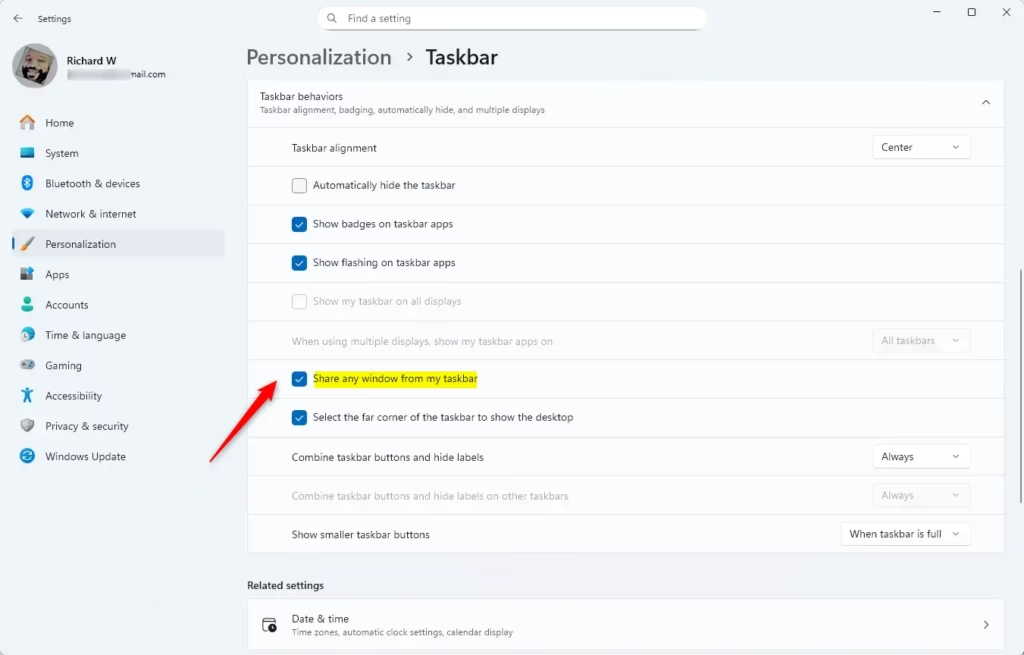
- Look for Share any window from my taskbar and check it to enable or uncheck to disable.
- Underneath, choose who can use this feature from the dropdown:
- All apps (default)
- Communication apps (like Teams)
- Chat agent apps
- None (turn off sharing)
- Close Settings when done.
You can turn the Windows 11 share window taskbar feature on or off easily using the Settings app.
Option 2Using Registry Editor (Advanced Users)
Advanced users can manage the Windows 11 share window taskbar setting using the Registry Editor, but this method has limitations.
Turn ON “Share any window” for All apps (default):
reg add "HKEY_CURRENT_USER\Software\Microsoft\Windows\CurrentVersion\Explorer\Advanced" /v TaskbarSn /t REG_DWORD /d 1 /fTurn ON “Share any window” for Communication apps only:
reg add "HKEY_CURRENT_USER\Software\Microsoft\Windows\CurrentVersion\Explorer\Advanced" /v TaskbarSn /t REG_DWORD /d 2 /fTurn ON “Share any window” for Chat agent apps only:
reg add "HKEY_CURRENT_USER\Software\Microsoft\Windows\CurrentVersion\Explorer\Advanced" /v TaskbarSn /t REG_DWORD /d 3 /fTurn OFF “Share any window”:
reg add "HKEY_CURRENT_USER\Software\Microsoft\Windows\CurrentVersion\Explorer\Advanced" /v TaskbarSn /t REG_DWORD /d 0 /fWhy Use This Feature?
- Save time: Share windows without switching apps during meetings.
- Easy to use: Manage sharing right from the taskbar.
- Works with popular apps: Like Microsoft Teams and others.
- Customizable: Choose which apps can use this sharing feature.
- Smooth presentations: Share and stop sharing without disrupting your viewers.
Using the Windows 11 share window taskbar feature saves you time by letting you share apps directly without switching screens during meetings.
More Help
Want to learn more about taskbar features? Check out this official Microsoft page:
Example of Sharing a Window from Taskbar
Summary
The “Share Any Window” feature in Windows 11 simplifies sharing your screen during meetings by letting you share any open app directly from the taskbar.
What is the share this window button in 🪟 Windows 11?
The “share any window from my taskbar” feature lets you broadcast a specific app during a Windows Teams session directly from the taskbar. When active, hovering over a window’s icon during a meeting displays a “Share this window” button. Clicking this button immediately shares that specific window.
How to get rid of share this window pop-up?
On the right side, scroll down until you find the ‘Nearby sharing’ option. Click it. Then, at the top of the page, look for the setting that says ‘drag the tray.’
Was this guide helpful?

About the Author
Richard
Tech Writer, IT Professional
Richard, a writer for Geek Rewind, is a tech enthusiast who loves breaking down complex IT topics into simple, easy-to-understand ideas. With years of hands-on experience in system administration and enterprise IT operations, he’s developed a knack for offering practical tips and solutions. Richard aims to make technology more accessible and actionable. He's deeply committed to the Geek Rewind community, always ready to answer questions and engage in discussions.
📚 Related Tutorials



No comments yet — be the first to share your thoughts!