How to Enable or Disable Show Timer in Clock app with Focus Session in Windows 11

You can enable or disable the “Show timer” setting in the Windows 11 Clock app’s Focus Session feature to control whether the countdown timer appears on your taskbar.
Focus Sessions in Windows 11 are designed to help you concentrate on tasks by minimizing distractions and tracking your work duration. This feature is integrated directly into the Clock application.
By default, the timer display is likely enabled in newer versions of Windows 11, allowing you to see your session progress at a glance. You might want to toggle this setting if you prefer a cleaner taskbar or find the visual timer distracting.
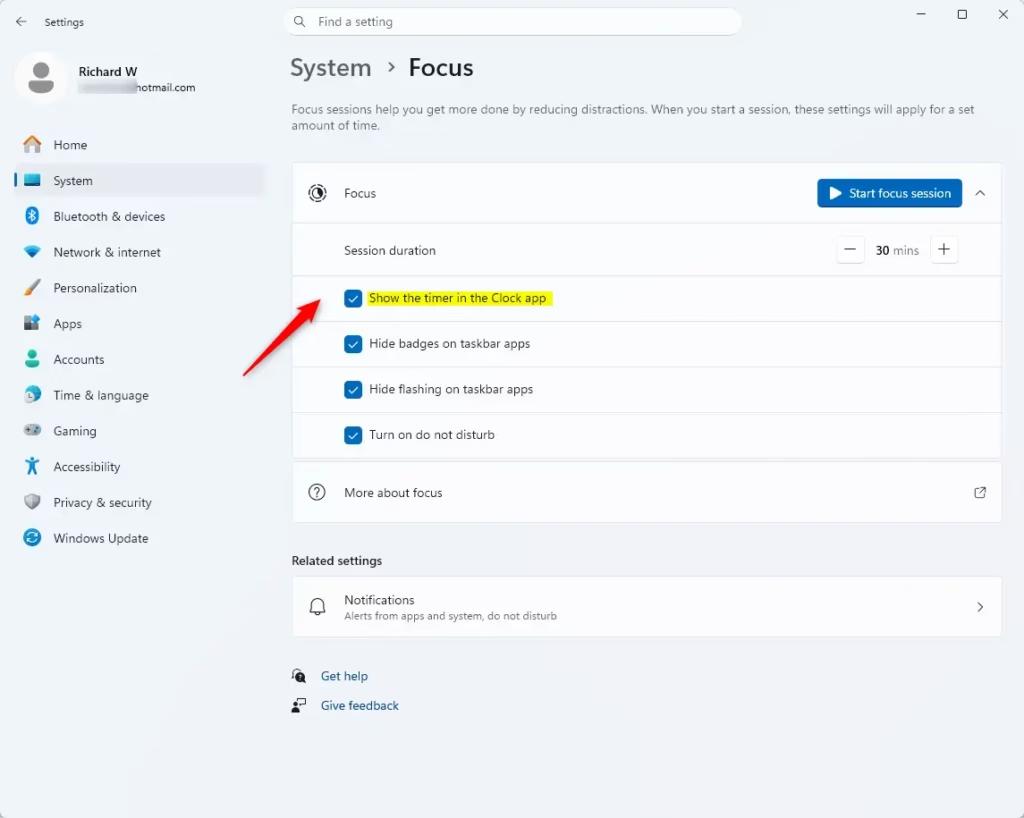
Open Windows Settings, go to System, then Focus, and toggle the “Show the timer” option. You can check the box to enable it or uncheck it to disable the countdown timer on your taskbar.
Why Enable or Disable the Focus Timer?
You might want to see the timer to keep track of how much time is left in your work block. Some people find the ticking clock helpful for motivation. Others find it distracting. Changing this setting lets you choose how you want to work.
What Happens When You Change This Setting?
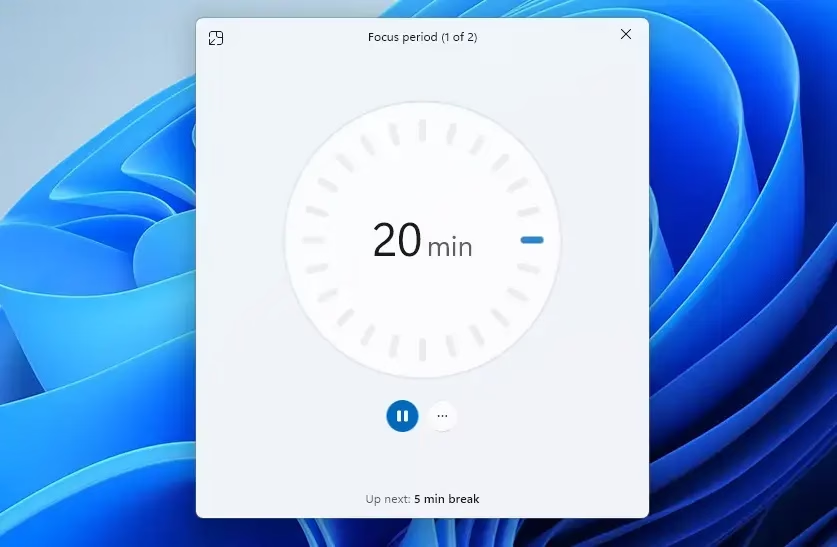
When you enable the timer, a small window appears on your desktop showing your remaining time. If you disable it, the timer stays hidden, but the Focus session continues to run in the background. Your notifications will still be silenced until the session ends.
How to Enable or Disable Show Timer in Clock app with Focus Session in 🪟 Windows 11
You can turn the timer on or off in the Windows 11 Clock app’s Focus session feature directly through your Settings menu.
- Open the Settings app by pressing ⊞ Win+I on your keyboard.
- Select System from the left-hand menu.
- Click on Focus on the right side of the screen.
- Find the option labeled Show the timer in the Clock app.
- Check the box to show the timer or uncheck it to hide it.
Note: You cannot change this setting while a session is currently active. You must end the session first.
Integrating To-Do and Spotify
The Clock app connects with Microsoft To Do to help you manage tasks. You can pick a task to work on before starting your session. You can also link your Spotify account to play focus-friendly music directly from the Clock app.
Troubleshooting Focus Session Issues
If your Windows 11 focus timer isn’t showing up or the settings are greyed out, it’s usually because your Focus session has ended or is currently active.
Summary
Changing your Windows 11 focus timer settings is a simple way to make your Focus sessions work better for you.
Can I hide the Focus timer while a session is active?
No, you cannot toggle the timer visibility while a session is running. You must first stop the active Focus session, adjust the setting in the Windows 11 Settings menu, and then restart your session for the changes to take effect on your desktop.
How do I customize the Focus session duration in 🪟 Windows 11?
You can change the duration by opening the Clock app, clicking on the Focus session tab, and using the plus or minus buttons next to the timer. You can also adjust default session lengths within the System > Focus settings menu in Windows 11.
Was this guide helpful?

About the Author
Richard
Tech Writer, IT Professional
Richard, a writer for Geek Rewind, is a tech enthusiast who loves breaking down complex IT topics into simple, easy-to-understand ideas. With years of hands-on experience in system administration and enterprise IT operations, he’s developed a knack for offering practical tips and solutions. Richard aims to make technology more accessible and actionable. He's deeply committed to the Geek Rewind community, always ready to answer questions and engage in discussions.
📚 Related Tutorials



No comments yet — be the first to share your thoughts!