How to Enable or Disable Hide Badges on Taskbar Apps with Focus Session in Windows 11

You can enable or disable hiding taskbar app badges during Focus Sessions in Windows 11 to reduce distractions and help you concentrate.
Hiding taskbar badges means visual notifications from apps like Teams or Mail won’t appear. This helps you maintain focus on your current work without interruption.
This feature is especially helpful when you’re using Windows 11’s Focus Sessions. These sessions, which began appearing with update KB5012593 in May 2022, allow you to create blocks of time for uninterrupted work.
By turning off badges, you remove those little temptations to switch away from your main task, which can really boost your productivity.
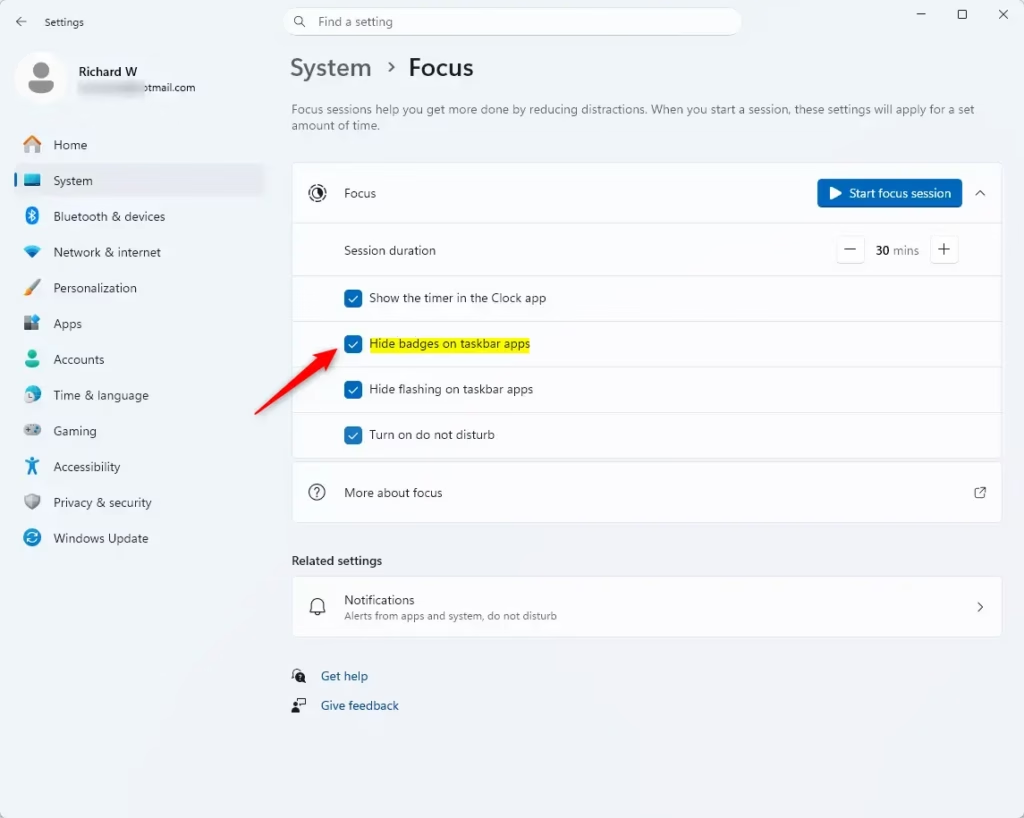
Go to Settings > System > Focus and toggle the “Hide badges on taskbar apps” option. Checking the box hides badges during Focus Sessions, while unchecking it keeps them visible. This reduces distractions by removing notification counts from app icons.
What Happens When You Enable This?
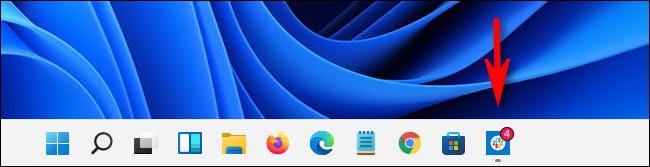
When you start a Focus Session, Windows automatically hides the small red numbers or dots that usually appear on your app icons. These badges typically show unread emails or pending alerts. Hiding them keeps your screen tidier, allowing you to concentrate better on what you’re doing.
Prerequisites
- You must be using Windows 11.
- Ensure your system is updated to the latest version via Windows Update.
- You need a user account with standard permissions to change these settings.
How to Manage Taskbar Badges via Settings
You can hide taskbar badges for apps in Windows 11 using the Settings app by turning off an option in Focus settings.
2. Click System on the left side, then select Focus.
3. Locate the option labeled Hide badges on taskbar apps.
4. Check the box to hide them, or uncheck it to keep them visible.
Advanced Method: Registry Editor
If you’re comfortable with advanced computer changes, you can hide taskbar badges on Windows 11 apps using the Registry Editor, but be careful.
- Press ⊞ Win+R, type regedit, and then press Enter. You’ll need administrator privileges to do this.
- Navigate to this location:
HKEY_CURRENT_USER\Software\Microsoft\Windows\CurrentVersion\Notifications\Settings\FocusAssist - Look for a value named HideBadge. Double-click it to change its value. Setting it to 1 enables hiding, while 0 disables it.
Advanced Method: PowerShell
- Right-click the Start button and choose Terminal (Admin). You’ll need administrator privileges to proceed.
- Copy and paste the following command to hide badges:
Set-ItemProperty -Path "HKCU:\Software\Microsoft\Windows\CurrentVersion\Notifications\Settings\FocusAssist" -Name "HideBadge" -Value 13. Press Enter to apply the change.
Troubleshooting
If you’re not seeing your taskbar badges hide, double-check that you’re not currently in an active Focus Session, as the setting gets locked during those times. If the changes don’t appear right away, try restarting the Windows Explorer process through Task Manager.
Summary
Managing taskbar badges during Focus Sessions is a great way to boost productivity. You can flip this setting on or off in the Settings menu, or get more granular control with tools like the Registry Editor and PowerShell. By hiding these distractions, you create a cleaner digital workspace.
Does disabling badges during a Focus Session affect all apps?
Yes, when you enable the hide badges feature, it applies globally to all applications pinned to your taskbar. Windows does not currently support granular control to hide badges for some apps while keeping them active for others during a specific Focus Session.
Why are my taskbar badges not updating during a Focus Session?
If badges remain visible, check if your Focus Session is actually active. Sometimes, background processes or third-party notification managers can override Windows settings. Try restarting your computer or checking for pending Windows updates to ensure the Focus feature is functioning correctly.
Was this guide helpful?

About the Author
Richard
Tech Writer, IT Professional
Richard, a writer for Geek Rewind, is a tech enthusiast who loves breaking down complex IT topics into simple, easy-to-understand ideas. With years of hands-on experience in system administration and enterprise IT operations, he’s developed a knack for offering practical tips and solutions. Richard aims to make technology more accessible and actionable. He's deeply committed to the Geek Rewind community, always ready to answer questions and engage in discussions.
📚 Related Tutorials



No comments yet — be the first to share your thoughts!