How to Enable or Disable Hide Flashing on Taskbar Apps with Focus Session in Windows 11

Tired of flashing app icons? This article shows you how to manage a setting to stop them, which is especially useful when you want to avoid interruptions during work or gaming. For example, you can stop Microsoft Teams from flashing its icon when you get a new message while in a Focus Session.
This setting controls whether an app icon flashes orange on your taskbar when it needs your attention. Windows 11 might show these flashes by default, but you can hide them for a more focused workspace.
This article shows you how to manage this setting. It’s especially useful if you want to avoid interruptions during work or gaming.
Go to Settings > System > Focus and toggle “Hide flashing on taskbar apps.” This setting prevents app icons from flashing orange when they need attention during a Focus Session. The option is unavailable while a Focus Session is active.
What Happens When You Change This Setting?
When you enable the hide flashing feature, apps will stop blinking when they need your attention during a Focus Session. Instead, they’ll stay highlighted. This creates a calmer workspace. You can always switch this back if you prefer to see the alerts.
How to Configure via Settings App
You can turn off taskbar flashing for apps in Windows 11 using the Settings app, which is the easiest way to control this feature.
2. Select System from the left menu, then click Focus on the right side.
3. Find the option labeled Hide flashing on taskbar apps. Check the box to turn it on, or uncheck it to turn it off.
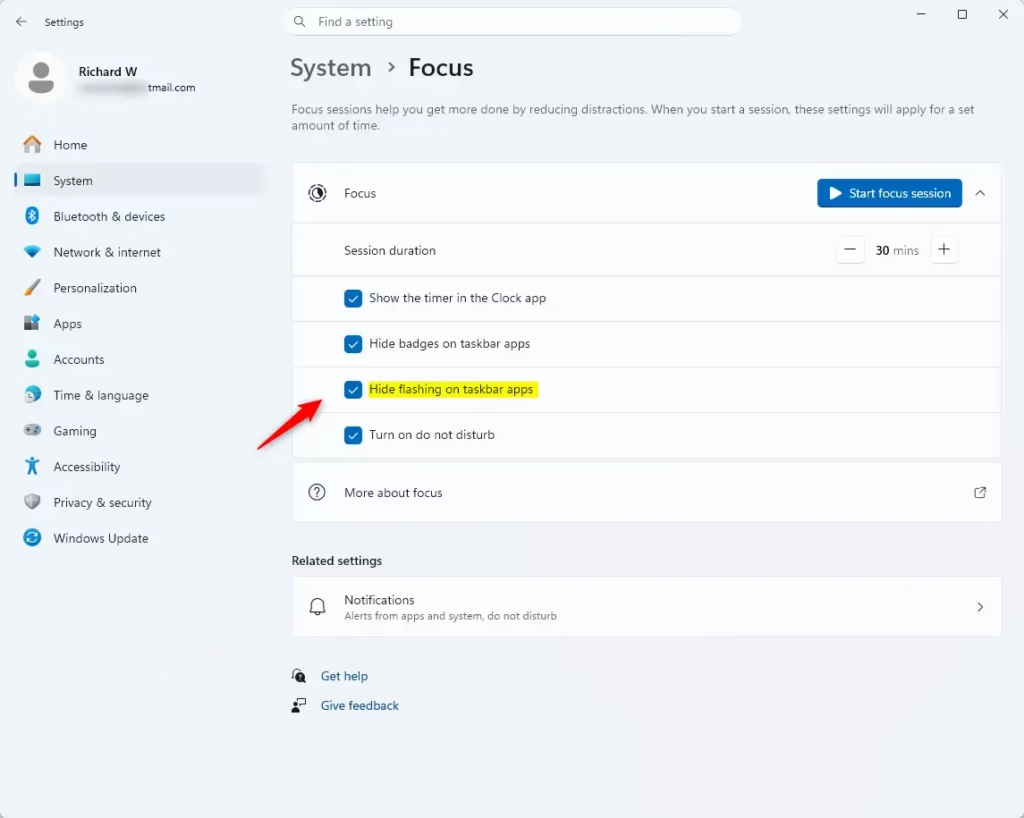
Note: This option is grayed out while a Focus Session is active. You must end the session first.
Registry Editor Implementation (Admin Required)
To force the setting to disable taskbar flashing, you can use the Registry Editor, but this needs administrator access and careful steps.
- Press ⊞ Win+R, type regedit, and press Enter.
- Navigate to: 🗝️HKEY_CURRENT_USER\ Control Panel\Desktop
- Look for ForegroundFlashCount (a registry value that controls flashing). Double-click it to change the value. Setting the value to 0 stops the flashing.
Group Policy Configuration (Admin Required)
- Press ⊞ Win+R, type gpedit.msc, and press Enter.
- Go to User Configuration > Administrative Templates > Start Menu and Taskbar.
- Find the policy related to taskbar notification behavior and set it to Disabled to stop the flashing.
Related Settings
For more ways to reduce visual distractions, check out the Focus Assist settings in Windows 11. You can customize which notifications are allowed to break through your focus time.
Summary
Hiding taskbar flashing helps you stay focused. You can change this in the Settings app under the Focus menu. For advanced users, the registry path 🗝️HKEY_CURRENT_USER\Control Panel\Desktop allows for deeper control. These settings help you maintain concentration during important tasks.
Does disabling taskbar flashing affect all apps?
Yes, when you enable the hide flashing setting within a Focus Session, it applies globally to all applications on your taskbar. This ensures a consistent, distraction-free environment across your entire desktop experience while the session is active.
Is a system restart required after changing the registry key?
Usually, a system restart is not required. However, you may need to sign out of your user account and sign back in, or restart the Windows Explorer process via Task Manager for the changes to take effect immediately on your taskbar.
Was this guide helpful?

About the Author
Richard
Tech Writer, IT Professional
Richard, a writer for Geek Rewind, is a tech enthusiast who loves breaking down complex IT topics into simple, easy-to-understand ideas. With years of hands-on experience in system administration and enterprise IT operations, he’s developed a knack for offering practical tips and solutions. Richard aims to make technology more accessible and actionable. He's deeply committed to the Geek Rewind community, always ready to answer questions and engage in discussions.
📚 Related Tutorials

No comments yet — be the first to share your thoughts!