How to Disable Message Previews in Microsoft Teams on Windows 11

You disable message previews in Microsoft Teams on Windows 11 to stop message content from appearing in notification banners.
Message previews show the text of incoming messages directly on your screen, which can be a privacy concern or a distraction. This tutorial shows you how to turn them off.
Once disabled, Teams notifications will only alert you to a new message with the sender’s name and a general notification, rather than revealing the content. This applies to the main chat notifications.
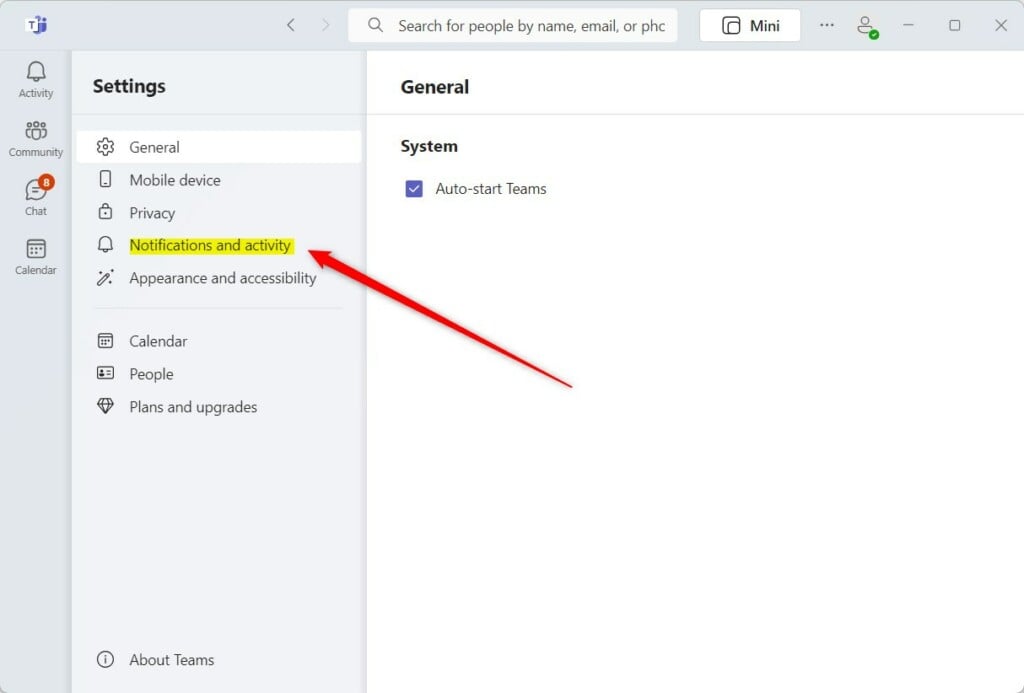
Go to Settings > Notifications and activity. Find the “Message preview” section and toggle the switch to Off. This hides message content from notification banners in Microsoft Teams.
How to disable message preview in Teams
You can disable message previews in Microsoft Teams on Windows 11 by changing a few settings right inside the app. This stops message content from showing up in notifications, keeping your conversations private without needing special permissions.
- Open the Teams app from your Start menu.
Turn on or off automatically starting Microsoft Teams - If a mini window opens, click the expansion button to see the full screen.

Turn on or off automatically starting Microsoft Teams - Click the Settings and more (three dots) button next to your profile picture and select Settings.

Turn on or off automatically starting Microsoft Teams - Click the Notification and activity tab on the left side.
Turn on or off message preview in Teams on Windows 11 - Find the Message preview section. Toggle the switch to Off to hide message text.
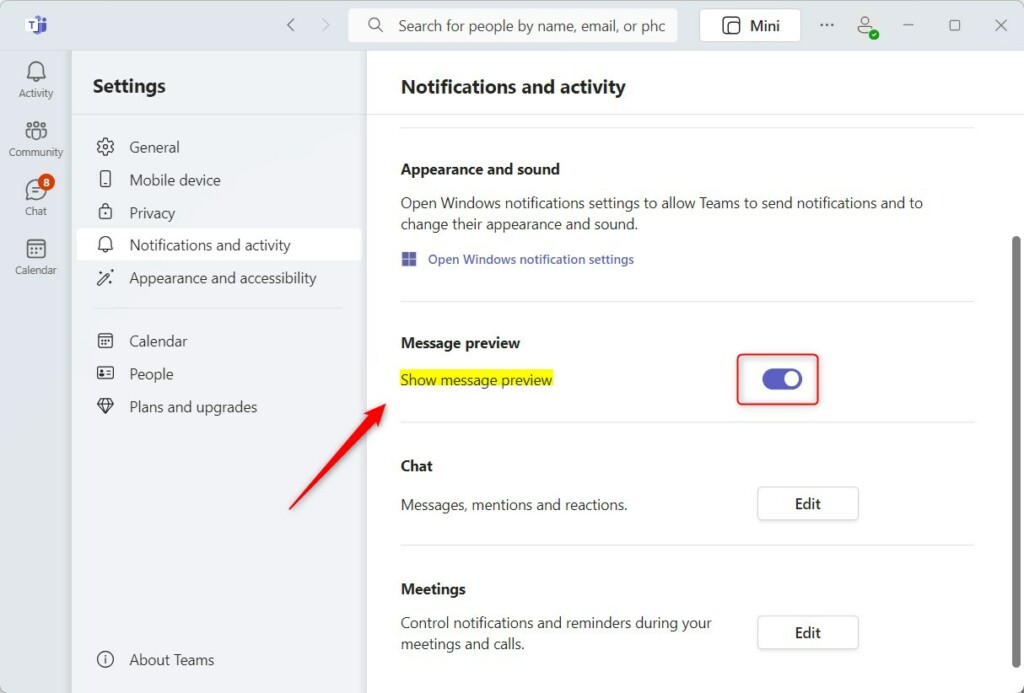
Turn on or off message preview in Teams on Windows 11
Cross-Platform and Version Differences
Disabling message previews in Teams works pretty much the same across different versions and computers. The steps are very similar for both the New Teams and the older Classic version, and Mac users might need to check their computer’s notification settings too.
Privacy During Screen Sharing
When you’re sharing your screen during a meeting or presentation, Teams automatically hides message previews to protect your privacy. If you want to be extra sure no notifications pop up, you can turn on Do Not Disturb mode to silence everything.
Troubleshooting Notification Issues
If you’ve tried to disable message previews in Teams but still see message text, don’t worry, there are a few things to check. Your computer’s own notification settings might be getting in the way, or sometimes Teams just needs a quick restart to apply the changes correctly.
Summary
Keeping message previews off in Microsoft Teams is an easy way to protect your privacy and stay focused. This guide showed you how to adjust these settings in both the New and Classic versions, use Do Not Disturb for quick privacy, and fix common notification problems.
Can I disable previews for specific contacts only?
Currently, Microsoft Teams does not support disabling message previews for specific contacts. The setting is global, meaning it applies to all incoming chats and channel notifications across the entire application to ensure consistent privacy protection for all your conversations.
Why do my Teams notifications still show text after changing settings?
If notifications still show text, you may have multiple instances of Teams running or your Windows system notifications might be overriding the app settings. Try restarting the application or checking your Windows Notification settings to ensure that banner content is restricted at the operating system level.
Was this guide helpful?

About the Author
Richard
Tech Writer, IT Professional
Richard, a writer for Geek Rewind, is a tech enthusiast who loves breaking down complex IT topics into simple, easy-to-understand ideas. With years of hands-on experience in system administration and enterprise IT operations, he’s developed a knack for offering practical tips and solutions. Richard aims to make technology more accessible and actionable. He's deeply committed to the Geek Rewind community, always ready to answer questions and engage in discussions.

[…] contacts with Teams, connect to Google Calendar, link your mobile device, turning message preview on or off, turn spell check on or off, turn on or off phone number in search results, manage […]
[…] contacts with Teams, connect to Google Calendar, link your mobile device, turning message preview on or off, turn spell check on or off, turn on or off phone number in search results, manage […]
[…] contacts with Teams, connect to Google Calendar, link your mobile device, turning message preview on or off, turn spell check on or off, turn on or off phone number in search results, manage […]
[…] contacts with Teams, connect to Google Calendar, link your mobile device, turn message preview on or off, manage teams notifications during calls, set default speakers, set default […]
[…] contacts with Teams, connect to Google Calendar, link your mobile device, turn message preview on or off, manage filters, enable or disable captions, and […]