How to Enable or Disable System Time in Windows 11 Notification Center

You can enable or disable the system time display within the Windows 11 Notification Center.
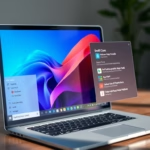
The Notification Center, accessible via ⊞ Win+N, consolidates your notifications, calendar, and focus session controls. Microsoft is testing a new feature that brings the system clock back to this area, much like its appearance in Windows 10.
This functionality is currently available in recent Windows 11 builds, such as build 22635.5240. You can manually enable it using ViVeTool with specific command IDs.
Enable the “Show time in Notification Center” option within Settings > Personalization > Date & time. If the option is unavailable, use ViVeTool with the command vivetool /enable /id:42651849,48433719 and restart your PC.
Show System Clock in the Notification Center
You can easily show the clock in your Windows 11 Notification Center to quickly check the time without opening other apps.
First, learn how to download and use ViVeTool in Windows.
Then, open ViVeTool using the Command Prompt app. Run the command below as an administrator to enable it and restart your computer.
vivetool /enable /id:42651849,48433719
Once enabled, open the Settings app. You can do that by clicking on the Start menu and selecting Settings. Or press the keyboard shortcut (Windows key + I) to launch the Windows Settings.
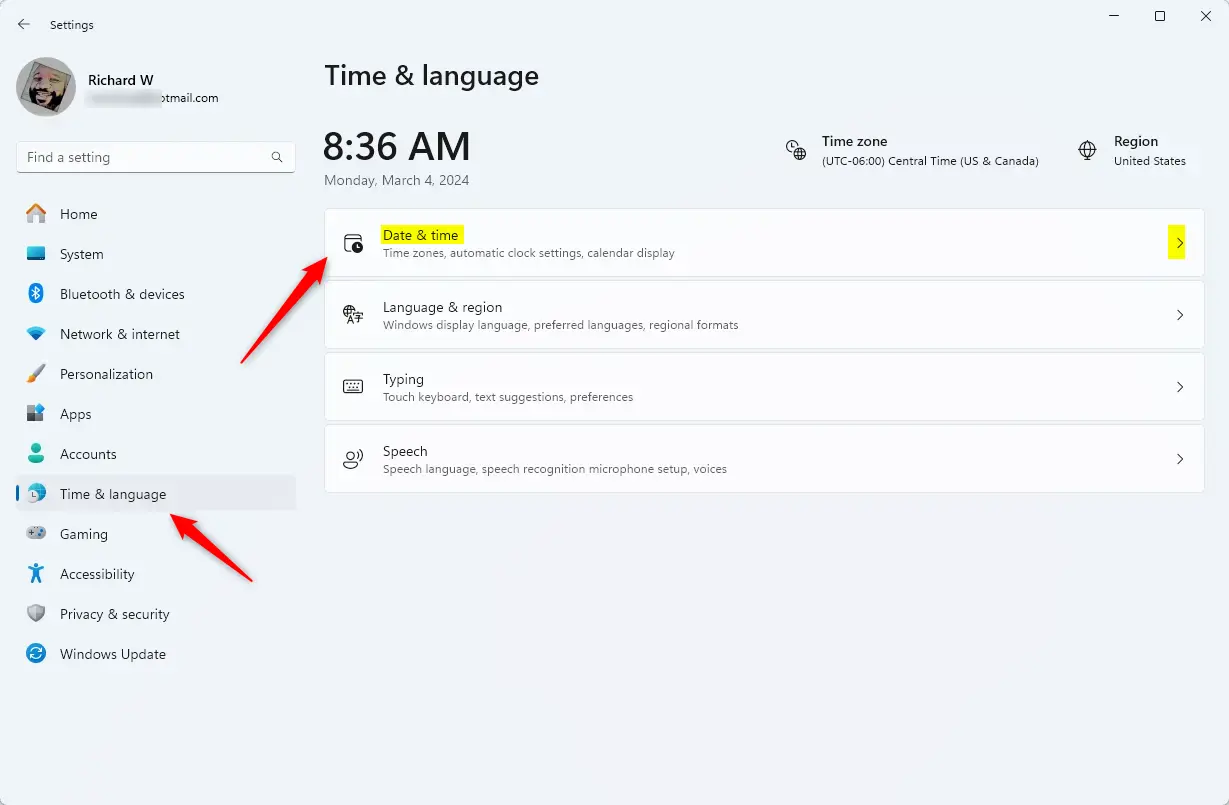
When the Settings app opens, click the Personalization button on the left.
On the right, click the Date & time tile to open its settings.
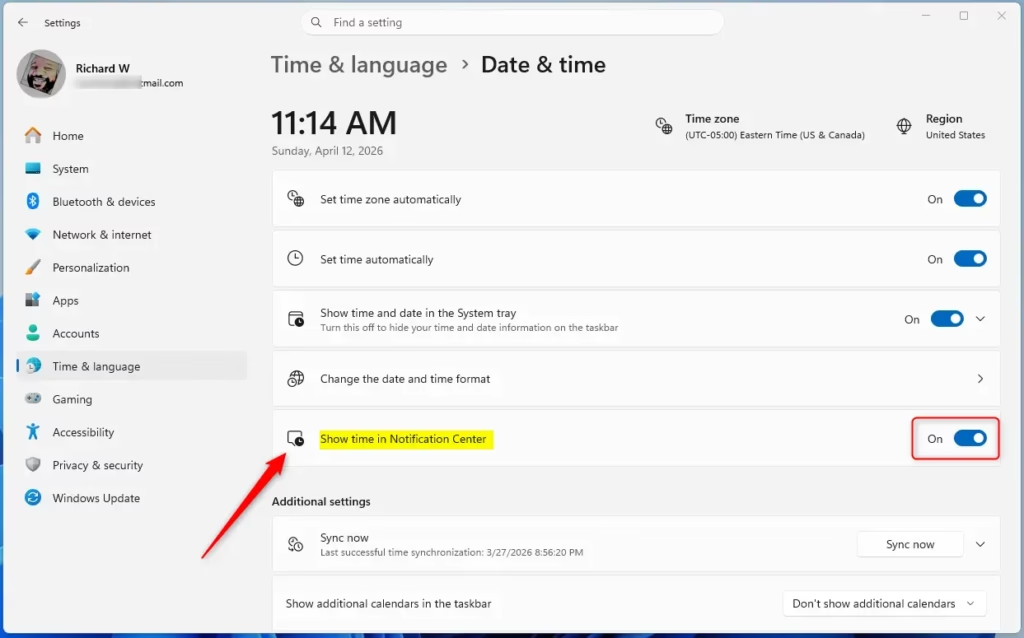
Then, turn on or off (default) the “Show time in Notification Center” feature in Windows 11.
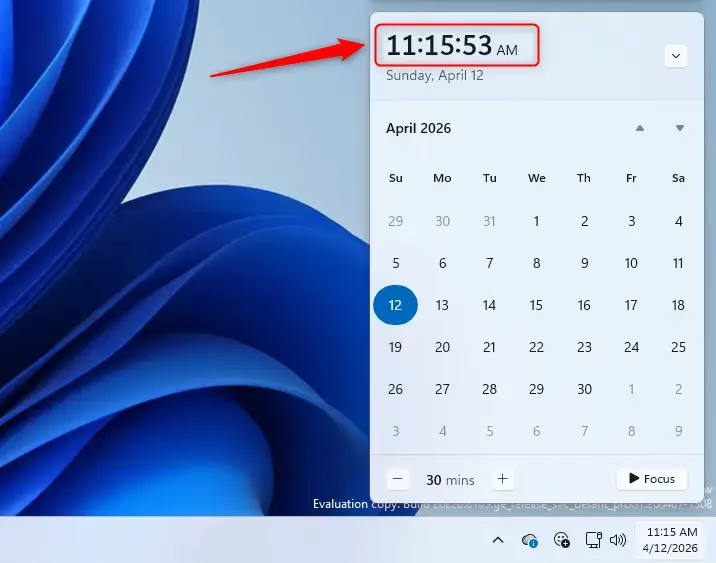
Close the Settings app when you’re done.
Add or Remove Time in the Notification Center Using the Registry Editor
If you’re comfortable with the Registry Editor, you can change whether the time shows in the Windows 11 Notification Center by making a simple adjustment.
Remember to Windows Registry Editor before making any changes, or back up your registry as a precaution.
First, open the Registry Editor and navigate to the folder key path below.
Computer\HKEY_CURRENT_USER\Software\Microsoft\Windows\CurrentVersion\Explorer\AdvancedRight-click Advanced > New > DWORD (32-bit) Value and name the new DWORD ShowClockInNotificationCenter.
Double-click and open the ShowClockInNotificationCenter value and set it to 1 to display the system clock in the Notification Center.
Enter 0 to hide the system clock from the Notification Center.
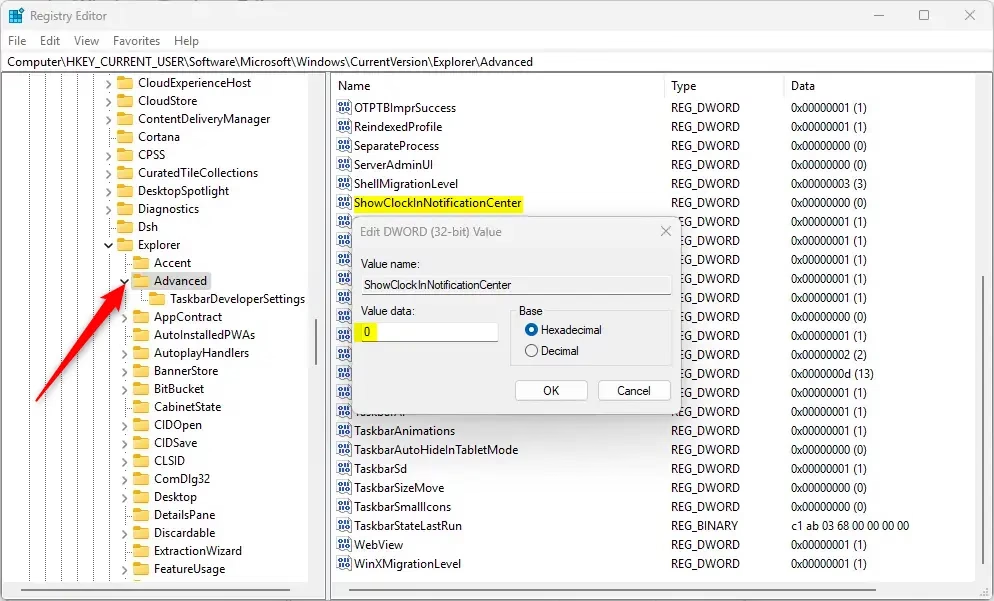
You may have to reboot your computer to apply the changes.
That should do it!
Summary
In summary, Windows 11 lets you easily show or hide the clock in the Notification Center using either ViVeTool or the Registry Editor, with both methods requiring a restart.
How to show Notification Center on 🪟 Windows 11?
Check your notifications To check the notifications you missed, open the notification center using one of the following options: Select the notification button icon on the taskbar. Press the Windows key + A. Swipe from the side of the screen.
Was this guide helpful?

About the Author
Richard
Tech Writer, IT Professional
Richard, a writer for Geek Rewind, is a tech enthusiast who loves breaking down complex IT topics into simple, easy-to-understand ideas. With years of hands-on experience in system administration and enterprise IT operations, he’s developed a knack for offering practical tips and solutions. Richard aims to make technology more accessible and actionable. He's deeply committed to the Geek Rewind community, always ready to answer questions and engage in discussions.



After trying everything,… staging,… VIVE enable,.. regedit to HKCU, HKLM, HKCU adding ShowClockInNotificationCenter, didn’t work on 26100-6584 newest build as of 9-8-26.
Someone said to add it to classes root, but my sid account is missing so couldn’t add it there.
But after running – KB5054156 Enablement package, now have clock just above date, and needed it, because clock is too small in taskbar, and micro has date above calendar which doesn’t make sense when you can see it already, it should have been clock.
The other thing micorofool needs to do is stop allowing file explorer to change in taskbar to the file opened, you don’t see file explorer and forget it’s open in a file name. LOL
Thanks for post even though didn’t help, not sure which added effect helped or if was just adding KB5054156, but don’t feel like disabling feature ID’s or removing reg keys to test it. LOL