How to enable or disable notification suggestions in Windows 11

You enable or disable notification suggestions in Windows 11 directly from the Settings app, found by navigating to System > Notifications.
Notification suggestions are smart pop-up alerts that Windows 11 displays when it detects you’re not interacting with notifications from a particular app. These prompts then offer to turn off future notifications for that app, helping to reduce banner clutter.
For instance, if you consistently miss or dismiss alerts from your favorite game, Windows 11 might suggest disabling notifications from that specific application. This feature, integrated into Windows 11, aims to streamline your user experience by managing app notification visibility automatically.
You can easily toggle these suggestions on or off to better control which app notifications appear on your taskbar.
Go to Settings > System > Notifications. Find the “Notification suggestions” toggle and switch it to your desired position to enable or disable them. This feature helps manage app notification pop-ups you may have missed.
Change settings in the Settings App
You can quickly turn notification suggestions on or off in Windows 11 using the Settings app, making it the easiest way for most people to control these helpful prompts.
- Open the Windows Settings app. You can do this by opening the Start menu or pressing the Windows key + I on your keyboard to launch the Settings app.
- Click on the System button on the left sidebar.
- Select the Notifications tile on the right.
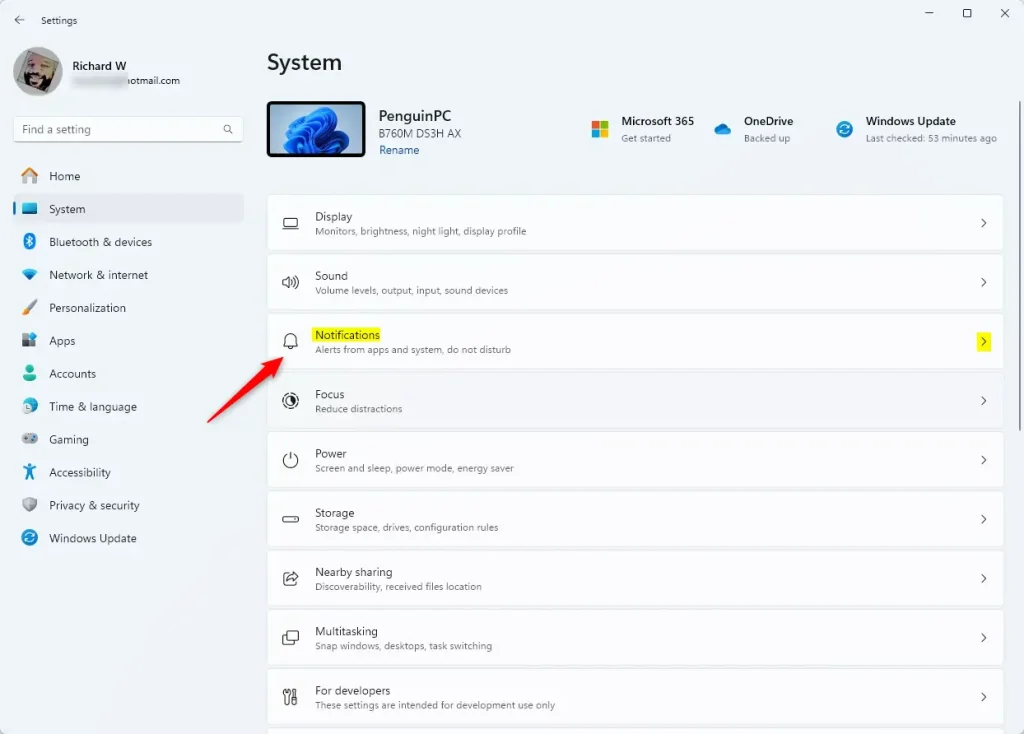
- Find the section labeled “Notifications from apps and other senders.”
- Click the toggle switch for Notification Suggestions to turn it on or off.
- Close the settings window when finished.
Change settings using the Registry Editor
If you’re comfortable with advanced system changes, you can disable notification suggestions in Windows 11 using the Registry Editor for more detailed control.
- Open the Windows Registry by searching for it in the Start menu.
- Navigate to the following path:
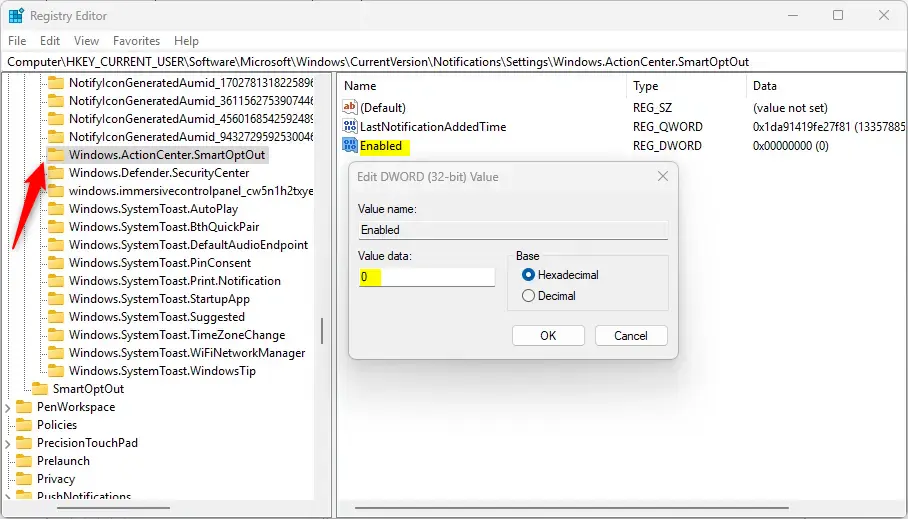
Computer\HKEY_CURRENT_USER\Software\Microsoft\Windows\CurrentVersion\Notifications\Settings\Windows.ActionCenter.SmartOptOut - Look for the Enabled (REG_DWORD) item in the right pane. If it is not there, right-click a blank space, select New > DWORD (32-bit) Value, and name it
Enabled. - Double-click Enabled and change the value to
0to turn the feature off. - To turn the feature back on in the future, delete the Enabled item you created.
- Restart your computer to apply the changes.
Summary
Windows 11 allows you to control how often you receive suggestions to mute apps. You can toggle this feature using the main Settings menu, or you can use the Registry Editor for more advanced control. By managing these settings, you gain full control over your notification experience.
Was this guide helpful?

About the Author
Richard
Tech Writer, IT Professional
Richard, a writer for Geek Rewind, is a tech enthusiast who loves breaking down complex IT topics into simple, easy-to-understand ideas. With years of hands-on experience in system administration and enterprise IT operations, he’s developed a knack for offering practical tips and solutions. Richard aims to make technology more accessible and actionable. He's deeply committed to the Geek Rewind community, always ready to answer questions and engage in discussions.




No comments yet — be the first to share your thoughts!