Discover Hidden Features in Windows 11 Using ViVeTool

You can unlock hidden, experimental features in Windows 11 with ViVeTool.
ViVeTool is a free, open-source utility that allows you to enable features Microsoft has added to the operating system but hasn’t yet made available to everyone. These can include visual changes, new functionalities, and performance improvements.
For instance, you can use ViVeTool to activate features like the upcoming revamped File Explorer or a potential tabbed interface for desktop applications, often before they appear in public beta builds.
Use ViVeTool to enable experimental features in Windows 11. Download and extract ViVeTool, then open Command Prompt as administrator. Paste the tool’s path followed by the enable command and feature ID, then restart your PC.
What is ViVeTool?
ViVeTool is a small program that helps you turn on or off hidden settings in Windows 11. Why would you want to do this? Because you can try new features before everyone else gets them. This is especially useful if you like testing new stuff early, like Windows Insider users who get early access to Windows updates.
How to Download and Use ViVeTool
- Download ViVeTool: Go to the ViVeTool GitHub page and download the latest version.
- Extract the files: After downloading, unzip the file. If you’re not sure how, check this guide on how to unzip files in Windows 11.
- Move the folder: Put the extracted ViVeTool folder somewhere easy to find, like your Desktop or Documents.
- Copy the tool’s path: Open the ViVeTool folder. Find ViVeTool.exe. Hold Shift and right-click it. Then choose Copy as path.
Right-click ViVeTool.exe and select Copy as path - Open Command Prompt (Admin): %📂%SC0%% Press ⊞ Win+X and select Windows Terminal (Admin) or Command Prompt (Admin). What happens when you do this? You get access to special admin powers that let you make system changes. If you want, you can also open Windows Terminal and switch to the Command Prompt tab.
- Paste the path and enter commands: In the Command Prompt window, right-click to paste the path you copied earlier. Then add commands to turn features on or off.
Commands to Use
To enable a hidden feature, type this command:
"C:\FullPathToViVeTool.exe" /enable /id:<feature ID>
To disable a hidden feature, use this command:
"C:\FullPathToViVeTool.exe" /disable /id:<feature ID>
Replace <feature ID> with the actual number for the feature you want to change.
You can enable or disable multiple features at once by separating their IDs with commas, like this:
"C:\Users\GenericUser\Downloads\ViVeToolViVeTool.exe" /enable /id:42880174,44281626,45393399
Find Feature IDs
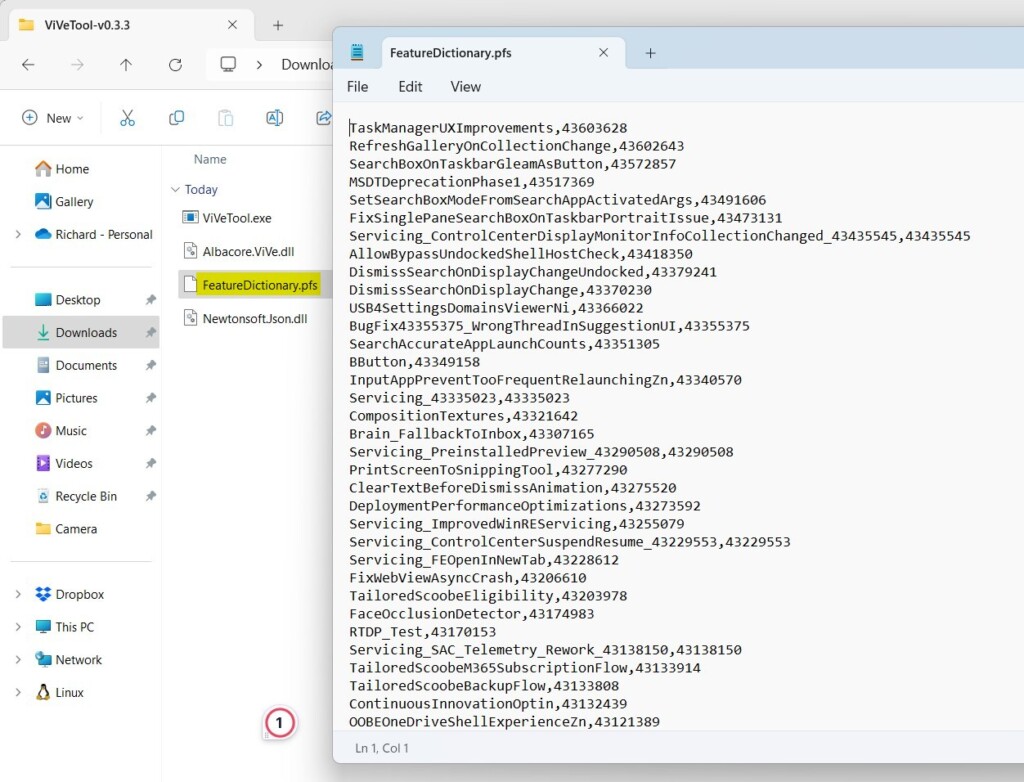
Inside the folder you extracted, look for a file named FeatureDictionary.pfs. Open it with Notepad to see a list of feature IDs you can enable or disable.
Final Step: Restart Your PC
After running the commands, restart your computer. What happens when you restart? Your system applies the changes you made.

Summary
ViVeTool is a handy way to try hidden Windows 11 features before they are officially available. Even if you’re not a tech expert, following these simple steps will help you unlock cool new options. Windows Insider users especially benefit from testing features early with ViVeTool. Have fun exploring and don’t forget to share your experience in the comments!
Was this guide helpful?

About the Author
Richard
Tech Writer, IT Professional
Richard, a writer for Geek Rewind, is a tech enthusiast who loves breaking down complex IT topics into simple, easy-to-understand ideas. With years of hands-on experience in system administration and enterprise IT operations, he’s developed a knack for offering practical tips and solutions. Richard aims to make technology more accessible and actionable. He's deeply committed to the Geek Rewind community, always ready to answer questions and engage in discussions.




[…] you want to try it now: You can enable the feature early using a tool called ViVeTool, but that’s for advanced users […]
[…] 1. Download the latest version of ViVeTool. […]