How to Enable or Disable Windows Copilot in Windows 11

You enable or disable Windows Copilot in Windows 11 through either the Settings app or by editing the Windows Registry.
Windows Copilot is the integrated AI assistant in Windows 11, powered by Bing Chat, that helps you perform tasks and find information directly from your desktop.
This feature typically appears as an icon on the right side of your taskbar, particularly on Windows 11 versions 22H2 and newer. When you enable it, you gain instant access to AI-driven suggestions and actions.
Disabling Copilot removes this taskbar icon and halts its background processes, stopping it from analyzing your open windows for context-specific assistance and freeing up system resources.
Hide the Copilot icon by right-clicking the taskbar, selecting Taskbar settings, and toggling Copilot to Off. For a full disable, use Group Policy (Pro/Enterprise) or the Registry Editor (Home) to modify Copilot settings.
Method 1Hiding the Copilot Icon (Easiest Way)
If you only want to clear your taskbar without disabling the service, follow these steps:
- Right-click an empty space on your Taskbar.
- Select Taskbar settings.
- Locate the Copilot (preview) toggle.
- Switch it to Off.
This hides the button but does not uninstall the feature.
Method 2Using Group Policy (🪟 Windows 11 Pro and Enterprise)
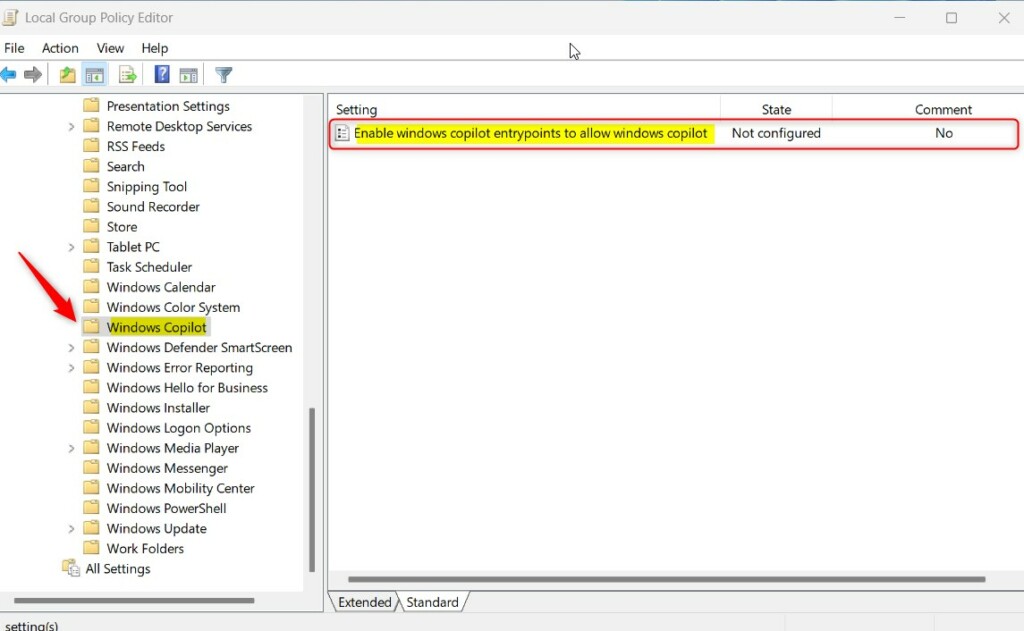
Windows 11 Pro and Enterprise users can disable Windows Copilot using the Group Policy Editor. This tool lets you easily turn off the AI assistant if you don’t want it running on your computer.
- Press ⊞ Win+R, type gpedit.msc, and hit Enter.
- Navigate to: User Configuration > Administrative Templates > Windows Components > Windows Copilot.
- Double-click Turn off Windows Copilot.
- Select Enabled to turn the feature off.
- Click Apply and OK.
Method 3Using the Registry Editor (🪟 Windows 11 Home)
Windows 11 Home users can disable Windows Copilot using the Registry Editor, since the Group Policy Editor isn’t available on this version. This guide shows you how to safely change settings to turn off the AI feature.
- Press ⊞ Win+R, type regedit, and hit Enter.
- Navigate to: 🗝️HKEY_CURRENT_USER\Software\Policies\Microsoft\Windows\WindowsCopilot.
- If the key does not exist, right-click the Windows folder, select New > Key, and name it WindowsCopilot.
- Right-click in the right pane, select New > DWORD (32-bit) Value, and name it TurnOffWindowsCopilot.
- Set the value to 1 to disable it .
Privacy and Data Security
Copilot processes data to provide relevant answers. If you are concerned about privacy, disabling the service ensures that your local activity is not sent to Microsoft for AI analysis. Always review your Privacy & security settings in the Windows Settings app to manage what data you share with Microsoft.
Summary
You can easily disable Windows Copilot using simple taskbar settings, or for a more permanent solution, use the Group Policy Editor on Pro/Enterprise versions or the Registry Editor on Windows 11 Home. These methods help you manage the AI feature according to your preferences.
Can I permanently remove Copilot or just hide it?
You can hide the icon via Taskbar settings or disable the service through Group Policy or the Registry. While these methods effectively stop Copilot from running, it is a core system component. Microsoft may re-enable it during major feature updates, so you may need to re-apply these settings periodically.
Why does Copilot keep coming back after a Windows update?
Windows updates often reset system configurations to their default states to ensure new features are active. Because Copilot is a core part of the Windows 11 experience, Microsoft updates frequently overwrite registry keys or policy settings. You may need to re-apply your disable settings after major OS version upgrades.
Was this guide helpful?

About the Author
Richard
Tech Writer, IT Professional
Richard, a writer for Geek Rewind, is a tech enthusiast who loves breaking down complex IT topics into simple, easy-to-understand ideas. With years of hands-on experience in system administration and enterprise IT operations, he’s developed a knack for offering practical tips and solutions. Richard aims to make technology more accessible and actionable. He's deeply committed to the Geek Rewind community, always ready to answer questions and engage in discussions.

[…] your device, you can pin or unpin the side pane, open Copilot when Windows starts, Turn Copilot on or off, enable or disable Copilot using content from Edge, refresh Copilot prompts, resize […]
[…] your device, you can pin or unpin the side pane, open Copilot when Windows starts, Turn Copilot on or off, enable or disable Copilot using content from Edge, refresh Copilot prompts, resize […]
[…] Copilot is installed on Windows, you can enable or disable it, open Copilot when Windows starts, Pin or Unpin the Copilot side panel, Resize the Copilot side […]
[…] Copilot is installed on Windows, you can enable or disable it, open Copilot when Windows starts, Pin or Unpin the Copilot side panel, Resize the […]
[…] Copilot installed, you can enable or disable it, open Copilot when Windows starts, Pin or Unpin the Copilot side panel, Resize the Copilot side […]
[…] Copilot installed, you can enable or disable it, open Copilot when Windows starts, Pin or Unpin the Copilot side panel, Resize the […]
[…] available on your device, you can pin or unpin the side pane, open Copilot when Windows starts, Turn Copilot on or off, enable or disable Copilot using content from Edge, refresh Copilot prompts, resize the Copilot […]
[…] Copilot is installed on Windows, you can enable or disable it, open Copilot when Windows starts, Pin or Unpin the Copilot side panel, Resize the Copilot side […]
[…] Copilot is installed on Windows, you can enable or disable it, open Copilot when Windows starts, Pin or Unpin the Copilot side panel, Resize the […]
[…] Copilot is installed on Windows, you can enable or disable it, open Copilot when Windows starts, Pin or Unpin the Copilot side panel, Resize the […]
[…] Copilot is installed on Windows, you can enable or disable it, open Copilot when Windows starts, Pin or Unpin the Copilot side panel, Resize the Copilot side […]
[…] Copilot is installed on Windows, you can enable or disable it, open Copilot when Windows starts, Pin or Unpin the Copilot side panel, Resize the Copilot side […]
[…] Copilot is installed on Windows, you can enable or disable it, open Copilot when Windows starts, Pin or Unpin the Copilot side panel, Resize the […]
[…] Copilot is installed on Windows, you can enable or disable it, open Copilot when Windows starts, Pin or Unpin the Copilot side panel, Resize the […]
[…] Copilot is installed on Windows, you can enable or disable it, open Copilot when Windows starts, Pin or Unpin the Copilot side panel, Resize the Copilot side […]
[…] Copilot is installed on Windows, you can enable or disable it, open Copilot when Windows starts, Pin or Unpin the Copilot side panel, Resize the […]
[…] How to turn Windows Copilot on or off […]
[…] Enable or disable Copilot […]