How to View Local Group Policies that are Configured in Windows 11

You can view configured local group policies in Windows 11 using the Local Group Policy Editor (gpedit.msc).
Think of Local Group Policies as specific settings that administrators or even some applications use. They control how Windows 11 behaves on your PC, overriding its default settings.
Accessing these policies helps you identify custom configurations that might affect performance, security, or software operations. For example, if you see a policy setting like ‘Turn off the Store experience,’ it could explain why the Microsoft Store won’t open.
By checking these settings, you gain insight into what’s actively configured on your system beyond standard Windows defaults. This knowledge empowers you to troubleshoot unexpected behavior or confirm that desired security measures are in place.
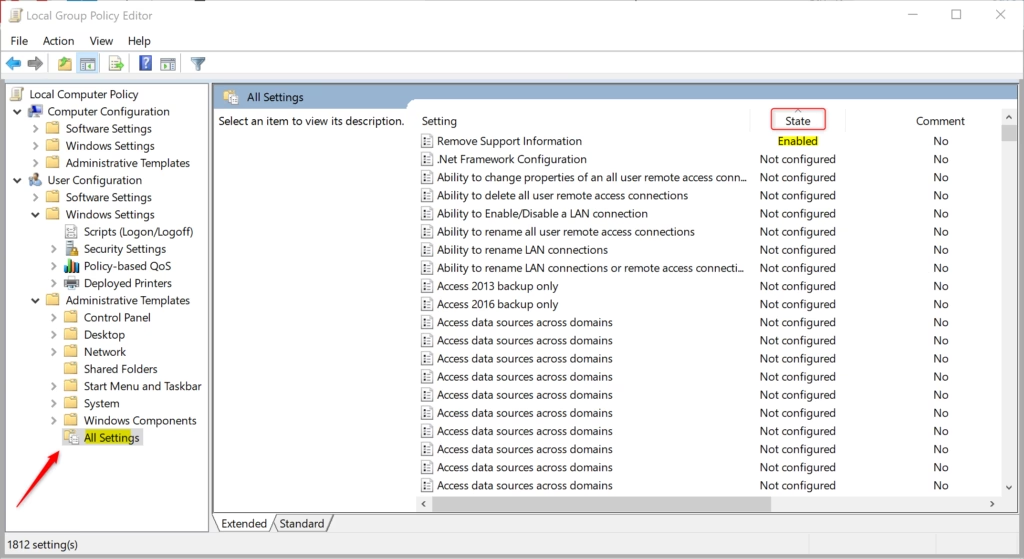
Open the Local Group Policy Editor by pressing Windows key, typing gpedit.msc, and pressing Enter. Navigate to Computer Configuration or User Configuration, then Administrative Templates and All Settings. Click the State column header to sort and view enabled or disabled policies.
Option 1Using the Local Group Policy Editor
Note: You must be signed in as an administrator to see all configured group policies.
1. Press the Windows key, type gpedit.msc, and press Enter.
To View Computer Configuration Policies
A) In the left menu, navigate to Computer Configuration > Administrative Templates > All Settings.
B) Now, in the right window, click on the ‘State’ column header. This will sort the list so that ‘Enabled’ or ‘Disabled’ items pop to the top.
To View User Configuration Policies
A) In the left menu, go to User Configuration > Administrative Templates > All Settings.
B) Click the State column header to sort your settings by status.
Option 2Using Resultant Set of Policy (RSOP)
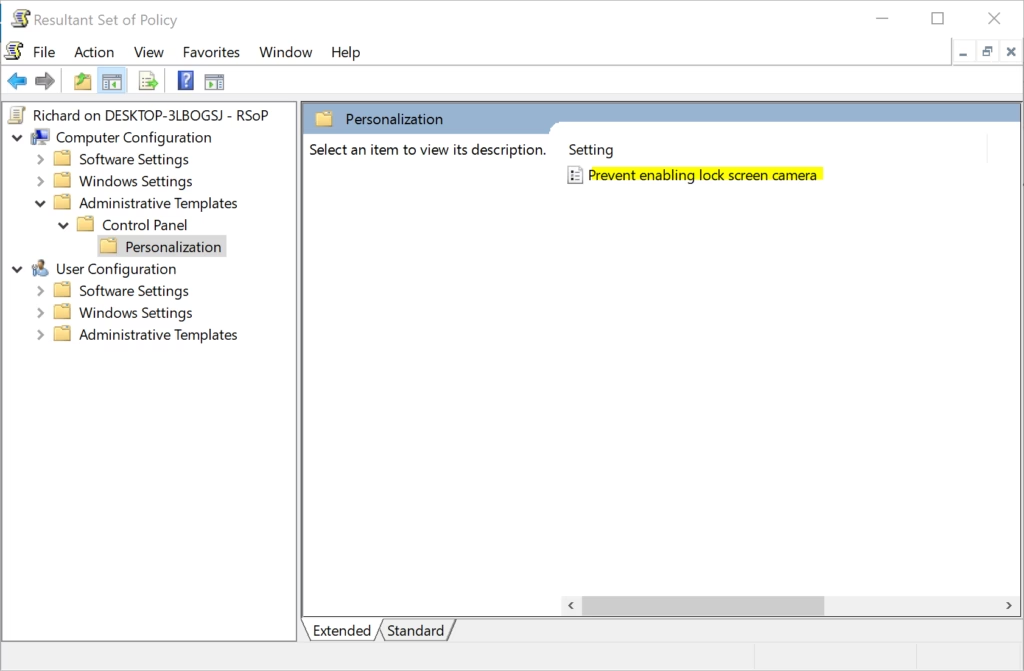
The Resultant Set of Policy (RSOP) tool is a straightforward way to see exactly which group policies are currently active for your computer and user account.
1. Press the Windows key, type rsop.msc, and press Enter.
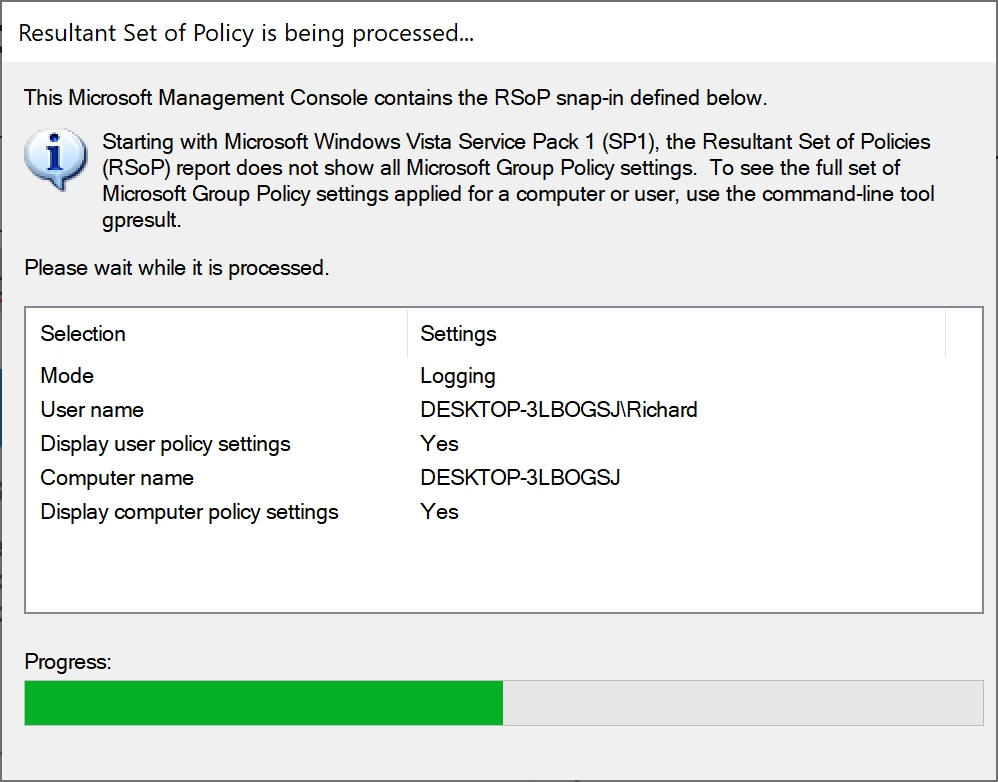
2. Wait a moment while your computer processes the report. You will see a list of only the settings that are currently active or disabled on your system.
Option 3Command Line Reporting (gpresult)
The ‘gpresult’ command provides a complete audit of your computer’s group policies, creating a detailed HTML report that’s very useful for IT pros.
- Open the Start menu, type cmd, right-click it, and select Run as administrator.
- Enter the following command and press Enter:
gpresult /h C:\policy_report.html
3. Open the file 📁C:\policy_report.html in your web browser to view a detailed breakdown of all applied policies.
Registry Storage Locations
Group policies are stored directly within the Windows Registry, and you can view them using the Registry Editor tool.
Warning: Be aware that making the wrong edits to the registry can cause your system to become unstable. Always back up your registry before making changes.
- Press ⊞ Win+R, type regedit, and press Enter.
- Navigate to: 🗝️HKEY_LOCAL_MACHINE\SOFTWARE\Policies
3. This path contains system-wide policies. User-specific policies are found at: 🗝️HKEY_CURRENT_USER\Software\Policies
How to Reset Local Group Policies
If you need to revert settings to default, you can use the Command Prompt with administrator privileges:
- Open an elevated Command Prompt.
- Run the following commands one by one:
rd /s /q "%windir%\System32\GroupPolicy"rd /s /q "%windir%\System32\GroupPolicyUsers"gpupdate /force
Summary
You can view active group policies in Windows 11 using tools like the Group Policy Editor, RSOP, or the ‘gpresult’ command, and by checking the registry if needed.
Why can’t I find gpedit.msc on 🪟 Windows 11 Home?
The Local Group Policy Editor is a feature exclusive to Windows 11 Pro, Enterprise, and Education editions. Microsoft does not include this tool in the Home edition. If you are using Windows 11 Home, you must rely on the Registry Editor or third-party tools to modify or view system policies.
Was this guide helpful?

About the Author
Richard
Tech Writer, IT Professional
Richard, a writer for Geek Rewind, is a tech enthusiast who loves breaking down complex IT topics into simple, easy-to-understand ideas. With years of hands-on experience in system administration and enterprise IT operations, he’s developed a knack for offering practical tips and solutions. Richard aims to make technology more accessible and actionable. He's deeply committed to the Geek Rewind community, always ready to answer questions and engage in discussions.


No comments yet — be the first to share your thoughts!