How to Change the Copilot Key in Windows 11

If your Windows 11 keyboard has a special Copilot key, pressing it opens the Copilot app right away. This key is a shortcut so you don’t have to dig through menus.
Change the Copilot key by opening Settings, navigating to Personalization > Text input, then selecting “Customize Copilot key on keyboard.” Choose Search, Copilot, or a Custom app to assign to the key.
Why bother changing it? You can have it launch other apps instead, making your workflow quicker and more efficient.
Want to learn more about Copilot in Windows 11? Check out these helpful resources:
- How to turn Windows Copilot on or off
- Open Copilot when Windows starts
- Pin or unpin the Copilot side panel
- Resize the Copilot side panel
- Delete chat history in Copilot
- Create a desktop shortcut for Copilot
Since Windows 11 build 22635.4225, you can change your Copilot key to launch other secure apps instead of just Copilot.
How to Change the Copilot Key in 🪟 Windows 11
Follow these steps to change what the Copilot key does:
Step 1Open Windows Settings
- Click the Start menu (the Windows icon in the lower-left corner), then select Settings.
- Or press the Windows key + I on your keyboard to open Settings directly.
Step 2Go to Personalization
In the Settings window, click on Personalization on the left side.
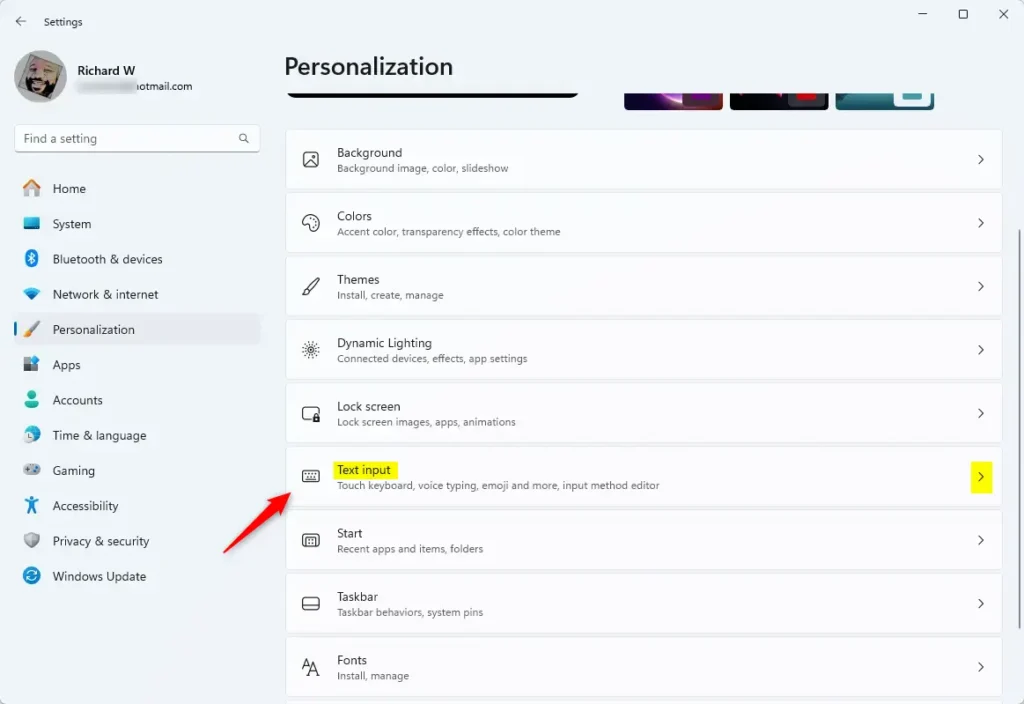
Step 3Choose Text input
On the right side, find and click the Text input option.
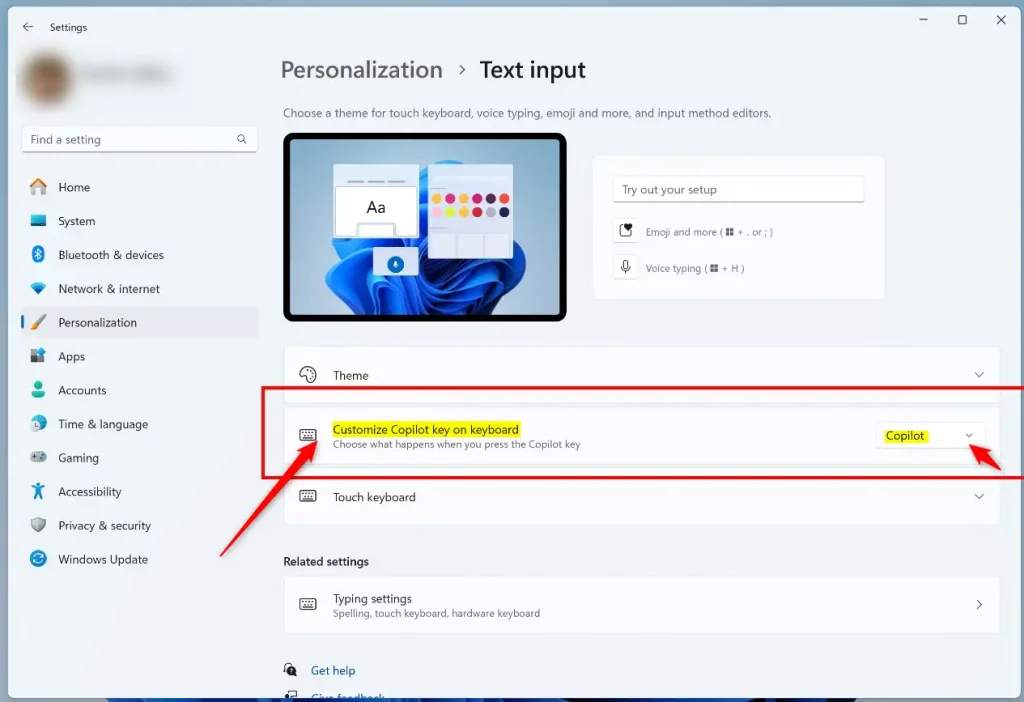
Step 4Select Customize Copilot key on keyboard
Scroll down and click the box labeled ‘Customize Copilot key on keyboard‘.
Step 5Pick what you want the Copilot key to do
You’ll see these options:
- Search — Opens Windows Search
- Copilot — Opens the Copilot app (this is the default)
- Custom — Choose a different app to open
Step 6If you choose Custom
A new window appears with all your available apps. Pick the app you want the Copilot key to launch.
Step 7Save your changes
Click to save your choice. Then close the Settings app.
What happens when you’re done? Your Copilot key now opens whatever app you picked instead of Copilot.
Summary
- The Copilot key is a quick shortcut on your Windows 11 keyboard.
- You can change what it does to fit your work style better.
- Changing it is easy and takes just a few clicks in Settings.
- You can set it to open Search, Copilot, or any other app you like.
- You can always change it back or try a different app anytime.
- Try setting your Copilot key to open your favorite apps and make Windows 11 work better for you!
Where is the Copilot key on the keyboard 🪟 Windows 11?
The Copilot key is a brand-new addition to the Windows keyboard, appearing on the latest Windows 11 PCs. You’ll usually find it near the spacebar, taking the spot where the right-hand Windows key used to be.
How to get Copilot button in 🪟 Windows 11?
On newer Windows 11 PCs, the Copilot app usually comes pre-installed. You can find it pinned to your taskbar or in the Start menu. Once it’s open, sign in with your personal Microsoft Account.
Can you disable the Copilot key in 🪟 Windows 11?
“I disabled Copilot on my Windows 11 recently, it’s actually quite simple. You can go to Group Policy Editor (gpedit.msc), then navigate to User Configuration > Administrative Templates > Windows Components > Windows Copilot and enable the ‘Turn off Windows Copilot’ option.
Was this guide helpful?

About the Author
Richard
Tech Writer, IT Professional
Richard, a writer for Geek Rewind, is a tech enthusiast who loves breaking down complex IT topics into simple, easy-to-understand ideas. With years of hands-on experience in system administration and enterprise IT operations, he’s developed a knack for offering practical tips and solutions. Richard aims to make technology more accessible and actionable. He's deeply committed to the Geek Rewind community, always ready to answer questions and engage in discussions.




No comments yet — be the first to share your thoughts!