How to Pin or Unpin Copilot in Windows 11

You can pin or unpin Copilot in Windows 11 to control its visibility on your taskbar.
Copilot is an AI assistant integrated into Windows 11 that helps you manage your PC using natural language commands.
In Windows 11 build 23493 and later, you can easily access Copilot via its taskbar icon or by pressing ⊞ Win+C. Pinning it keeps the AI readily available, while unpinning it conserves taskbar space.
This action directly affects whether the Copilot panel remains permanently visible or hidden until activated.
Pin or unpin Copilot from the taskbar by right-clicking the Copilot icon and selecting “Pin to taskbar” or “Unpin from taskbar”. This action controls whether the Copilot panel is permanently visible or hidden until activated.
How do I pin Microsoft Copilot to the navigation bar?
Sign in to the Microsoft 365 admin center. Go to Copilot > Settings > User access. Select Pin Microsoft 365 Copilot and its companion apps to the Windows taskbar.
How do I pin Copilot chat in apps?
Open the Copilot settings page To get to this setting, go to the Copilot settings page, or: Sign in to the Microsoft 365 admin center. Go to Copilot > Settings. Select Pin Microsoft 365 Copilot Chat.
Was this guide helpful?

About the Author
Richard
Tech Writer, IT Professional
Richard, a writer for Geek Rewind, is a tech enthusiast who loves breaking down complex IT topics into simple, easy-to-understand ideas. With years of hands-on experience in system administration and enterprise IT operations, he’s developed a knack for offering practical tips and solutions. Richard aims to make technology more accessible and actionable. He's deeply committed to the Geek Rewind community, always ready to answer questions and engage in discussions.
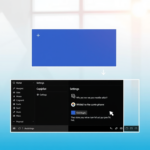



[…] Copilot is available on your device, you can pin or unpin the side pane, open Copilot when Windows starts, Turn Copilot on or off, enable or disable Copilot using […]
I dont have this button
[…] Copilot is available on your device, you can pin or unpin the side pane, open Copilot when Windows starts, Turn Copilot on or off, enable or disable Copilot using […]
[…] Copilot installed, you can enable or disable it, open Copilot when Windows starts, Pin or Unpin the Copilot side panel, Resize the Copilot side panel, delete chat history in Copilot, create a desktop shortcut, […]
[…] Copilot is available on your device, you can pin or unpin the side pane, open Copilot when Windows starts, Turn Copilot on or off, enable or disable Copilot […]
[…] on Windows, you can enable or disable it, open Copilot when Windows starts, Pin or Unpin the Copilot side panel, Resize the Copilot side panel, delete chat history in Copilot, create a desktop […]
[…] on Windows, you can enable or disable it, open Copilot when Windows starts, Pin or Unpin the Copilot side panel, Resize the Copilot side panel, delete chat history in Copilot, create a desktop […]
[…] Pin or unpin the Copilot side panel […]
[…] Pin or unpin the Copilot panel […]
[…] Copilot is installed on Windows, you can enable or disable it, open Copilot when Windows starts, Pin or Unpin the Copilot side panel, Resize the Copilot side panel, delete chat history in Copilot, create a desktop shortcut, and […]
[…] is available for many tasks, such as you can pin or unpin the side pane, open Copilot when Windows starts, Turn Copilot on or off, enable or disable Copilot using content […]