Windows 11 Taskbar: What is the Widgets Feature

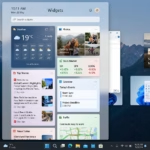
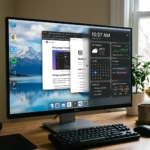
Windows 11’s Widgets feature is a dynamic panel that offers personalized information like news, weather, and calendar updates directly on your taskbar.
This tool is like a quick info hub. It lets you see what matters most without opening separate apps.
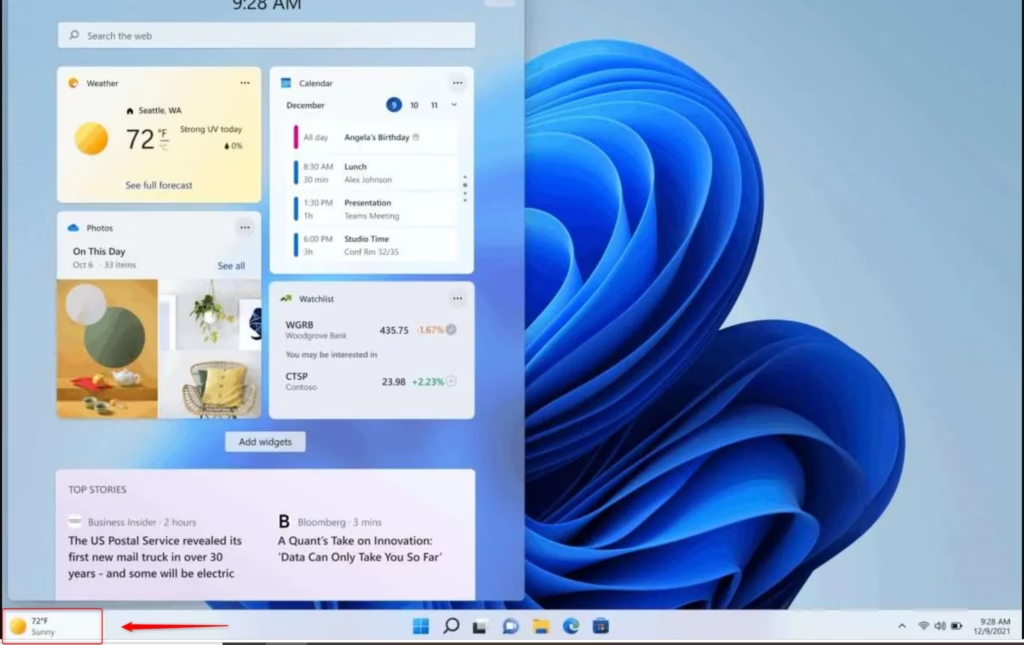
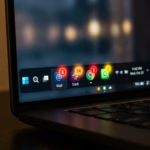
Introduced in Windows 11, the Widgets board can be accessed by clicking an icon on the left side of your taskbar, typically displaying a weather icon.
You can customize the widgets displayed, adding or removing cards to tailor the information feed to your specific interests and needs.
Windows 11 Widgets is a panel on your taskbar offering personalized information like news and weather. Click the Widgets icon on the left of the taskbar or press Windows key + W to open it. You can add or remove widgets to customize the content.
What Are Widgets?
Windows 11 widgets are like little pop-up windows that show you useful info at a glance, such as news headlines, weather updates, or your upcoming calendar events.
- News headlines you pick
- Current weather and forecasts
- Stock market updates
- Your calendar events
- To-do lists
- And more, depending on what you add!
| 1. Widgets | 2. Start | 3. Search | 4. Task view | 5. Applications | 6. System tray |
The goal is to keep you informed and organized. Widgets bring updates right to your taskbar. Instead of opening lots of apps, you get a quick summary of what’s going on, all in one handy place.
How to Open Your Widgets
Let’s look at how to open your Widgets. Microsoft made this feature really easy to get to.
Hover or Click the Widgets Icon
Look for the icon on your taskbar, usually positioned on the left. It might resemble a square with two smaller squares inside, or it could be a weather icon. Hover your mouse over it, and the Widgets board will slide open. You can also click the icon directly.
Swipe from the Side (if Centered)
If your taskbar icons are centered (which is the default in Windows 11), you can also swipe inward from the left edge of your screen. This action opens the Widgets board. This method feels natural, especially if you use a touchscreen or prefer gesture-based controls.
Use a Keyboard Shortcut
You can open the Windows 11 widgets board super fast using a keyboard shortcut: just press the Windows key and W together.
Tip: If you can’t spot the Widgets icon on your taskbar, don’t worry. It might be disabled. We’ll guide you on how to re-enable it shortly.
Turning the Widgets Icon On or Off
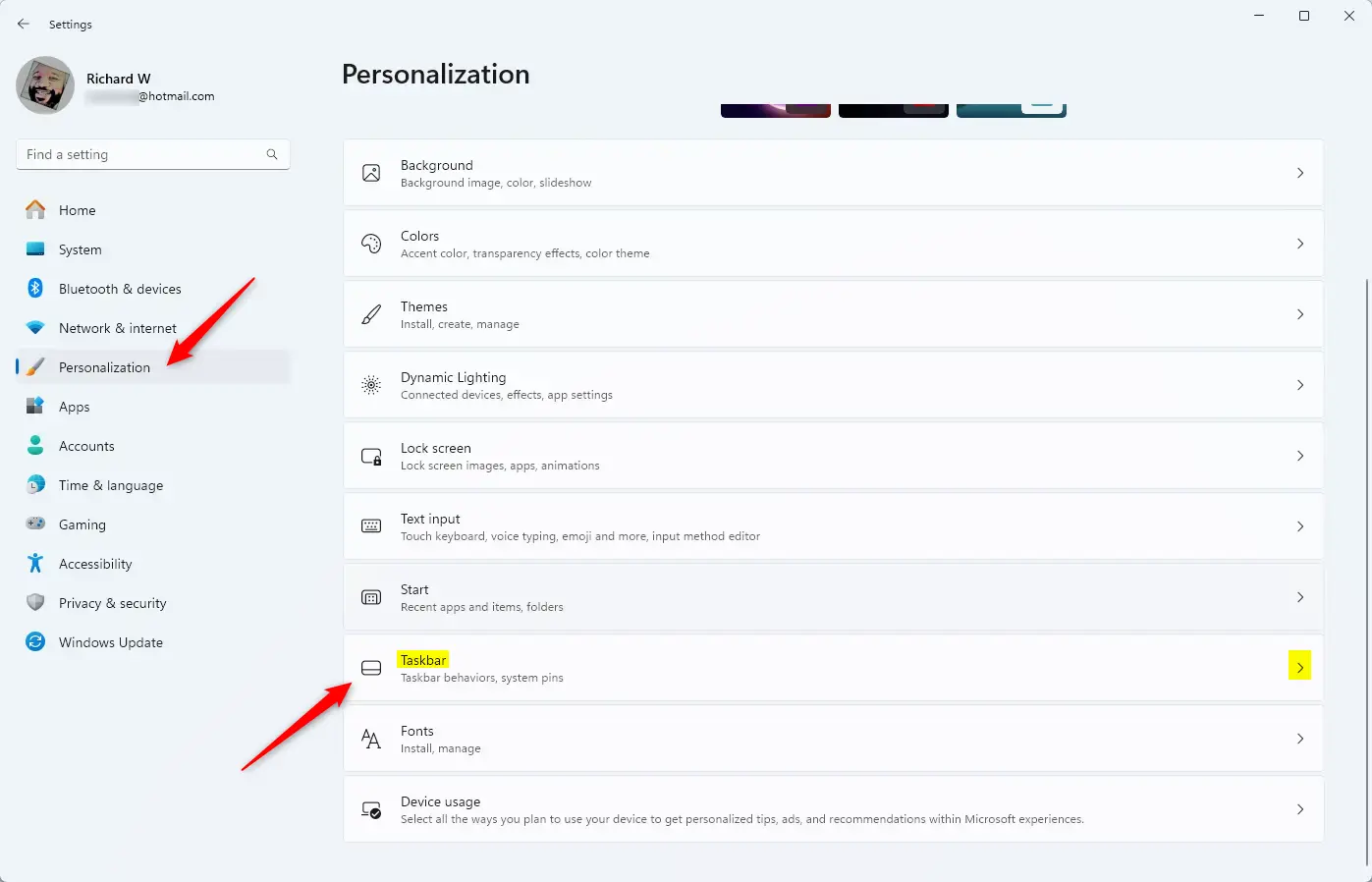
You can choose to show or hide the Windows 11 widgets icon on your taskbar by going into Taskbar settings.
- Right-Click Your Taskbar
Find an empty spot on your taskbar. Right-click it. Then, select Taskbar settings from the menu. This opens the settings for your taskbar.
- Find Taskbar Items
In the Taskbar settings window, look for a section called Taskbar items. Here you can control icons like Search, Task view, and Widgets.
- Turn Widgets On or Off
You will see a switch called Widgets. Click the switch to turn it On to show the icon. Click it to turn it Off to hide the icon. The icon will disappear right away if you turn it off.
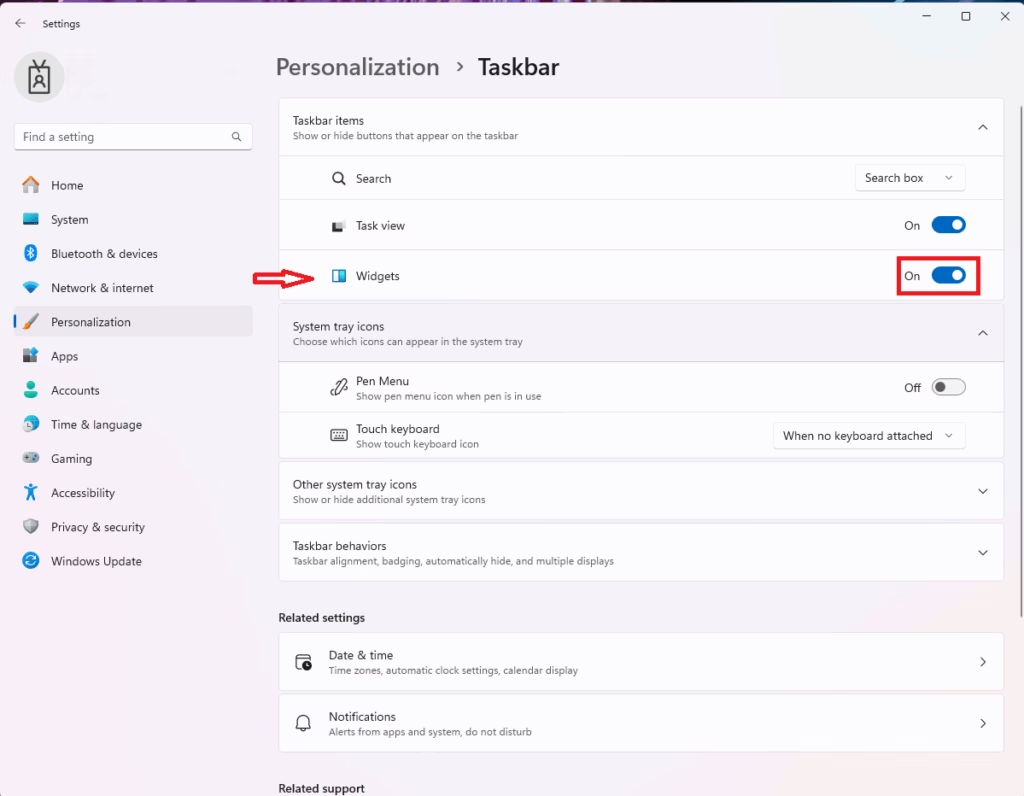
Warning: If you hide the Widgets icon, you’ll need to rely on the Windows key + W shortcut to open your widgets. Confirm that you’re comfortable using this shortcut if you choose to hide the icon.
Changing What’s in Your Widgets
Widgets are most valuable when they display content that *you* find relevant. It’s not just a random feed; it’s designed to highlight what matters to you.
Add and Remove Widgets
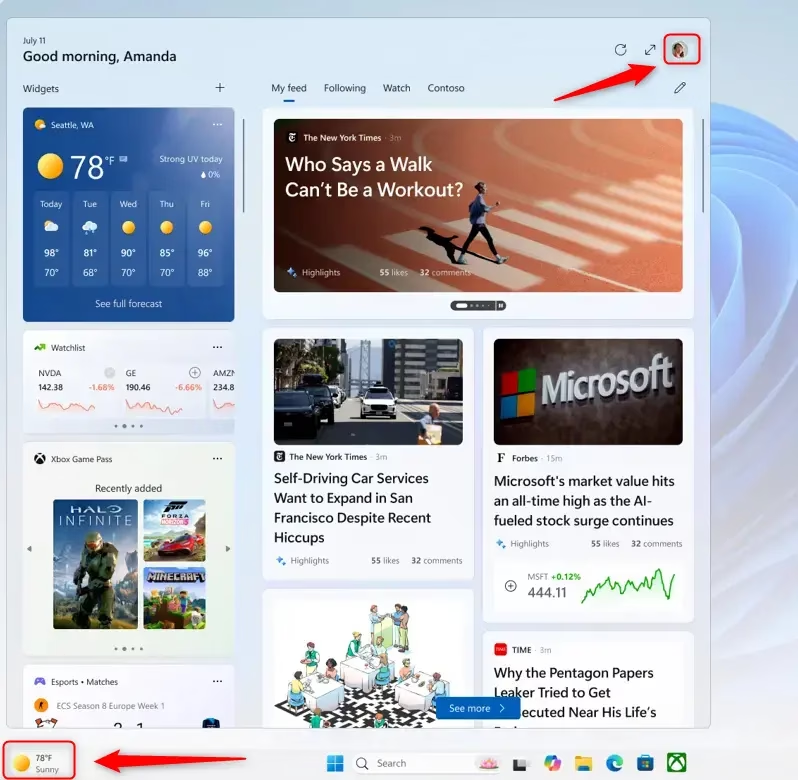
To add new widgets to your Windows 11 board, open the Widgets panel and click the plus (+) button to see available options, then click the plus next to the ones you want.
To remove a widget you no longer need, open the Widgets board. Locate the widget you want to remove, then click the three dots (…) in its top-right corner. From the menu, select Remove widget.
Move Your Widgets Around
Arranging your widgets can significantly enhance their usefulness. To reposition them, open the Widgets board. Then, click and drag any widget card to your desired location. You can move them up, down, or sideways to create a layout that best suits your workflow.
Change Settings for Each Widget
You can change settings for individual Windows 11 widgets, like setting your location for weather or choosing news topics, by clicking the three dots (…) on the widget.
Manage What You’re Interested In
Windows 11 learns what you like to see in your widgets, such as news topics, so you can manage your interests by using the like or dislike options.
Practical Tip: Don’t hesitate to experiment! Add a few widgets you find intriguing and observe how they function for a day or two. You can then remove or rearrange them as needed, and they can always be added back later.
Summary
The Windows 11 widgets feature is a handy way to get quick updates on news, weather, and your schedule without slowing down your computer.
Can I add widgets in 🪟 Windows 11?
Yes, you can add and customize widgets in Windows 11. Click the Widgets icon on your taskbar, then click the '+' button to add new widgets. You can also remove existing ones by clicking the three dots on a widget and selecting 'Remove widget'.
Where are the widgets in 🪟 Windows 11?
Widgets in Windows 11 are accessed via a dedicated icon on the left side of your taskbar, usually displaying a weather icon. Clicking this icon opens the Widgets board, a panel that slides out from the left, offering a quick glance at personalized information.
Are there any useful 🪟 Windows 11 widgets?
Windows 11 offers several useful widgets, including news headlines, weather forecasts, calendar events, stock market updates, and to-do lists. You can customize these to show information relevant to your interests, making it a convenient hub for staying informed and organized.
Should I disable 🪟 Windows 11 widgets?
Disabling Windows 11 widgets is a personal choice. If you find them distracting or don't use them, disabling them can free up taskbar space and potentially reduce system resource usage. However, they offer a convenient way to access personalized information quickly.
Was this guide helpful?

About the Author
Richard
Tech Writer, IT Professional
Richard, a writer for Geek Rewind, is a tech enthusiast who loves breaking down complex IT topics into simple, easy-to-understand ideas. With years of hands-on experience in system administration and enterprise IT operations, he’s developed a knack for offering practical tips and solutions. Richard aims to make technology more accessible and actionable. He's deeply committed to the Geek Rewind community, always ready to answer questions and engage in discussions.

No comments yet — be the first to share your thoughts!