How to Show or Hide Your Feed in Widgets in Windows 11

You can show or hide your news feed in Windows 11 Widgets.
Windows 11 Widgets give you quick access to personalized information, but sometimes that news feed can feel distracting or unwanted.
For instance, if you’re running a specific build of Windows 11, like version 22H2, you might find the news feed takes up valuable taskbar space.
This tutorial shows you how to control whether you see the news feed in your Widgets panel.
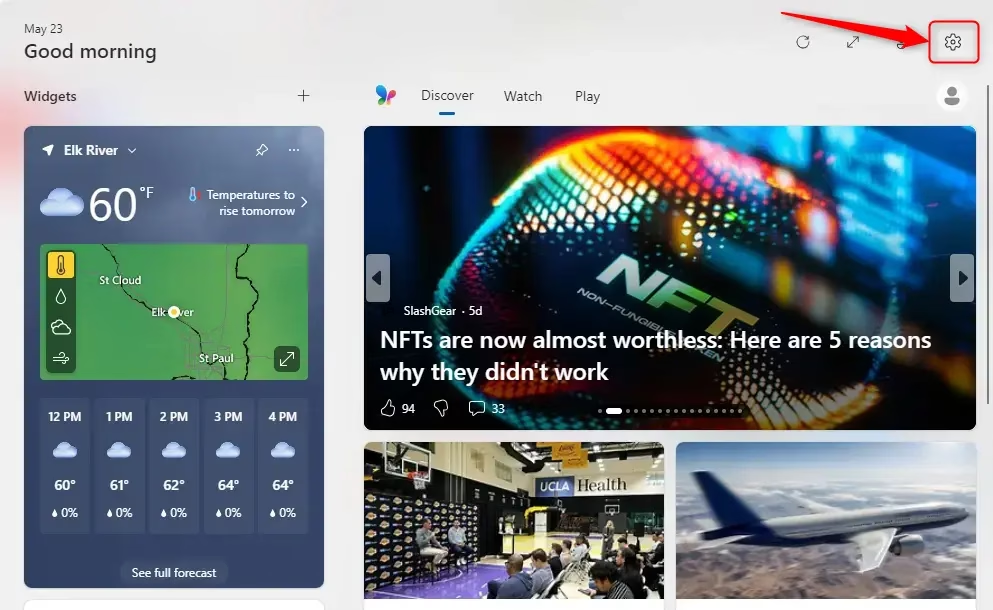
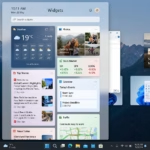
Open the Widgets board by clicking its taskbar icon or pressing Windows key + W. Click the gear icon for Settings, then toggle the “Feed” option on or off to show or hide your news content.
Controlling Your Widgets Feed
Your Windows 11 Widgets feed shows news and updates based on your interests, but you can change what it displays or turn it off completely. This guide helps you manage your feed settings to see only what you want.
Showing or Hiding Your News Feed
If you want to hide your Windows 11 news feed for a cleaner look, or if you’ve hidden it and want it back, this is how you do it. We’ll show you the simple steps to control whether the news feed shows up in your Widgets.
- Open the Widgets Board: You can do this in a couple of ways. The easiest is to click the Widgets icon on your taskbar. It usually looks like a weather icon or a square that’s split. You can also press the
Windows key + Won your keyboard. Try it! The Widgets board will slide out.
- Find Settings: Once the Widgets board is open, look for the Settings button. It looks like a gear icon and is usually near the top right of the Widgets panel. Click it.
Pro Tip: If you don’t see the gear icon right away, you might need to make the Widgets board bigger. Look for a small expand icon (it often looks like an arrow pointing outwards) near the top right of the panel. Click it to make the board larger. This will often show more options, including the settings gear.
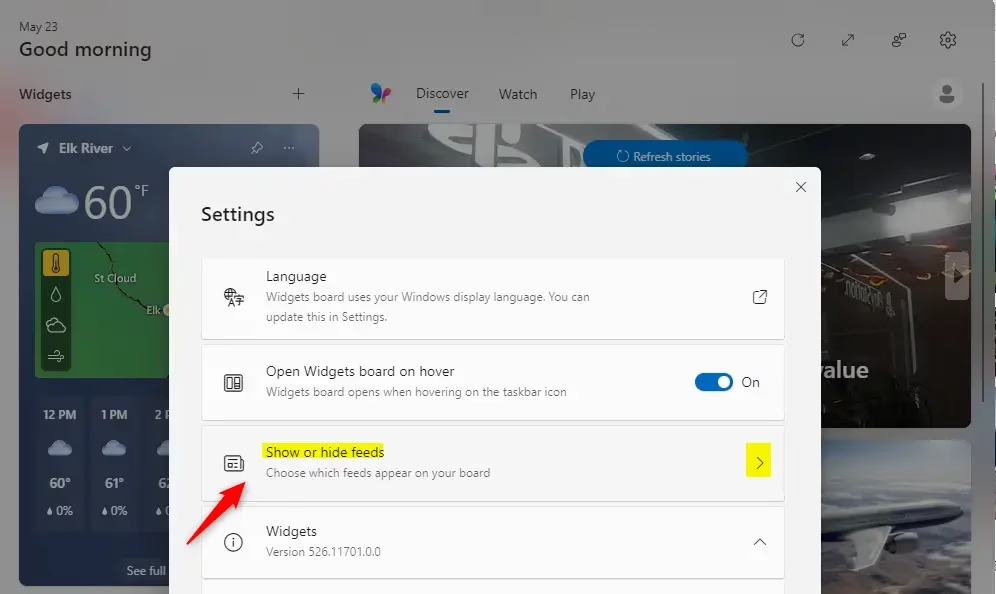
- Manage Feed Visibility: In the Settings menu, you should see an option about your feed. It might say something like “Show or hide feeds” or just “Feed.” Click on that option.
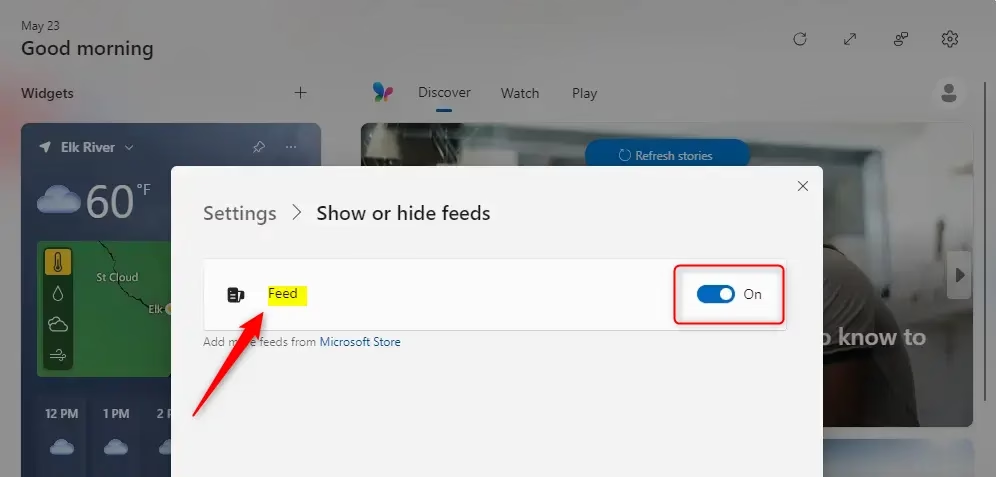
- Turn the Feed On or Off: You will probably see a switch or a choice to turn the “Feed” on or off. To hide the news feed completely, turn this option to Off. If you want to show the feed, make sure it’s turned to On.
Warning: If you turn off the feed, you won’t see any news articles or headlines in your Widgets panel. If you still want to see other widgets, like weather or stocks, that’s okay. They will still be visible. This setting only affects the news content.
And that’s it! Managing your Widgets feed comes down to telling Windows what content you want to see and what you’d prefer to exclude. Whether you prefer a minimalist taskbar free of news or a curated selection of articles, you now have the tools to achieve it. Happy widget organizing!
Summary
You’ve learned how to easily show or hide the news feed in Windows 11 Widgets. By opening the Widgets board and going to Settings, you can change your feed visibility to suit your preferences, keeping other widgets like weather active.
How do I turn off widget feed in 🪟 Windows 11?
To turn off the widget feed in Windows 11, open the Widgets board, click your profile icon, select ‘Settings’, and then toggle off ‘Show news and interests’ under the ‘Widgets’ section. This will hide the news feed content from your Widgets panel.
How to show widgets in 🪟 Windows 11?
To show widgets in Windows 11, click the Widgets icon on your taskbar, typically located on the left side. Alternatively, press Windows key + W. This action will open the Widgets board, displaying your personalized feed and other widgets.
How do I unhide widgets on 🪟 Windows 11?
To unhide widgets on Windows 11, ensure the Widgets icon is visible on your taskbar. If it’s not, go to Settings > Personalization > Taskbar and enable ‘Widgets’. Then, simply click the Widgets icon to open the board and view your content.
How to get rid of widgets on Microsoft?
To get rid of widgets on Microsoft Windows 11, you can hide the news feed by going to Widgets settings and toggling off ‘Show news and interests’. To remove the Widgets icon entirely from the taskbar, navigate to Settings > Personalization > Taskbar and disable the Widgets option.
Was this guide helpful?

About the Author
Richard
Tech Writer, IT Professional
Richard, a writer for Geek Rewind, is a tech enthusiast who loves breaking down complex IT topics into simple, easy-to-understand ideas. With years of hands-on experience in system administration and enterprise IT operations, he’s developed a knack for offering practical tips and solutions. Richard aims to make technology more accessible and actionable. He's deeply committed to the Geek Rewind community, always ready to answer questions and engage in discussions.

No comments yet — be the first to share your thoughts!