How to Enable or Disable Open Widgets Board on Hover in Windows 11

You can enable or disable the Open Widgets Board on hover feature in Windows 11 to control how the Widgets panel appears.
This setting controls whether the Widgets board pops open automatically when your mouse hovers over the taskbar icon, or if you need to click it first.
Most users find this setting is enabled by default in Windows 11, version 22H2, causing the Widgets board to pop up unexpectedly.
You can adjust this behavior within the Widgets settings to prevent accidental openings and make sure the panel only appears when you want it to.
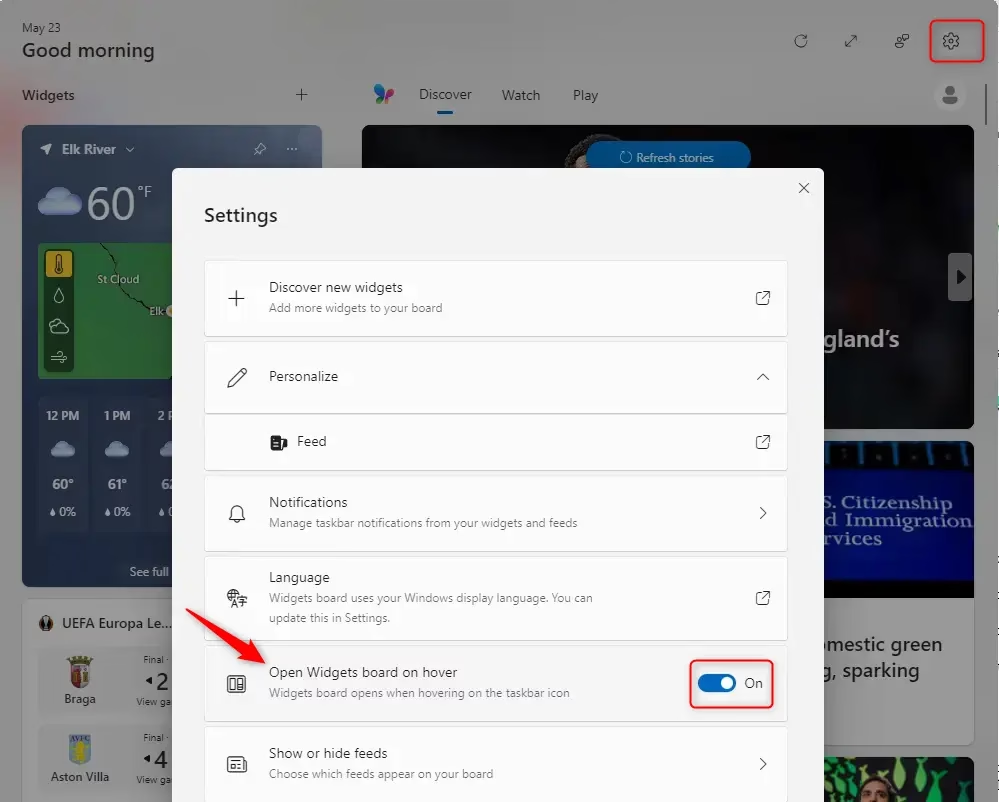
To disable opening the Widgets board on hover, open the Widgets board, click the settings gear, and toggle off “Open Widgets board on hover.” The board will then only open when you click the taskbar icon.
What Are Widgets in Windows?
Widgets in Windows 11 are like small, handy windows on your taskbar that show quick updates like weather or news at a glance.
You’ll usually see a weather icon on your taskbar. When your mouse moves over it, the Widgets board slides out. This board is a collection of information cards, which we call widgets. You can choose which widgets you want to see and arrange them just how you like.
How to Stop Widgets from Opening When You Hover
If you feel like the Widgets board opens too readily, here’s how to fix it. This is a setting you can change.
Step 1Open the Widgets Board
Opening the Widgets board in Windows 11 is simple; you can usually just move your mouse over the Widgets icon on your taskbar or press the Windows key + W.
Tip: If you don’t see the Widgets icon on your taskbar, you might need to turn it on. Right-click on your taskbar. Then, click on Taskbar settings. Under Taskbar items, turn Widgets to On.
Step 2Go to Widgets Settings
After opening the Widgets board, find the settings icon, which usually looks like a gear, in the top right corner to access its options.
Warning: Double-check that you’re clicking the correct settings icon. There might be other icons present, but you’re looking for the one that controls how the Widgets board works.
Step 3Find the “Open Widgets board on hover” Setting
Inside the Widgets settings, you’ll see different options. Look for one that says something like “Open Widgets board on hover” or “Show widgets board by hovering over the taskbar icon”.
Step 4Turn Off the Hover Feature
To turn off the hover feature for the Widgets board in Windows 11, find the switch for ‘Open Widgets on hover’ and click it to the Off position.
Practical Tip: After you turn this off, the Widgets board will only open when you click the Widgets icon on your taskbar or use the Windows key + W shortcut. This means you decide exactly when you want to see your widgets.
Why Turn Off “Open on Hover”?
You might want to turn off the ‘Open Widgets on hover’ feature in Windows 11 to stop accidental openings that can be distracting or to save system resources.
- Accidental Openings: Like we said, it’s easy to open the Widgets board by mistake. This can be distracting if you’re trying to do something important.
- Performance: Widgets are usually small and don’t use much power. But if you have an older computer or like to have fewer things running in the background, turning this off can help a little.
- Personal Choice: Some people just like to be in full control. They want to start every action themselves and don’t want the computer guessing what they want.
- Cleaner Desktop: If you like a simple and clean desktop, turning off hover-to-open is another way to achieve that.
What Happens When You Turn It Off?
When you turn off the ‘Open Widgets board on hover’ setting in Windows 11, the Widgets icon stays on your taskbar but won’t open just by moving your mouse over it.
Remember: You can still get to your widgets by clicking the taskbar icon or using the keyboard shortcut. You still have access to your news, weather, and other updates. You just have more control over when you see them.
Summary
Adjusting the ‘Open Widgets board on hover’ setting in Windows 11 helps create a smoother experience by ensuring the Widgets board only appears when you actively choose to open it.
How to disable open widgets board on hover on 🪟 Windows 11?
To disable opening the Widgets board on hover in Windows 11, go to Settings > Personalization > Taskbar. Find the 'Widgets' section and toggle off the 'Open Widgets board on hover' option. This ensures the Widgets panel only opens when you click the Widgets icon.
How to enable or disable widgets feature in 🪟 Windows 11?
You can enable or disable the Widgets feature in Windows 11 via Taskbar settings. Navigate to Settings > Personalization > Taskbar. Under the 'Widgets' section, you can toggle the main Widgets icon on or off. To control hover behavior, toggle 'Open Widgets board on hover' on or off.
How do I open widgets board on hover registry?
Modifying the registry to control the Widgets board hover behavior is not the recommended method. The most direct way is through Windows Settings. Go to Settings > Personalization > Taskbar and toggle the 'Open Widgets board on hover' option to your preference.
How to disable taskbar hover preview 🪟 Windows 11?
To disable taskbar hover previews specifically for the Widgets board in Windows 11, navigate to Settings > Personalization > Taskbar. Locate the 'Widgets' section and turn off the 'Open Widgets board on hover' toggle. This prevents the Widgets panel from appearing automatically when hovering.
Was this guide helpful?

About the Author
Richard
Tech Writer, IT Professional
Richard, a writer for Geek Rewind, is a tech enthusiast who loves breaking down complex IT topics into simple, easy-to-understand ideas. With years of hands-on experience in system administration and enterprise IT operations, he’s developed a knack for offering practical tips and solutions. Richard aims to make technology more accessible and actionable. He's deeply committed to the Geek Rewind community, always ready to answer questions and engage in discussions.

No comments yet — be the first to share your thoughts!