How to Enable or Disable Windows Ready Print in Windows 11

This guide walks you through turning on or off a Windows 11 feature called Ready Print. This feature changes how your computer installs printers.
Why do we need this? Microsoft is updating how printers are installed. Starting in May 2026, new printers will automatically use a new method called IPP (Internet Printing Protocol). This is a way for printers to communicate over the internet. This change should make setting up printers smoother and improve their performance. For more details on this transition and the plan for older drivers, check out Microsoft’s Internet Printing Protocol (IPP) End of Servicing Plan for Third-Party Printer Drivers on Windows.
What happens when we change this setting? If you enable “Default install printers using Windows Ready Print,” your computer will use IPP (Internet Printing Protocol) to install printers when it can. If you turn it off, Windows may use its existing methods to install your printer.
This new system, Windows Ready Print, is designed to make printing more reliable and less complicated. modern print platform
Ready to make the change? Here’s how:
- Open Settings. You can press the Windows key + I on your keyboard.
- In Settings, click on Bluetooth & devices on the left side. Then, click on Printers & scanners on the right side.
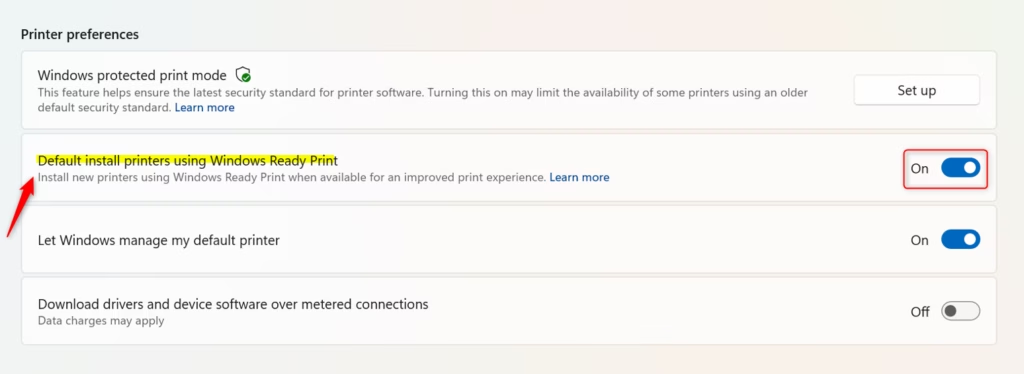
- Look for the option Default install printers using Windows Ready Print. You will see a switch under Printer preferences. Turn it on or off depending on what you want.
- You can now close the Settings window.
Summary
Windows Ready Print lets you choose how your computer adds new printers.
How long should I wait for getting Windows Ready stuck?
There’s no specific waiting time for ‘Getting Windows Ready’ to get unstuck, as it’s not a standard feature. If you’re experiencing a prolonged ‘Getting Windows Ready’ message, it usually indicates an update issue. Try restarting your PC. If the problem persists, consider troubleshooting Windows Update.
Why is my printer saying ready to print but not printing?
If your printer shows ‘ready to print’ but isn’t printing, check the print queue for stuck jobs. Ensure the correct printer is selected, restart both your printer and computer, and verify the printer’s connection (USB or Wi-Fi). Sometimes, reinstalling the printer driver resolves this.
How does Ctrl+P work?
Ctrl+P is a universal keyboard shortcut that triggers the ‘Print’ command in most Windows applications. Pressing it typically opens the print dialog box, allowing you to select your printer, adjust settings like page range and copies, and then initiate the printing process.
How to fix a stuck getting Windows ready?
To fix a stuck ‘Getting Windows Ready’ message, the most common solution is to force a restart of your computer. If that doesn’t work, you may need to access advanced startup options to troubleshoot or repair Windows. This often involves booting from installation media.
Was this guide helpful?

About the Author
Richard
Tech Writer, IT Professional
Richard, a writer for Geek Rewind, is a tech enthusiast who loves breaking down complex IT topics into simple, easy-to-understand ideas. With years of hands-on experience in system administration and enterprise IT operations, he’s developed a knack for offering practical tips and solutions. Richard aims to make technology more accessible and actionable. He's deeply committed to the Geek Rewind community, always ready to answer questions and engage in discussions.




No comments yet — be the first to share your thoughts!