How to Find and Manage Your Advertising ID Settings in Windows 11

Step 4Control Your Advertising ID
On the ‘Privacy & security’ page, you’ll find the option to control your Advertising ID by toggling ‘Let apps show my personalized ads by using my advertising ID’. You’re in the right place. On the “Recommendations & offers” settings page, find the option that says: Let apps show my personalized ads by using my advertising ID. There’s a switch next to it.-
- To turn it OFF: Click the switch. It will move to the left and turn gray. This means apps can no longer use your Advertising ID for personalized ads.
-
- To turn it ON: Click the switch. It will move to the right and turn blue (or your computer’s accent color). This allows your Advertising ID to be used for personalized ads.
Summary
Your Windows 11 Advertising ID is a unique identifier apps use for personalized ads, and you can easily turn it off in Settings under Privacy & security. Your Advertising ID in Windows 11 is a unique number apps and advertisers use for custom ads. You manage this in Settings > Privacy & security > General. Toggling the “Let apps show my personalized ads by using my advertising ID” option on or off affects how targeted advertising is. Turning it off means ads will be less relevant, though you’ll still see them.What is the advertising ID in 🪟 Windows 11?
The Advertising ID in Windows 11 is a unique number assigned to your device. Apps and advertisers use this ID to personalize ads based on your activity and preferences, similar to how website cookies work for online tracking. It enables more targeted advertising experiences on your device.
Should I turn off my advertising ID?
Turning off your Advertising ID limits personalized ads, enhancing your privacy. If you prefer not to see ads tailored to your interests, disabling it is a good option. However, if you don't mind targeted ads and find them useful, you can keep it enabled.
Where do I find my advertising ID?
You can find and manage your Advertising ID settings in Windows 11 by navigating to Settings > Privacy & security. Within this menu, look for the 'General' section under 'Windows permissions'. Your Advertising ID settings will be located there for you to view and adjust.
How do I disable the advertising ID on 🪟 Windows 11?
To disable the Advertising ID on Windows 11, go to Settings > Privacy & security. Click on 'General' under 'Windows permissions'. You will see an option labeled 'Let apps show me personalized ads using my advertising ID'. Toggle this switch to 'Off' to disable it .
Step 2Go to Privacy & Security
Next, find and click on ‘Privacy & security’ in the left-hand menu of the Windows 11 Settings window to access your privacy controls. Once the Settings window is open, look at the list on the left side. Find and click on Privacy & security. This is where Windows keeps all the settings for how your information is handled.Step 3Access Recommendations & offers Settings
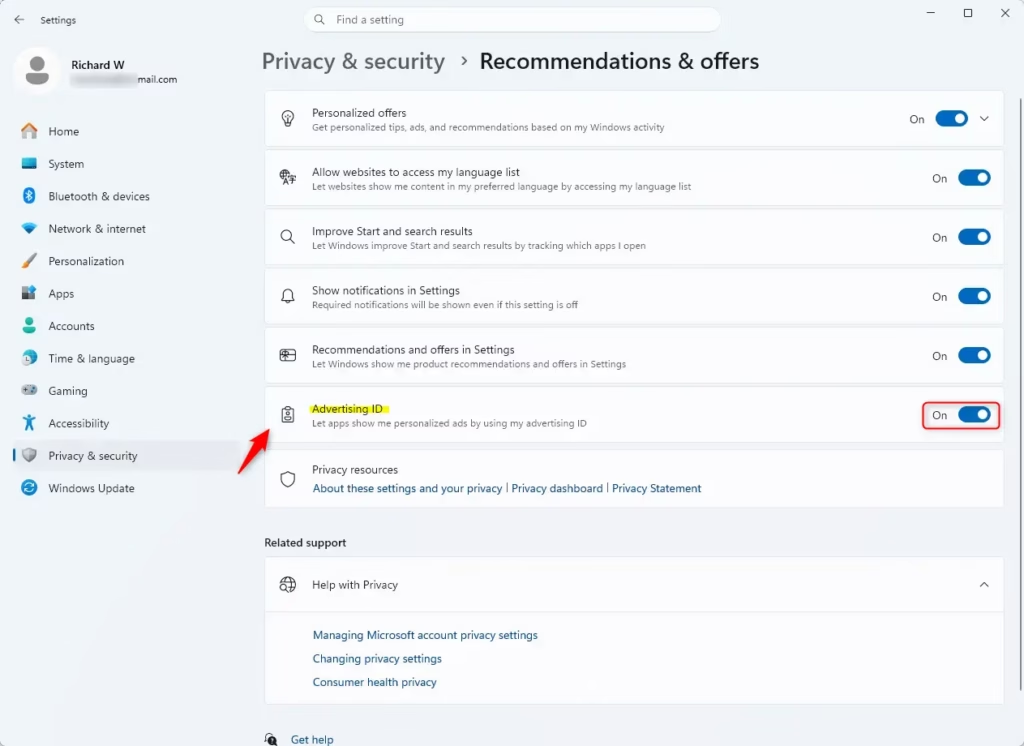
Inside the “Privacy & security” section, click on “Recommendations & offers“. This “Recommendations & offers” page has several privacy settings that affect your whole Windows experience. You’ll find the control for your Advertising ID here.Step 4Control Your Advertising ID
On the ‘Privacy & security’ page, you’ll find the option to control your Advertising ID by toggling ‘Let apps show my personalized ads by using my advertising ID’. You’re in the right place. On the “Recommendations & offers” settings page, find the option that says: Let apps show my personalized ads by using my advertising ID. There’s a switch next to it.-
- To turn it OFF: Click the switch. It will move to the left and turn gray. This means apps can no longer use your Advertising ID for personalized ads.
-
- To turn it ON: Click the switch. It will move to the right and turn blue (or your computer’s accent color). This allows your Advertising ID to be used for personalized ads.
Summary
Your Windows 11 Advertising ID is a unique identifier apps use for personalized ads, and you can easily turn it off in Settings under Privacy & security. Your Advertising ID in Windows 11 is a unique number apps and advertisers use for custom ads. You manage this in Settings > Privacy & security > General. Toggling the “Let apps show my personalized ads by using my advertising ID” option on or off affects how targeted advertising is. Turning it off means ads will be less relevant, though you’ll still see them.What is the advertising ID in 🪟 Windows 11?
The Advertising ID in Windows 11 is a unique number assigned to your device. Apps and advertisers use this ID to personalize ads based on your activity and preferences, similar to how website cookies work for online tracking. It enables more targeted advertising experiences on your device.
Should I turn off my advertising ID?
Turning off your Advertising ID limits personalized ads, enhancing your privacy. If you prefer not to see ads tailored to your interests, disabling it is a good option. However, if you don't mind targeted ads and find them useful, you can keep it enabled.
Where do I find my advertising ID?
You can find and manage your Advertising ID settings in Windows 11 by navigating to Settings > Privacy & security. Within this menu, look for the 'General' section under 'Windows permissions'. Your Advertising ID settings will be located there for you to view and adjust.
How do I disable the advertising ID on 🪟 Windows 11?
To disable the Advertising ID on Windows 11, go to Settings > Privacy & security. Click on 'General' under 'Windows permissions'. You will see an option labeled 'Let apps show me personalized ads using my advertising ID'. Toggle this switch to 'Off' to disable it .
Step 1Open Windows Settings
Opening the Windows 11 Settings app is the first step to managing your privacy options, including your advertising ID. Start by opening the Settings app. You can do this a couple of quick ways: Click the Start button—it looks like the Windows logo—on your taskbar, then click the gear-shaped Settings icon in the Start menu. Or, a handy shortcut is to press Windows key + I on your keyboard.-
- Click the Start button on your taskbar. It looks like the Windows logo.
-
- In the Start menu, click the Settings icon. It looks like a gear.
-
- Or, press the Windows key + I on your keyboard at the same time. This is a fast shortcut many people use.
Step 2Go to Privacy & Security
Next, find and click on ‘Privacy & security’ in the left-hand menu of the Windows 11 Settings window to access your privacy controls. Once the Settings window is open, look at the list on the left side. Find and click on Privacy & security. This is where Windows keeps all the settings for how your information is handled.Step 3Access Recommendations & offers Settings
Inside the “Privacy & security” section, click on “Recommendations & offers“. This “Recommendations & offers” page has several privacy settings that affect your whole Windows experience. You’ll find the control for your Advertising ID here.Step 4Control Your Advertising ID
On the ‘Privacy & security’ page, you’ll find the option to control your Advertising ID by toggling ‘Let apps show my personalized ads by using my advertising ID’. You’re in the right place. On the “Recommendations & offers” settings page, find the option that says: Let apps show my personalized ads by using my advertising ID. There’s a switch next to it.-
- To turn it OFF: Click the switch. It will move to the left and turn gray. This means apps can no longer use your Advertising ID for personalized ads.
-
- To turn it ON: Click the switch. It will move to the right and turn blue (or your computer’s accent color). This allows your Advertising ID to be used for personalized ads.
Summary
Your Windows 11 Advertising ID is a unique identifier apps use for personalized ads, and you can easily turn it off in Settings under Privacy & security. Your Advertising ID in Windows 11 is a unique number apps and advertisers use for custom ads. You manage this in Settings > Privacy & security > General. Toggling the “Let apps show my personalized ads by using my advertising ID” option on or off affects how targeted advertising is. Turning it off means ads will be less relevant, though you’ll still see them.What is the advertising ID in 🪟 Windows 11?
The Advertising ID in Windows 11 is a unique number assigned to your device. Apps and advertisers use this ID to personalize ads based on your activity and preferences, similar to how website cookies work for online tracking. It enables more targeted advertising experiences on your device.
Should I turn off my advertising ID?
Turning off your Advertising ID limits personalized ads, enhancing your privacy. If you prefer not to see ads tailored to your interests, disabling it is a good option. However, if you don't mind targeted ads and find them useful, you can keep it enabled.
Where do I find my advertising ID?
You can find and manage your Advertising ID settings in Windows 11 by navigating to Settings > Privacy & security. Within this menu, look for the 'General' section under 'Windows permissions'. Your Advertising ID settings will be located there for you to view and adjust.
How do I disable the advertising ID on 🪟 Windows 11?
To disable the Advertising ID on Windows 11, go to Settings > Privacy & security. Click on 'General' under 'Windows permissions'. You will see an option labeled 'Let apps show me personalized ads using my advertising ID'. Toggle this switch to 'Off' to disable it .
Navigate to Settings > Privacy & security > General. Here, you can toggle the “Let apps show my personalized ads by using my advertising ID” option on or off to manage personalized advertising on your device.
What is an Advertising ID?
Your Advertising ID in Windows 11 is a unique number that apps and advertisers use to track your interests and show you more relevant ads. Before we change any settings, let’s understand what it is. Your Advertising ID is a unique number. Windows creates this number for each person using a device. App developers and advertisers use this ID to understand your habits and interests. They then use that information to show you ads they believe you’ll find relevant. It’s like how websites use small files called cookies to track what you browse, but this is for apps on your Windows computer. Here’s an example: If you’ve been looking for new running shoes, an app might use your Advertising ID. It could then show you ads for sports clothes. It’s all about making ads feel more related to what you like. But, you can choose to turn this feature on or off.How to Find and Manage Your Advertising ID Settings
Ready to take control? Here’s how to find the settings for your Advertising ID in Windows 11. It’s clear once you know where to look.Step 1Open Windows Settings
Opening the Windows 11 Settings app is the first step to managing your privacy options, including your advertising ID. Start by opening the Settings app. You can do this a couple of quick ways: Click the Start button—it looks like the Windows logo—on your taskbar, then click the gear-shaped Settings icon in the Start menu. Or, a handy shortcut is to press Windows key + I on your keyboard.-
- Click the Start button on your taskbar. It looks like the Windows logo.
-
- In the Start menu, click the Settings icon. It looks like a gear.
-
- Or, press the Windows key + I on your keyboard at the same time. This is a fast shortcut many people use.
Step 2Go to Privacy & Security
Next, find and click on ‘Privacy & security’ in the left-hand menu of the Windows 11 Settings window to access your privacy controls. Once the Settings window is open, look at the list on the left side. Find and click on Privacy & security. This is where Windows keeps all the settings for how your information is handled.Step 3Access Recommendations & offers Settings
Inside the “Privacy & security” section, click on “Recommendations & offers“. This “Recommendations & offers” page has several privacy settings that affect your whole Windows experience. You’ll find the control for your Advertising ID here.Step 4Control Your Advertising ID
On the ‘Privacy & security’ page, you’ll find the option to control your Advertising ID by toggling ‘Let apps show my personalized ads by using my advertising ID’. You’re in the right place. On the “Recommendations & offers” settings page, find the option that says: Let apps show my personalized ads by using my advertising ID. There’s a switch next to it.-
- To turn it OFF: Click the switch. It will move to the left and turn gray. This means apps can no longer use your Advertising ID for personalized ads.
-
- To turn it ON: Click the switch. It will move to the right and turn blue (or your computer’s accent color). This allows your Advertising ID to be used for personalized ads.
Summary
Your Windows 11 Advertising ID is a unique identifier apps use for personalized ads, and you can easily turn it off in Settings under Privacy & security. Your Advertising ID in Windows 11 is a unique number apps and advertisers use for custom ads. You manage this in Settings > Privacy & security > General. Toggling the “Let apps show my personalized ads by using my advertising ID” option on or off affects how targeted advertising is. Turning it off means ads will be less relevant, though you’ll still see them.What is the advertising ID in 🪟 Windows 11?
The Advertising ID in Windows 11 is a unique number assigned to your device. Apps and advertisers use this ID to personalize ads based on your activity and preferences, similar to how website cookies work for online tracking. It enables more targeted advertising experiences on your device.
Should I turn off my advertising ID?
Turning off your Advertising ID limits personalized ads, enhancing your privacy. If you prefer not to see ads tailored to your interests, disabling it is a good option. However, if you don't mind targeted ads and find them useful, you can keep it enabled.
Where do I find my advertising ID?
You can find and manage your Advertising ID settings in Windows 11 by navigating to Settings > Privacy & security. Within this menu, look for the 'General' section under 'Windows permissions'. Your Advertising ID settings will be located there for you to view and adjust.
How do I disable the advertising ID on 🪟 Windows 11?
To disable the Advertising ID on Windows 11, go to Settings > Privacy & security. Click on 'General' under 'Windows permissions'. You will see an option labeled 'Let apps show me personalized ads using my advertising ID'. Toggle this switch to 'Off' to disable it .
Was this guide helpful?

About the Author
Richard
Tech Writer, IT Professional
Richard, a writer for Geek Rewind, is a tech enthusiast who loves breaking down complex IT topics into simple, easy-to-understand ideas. With years of hands-on experience in system administration and enterprise IT operations, he’s developed a knack for offering practical tips and solutions. Richard aims to make technology more accessible and actionable. He's deeply committed to the Geek Rewind community, always ready to answer questions and engage in discussions.



No comments yet — be the first to share your thoughts!