How to Enable or Disable Windows Spotlight in Windows 11

You enable or disable Windows Spotlight in Windows 11 to control your lock screen and desktop background images.
Windows Spotlight is a Windows 11 feature that automatically downloads and displays stunning, high-resolution images from Microsoft’s servers for your lock screen, offering a dynamic visual experience.
You might want to enable Spotlight to enjoy beautiful, ever-changing backgrounds without any effort. Conversely, you may choose to disable it to save internet bandwidth, ensure privacy, or set your own preferred static wallpaper.
This setting primarily affects your lock screen, potentially changing its appearance from curated images to a static picture or vice-versa, and often requires a restart to take full effect.
To enable or disable Windows Spotlight, go to Settings > Personalization > Lock screen and select “Windows spotlight” from the dropdown menu. To disable it for the desktop background specifically, use the Local Group Policy Editor or Registry Editor.
Distinction: Lock Screen vs. Desktop Spotlight
Windows Spotlight works a bit differently for your Lock Screen compared to your Desktop.
Enable or Disable Spotlight using Group Policy
You can turn Windows Spotlight on or off using the Group Policy Editor if your computer runs Windows Pro or Enterprise.
- Open the Local Group Policy Editor by typing
gpedit.mscin the Run dialog. - Navigate to:
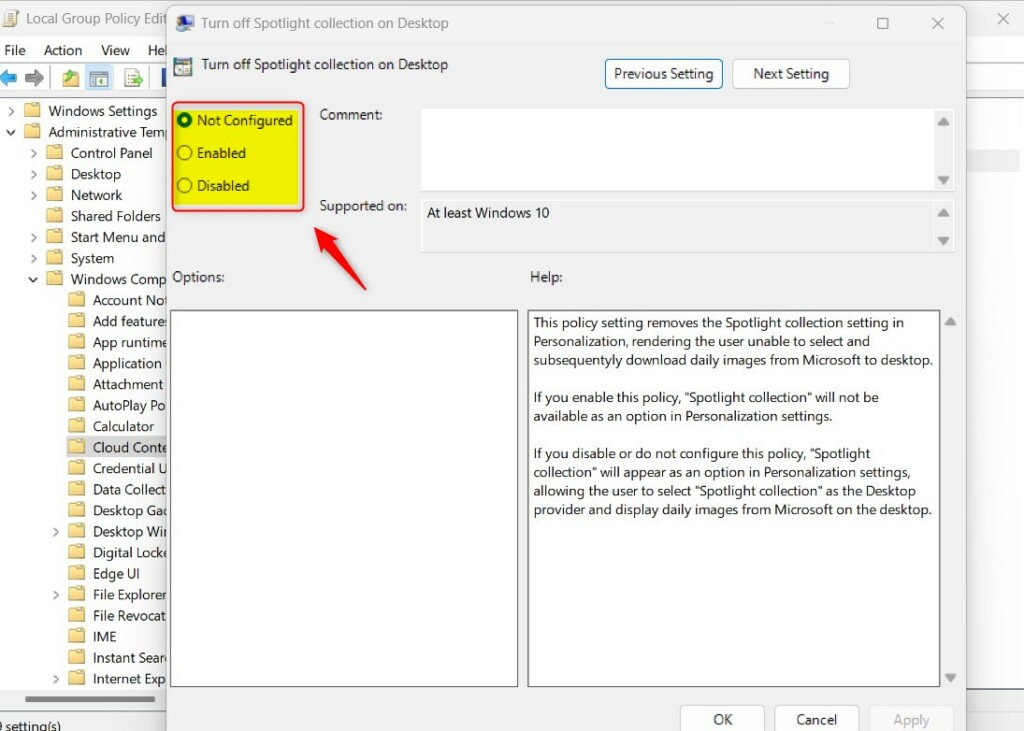
User Configuration\Administrative Templates\Windows Components\Cloud Content.
Click on Cloud Content. Double-click Turn off Spotlight collection on Desktop. Select Enabled to turn it off, or Not Configured to enable it.
Enable or Disable Spotlight using the Registry Editor
If you’re using Windows Home, you can turn Windows Spotlight on or off using the Registry Editor.
If you are on Windows Home, use the Registry Editor. Navigate to:
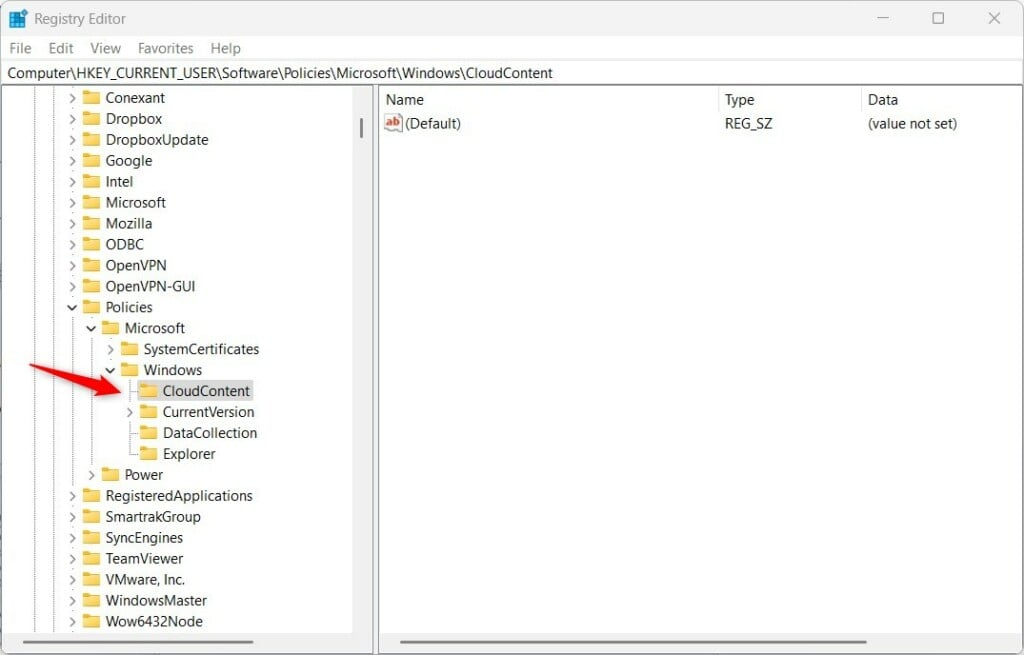
HKEY_CURRENT_USER\Software\Policies\Microsoft\Windows\CloudContent
If the CloudContent key is missing, right-click the Windows folder, select New, and create a Key named CloudContent.
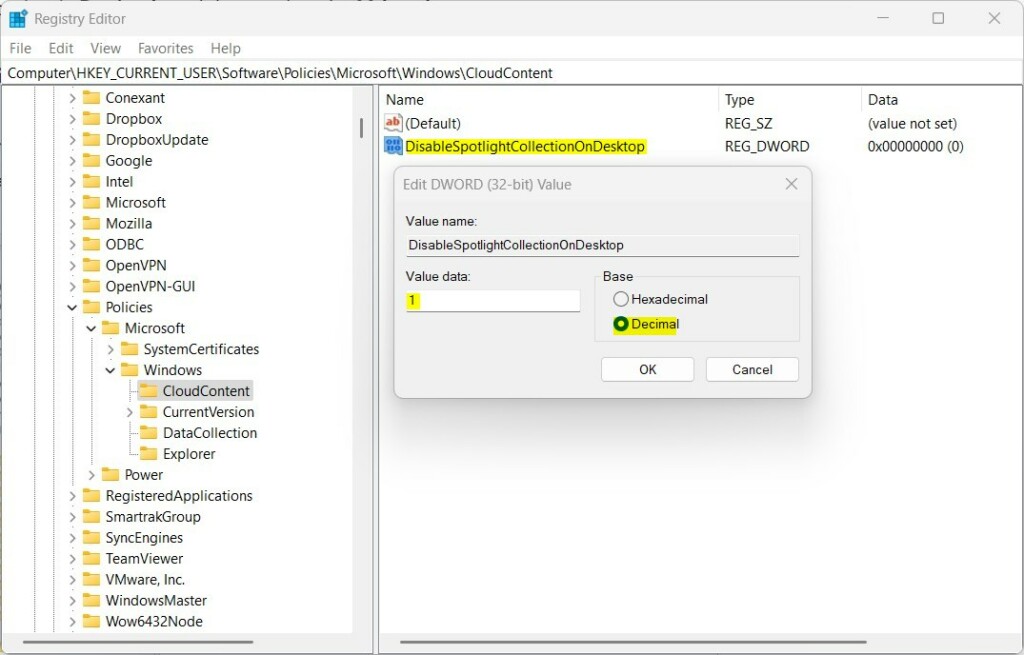
Right-click the right pane, select New, then DWORD (32-bit) Value. Name it DisableSpotlightCollectionOnDesktop. Set the value to 1 to disable the feature or 0 to enable it.
Enterprise Management: Intune and GPO
For businesses, IT teams use tools like Microsoft Intune or Group Policy to control Windows Spotlight on many computers at once.
Summary
You can easily manage Windows Spotlight to change how your desktop looks, whether for personal use or business.
How do I fix Windows Spotlight if it gets stuck on the same image?
If Windows Spotlight stops showing new pictures, it’s usually because the cache is broken, and you can fix it by deleting files in a specific folder.
Does Windows Spotlight consume significant bandwidth?
Windows Spotlight uses a very small amount of data to download high-resolution images. For most users, this impact is negligible. However, if you are on a strictly metered connection, you may prefer to disable the feature to prevent any background data usage while the system fetches new daily wallpapers.
Can I disable tips and suggestions while keeping the daily wallpapers?
Yes, you can turn off the “Get fun facts, tips, tricks, and more” messages on your Windows lock screen while still getting the daily Spotlight wallpapers.
Was this guide helpful?

About the Author
Richard
Tech Writer, IT Professional
Richard, a writer for Geek Rewind, is a tech enthusiast who loves breaking down complex IT topics into simple, easy-to-understand ideas. With years of hands-on experience in system administration and enterprise IT operations, he’s developed a knack for offering practical tips and solutions. Richard aims to make technology more accessible and actionable. He's deeply committed to the Geek Rewind community, always ready to answer questions and engage in discussions.



No comments yet — be the first to share your thoughts!