How to Enable or Disable Mobile Devices on Windows 11

You enable or disable mobile device connectivity on Windows 11 using the built-in Phone Link app.
Phone Link allows you to seamlessly integrate your Android or iPhone with your PC, letting you interact with your phone’s features directly from Windows. This connection lets you send texts, view photos, make calls, and even run mobile apps on your computer.
This is especially useful when you need to quickly respond to a message or check a notification without interrupting your workflow on your PC. For example, Phone Link supports features like cross-device copy and paste, a feature that streamlines sharing information between your devices.
By managing this connection, you create a more unified digital experience, ensuring your mobile and PC worlds work together smoothly.
You enable or disable mobile device connectivity through the Phone Link app in Windows Settings. Navigate to Bluetooth & devices, select Mobile devices, and then use the toggle under Manage devices to turn the connection on or off.
What You Need Before You Start
- A Microsoft Account signed into both devices.
- An Android device running Android 9.0 or higher (Android 15 is supported).
- Bluetooth enabled on both your PC and your phone.
- Both devices connected to the same Wi-Fi network.
- The Link to Windows app installed on your mobile device.
Step 1 Open Settings
Open the Windows Settings app. Click the Start menu and select Settings, or press the Windows key + I on your keyboard. Note: Administrative privileges are not required for standard user settings.
Step 2Go to Bluetooth & Devices
When the Settings window opens, click Bluetooth & devices on the left menu.

Step 3Select Mobile Devices
Look for the Mobile devices tile on the right side of the screen. Click it to open the configuration menu.
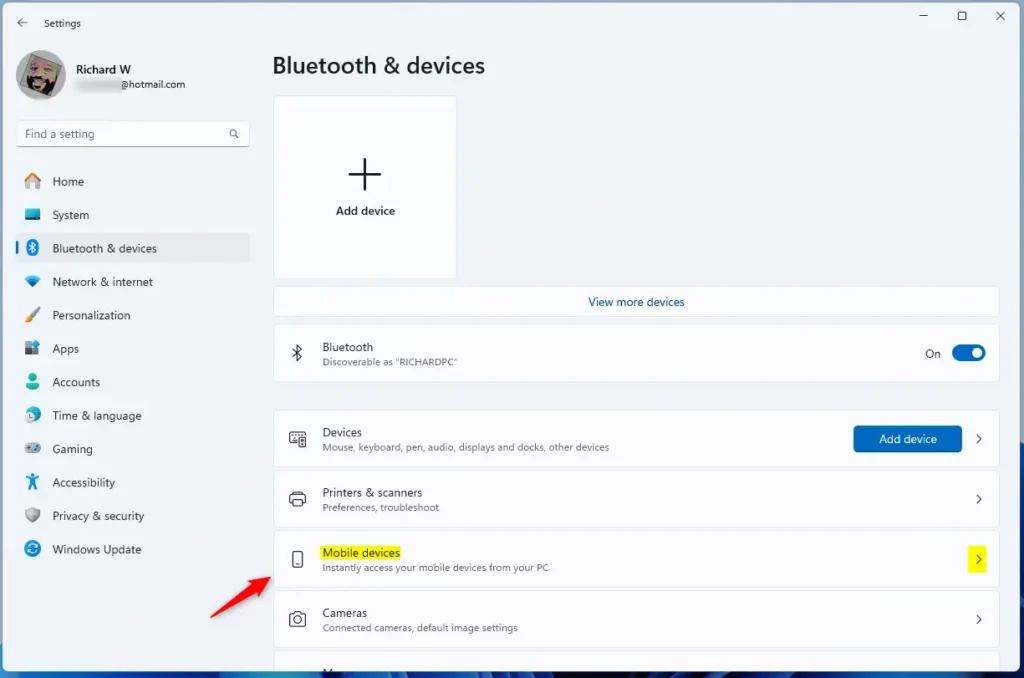
Step 4Open Manage Devices
Click the button labeled Manage devices under the Allow this PC to access your mobile device section.
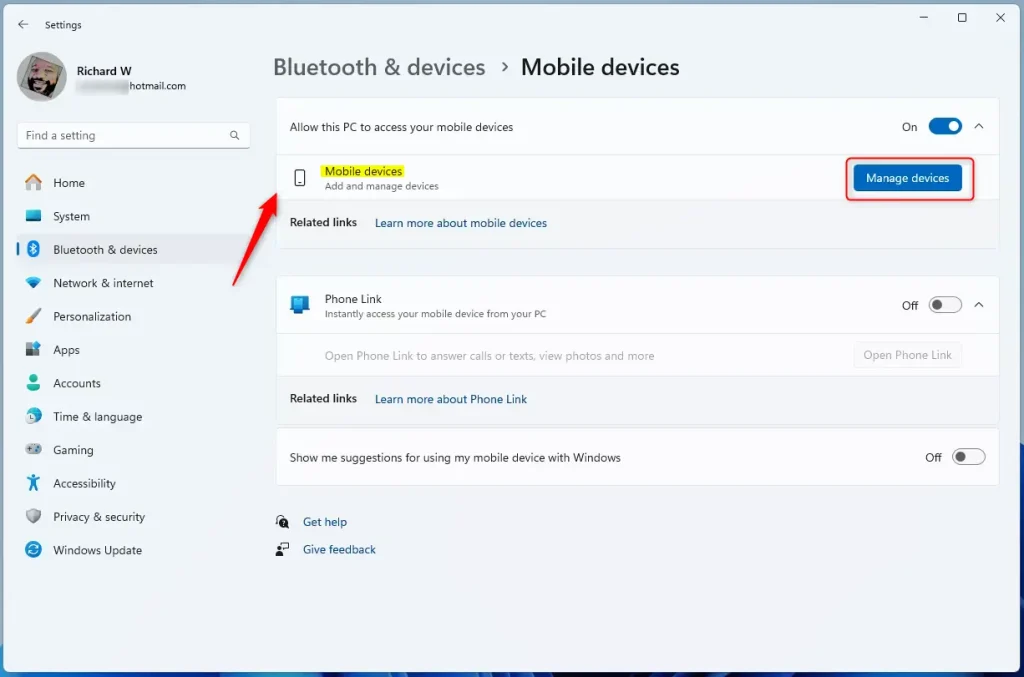
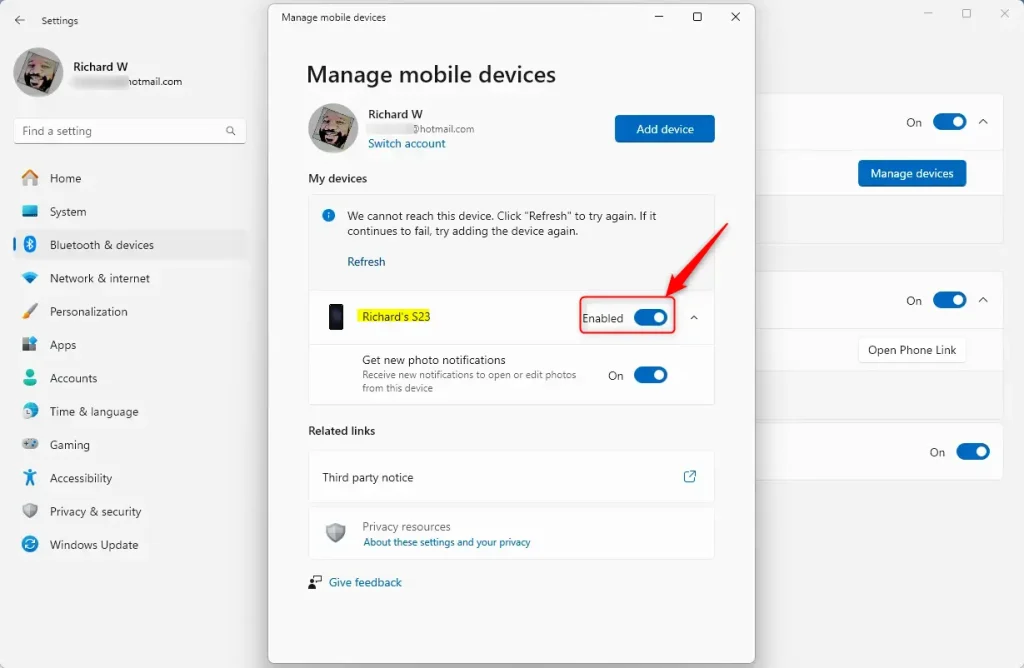
Step 5Turn On or Off
You will see a toggle switch. Move it to the On position to allow Windows to connect to your phone. What happens when you do this? Your PC gains the ability to talk to your phone and display your alerts. To stop this, simply move the toggle to the Off position.
Troubleshooting Connectivity
If you face issues, use this table to find a fix:
| Issue | Solution |
|---|---|
| Device not found | Ensure Bluetooth is active on both devices. |
| Sync fails | Check if you are signed into the same Microsoft Account. |
| App error | Update the Link to Windows app from the Google Play Store. |
Advanced Features and Integration
Once enabled, you can use features like Instant Hotspot for quick internet access or sync your Do Not Disturb status. Samsung tablet integration is also supported for extended screen usage. Ensure your permissions are set to allow background data usage for the best experience.
Summary
Managing mobile device access in Windows 11 is a simple way to boost productivity. By using the Phone Link app, you sync your Android device to your PC for seamless file transfers and notifications. Why use this? It keeps your workflow uninterrupted. What happens when you are finished? You have a fully integrated ecosystem that makes managing your mobile life from your desktop effortless.
Why can’t I see my mobile device in 🪟 Windows 11 settings?
If your device is missing, ensure the Link to Windows app is installed and updated on your phone. Verify that both devices are signed into the exact same Microsoft Account and that Bluetooth is toggled on for both. Sometimes, a simple restart of both the PC and the phone resolves discovery issues.
How do I remove a linked mobile device from my Microsoft account?
To remove a device, go to the Phone Link app on your PC, open Settings, and select My Devices. Find the device you wish to remove and select the option to unlink it. You should also remove the PC from the Link to Windows app settings on your mobile device.
Was this guide helpful?

About the Author
Richard
Tech Writer, IT Professional
Richard, a writer for Geek Rewind, is a tech enthusiast who loves breaking down complex IT topics into simple, easy-to-understand ideas. With years of hands-on experience in system administration and enterprise IT operations, he’s developed a knack for offering practical tips and solutions. Richard aims to make technology more accessible and actionable. He's deeply committed to the Geek Rewind community, always ready to answer questions and engage in discussions.




[…] When you turn on Nearby sharing in Windows 11, you can share documents, photos, and other content with devices using Bluetooth or Wi-Fi. […]