How to Unlink Your Phone from Windows 11 Phone Link

You unlink your phone from Windows 11 Phone Link by removing the linked device from your PC’s Phone Link settings.
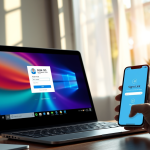
Phone Link is a Windows feature that deeply integrates your smartphone (Android or iPhone) with your PC, allowing you to access calls, messages, and apps directly from your computer. This integration typically uses Wi-Fi or Bluetooth for seamless communication.
In Windows 11, especially with the 22H2 update, managing these device connections is straightforward. You might unlink your phone when selling your device, resetting your connection, or if you simply no longer need this cross-device functionality.
When you unlink, your phone stops syncing data with your PC, meaning you won’t see new notifications, messages, or photos on your computer. Importantly, this action leaves all data on your actual mobile device untouched.
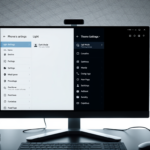
Remove your phone from the Phone Link app settings on your PC by navigating to Settings > My Devices, selecting your phone, and clicking Remove. You can also unlink it from your phone’s Link to Windows settings by tapping the gear icon and choosing Remove.
Unlink your phone from your mobile device
Follow these steps on your actual smartphone to break the connection.
- Open your phone’s settings menu.
- Find and press the Link to Windows icon to open its specific settings.

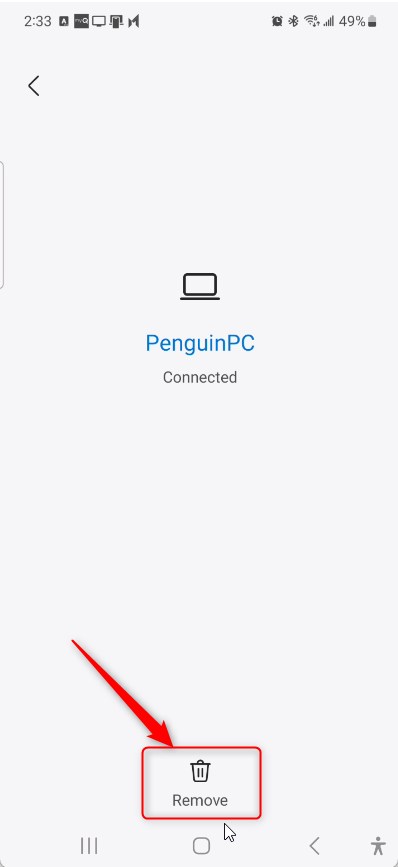
- Tap the Settings (gear icon).
- Select the Remove button.
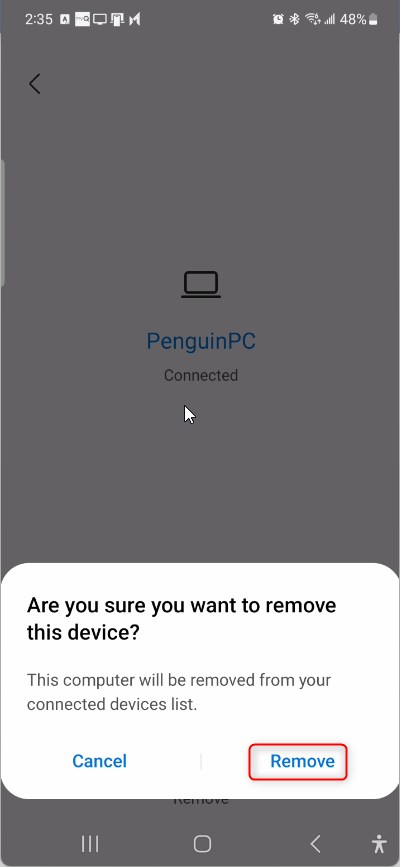
- Confirm your choice by tapping Remove again.
Remove your device from Windows
Removing your phone from Windows 11 is simple using the Phone Link app on your PC.
- Open the Phone Link app on your computer.
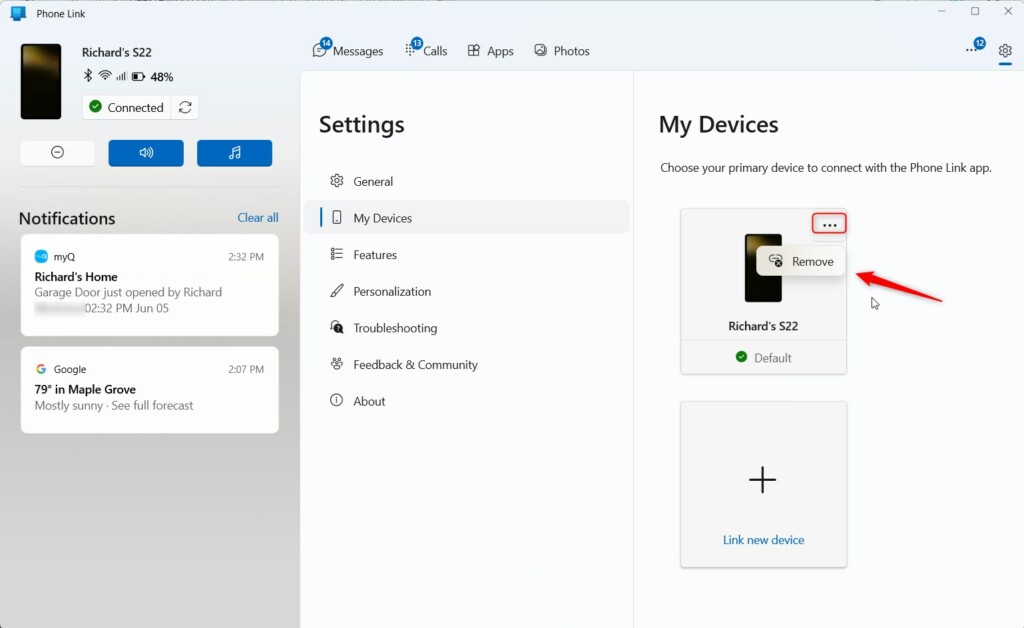
- Click the Settings (gear icon) at the top right corner.
- Select My Devices.

- Find the phone you want to remove.
- Click the 3-dots (More options) button.
- Select Remove.
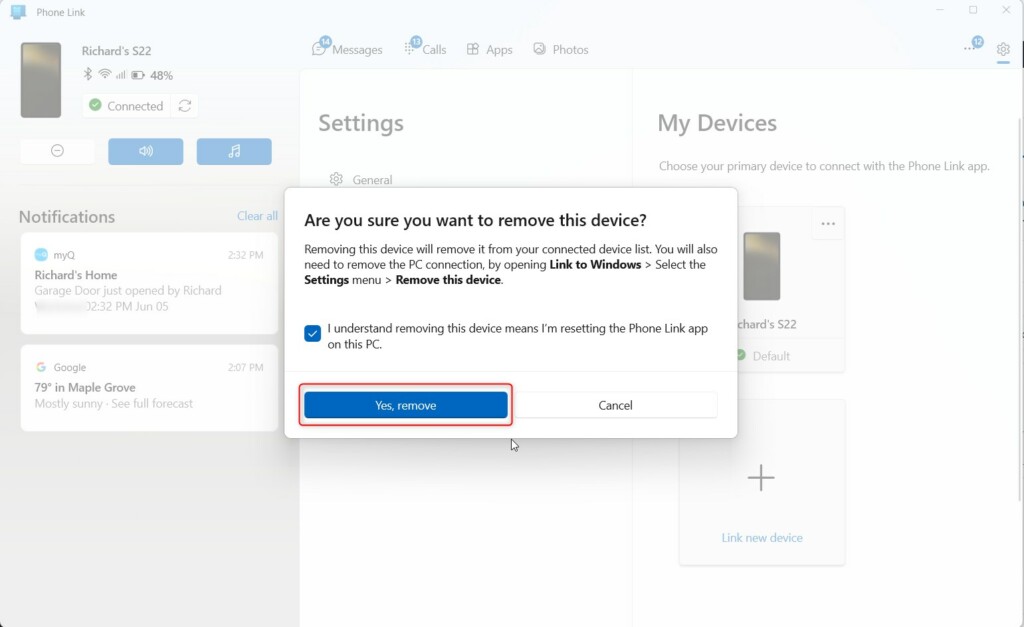
- Click Yes, remove to confirm.
Managing Microsoft Account Settings
Sometimes, your phone might still show up in your Microsoft Account even after you remove it from the app. Visit account.microsoft.com/devices to ensure the device is fully removed from your cloud profile. This prevents the phone from trying to reconnect automatically.
Troubleshooting and Forced Removal
If your phone keeps reconnecting, you might need to clear the app cache or try a forced uninstallation. For those comfortable with advanced settings, you can use PowerShell (a command-line tool) to remove the app entirely. Just a heads-up: this requires administrator privileges.
Get-AppxPackage *Microsoft.YourPhone* | Remove-AppxPackage
Summary
Unlinking your phone from Windows 11 is a simple process that helps manage your privacy and fix connection problems.
Reference: Microsoft.com
Can I uninstall Phone Link completely from 🪟 Windows 11?
Yes, you can completely uninstall the Phone Link app from Windows 11 using a simple command in PowerShell.
Why does my phone keep reconnecting after I unlink it?
Your phone might keep reconnecting after you unlink it from Windows 11 if it’s still linked to your Microsoft account or the Link to Windows app is still active on your phone.
Was this guide helpful?

About the Author
Richard
Tech Writer, IT Professional
Richard, a writer for Geek Rewind, is a tech enthusiast who loves breaking down complex IT topics into simple, easy-to-understand ideas. With years of hands-on experience in system administration and enterprise IT operations, he’s developed a knack for offering practical tips and solutions. Richard aims to make technology more accessible and actionable. He's deeply committed to the Geek Rewind community, always ready to answer questions and engage in discussions.

[…] from the PC or phone, turn allow the phone link app to sync over mobile without Wi-Fi on or off, unlink your phone from Windows, enable or disable auto startup for the phone link app, send and receive text messages from the […]