How to Enable Mobile Access on Windows 11

You can enable mobile access on Windows 11 using the built-in Phone Link app to connect your smartphone directly to your PC.
Phone Link allows you to manage notifications, send/receive texts, view photos, and even run Android apps on your Windows 11 computer.
This powerful integration bridges your Windows 11 device and your Android or iOS phone, letting you access your mobile content without picking up your device.
For example, you can instantly see your phone’s latest photos on your Windows 11 desktop, making it easy to grab them for use on your PC.
Setting up Phone Link is straightforward and significantly boosts your productivity by keeping your digital life seamlessly organized.
Enable mobile access in Windows 11 via Settings > Bluetooth & devices > Mobile devices, then toggle “Allow this PC to access your mobile devices” to On. This connects your phone for notifications, apps, and file management.
Platform Differences: Android vs. iOS
Windows 11 supports both Android and iOS, but the features differ. Android users get deeper integration, including app streaming and file drag-and-drop. iOS users can sync messages and photos via the Phone Link app.
| Feature | Android | iOS |
|---|---|---|
| App Streaming | Yes | No |
| File Sharing | Yes | Limited |
| Notifications | Yes | Yes |
| Messages | Yes | Yes |
Method 1Using Windows Settings
Turning on mobile access in Windows 11 is simple using the Settings app, letting you connect your phone to your PC quickly.
- Open the Settings app. You can do this by clicking the Start menu or pressing the Windows key + I on your keyboard.
- Click on Bluetooth & devices on the left side of the screen.
Windows 11 Bluetooth and devices settings page - Click the Mobile devices tile on the right side.
- Click on Allow this PC to access your mobile devices.
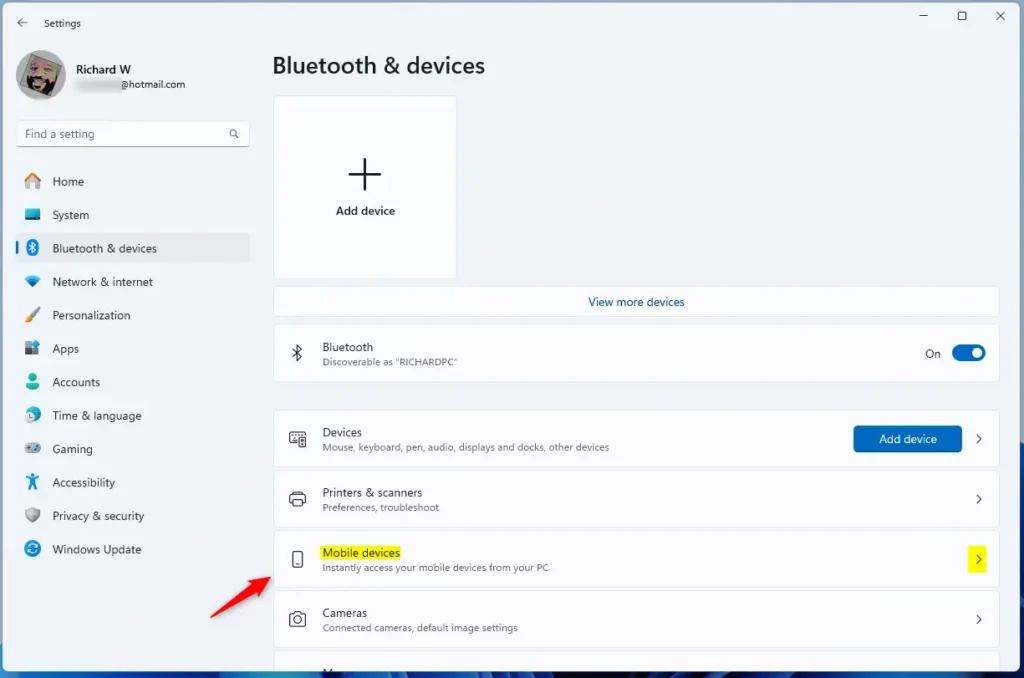
Mobile devices tile in Windows 11 settings for phone connectivity - Flip the switch to On to enable it .

Windows 11 mobile devices settings - If this is your first time, Windows will ask to install the Cross Device Experience Host. Click Yes to finish.
Method 2Using Registry Editor
Advanced users can enable mobile access in Windows 11 by changing a setting in the Registry Editor, but you’ll need admin rights and to be very careful.
- Open the Registry Editor. Right-click the app and choose Run as administrator.
- Navigate to this path in the address bar:
HKEY_CURRENT_USER\Software\Microsoft\Windows\CurrentVersion\Mobility - Look for the item named
CrossDeviceEnabled. If it is not there, right-click in an empty space, select New, then DWORD (32-bit) Value, and name itCrossDeviceEnabled. 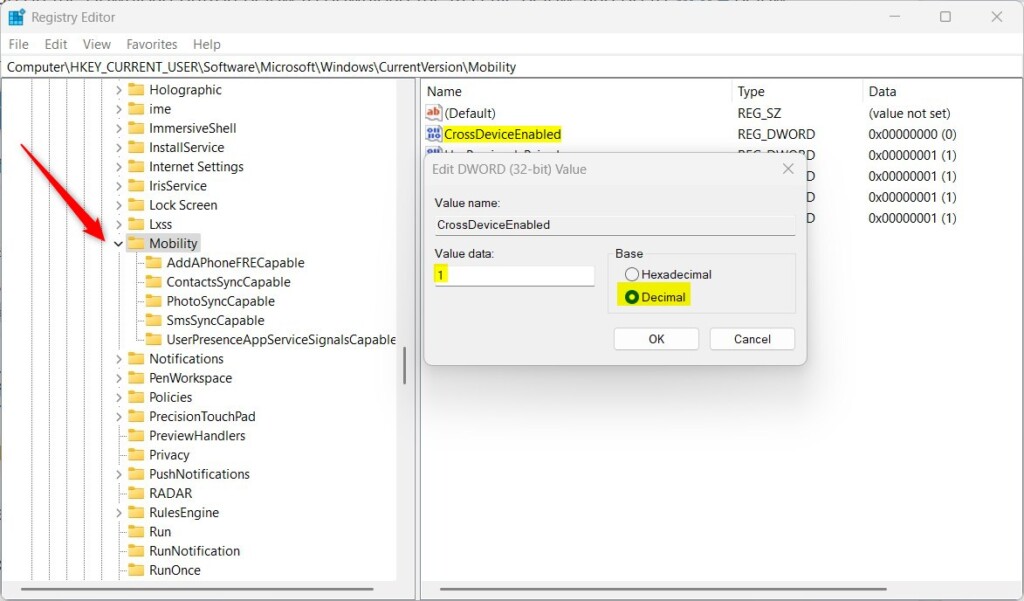
Windows 11 mobile devices registry editor - Double-click
CrossDeviceEnabled. Set the value to 1 to turn it on. - Restart your computer to save your changes.
Troubleshooting and Permissions
If your phone won’t connect, check your permissions. The Link to Windows app requires location and notification access to sync properly. Ensure your Microsoft Account is signed in on both your PC and your phone to enable cloud synchronization.
Managing Start Menu Integration
Windows 11 may show mobile content in your Start menu. To disable this, go to Settings > Personalization > Start and toggle off Show recommendations for tips, shortcuts, new apps, and more.
Summary
Enabling mobile access on Windows 11 bridges the gap between your phone and PC. Whether you use the Settings app or the Registry Editor, you can unlock features like notification syncing and file sharing. Always ensure your apps are updated via the Microsoft Store for the best experience.” }
Why do I need to grant location permissions for Link to Windows?
Granting location permissions for Link to Windows is necessary so your PC can find your phone using Bluetooth and Wi-Fi, which helps create a reliable connection for syncing.
Can I connect an iPhone to 🪟 Windows 11 using Phone Link?
Yes, you can connect your iPhone to Windows 11 using the Phone Link app, allowing you to see iMessage notifications, recent photos, and manage calls right from your computer.
Was this guide helpful?

About the Author
Richard
Tech Writer, IT Professional
Richard, a writer for Geek Rewind, is a tech enthusiast who loves breaking down complex IT topics into simple, easy-to-understand ideas. With years of hands-on experience in system administration and enterprise IT operations, he’s developed a knack for offering practical tips and solutions. Richard aims to make technology more accessible and actionable. He's deeply committed to the Geek Rewind community, always ready to answer questions and engage in discussions.




[…] Windows Mobile devices (or Phone Link) allow you to access your mobile devices from your PC instantly. New features are being added to the Mobile devices’ settings. […]
[…] Windows Mobile devices (or Phone Link) allow you to access your mobile devices from your PC instantly. This feature comes in handy when transferring files, sending messages, or receiving notifications from your phone while working on your computer. […]
[…] Windows Mobile devices (or Phone Link) allow you to access your mobile devices from your PC instantly. New features are being added to the Mobile devices’ settings. […]
[…] Windows app lets you link and manage your mobile devices directly from your Windows PCs. Using the Windows Mobile devices (or Phone Link) app, you can access your mobile devices from your […]
[…] Windows Mobile devices (or Phone Link) allow you to access your mobile devices from your PC instantly. This feature comes in handy when transferring files, sending messages, or receiving notifications from your phone while working on your computer. […]
[…] Windows Mobile devices (or Phone Link) allow you to access your mobile devices from your PC instantly. This feature comes in handy when transferring files, sending messages, or receiving notifications from your phone while working on your computer. […]
[…] Link app (soon to be renamed to Mobile devices) is a feature on Windows that allows you to link your phone and […]
[…] Windows Mobile devices (or Phone Link) allow you to access your mobile devices from your PC instantly. This feature comes in handy when transferring files, sending messages, or receiving notifications from your phone while working on your computer. […]
[…] Windows Mobile devices (or Phone Link) allow you to access your mobile devices from your PC instantly. This feature comes in handy when transferring files, sending messages, or receiving notifications from your phone while working on your computer. […]
[…] Windows Mobile devices (or Phone Link) allow you to access your mobile devices from your PC instantly. This feature comes in handy when transferring files, sending messages, or receiving notifications from your phone while working on your computer. […]
Every time I try this and restart my PC it reverts back to the previous setting.
[…] Windows Mobile devices (or Phone Link) allow you to access your mobile devices from your PC instantly. This feature comes in handy when transferring files, sending messages, or receiving notifications from your phone while working on your computer. […]
[…] Windows Mobile devices (also called Phone Link) let you connect your phone to your PC. This helps you do things like transfer files, send text messages, and see phone notifications right on your computer. […]
[…] Allow your PC to access your phone in your Windows settings. […]
[…] Windows Mobile devices (sometimes called Phone Link) lets you connect your phone to your PC wirelessly. It’s great for moving files, sending texts, and getting notifications without picking up your phone. […]
[…] For more help, you can check out this detailed guide on allowing your PC to access mobile devices in Windows 11. […]