How to Enable Remote PC Controls on Windows 11

You enable remote PC controls on Windows 11 by accessing the Phone Link settings and toggling the “Remote PC” option.
Remote PC controls allow you to manage your Windows 11 computer from your smartphone, offering convenient access to its features. This functionality is an extension of the existing Phone Link app, which previously focused on notifications and file transfers.
With remote control enabled, you can perform actions like locking your PC remotely, adding an extra layer of security. You’ll need to be signed into your Microsoft account on both your PC and phone to establish the connection.
This feature is integrated into Windows 11’s Mobile Devices settings, providing a straightforward way to turn remote control on or off as needed.
Enable Remote PC controls in Windows 11 by opening Settings, navigating to Bluetooth & devices, then Mobile devices. Under “Allow this PC to access your mobile device,” click Manage devices, select your phone, and toggle Remote PC controls to On.
How to Turn On Remote PC Controls on 🪟 Windows 11
Turning on remote PC controls on Windows 11 lets you manage your computer from another device, like your phone. To get started, open the Settings app by clicking the Start menu or pressing Windows key + I, then go to Bluetooth & devices, select Mobile devices, and click Manage devices to find the option.
- Open the Settings app: Click the Start menu (Windows icon) and select Settings. Or press Windows key + I on your keyboard.
Windows 11 Bluetooth and devices settings page - Find Bluetooth & devices: In the Settings window, click Bluetooth & devices on the left side.

Windows 11 Mobile devices tile - Select Mobile devices: On the right, find and click Mobile devices.

Windows 11 mobile devices manage devices - Click Manage devices: Click the Manage devices button under “Allow this PC to access your mobile device”.
- Find your phone: Look for your phone listed under My devices and click to expand it.
- Enable Remote PC controls: Look for the Remote PC controls option and switch it On to allow your phone to control your PC.
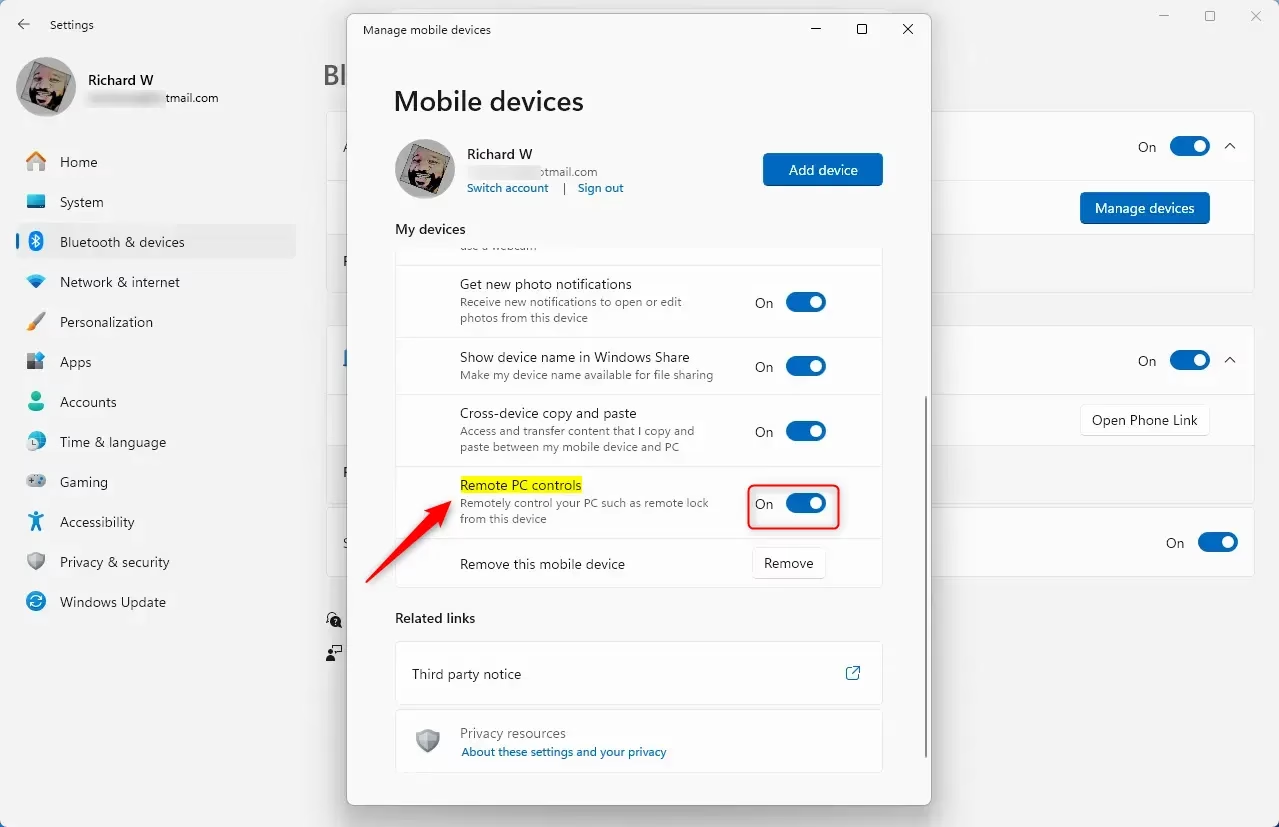
Remote PC controls via Windows 11
If you want to turn it off later, just toggle the switch Off.
Why Use Remote PC Controls?
- Easy Access: Control your PC from your phone without needing to be near your computer.
- File Transfers & Messaging: Quickly move files and send texts while you work on your PC.
- Remote Security: Lock your PC remotely if you walk away and forget to secure it.
- Simple Setup: Turn this feature on or off anytime from the Settings app.
- Stay Safe: Make sure your phone is connected securely to prevent unwanted access.
Using remote PC controls on Windows 11 gives you easy access to your computer from your phone, even when you’re not home. You can also quickly move files, send messages, and even lock your PC remotely for extra security, all with a simple setup.
For more tips on using Windows 11, visit Geek Rewind Windows 11 Guides.
Summary
Remote PC controls on Windows 11 let you manage your computer from your phone, offering convenience and security. This feature is great for accessing your PC from a distance, moving files, sending messages, and locking your computer remotely. Setting it up is quick: open Settings, go to Bluetooth & devices, select Mobile devices, find your phone, and switch on the controls.
Is remote desktop being discontinued for 🪟 Windows 11?
Starting May 27, 2025, the Remote Desktop app for Windows from the Microsoft Store will no longer be supported or available for download and installation.
How can I control a PC remotely?
TeamViewer's remote PC free software lets you connect and control computers remotely for personal use for free.
Is VNC or RDP better?
If you need speed, security, and a seamless Windows experience, RDP is the better choice. If you need a remote access tool that works across multiple operating systems, VNC is the way to go. For most personal remote access scenarios, RDP is faster and more reliable.
Was this guide helpful?

About the Author
Richard
Tech Writer, IT Professional
Richard, a writer for Geek Rewind, is a tech enthusiast who loves breaking down complex IT topics into simple, easy-to-understand ideas. With years of hands-on experience in system administration and enterprise IT operations, he’s developed a knack for offering practical tips and solutions. Richard aims to make technology more accessible and actionable. He's deeply committed to the Geek Rewind community, always ready to answer questions and engage in discussions.



No comments yet — be the first to share your thoughts!