How to Lock Your Windows 11 Device Remotely

You can lock your Windows 11 device remotely using the built-in “Find my device” feature.
This tool lets you secure your PC or tablet from anywhere, protecting your personal files and sensitive information if it’s lost or stolen.
To use “Find my device” for remote locking, you must first enable the feature within your Windows 11 settings, which is available on versions released after October 2021.
Once enabled, you can access the feature through your Microsoft account online to locate and remotely lock your device.
You can remotely lock your Windows 11 device by enabling “Find my device” in Settings. After enabling it, sign into your Microsoft account online via a web browser to locate and lock your PC.
Step 1Turn On Find My Device
Before you can lock your device from afar, make sure “Find my device” is turned on. You can’t use it if it’s off. This setting must be active before your device goes missing.
Why This Matters
Turning on “Find my device” is like having a security guard for your computer, ready to protect it if it gets lost or stolen.
How to Enable Find My Device
To lock your Windows 11 device remotely, you first need to turn on the “Find my device” feature in your settings.
- Access Settings: Open the Windows Settings app. The fastest way is to press the
Windows key + Ikeys on your keyboard. Or, click the Start button, then click the gear icon (Settings). - Navigate to Privacy & Security or Update & Security:
- For Windows 11 users: In the Settings app, click on
Privacy & securityin the left menu. - For Windows 10 users: In the Settings app, click on
Update & Security.
- For Windows 11 users: In the Settings app, click on
- Locate “Find my device”:
- Windows 11: Scroll down in the “Security” section and click on
Find my device. - Windows 10: In the left menu of the “Update & Security” screen, click on
Find my device.
- Windows 11: Scroll down in the “Security” section and click on
- Turn it On: Look for a switch. If it says “Off,” click it to turn it “On.”
Important Things to Know
You need a Microsoft account to lock your Windows 11 device remotely, as it links your computer to your online account for management.- Microsoft Account Required: You must be signed in to your Windows device with a Microsoft account. This links your device to your account so you can manage it remotely. If you use a local account, you need to switch to a Microsoft account first. You can do this in
Settings > Accounts > Your info. - Administrator Privileges Required: You also need to be an administrator on the device. Most personal computers are set up this way. You can check by going to
Settings > Accounts > Your info. Your account type will be listed there. - Location Services: For “Find my device” to show your device’s location, location services must be turned on. Even if other users turn off location for their apps, “Find my device” can still work if the main setting is on. You can manage this in
Settings > Privacy & security > Location(Windows 11) orSettings > Privacy > Location(Windows 10). - Not for Work/School Accounts: This feature is for personal Microsoft accounts. It usually doesn’t work if you’re signed in with a work or school account managed by an organization.
- Battery Power & Internet: Your device needs to be on, have battery power, and be connected to the internet ( Wi-Fi or Ethernet) to send its location. If it’s off or has no internet, you won’t see its current location. But, you might still be able to lock it if it comes back online.
Step 2Find Your Missing Device
If your device is gone, don’t panic! Here’s how to locate it: If you turned on “Find my device,” you can try to find it. Your Microsoft account is key here.
Accessing the Device Portal
To lock your Windows 11 device remotely, you’ll use another device to go to the Microsoft account website and sign in.
- Open a Web Browser: Use any web browser on a device that has internet.
- Go to the Devices Page: Type this address into your browser’s address bar:
https://account.microsoft.com/devices - Sign In: Log in with the exact same Microsoft account you use on the lost Windows device. This is very important. If you have more than one Microsoft account, use the right one.
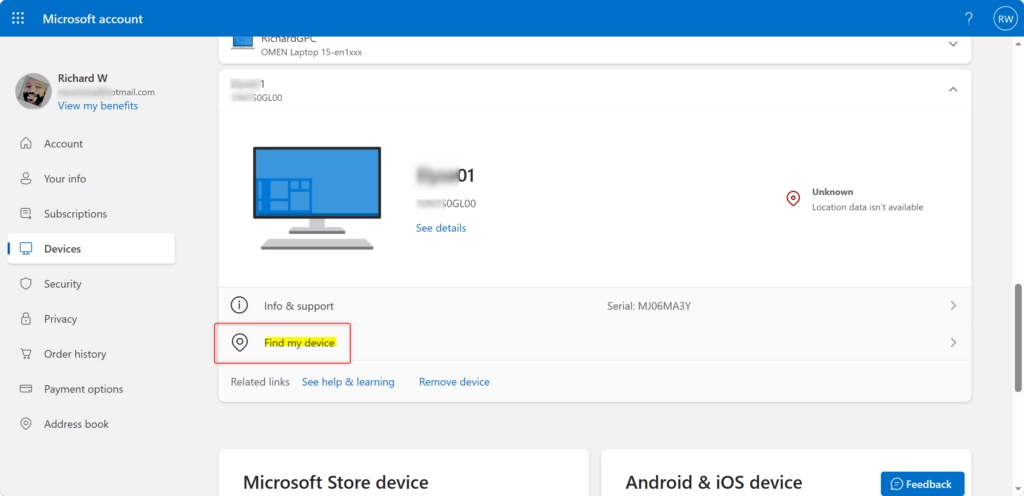
- Select the “Find my device” Tab: Once logged in, find the tab or section called
Find my deviceand click it. - Choose Your Device: You will see a list of devices linked to your Microsoft account. Select the lost Windows device from the list.
- View Location: Click the
Findbutton. Windows will try to find your device and show its last known location on a map. This location is based on the information your device last sent when it was online and had location services turned on.
What If You Can’t See the Location?
If you can’t see your Windows 11 device’s location, it might be turned off, offline, or have location services disabled, but you can still lock it.
- The device is turned off.
- The device is not connected to the internet.
- Location services were turned off on the device.
- The “Find my device” feature was turned off.
Even if you can’t see the exact location, you can still lock the device. This is often the most important step.
Step 3Lock Your Windows Device Remotely
This is the most crucial step if your device is lost or stolen. Locking your device stops anyone from accessing your personal files and information. It’s a vital security measure.
How to Lock Your Device
You can lock your Windows 11 device remotely by signing into your Microsoft account online and selecting the “Lock” option for your device.
- Navigate to the Device: Follow steps 1-5 from “Step 2: Find Your Missing Device” to reach the “Find my device” section for your device on the Microsoft account website.
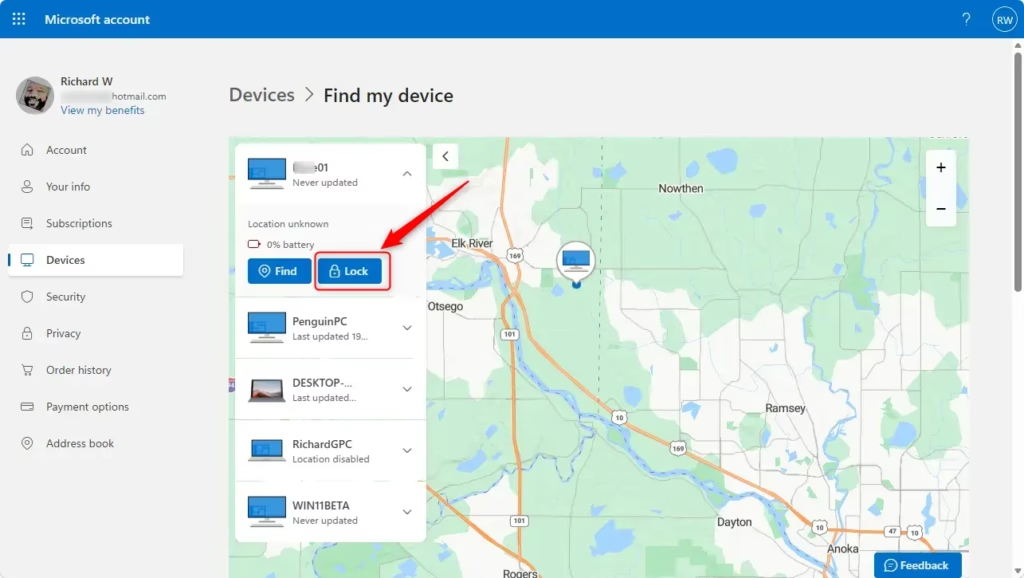
- Initiate Lock: You should see an option to
Lockyour device. Click this button. - Confirm and Add a Message (Optional but Recommended): After clicking “Lock,” you might be asked to add a message. This message will show on the lock screen. It’s a good way to give contact info if someone honest finds your device. For example, you could write: “This laptop is lost. Please call or email . Reward offered.” You can also set a new password here.
- Click Next: Once you’ve added your message (or skipped it) and confirmed the lock, click
Nextor a similar button.
Reference:
https://support.microsoft.com/en-us/accounts-billing/security/find-and-lock-a-lost-windows-device
Summary
The “Find my device” feature lets you lock your Windows 11 PC remotely using your Microsoft account, requiring you to enable it in settings and sign in.
[Your Phone Number] [Your Email Address]How to control a 🪟 Windows 11 PC remotely?
You can control a Windows 11 PC remotely using the 'Find my device' feature to lock it, or by using remote desktop software like Microsoft Remote Desktop or third-party applications. Ensure the feature is enabled and your device is connected to the internet for remote access.
How do I stop someone from accessing my computer remotely in 🪟 Windows 11?
To stop remote access, disable Remote Desktop in Windows settings, uninstall remote access software, and ensure your firewall is active. Regularly review user accounts and passwords, and consider enabling multi-factor authentication for added security against unauthorized remote connections.
How do I lock my PC without logging off?
You can lock your Windows 11 PC without logging off by pressing the Windows key + L. This action secures your session, requiring your password to resume, but keeps all your applications and files open and running in the background.
Was this guide helpful?

About the Author
Richard
Tech Writer, IT Professional
Richard, a writer for Geek Rewind, is a tech enthusiast who loves breaking down complex IT topics into simple, easy-to-understand ideas. With years of hands-on experience in system administration and enterprise IT operations, he’s developed a knack for offering practical tips and solutions. Richard aims to make technology more accessible and actionable. He's deeply committed to the Geek Rewind community, always ready to answer questions and engage in discussions.


No comments yet — be the first to share your thoughts!