How to Turn On or Off Website Accessing your Location in Microsoft Edge on Windows 11

You can decide if websites in Microsoft Edge get to see your location. This helps you control your privacy. It also controls what information websites can collect about where you are.
When you manage location access in Edge, you get to choose which websites can ask for your location. This is a big help for your privacy and controls what information sites collect about where you are. Many sites use this data to show you things like local news or nearby stores, so it’s good to have control.
On Windows 11, you can change these settings in Edge. You can stop all websites from asking for your location, or you can allow specific sites to ask.
To control website location access in Microsoft Edge, go to Settings, then Privacy, search, and services, and finally Site permissions, then Location. You can toggle “Ask before accessing” to manage general requests or set permissions individually for specific websites.
How to Find Edge’s Location Settings
You can easily control which websites access your location in Microsoft Edge by finding the right settings page.
- Open Microsoft Edge.
- Click the three dots
...in the top-right corner. This opens a menu. - Select Settings from the menu. You can also type
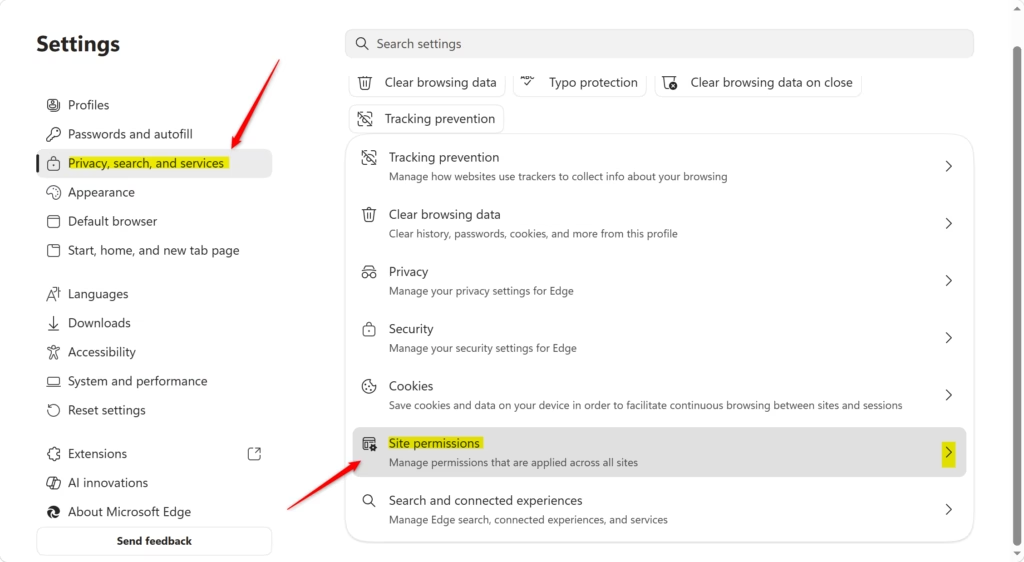
edge://settings/privacyedge://settings/in the address bar and press Enter. - In the Settings tab, click Privacy, search, and services on the left side.
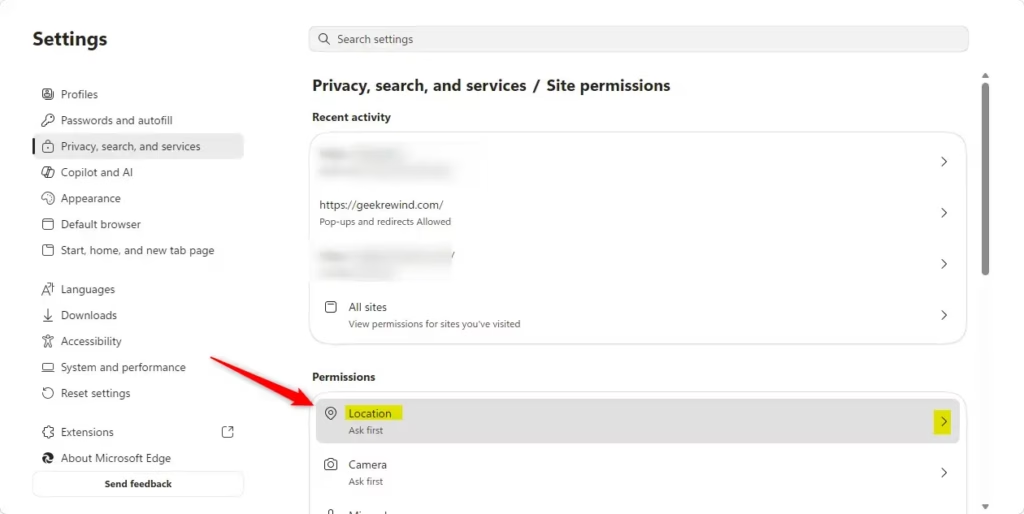
- Scroll down on the right side until you see Site permissions.
- Look through the list and click on Location. This will show you all the location settings.
Quick Tip: If you find yourself changing site permissions often, you can save edge://settings/content edge://settings/content/location as a bookmark. It’ll make it much quicker to get back here next time.
Setting Your Main Location Access
Setting your main location access in Edge involves deciding if the browser should ask websites for your location permission before sharing it.
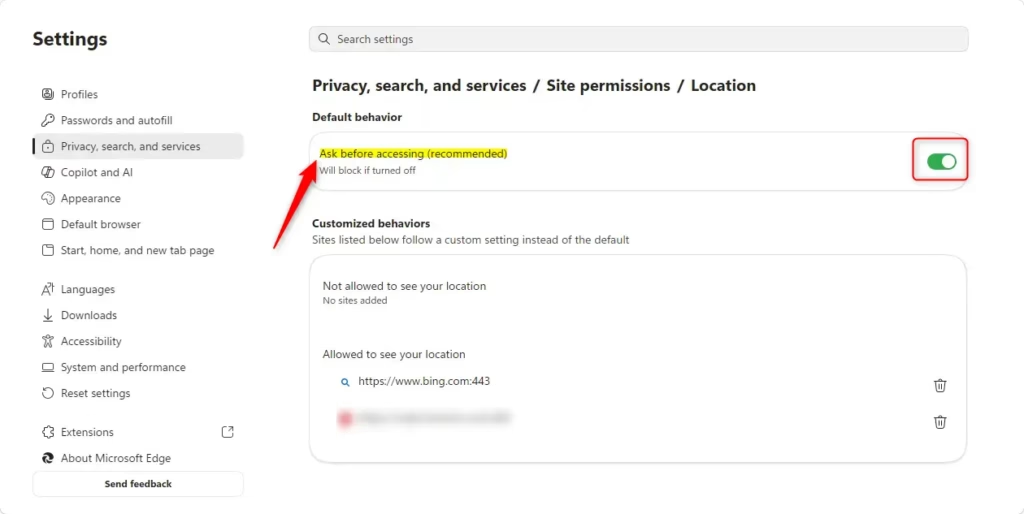
On the Location settings page (from the step above), find the switch called Ask before accessing. This is your main way to control it.
- If you turn OFF “Ask before accessing”: Edge will stop all websites from getting your exact location. You won’t get any more requests. This is the strictest setting.
- If you turn ON “Ask before accessing” (Recommended): This is the default setting and usually the best choice. When a website wants your location, Edge will show a message. It will ask if you want to Allow or Block it for that site. You can change this later.
Important Note: Even if you block Edge from asking, some websites might still guess your location using your IP address. This isn’t as exact, but it’s good to know.
Managing Location for Specific Websites
Do you trust your weather app with your location, but maybe not a game website? Good news: you don’t have to go all or nothing. Edge lets you set permissions for each website one by one.
Method A: While on the Website
You can change a specific website’s location permission directly while you’re visiting it in Microsoft Edge by clicking an icon near the address bar.- Go to the website in Microsoft Edge.
- Look to the left of the address bar. You will see an icon. It might look like a padlock, an ‘i’ in a circle, or a warning sign.
- Click that icon. A small menu will appear.
- Look for Permissions for this site. Click it.
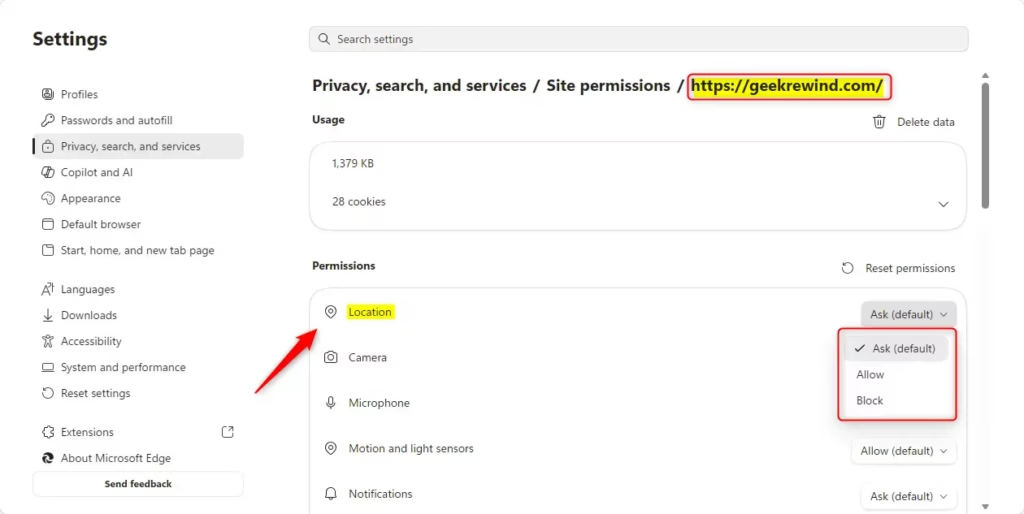
- Find Location in the list of permissions.
- Next to Location, use the dropdown menu. Choose Ask (the default), Allow, or Block.
Method B: From the Main Site Permissions List
- Follow Step 1 to get to the site permissions list (
edge://settings/content/all). - Find and click on Location.
- You will see a list of websites that have asked for your location or have permissions set. Click the ‘X’ next to a site to remove its permission. You might also be able to change permissions directly from this list.
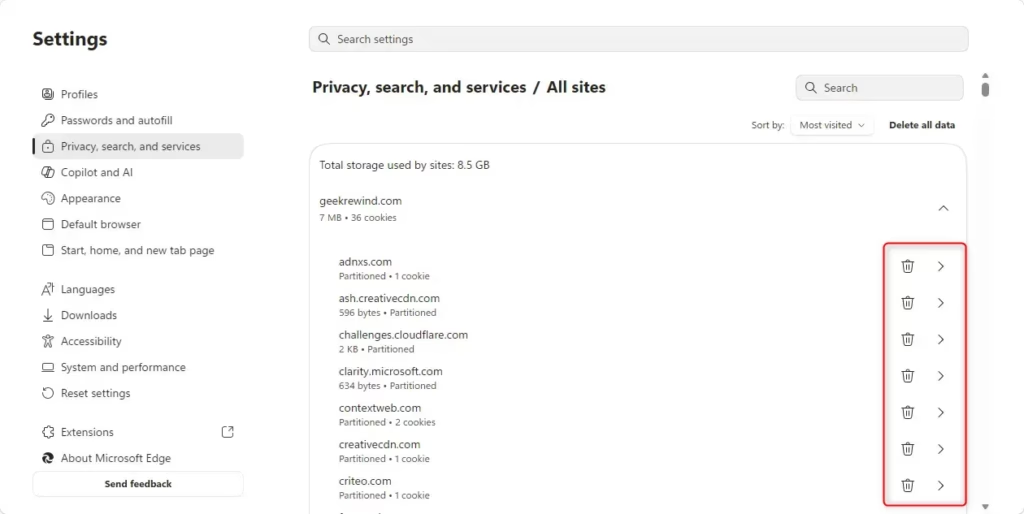
Managing all site permissions for location in Edge is possible from a central list where you can review and remove access for specific websites.
Reference:
https://support.microsoft.com/en-us/edge/location-and-privacy-in-microsoft-edge
Summary
You can control if websites in Microsoft Edge can ask for your location. You can turn off all requests, or you can choose to allow or block specific sites. This helps you keep your location private. It also lets you use websites that need your location for features.
How do I manage location settings in edge?
To manage location settings in Microsoft Edge, open Edge, click the three dots (…), select Settings, then click Privacy, search, and services. Scroll to Site permissions and click Location to adjust website access to your location.
How to unblock location on Edge?
To unblock location access on Edge, navigate to Settings > Privacy, search, and services > Site permissions > Location. Find the website you want to unblock in the ‘Block’ list and click the three dots next to it, then select ‘Allow’.
How do I edit location settings?
You can change location settings in Microsoft Edge by going to Settings > Privacy, search, and services > Site permissions > Location. Here, you can toggle the ‘Allow sites to ask for your location’ switch or manage permissions for individual websites.
How to fix location has been turned off?
If location access is turned off in Edge, go to Settings > Privacy, search, and services > Site permissions > Location. Ensure the ‘Allow sites to ask for your location’ toggle is switched on. Also, check your Windows 11 location settings are enabled.
Was this guide helpful?

About the Author
Richard
Tech Writer, IT Professional
Richard, a writer for Geek Rewind, is a tech enthusiast who loves breaking down complex IT topics into simple, easy-to-understand ideas. With years of hands-on experience in system administration and enterprise IT operations, he’s developed a knack for offering practical tips and solutions. Richard aims to make technology more accessible and actionable. He's deeply committed to the Geek Rewind community, always ready to answer questions and engage in discussions.


No comments yet — be the first to share your thoughts!