How to Turn On or Off Website Accessing your Location in Microsoft Edge on Windows 11

You can choose if websites in Microsoft Edge can see your location. This helps you control your privacy. It also controls what information websites can collect about where you are.
When you manage location access in Edge, you decide which websites can ask to know your location. This is important for your privacy. Many websites use this data to show you things like local news or nearby stores.
On Windows 11, you can easily change these settings in Edge. You can stop all websites from asking for your location. Or, you can allow specific sites to ask.
How to Find Edge’s Location Settings
Want to control who sees your location in Edge? Here’s how to find the settings.
- Open Microsoft Edge.
- Click the three dots
...in the top-right corner. This opens a menu. - Select Settings from the menu. You can also type
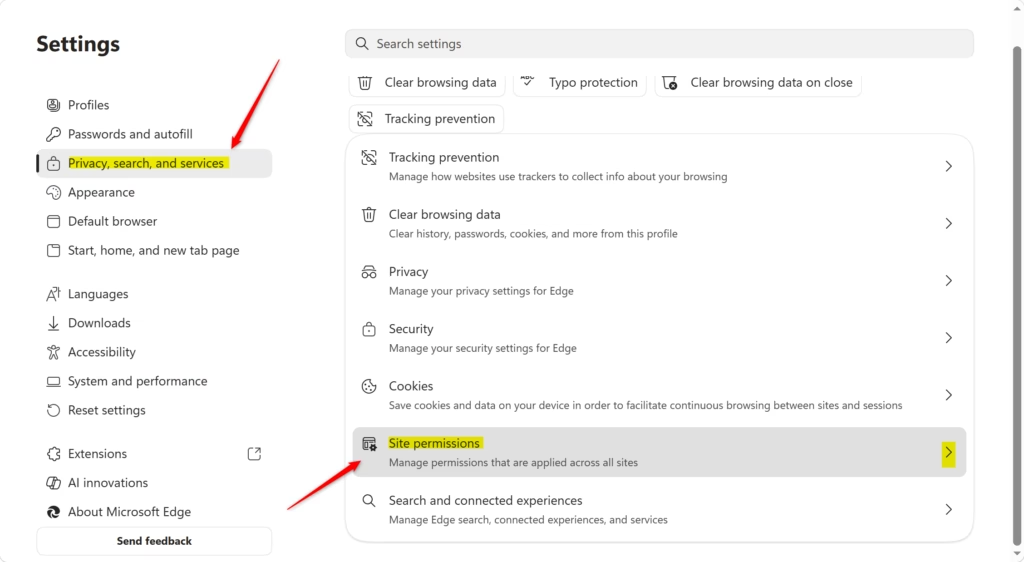
edge://settings/privacyedge://settings/in the address bar and press Enter. - In the Settings tab, click Privacy, search, and services on the left side.
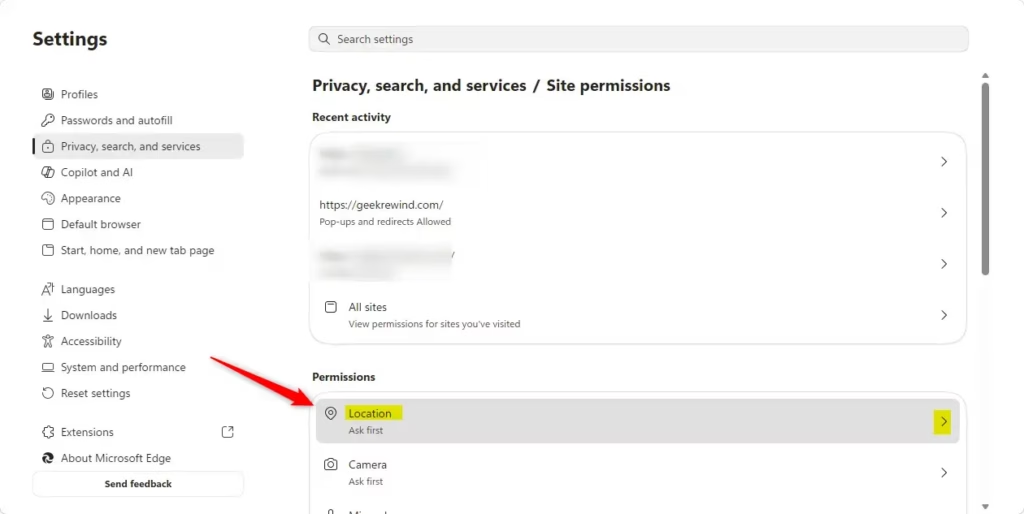
- Scroll down on the right side until you see Site permissions.
- Look through the list and click on Location. This will show you all the location settings.

Quick Tip: If you change site permissions often, you can save edge://settings/content edge://settings/content/location as a bookmark. This makes it easy to get back to these settings.
Setting Your Main Location Access
Here, you decide if Edge should ask websites for your location at all. This is like the main on/off switch for sharing your location.
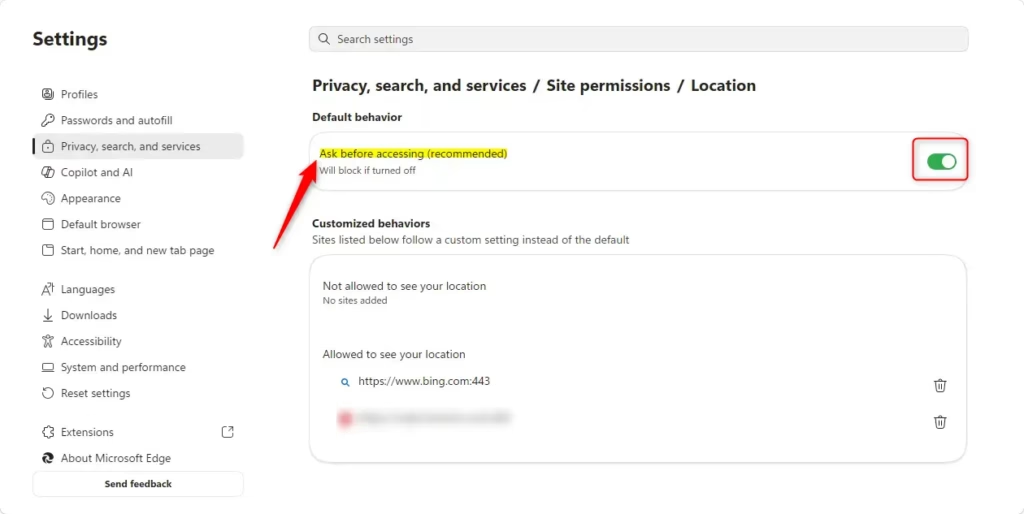
On the Location settings page (from the step above), find the switch called Ask before accessing. This is your main control.
- If you turn OFF “Ask before accessing”: Edge will stop all websites from getting your exact location. You won’t get any more requests. This is the strictest setting.
- If you turn ON “Ask before accessing” (Recommended): This is the default setting and usually the best choice. When a website wants your location, Edge will show a message. It will ask if you want to Allow or Block it for that site. You can change this later.
Important Note: Even if you block Edge from asking, some websites might still guess your location using your IP address. This is not as exact, but it’s good to know.
Managing Location for Specific Websites
Do you trust your weather app with your location but not a game website? You don’t have to choose all or nothing. Edge lets you set permissions for each website one by one.
Method A: While on the Website
- Go to the website in Microsoft Edge.
- Look to the left of the address bar. You will see an icon. It might look like a padlock, an ‘i’ in a circle, or a warning sign.
- Click that icon. A small menu will appear.
- Look for Permissions for this site. Click it.
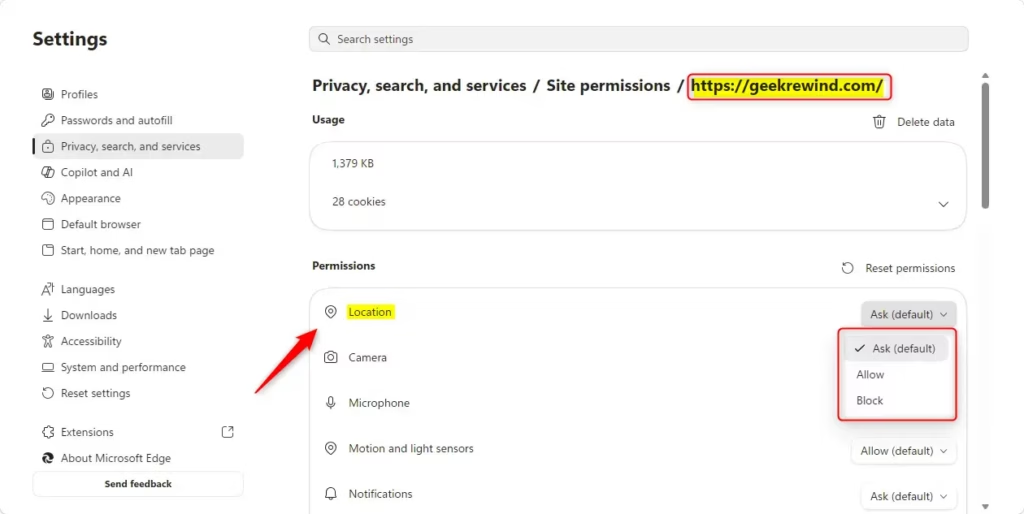
- Find Location in the list of permissions.
- Next to Location, use the dropdown menu. Choose Ask (the default), Allow, or Block.
Method B: From the Main Site Permissions List
- Follow Step 1 to get to the site permissions list (
edge://settings/content/all). - Find and click on Location.
- You will see a list of websites that have asked for your location or have permissions set. Click the ‘X’ next to a site to remove its permission. You might also be able to change permissions directly from this list.
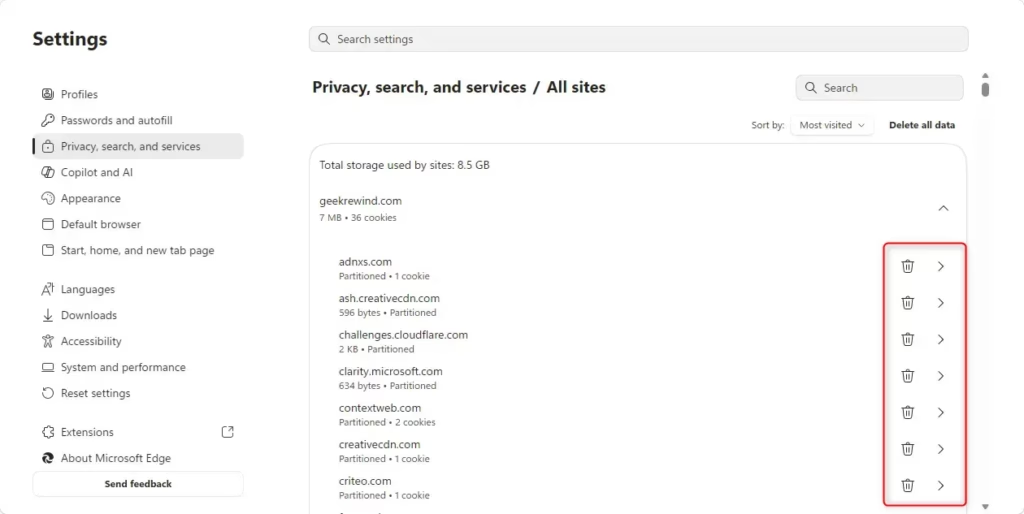
Helpful Tip: If you accidentally gave a site access and want to stop it, this is where you do it. Checking this list often helps you manage your privacy.
Reference:
https://support.microsoft.com/en-us/edge/location-and-privacy-in-microsoft-edge
Summary
You can control if websites in Microsoft Edge can ask for your location. You can turn off all requests. Or, you can choose to allow or block specific sites. This helps you keep your location private. It also lets you use websites that need your location for features.
Was this guide helpful?

About the Author
Richard
Tech Writer, IT Professional
Richard, a writer for Geek Rewind, is a tech enthusiast who loves breaking down complex IT topics into simple, easy-to-understand ideas. With years of hands-on experience in system administration and enterprise IT operations, he’s developed a knack for offering practical tips and solutions. Richard aims to make technology more accessible and actionable. He's deeply committed to the Geek Rewind community, always ready to answer questions and engage in discussions.

No comments yet — be the first to share your thoughts!