How to Create Your Own High Contrast Theme in Windows 11

You create a custom high contrast theme in Windows 11 to make your screen easier to view by adjusting specific color combinations.
High contrast themes use a limited palette (a small range of colors) with maximum difference between foreground and background elements. This significantly improves readability for users with visual impairments, and honestly, for anyone who prefers stronger color definitions.
Windows 11 offers several pre-set high contrast themes, but you can go further and build your own unique theme, selecting precise colors for text, background, buttons, and more.
This tutorial shows you exactly how to design and apply your personalized high contrast theme, giving you complete control over your Windows 11 visual experience.
Open Settings, go to Accessibility, then Contrast themes. Select a theme from the dropdown, click Edit, and then pick new colors for screen elements like Text and Background. Save your custom theme by clicking Save as and giving it a name.
Getting to the Contrast Theme Settings
You can easily find the high contrast theme settings in Windows 11 by opening the main Settings app and navigating to the Accessibility section.
- Open Settings: Click the Start button. It’s usually in the bottom-left corner. Then, click the gear icon to open the Settings app.
- Go to Accessibility: In the Settings window, look for “Accessibility.” Click on it.
- Find Contrast Themes: In the Accessibility section, you’ll see “Contrast themes.” Click this.
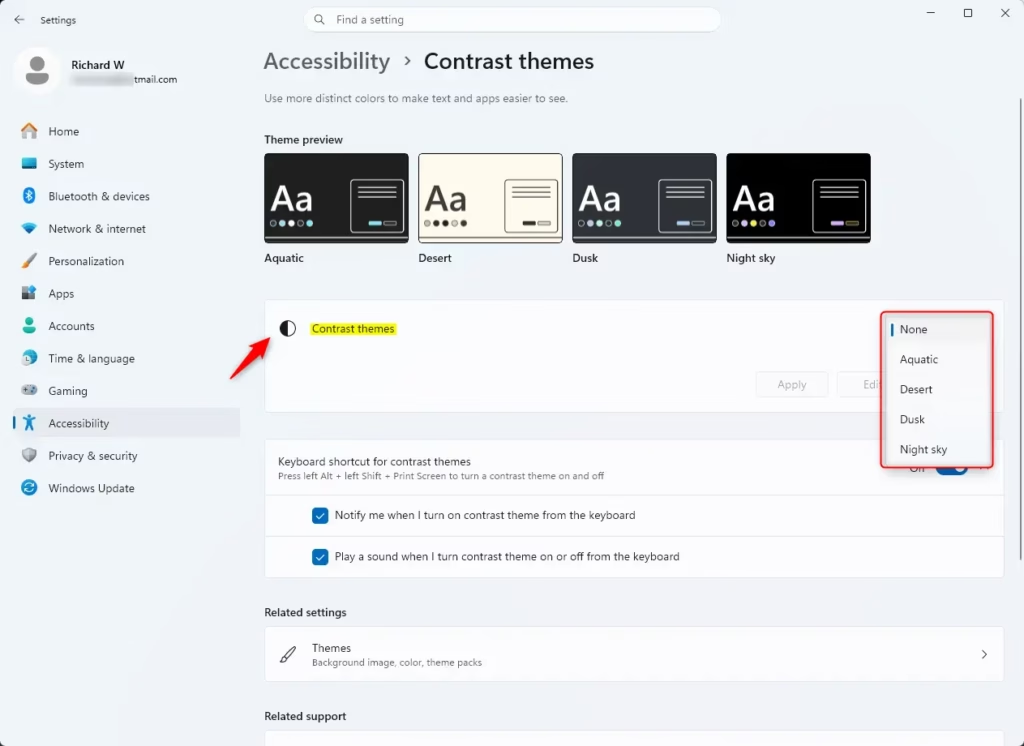
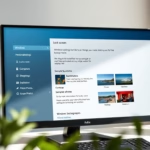
This is where you can change the colors. You’ll see some pre-made themes. You can also turn them on or off here.
Quick Tip: Want to turn high contrast mode on and off really fast? Use a keyboard shortcut. Hold down the left Alt key, the left Shift key, and press the Print Screen key (the key might be labeled “PrtScn” or “Print Scrn”). This is useful if you need a quick change.
Customizing Your Own High Contrast Theme
If the default high contrast themes in Windows 11 don’t quite fit your needs, you can easily customize them to better suit your vision and preferences.
- Choose a Starting Theme: You start customizing from one of the existing themes. Pick one from the dropdown that is closest to what you want, or just pick any theme to start editing.
- Enter Editing Mode: After picking a theme, click the “Edit” button below the dropdown menu. This opens the color editing panel.
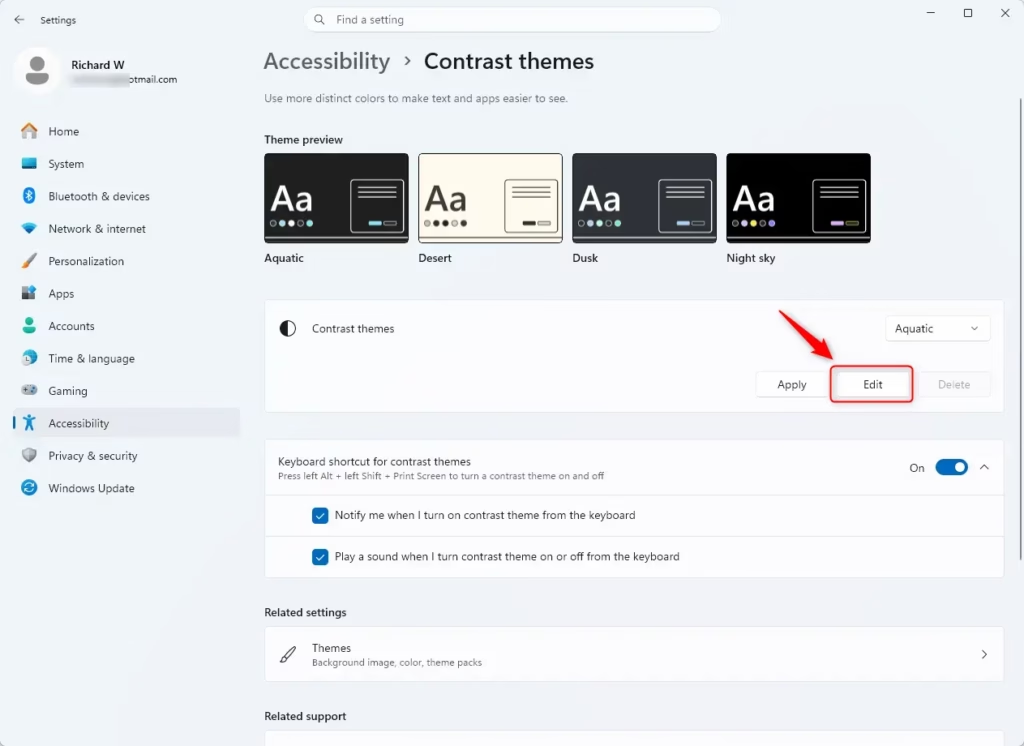
See the Screen Elements: You’ll see a list of different parts of Windows that you can change the color for. These include:
- Background: The color of most windows and the desktop.
- Text: The color of normal text you see, like in documents or on websites.
- Hyperlinks: The color of links on the web.
- Inactive Text: The color for text that is not active or is grayed out.
- Selected Text: The color when you highlight text or choose an item in a list. For example, if you select text in a Word document, this is the background color of that selection.
- Button Text: The color of the text on buttons.
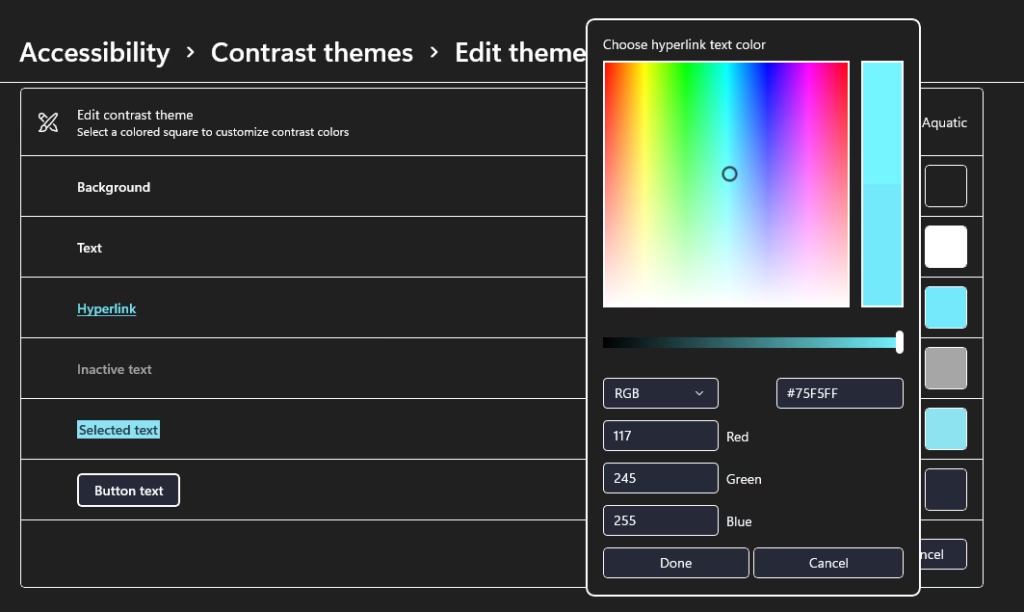
Pick Your Colors: For each part you want to change, click the colored box next to its name. A color palette will show up.
- Click a color in the palette to choose it.
- Below the palette, there’s a slider. Use this to make the color brighter or less bright.
Once you’ve chosen a color you like for a specific part, click ‘Done.’ Then, repeat this process for all the other elements you wish to customize. Think about how the colors work together. You want text to stand out from the background. For example, bright yellow text on a black background is a common high-contrast choice, but feel free to experiment!
Practical Tip: Test as you go. You don’t have to change everything at once. You can pick a color for one part, click “Done,” and then click “Apply” to see how it looks. This lets you make small changes and see the results right away.
Saving Your Custom Theme
After you’ve finished customizing your colors, saving your new high contrast theme in Windows 11 is simple and ensures you can easily switch back to it later.
- Name Your Theme: A box will appear asking for a name for your new theme. Give it a clear name, like “My Bright Text Theme” or “Easy Reader.”
- Save Your Custom Theme: After you finish editing colors and click “Done” for the last part, you’ll be back on the main Contrast themes screen. Look for a button that says “Save as.” Click it.
- Finish and Apply: After typing the name, click “Save.” Then, make sure your new theme is selected in the “Contrast themes” dropdown menu. Click “Apply” one last time.
Your personalized high contrast theme is now active! You can switch between this theme and others anytime from the same settings menu.
Important Note: Save often! If you’re making many changes, it’s a good idea to save your work regularly. Click “Save as” and give it a slightly different name each time (like “My Theme v2”). This way, if something goes wrong or you like an older version better, you won’t lose all your progress.
Turning Off High Contrast Mode
Turning off high contrast mode in Windows 11 is straightforward; you just need to go back to the Accessibility settings and select ‘None’ from the contrast themes dropdown.
- Go Back to Settings: Open Settings ( Start button > Gear icon).
- Go to Accessibility: Click “Accessibility.”
- Select Contrast Themes: Click “Contrast themes.”
- Choose “None”: In the “Contrast themes” dropdown menu, select the option that says “None.”
- Apply the Changes: Click the “Apply” button.
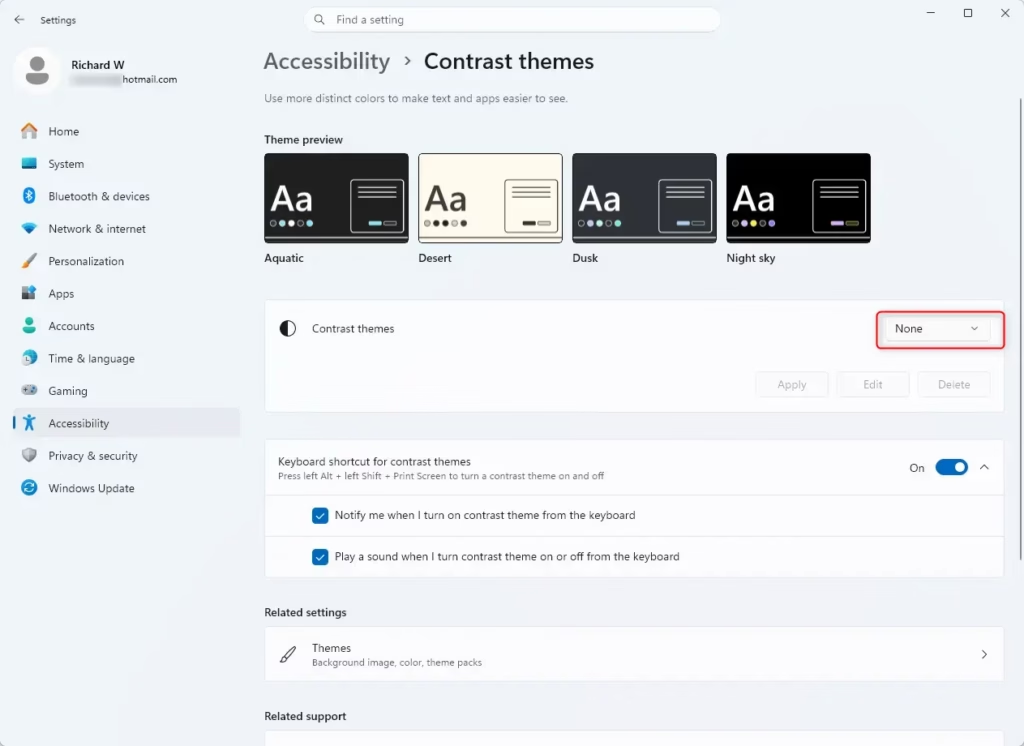
Just as when you turned it on, Windows will display a “Please wait” screen for a moment while it restores your default colors. You’re back to normal!
Remember the Shortcut: Don’t forget the quick keyboard shortcut: left Alt+← Shift + Print Screen. It works just as well for turning high contrast mode off as it does for turning it on. It’s quite handy!
Reference:
https://support.microsoft.com/en-us/accessibility/windows/change-color-contrast-in-windows
Summary
Creating a custom high contrast theme in Windows 11 makes your computer easier and more comfortable to use, especially if you have vision problems or want to reduce eye strain.
Does 🪟 Windows 11 have high contrast mode?
Yes, Windows 11 includes built-in high contrast modes. You can find and enable several pre-set high contrast themes within the Accessibility settings. These themes are designed to improve screen readability by using a limited color palette with maximum contrast between foreground and background elements.
How do I change 🪟 Windows 11 back to classic view?
Windows 11 does not have a direct 'classic view' option to revert to a previous Windows interface. However, you can customize many visual elements, including colors and themes, through the Personalization and Accessibility settings to achieve a preferred look and feel, though it won't replicate an older OS version.
How do I activate high contrast mode on Windows?
To activate high contrast mode on Windows, open Settings, navigate to Accessibility, and then select Contrast themes. Here, you can choose from several pre-set high contrast themes or create your own custom theme by selecting specific colors for text, background, and other elements.
Should I turn on high contrast?
You should turn on high contrast in Windows 11 if you have visual impairments, as it makes the screen much easier to read, or if you simply prefer sharper colors and less eye strain.
Was this guide helpful?

About the Author
Richard
Tech Writer, IT Professional
Richard, a writer for Geek Rewind, is a tech enthusiast who loves breaking down complex IT topics into simple, easy-to-understand ideas. With years of hands-on experience in system administration and enterprise IT operations, he’s developed a knack for offering practical tips and solutions. Richard aims to make technology more accessible and actionable. He's deeply committed to the Geek Rewind community, always ready to answer questions and engage in discussions.


No comments yet — be the first to share your thoughts!