Enable High Contrast in Ubuntu: A Guide

You can enable high contrast mode in Ubuntu to improve screen readability by adjusting foreground and background colors.
High contrast mode is an accessibility feature that sharpens visual elements, making them easier to distinguish for users with low vision or light sensitivity.
This setting specifically targets UI elements like windows, buttons, and text, not screen brightness.
For example, activating high contrast in Ubuntu 22.04 LTS significantly enhances the clarity of the desktop interface.
Open Settings, then navigate to Accessibility. Under the “Seeing” section, toggle the switch for High Contrast to the On position. You can also activate it from the login screen’s accessibility icon.
How to use high Contrast in Ubuntu Linux
You can easily turn on high contrast in Ubuntu Linux to make your screen easier to see, especially if you have low vision or are sensitive to bright screens.
Here’s how to do that.
The quickest way to use high contrast is through the accessibility feature on the login screen.
On the login screen, click the accessibility icon highlighted below and toggle the button to turn on High Contrast.
Alternatively, you can use the Ubuntu Linux Settings app to enable high contrast.
Ubuntu keeps most of its settings in one place: the System Settings panel. Here, you can manage everything from system configurations to user accounts.

Another way to get there is by clicking the System menu in the top-right corner of your desktop.
On the System menu, select Settings, as shown below.

In the Settings app, click on the Accessibility tile to open its panel.

In the System Settings > Accessibility panel, under Seeing, toggle the switch for High Contrast to the On position.
To disable it, move the switch back to the Off position.
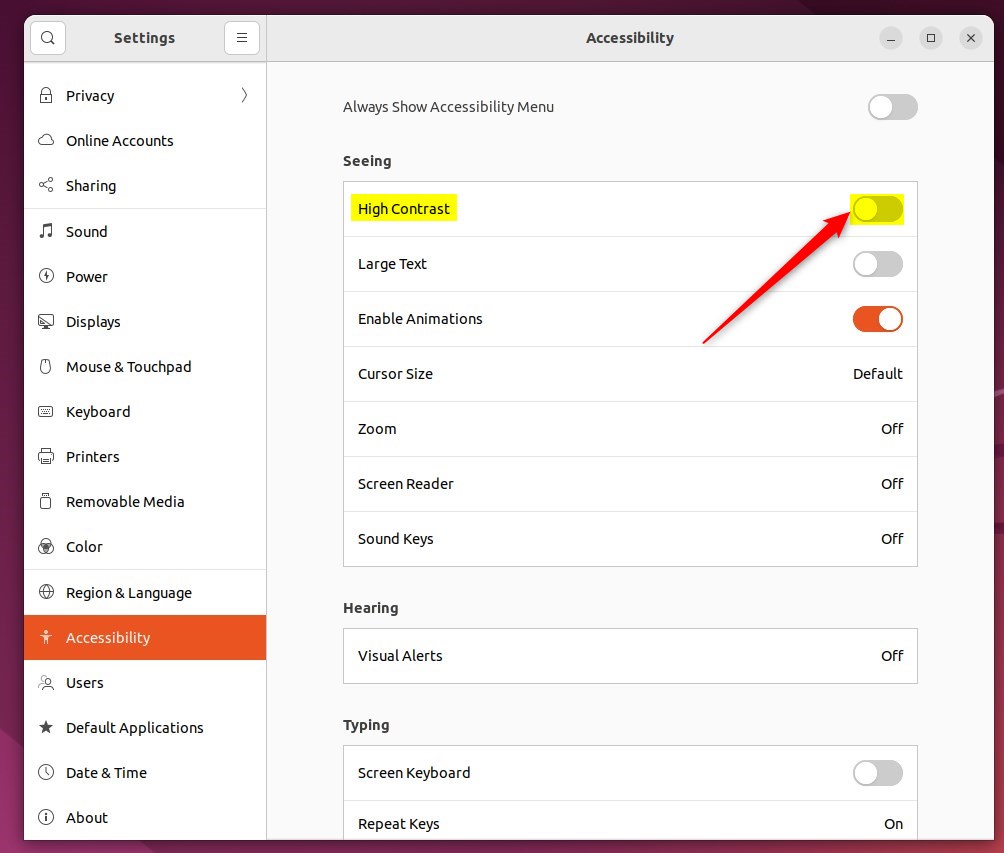
You can turn high contrast on and off by clicking the accessibility icon on the top bar and selecting High Contrast.
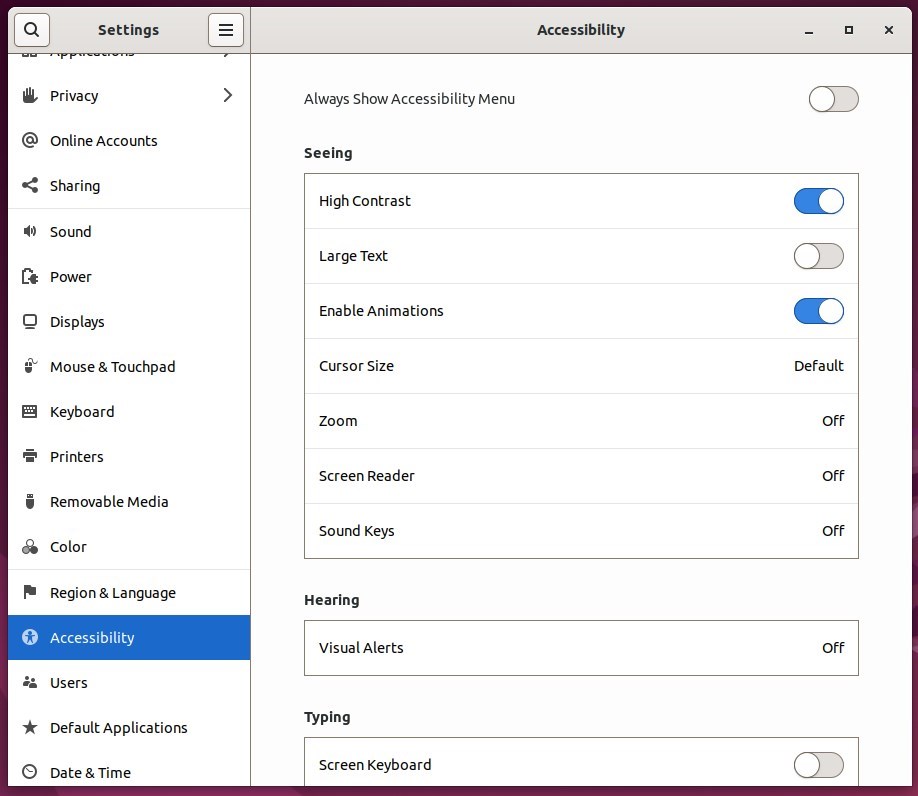
That’s it! You can now close the Settings app.
Conclusion:
- The high contrast feature in Ubuntu Linux provides a valuable tool for users with low vision and light sensitivity.
- By adjusting the contrast of windows and buttons, users can distinguish between objects that differ only by color, offering improved clarity.
- Users can easily enable or disable high contrast through the accessibility feature on the login screen or via the System Settings panel.
- This feature enhances the user experience by offering a customizable interface and promoting inclusivity and accessibility.
- The high contrast feature can significantly improve visibility without impacting the overall screen brightness, providing a tailored solution for users facing visibility challenges.
What is the command for high contrast?
To turn high contrast on or off from the keyboard, press left Alt+← Shift + Print Screen.
Was this guide helpful?

About the Author
Richard
Tech Writer, IT Professional
Richard, a writer for Geek Rewind, is a tech enthusiast who loves breaking down complex IT topics into simple, easy-to-understand ideas. With years of hands-on experience in system administration and enterprise IT operations, he’s developed a knack for offering practical tips and solutions. Richard aims to make technology more accessible and actionable. He's deeply committed to the Geek Rewind community, always ready to answer questions and engage in discussions.




No comments yet — be the first to share your thoughts!