How to Show Weekday on Ubuntu Top Menu Bar

You can show the weekday on the Ubuntu top menu bar by enabling a specific setting in GNOME Tweaks.
This quick customization adds the day of the week next to the time, giving you an instant overview of your current date without needing to click the clock. Ubuntu’s default interface only displays the time, but including the weekday is a simple yet effective way to enhance your desktop’s utility for better time management.
For example, on Ubuntu 22.04 LTS (Jammy Jellyfish) and later versions, this tweak is readily accessible through GNOME Tweaks.
Open Settings, click Date & Time, and toggle the Weekday switch to On in the Clock section. Alternatively, use the terminal command gsettings set org.gnome.desktop.interface clock-show-weekday true.
Show the day of the week using GNOME Settings
You can show the weekday on your Ubuntu top menu bar easily using GNOME Settings. Just open your Settings app, go to Date & Time, and turn on the ‘Weekday’ option in the Clock section.
- Open your Settings app from the app menu.
- Click on the Date & Time tab in the sidebar.
- Look for the Clock section.
- Toggle the switch for Weekday to the On position.
You can also display the current weather forecast of their city if you want to see weather updates alongside your clock.
Show the day of the week using Terminal
You can show the weekday on your Ubuntu menu bar using the Terminal with a quick command. Open Terminal and type ‘gsettings set org.gnome.desktop.interface clock-show-weekday true’ to turn it on.
- Press Ctrl+Alt+T to open the Terminal.
- Type the following command and press Enter:
gsettings set org.gnome.desktop.interface clock-show-weekday true
If you want to turn it off later, you can use this command: gsettings reset org.gnome.desktop.interface clock-show-weekday
Show weekday on the top menu bar using the Dconf Editor
You can show the weekday on your Ubuntu top menu bar with the Dconf Editor, a tool for changing hidden system settings. Navigate to org > gnome > desktop > interface and set ‘clock-show-weekday’ to ‘true’.
If you’re familiar with Windows, you might know about the Windows Registry Editor. Dconf Editor acts similarly for Ubuntu by letting you change hidden system settings.
How to add or remove software on Ubuntu Linux
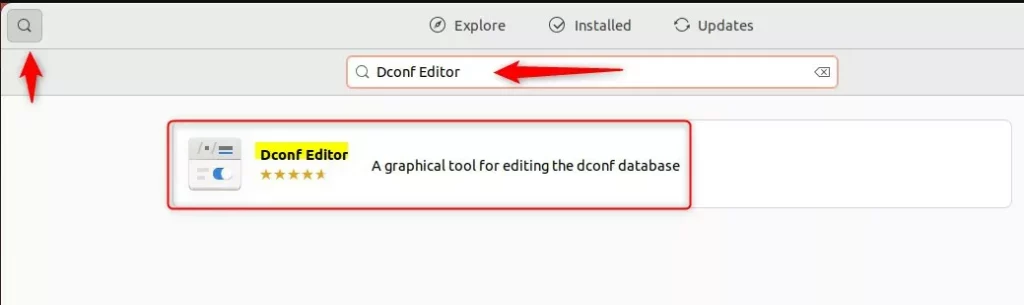
You can easily install Dconf Editor to show the weekday on your Ubuntu menu bar. Open your Terminal and run ‘sudo apt install dconf-editor’, or find it in your system’s App Center.
sudo apt install dconf-editor
Once installed, open Dconf Editor and follow these steps:
- Navigate to:
org>gnome>desktop>interface - Find
clock-show-weekdayin the list. - Toggle the switch to On.
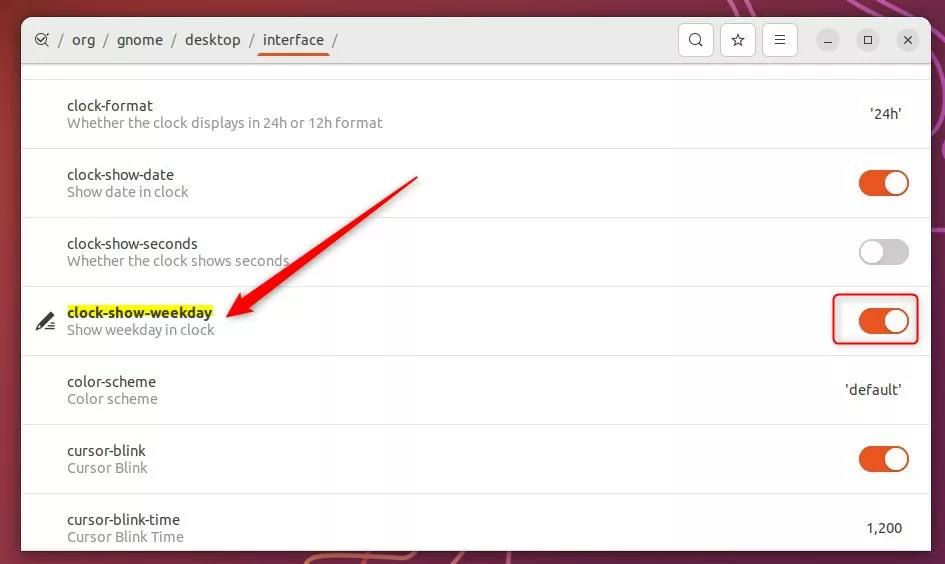
Once enabled, the day of the week will appear on your top bar.

Adding the day of the week makes your desktop more useful. Whether you use the Settings app or the advanced tools, you can personalize your Ubuntu experience.
How do I show the day of the week in Ubuntu?
You can show the day of the week in Ubuntu using System Settings, especially on newer versions like Ubuntu 24.04. Press Super + S to open Quick Settings, then launch ‘Settings’, go to System > Date & Time, and turn on the ‘Week Day’ option.
How do I show the menu bar in Ubuntu?
Ctrl+Home works for the Ubuntu menu bar at the top of the screen.
How to see calendar in terminal?
The cal Command. The cal command displays a formatted calendar in the terminal. If no options are specified, cal displays the current month, with the current day highlighted.
Is Ubuntu Gnome discontinued?
Ubuntu GNOME (formerly Ubuntu GNOME Remix) is a discontinued Linux distribution, distributed as free and open-source software.
Was this guide helpful?

About the Author
Richard
Tech Writer, IT Professional
Richard, a writer for Geek Rewind, is a tech enthusiast who loves breaking down complex IT topics into simple, easy-to-understand ideas. With years of hands-on experience in system administration and enterprise IT operations, he’s developed a knack for offering practical tips and solutions. Richard aims to make technology more accessible and actionable. He's deeply committed to the Geek Rewind community, always ready to answer questions and engage in discussions.


[…] only can you display the clock, but you can also choose the day of the week on the top menu […]
[…] Ubuntu, the popular open-source operating system based on the Debian Linux distribution, will not display weekday on the top bar by default. In our last post, we wrote a detailed guide to add “Week Day” to the top bar. […]