Add Multiple Clocks to Ubuntu Linux Top Bar

You can add multiple clocks displaying different time zones directly to your Ubuntu Linux top bar.
This lets you instantly see international times without opening extra apps, a handy feature for global collaboration or staying connected. Ubuntu natively supports displaying up to three additional clocks from any time zone.
For example, you can easily set up clocks for Pacific Standard Time (PST) and Central European Time (CET) alongside your local time, all visible by clicking the clock in your top bar.
Open the Clocks app, click Add world clocks, then Add World Clock. Search for a city, select it, and click Add. Your chosen time zones will appear in the calendar fly-out when you click the top bar clock.
How to display multiple times in Ubuntu Linux
To see other time zones, you’ll need the GNOME Clocks app. Note that in 2026, these world clocks will appear inside your notification center and calendar fly-out when you click the top bar, rather than directly on the top bar itself. This works for current GNOME Shell versions.
If you do not have the app, open your App Center and search for “Clocks.” Alternatively, open your terminal and type the following command to install it:
sudo apt install gnome-clocks
Once installed, click the time on your top bar. Click the Add world clocks… button at the bottom of the calendar to open the app.
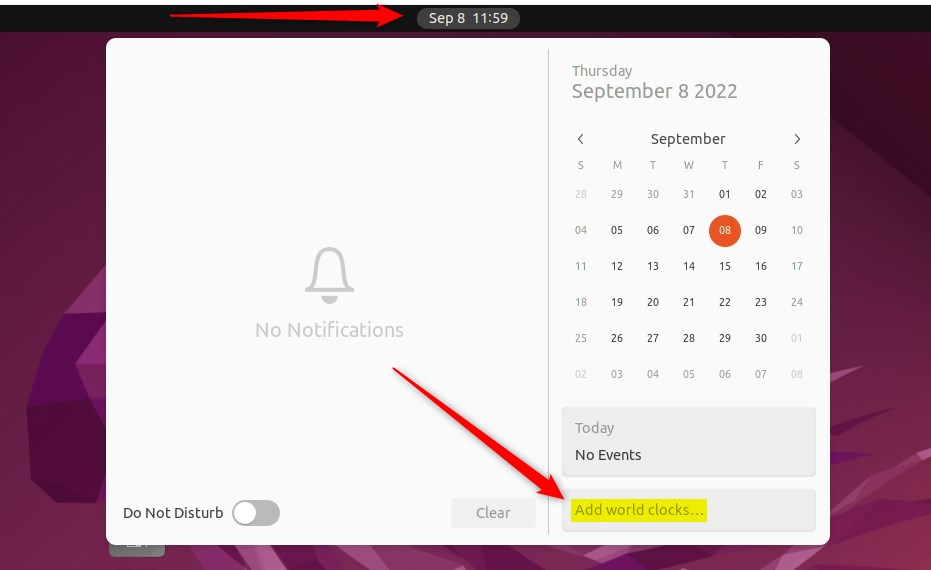
Click the Add World Clock button or press Ctrl+N to add a new city.

Type the name of the city into the search box.
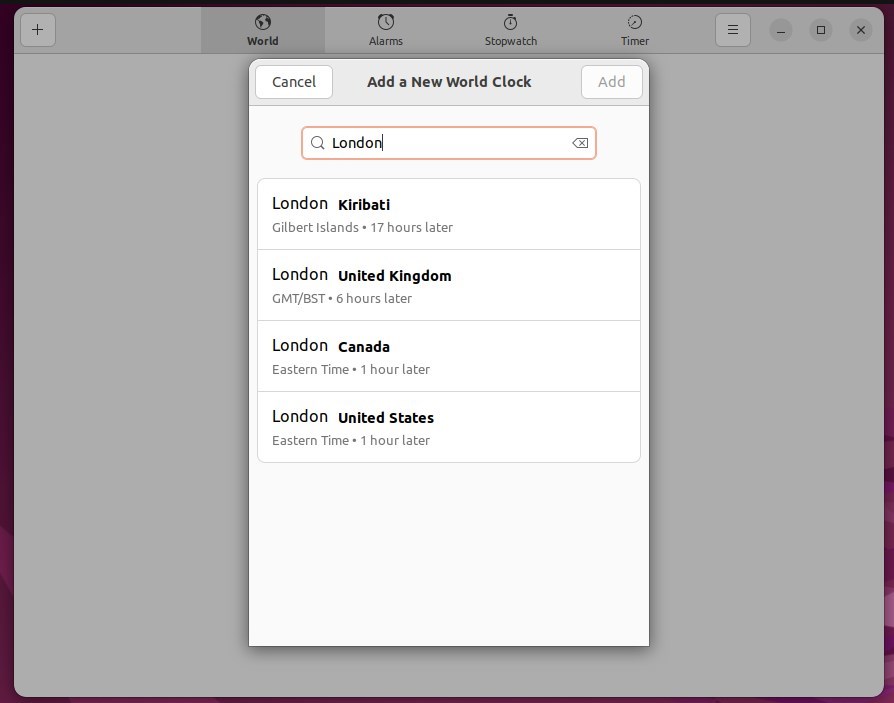
Pick the correct city from the list and press Add. When finished, your chosen cities will appear in the calendar fly-out whenever you click the time.

Managing your World Clocks
If your plans change, updating your list is simple:
- To delete: Open the Clocks app, right-click on the city you want to remove, and select Delete.
- To edit: Simply delete the old entry and add the new city you need.
That is all you need to do!
Adding multiple clocks helps you track different time zones. The GNOME Clocks app helps keep your schedule organized, no matter where your contacts are located around the world.
Was this guide helpful?

About the Author
Richard
Tech Writer, IT Professional
Richard, a writer for Geek Rewind, is a tech enthusiast who loves breaking down complex IT topics into simple, easy-to-understand ideas. With years of hands-on experience in system administration and enterprise IT operations, he’s developed a knack for offering practical tips and solutions. Richard aims to make technology more accessible and actionable. He's deeply committed to the Geek Rewind community, always ready to answer questions and engage in discussions.




No comments yet — be the first to share your thoughts!