Add Multiple Clocks to Ubuntu Linux Top Bar

This post explains how to see multiple time zones on your Ubuntu Linux computer. By default, Ubuntu shows the time for your local time zone. Sometimes, you need to know what time it is in other parts of the world.
Why? You might work with people in other countries or have family living abroad. What happens when done? You can quickly check international times by clicking the calendar on your screen.
How to display multiple times in Ubuntu Linux
To see other time zones, you must use the GNOME Clocks app. Note that in 2026, these world clocks appear inside your notification center and calendar fly-out when you click the top bar, rather than directly on the top bar itself. This works for current GNOME Shell versions.
If you do not have the app, open your App Center and search for “Clocks.” Alternatively, open your terminal and type the following command to install it:
sudo apt install gnome-clocks

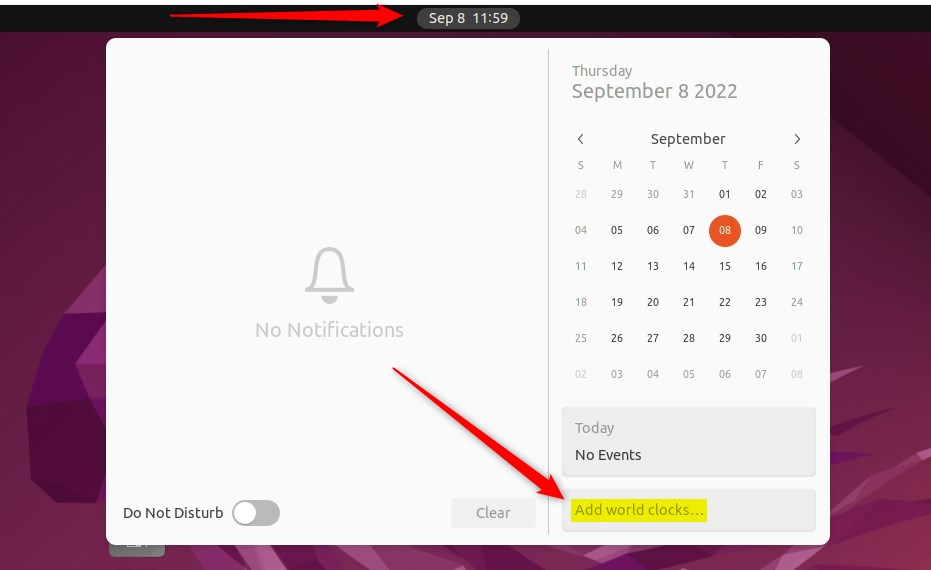
Once installed, click the time on your top bar. Click the Add world clocks… button at the bottom of the calendar to open the app.
Click the Add World Clock button or press CTRL + N to add a new city.

Type the name of the city into the search box.
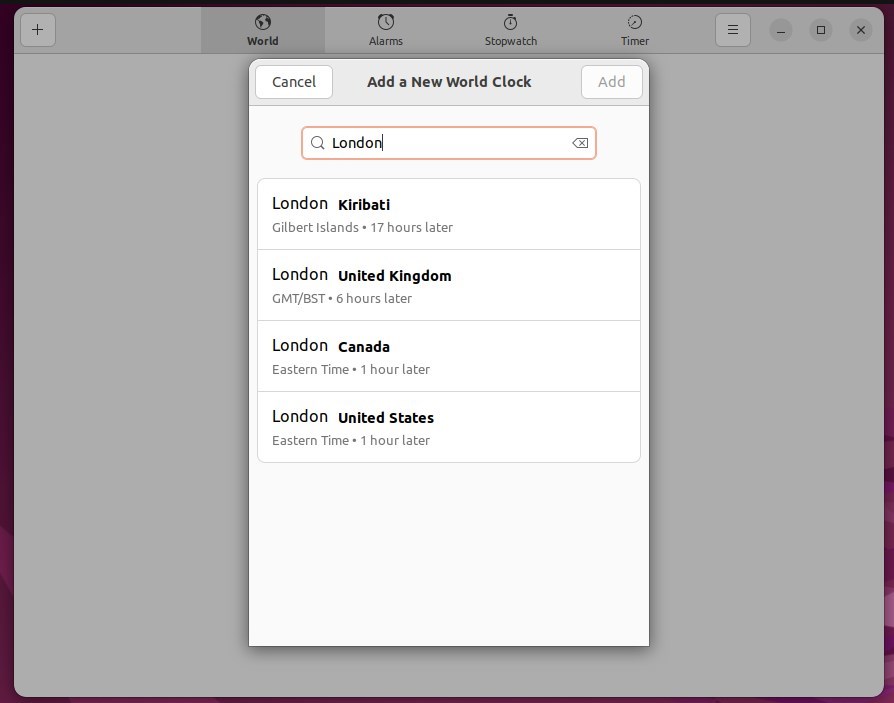
Pick the correct city from the list and press Add. When finished, your chosen cities will appear in the calendar fly-out whenever you click the time.

Managing your World Clocks
If your plans change, you can easily update your list:
- To delete: Open the Clocks app, right-click on the city you want to remove, and select Delete.
- To edit: Simply delete the old entry and add the new city you need.
That is all you need to do!
Adding multiple clocks helps you track different time zones easily. Using the GNOME Clocks Gnome Clocks app keeps your schedule organized, no matter where your connections are located in the world.
Was this guide helpful?





Leave a Reply Cancel reply