Automatically Set Time Zone in Ubuntu: A Step-by-Step Guide

You automatically set your time zone in Ubuntu Linux by enabling the system’s built-in location detection feature.
A time zone defines a region that observes a uniform standard time, crucial for your PC to display the correct date and time for accurate scheduling and alarms.
Ubuntu, including recent versions like 22.04 LTS, offers a simple toggle to activate this automatic time zone management. Once enabled, your system detects your location and adjusts the time zone, even handling daylight saving time transitions automatically.
This automation ensures your system clock is always accurate, preventing common scheduling errors and simplifying your digital life.
Enable automatic time zone detection by opening Settings, navigating to Date & Time, and toggling the Automatic Time Zone switch to On. Ensure location services are also enabled for accurate detection. This automatically adjusts your system’s time zone and daylight saving settings.
How to enable or disable set time zone automatically in Ubuntu Linux
You can turn the automatic time zone setting on or off in Ubuntu Linux through the System Settings panel.
If you don’t let Ubuntu Linux set your system time zone automatically, you’ll need to do it manually.
Here’s how to enable or disable it.
Ubuntu Linux keeps most of its settings in one central spot. You can adjust everything from system configurations and user accounts to updates all within the System Settings panel.
Alternatively, you can click on the System menu in the top-right corner of your desktop’s top bar.
From the System menu, select Settings, as shown below.

In the Settings app, click on the Date & Time tile.
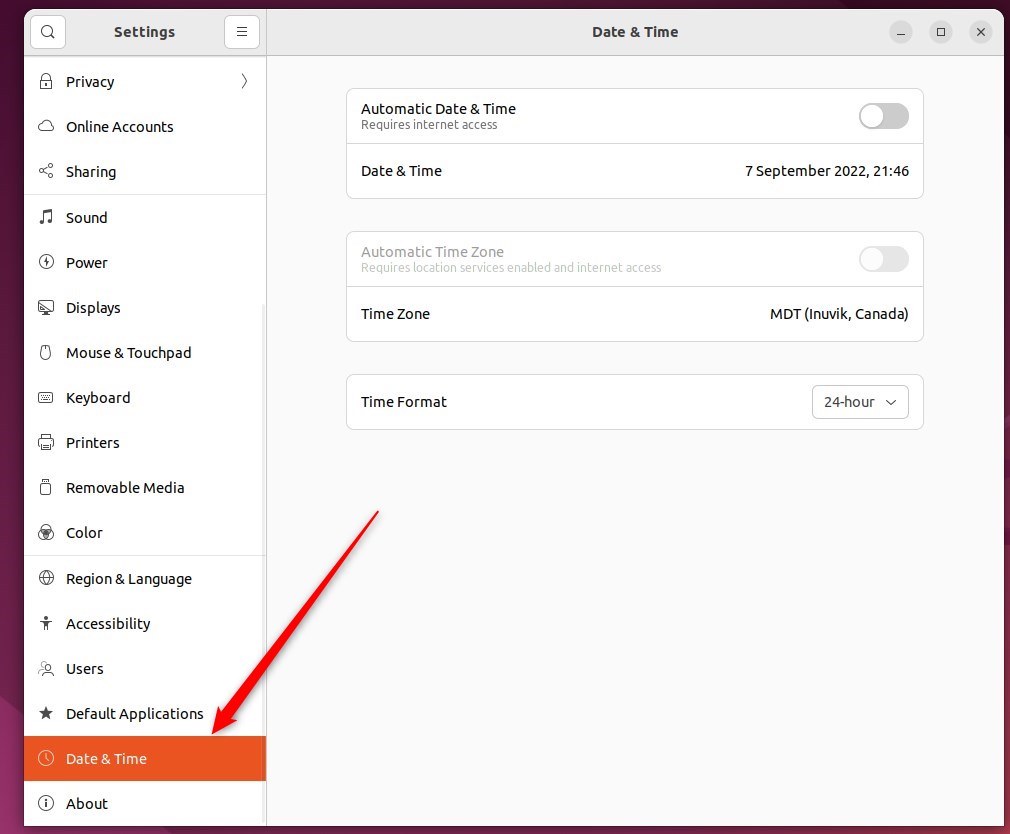
In the System Settings -> Date & Time panel, flip the Automatic Time Zone switch to the On position.
When it’s on, your time zone should update automatically if you’re connected to the internet and the location services feature is active.
To update your time zone yourself, just switch this to Off.
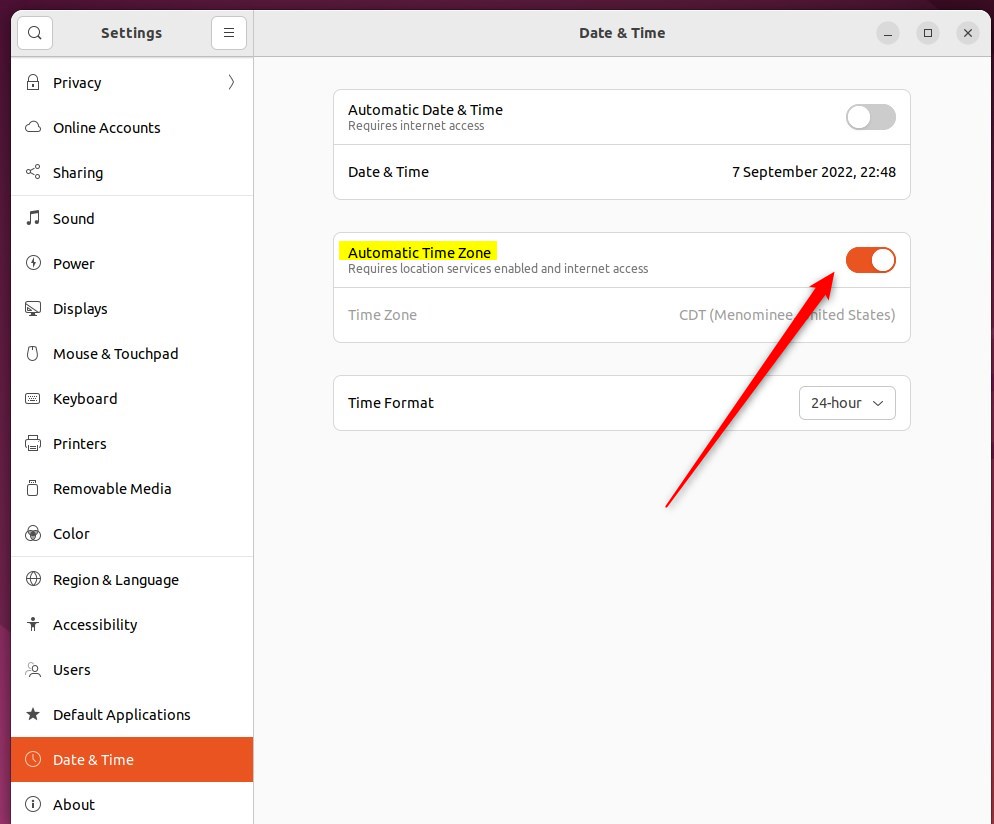
Remember to make sure location services are enabled in Ubuntu Linux. You can’t use the automatic time zone if location services are off.
How to enable or disable location services in Ubuntu Linux
That’s all there is to it!
Conclusion:
- Enabling the automatic time zone feature in Ubuntu Linux can ensure that your system’s date and time stay accurate without manual intervention.
- When the automatic time zone setting is enabled, the system will also manage daylight saving time adjustments.
- However, for users who prefer manual control over their time zone, Ubuntu Linux provides a straightforward method to toggle the automatic time zone setting off and update it manually as needed.
- It’s important to ensure that location services are enabled in Ubuntu Linux so that the automatic time zone feature will function correctly.
How do I turn on automatic time zone in Ubuntu?
To turn on the automatic time zone in Ubuntu, open Settings, then System, and select Date & Time.
How do I get the time zone in Ubuntu?
The 'timedatectl' command is a utility that allows you to view and change the system's time and date settings. It is available on all modern systemd-based Linux distributions, including Ubuntu 20.04. To display the current timezone, run the 'timedatectl' command without any arguments.
How to set timezone permanently in Linux?
Setting your timezone permanently in Linux usually requires more than just the tzselect command, which only affects your current session.
How to set time zone in sudo?
To change the time zone in Linux, use sudo timedatectl set-timezone followed by a “Region/City” name from timedatectl list-timezones .
Was this guide helpful?

About the Author
Richard
Tech Writer, IT Professional
Richard, a writer for Geek Rewind, is a tech enthusiast who loves breaking down complex IT topics into simple, easy-to-understand ideas. With years of hands-on experience in system administration and enterprise IT operations, he’s developed a knack for offering practical tips and solutions. Richard aims to make technology more accessible and actionable. He's deeply committed to the Geek Rewind community, always ready to answer questions and engage in discussions.




[…] cannot set the time zone manually when Automatic Time Zone is set to On. Turn off Automatic Time Zone to manually set your system’s time […]