How to Add Weather Info to Ubuntu Top Menu Bar

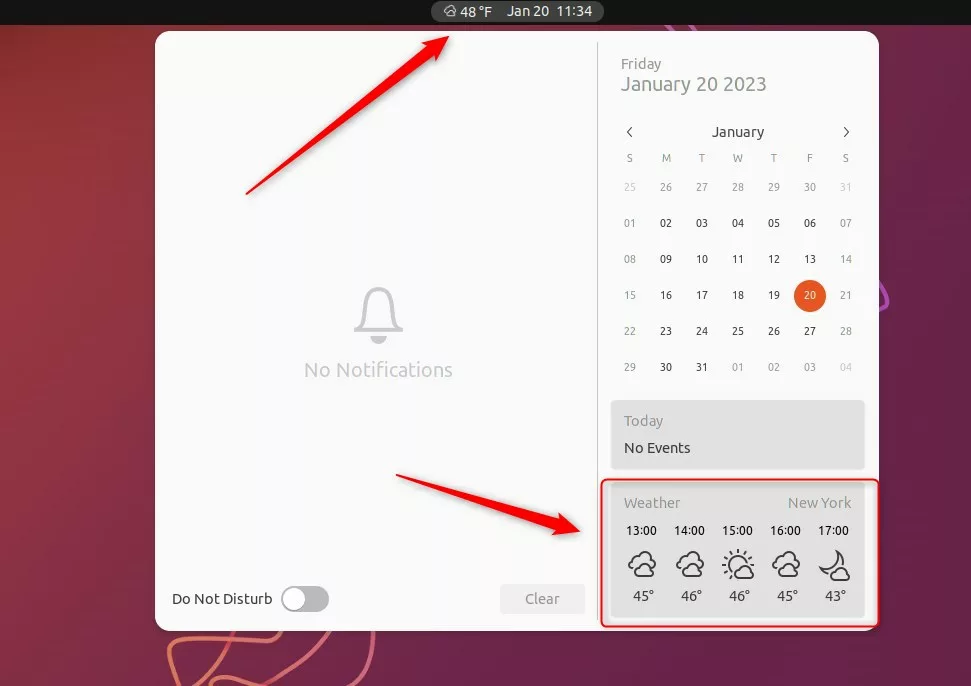
You can add weather information to your Ubuntu top menu bar to quickly see the current temperature without opening a browser.
This is typically achieved using a GNOME Shell extension, which adds a small icon and temperature directly next to your clock on the top panel.
For example, the popular “Vitals” extension can display weather for a chosen location alongside system resource monitors.
Before you install an extension, check your GNOME Quick Settings by clicking the top-right corner of your screen.
Recent Ubuntu versions might already include basic weather integration there, potentially saving you the need for extra software.
Install the “Gnome Weather” app from your App Center or via Terminal. Then, search for and install the “Weather O’Clock” GNOME Shell extension, ensuring compatibility with your GNOME version. The weather information will then appear on your top menu bar.
Install Gnome Weather package
To get weather info on your Ubuntu top bar, you first need to install the Gnome Weather app.
You can also use the Terminal. Press Ctrl+Alt+T to open it. To avoid potential conflicts between Snap and Deb packages, use these commands:
- For the Deb version:
sudo apt install gnome-weather - For the Snap version:
sudo snap install gnome-weather
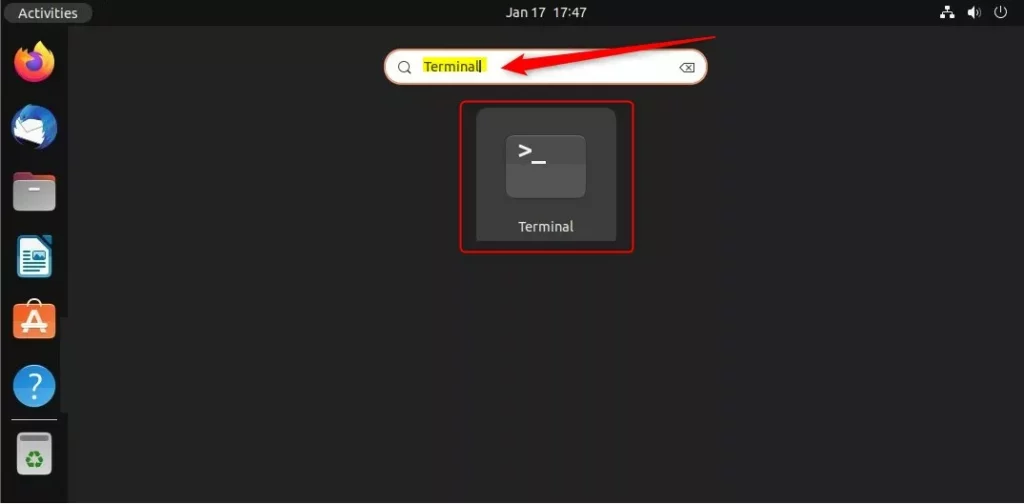
Open the app, search for your city, and set your location. This ensures the weather data is accurate.
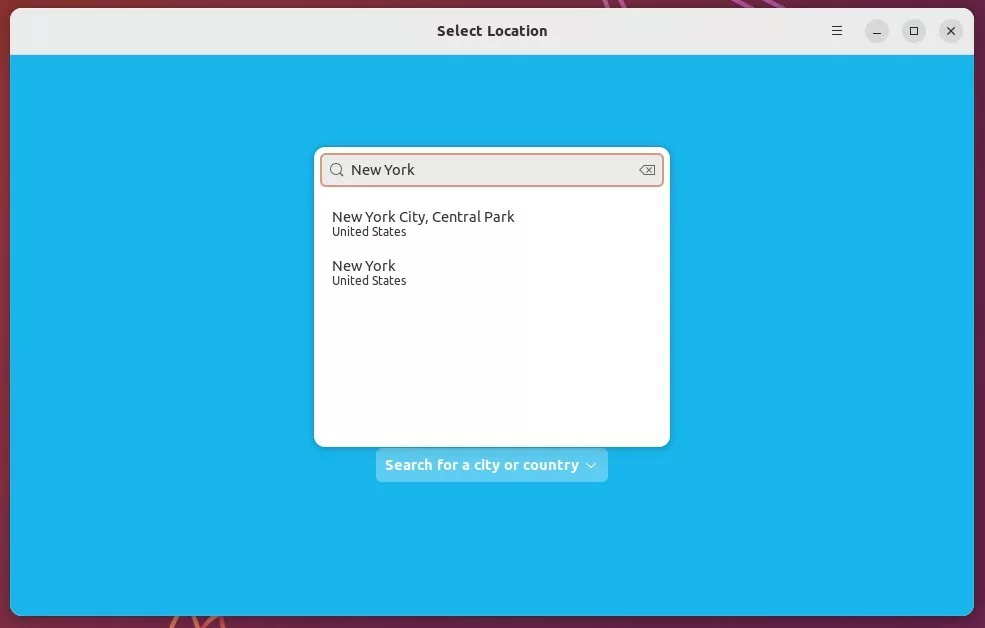
Install Weather O’Clock Extension
Next, install the Weather O’Clock extension to show the weather data on your top bar.
Search for “Extension Manager” in your App Center to make management easier.
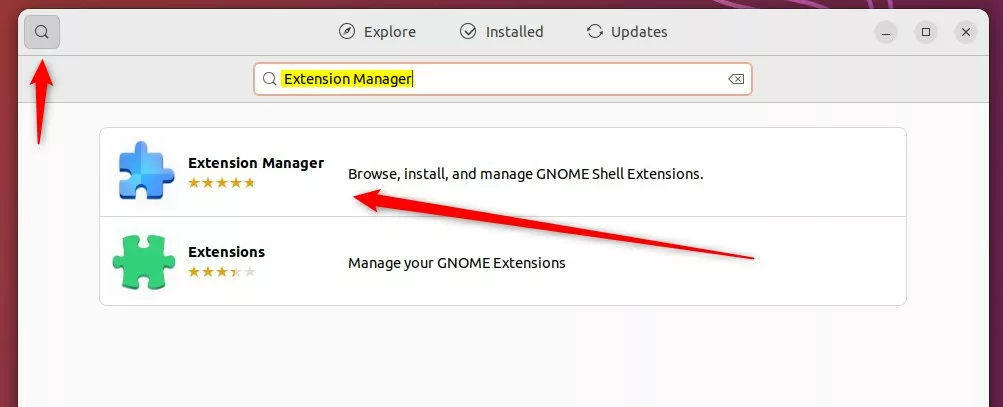
Open the app you just installed. Search for “Weather O’Clock.” Make sure you select a version compatible with your current GNOME Shell version. Click “Install.”
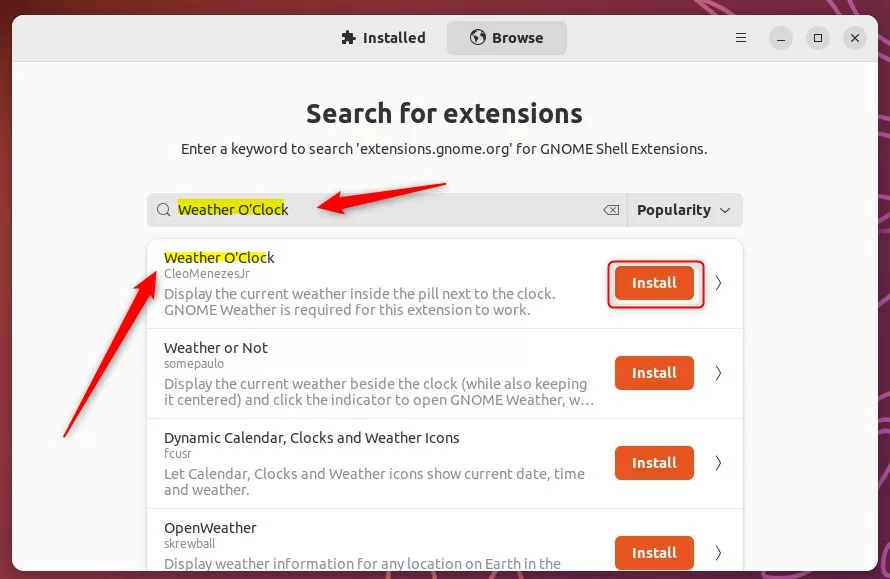
After installation, the weather should appear on your top bar.
Conclusion
You’ve now successfully added weather info to your Ubuntu top bar, giving you quick updates without opening extra apps.
How to get menu bar in Ubuntu?
Center. Okay so let's do this. One. And this is done. And on the above. Let's go and check the settings. Now you can see settings tabs available now now you can do the settings over here.
Was this guide helpful?

About the Author
Richard
Tech Writer, IT Professional
Richard, a writer for Geek Rewind, is a tech enthusiast who loves breaking down complex IT topics into simple, easy-to-understand ideas. With years of hands-on experience in system administration and enterprise IT operations, he’s developed a knack for offering practical tips and solutions. Richard aims to make technology more accessible and actionable. He's deeply committed to the Geek Rewind community, always ready to answer questions and engage in discussions.



[…] can also choose to display the current weather forecast of their city on the top menu bar. The system clock and weather information will be displayed and readily […]