How to turn “Processor performance boost mode” on or off in Power Options on Windows 11

You can turn the “Processor performance boost mode” on or off in Windows 11’s Power Options to control how aggressively your CPU uses its Turbo Boost or Turbo CORE technology.
To turn “Processor performance boost mode” on or off, open Windows Terminal as administrator. Paste the appropriate `powercfg` or `reg add` command from the tutorial to either hide or show the setting in Power Options. This controls how your CPU uses speed boosts.
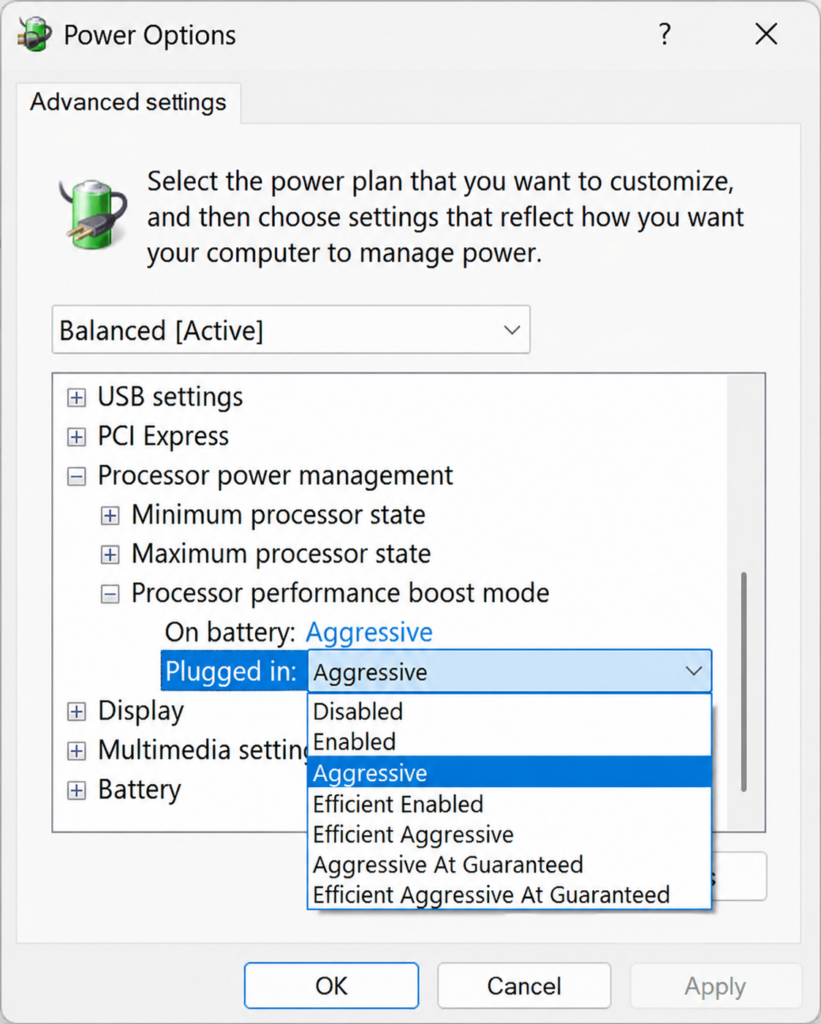
This setting, found under “Processor power management,” lets you fine-tune the balance between peak performance and power efficiency for your processor.
With options like “Aggressive” (often the default) or “Efficient Enabled,” you directly influence how your CPU speeds up for demanding tasks.
Why do this?
The “Processor performance boost mode” setting controls how your processor speeds up when needed. Technologies like Intel Turbo Boost and AMD Turbo CORE let your CPU speed up when your computer is working hard, giving you better performance. This setting lets you fine-tune how aggressively your CPU uses these speed boosts.
What happens when done?
By changing this setting, you can choose how your computer balances performance and power usage. You can make your CPU boost more often for more speed, or less often to save power and reduce heat.
You can choose from these options for when your computer is “On battery” and “Plugged in”:
- Disabled: Your CPU won’t boost its speed. It will run closer to its normal speed. This saves power and reduces heat but might make your computer feel less responsive for quick tasks.
- Enabled: This is the normal setting. Your CPU can boost its speed when needed. It balances speed with power and heat.
- Aggressive (Default): Your CPU will boost its speed more often and for longer periods. This can improve performance for demanding tasks but uses more power and generates more heat.
- Efficient Enabled: Your CPU can still boost, but it tries to do so only when it really helps performance. It avoids boosting for small gains to save energy.
- Efficient Aggressive: This is a mix. Your CPU boosts for performance, but it also focuses more on saving power than the “Aggressive” setting. It aims for good performance while reducing wasted energy.
- Aggressive At Guaranteed: Your CPU will always try to reach the highest possible speed above its guaranteed speed.
- Efficient Aggressive AT Guaranteed: Your CPU will try to reach the highest possible speed efficiently if the hardware allows it.
You need administrator rights to change this setting.
Option 1Add “Processor performance boost mode” to Power Options
- Open Windows Terminal (Admin). You can choose either Windows PowerShell or Command Prompt.
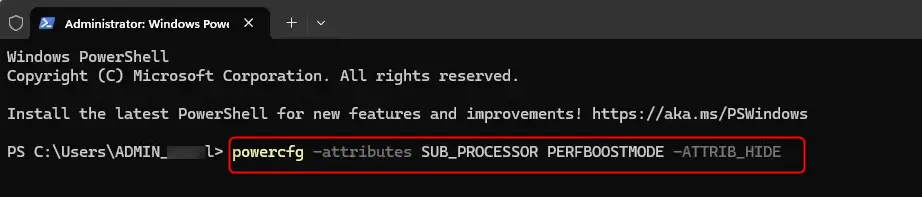
- Copy and paste one of the following commands into Terminal (Admin) and press Enter.
You can add the “Processor performance boost mode” to your Windows 11 Power Options by using a simple command in Windows Terminal.
OR
reg add HKLM\SYSTEM\CurrentControlSet\Control\Power\PowerSettings\54533251-82be-4824-96c1-47b60b740d00\be337238-0d82-4146-a960-4f3749d470c7 /v Attributes /t REG_DWORD /d 0 /f
Option 2Remove “Processor performance boost mode” from Power Options
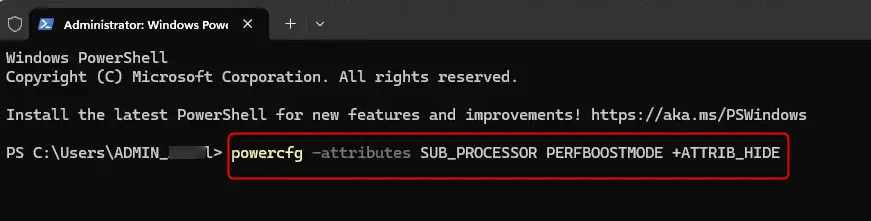
To remove the “Processor performance boost mode” from your Windows 11 Power Options, you’ll use a different command in Windows Terminal.
- Open Windows Terminal (Admin). You can choose either Windows PowerShell or Command Prompt.
- Copy and paste one of the following commands into Terminal (Admin) and press Enter.
powercfg -attributes SUB_PROCESSOR PERFBOOSTMODE +ATTRIB_HIDE
OR
reg add HKLM\SYSTEM\CurrentControlSet\Control\Power\PowerSettings\54533251-82be-4824-96c1-47b60b740d00\be337238-0d82-4146-a960-4f3749d470c7 /v Attributes /t REG_DWORD /d 1 /f
That’s it!
Reference:
Summary
This guide shows you how to turn the “Processor performance boost mode” on or off in Windows 11’s Power Options, helping you balance your computer’s speed and energy use.
Was this guide helpful?

About the Author
Richard
Tech Writer, IT Professional
Richard, a writer for Geek Rewind, is a tech enthusiast who loves breaking down complex IT topics into simple, easy-to-understand ideas. With years of hands-on experience in system administration and enterprise IT operations, he’s developed a knack for offering practical tips and solutions. Richard aims to make technology more accessible and actionable. He's deeply committed to the Geek Rewind community, always ready to answer questions and engage in discussions.

No comments yet — be the first to share your thoughts!