How to Display Seconds on Ubuntu Top Menu Clock

You can display seconds on your Ubuntu top menu clock by using the GNOME Tweaks tool.
This tweak allows you to see the exact time, down to the second, directly in your system’s top bar, enhancing precision for your workflow.
This method works seamlessly on Ubuntu 24.04 LTS and other recent GNOME desktop environments.
You’ll need to install GNOME Tweaks first if you haven’t already.
Install the “Extension Manager” app from the Ubuntu Software store, then search for and install the “Clock Seconds” extension within Extension Manager. The seconds will immediately appear on your top menu bar clock.
Why add seconds to your clock?
Adding seconds to your Ubuntu clock is helpful for tasks needing precise timing, like joining meetings exactly on time or tracking time-sensitive activities.
Show seconds with the clock on the top menu bar
You can add seconds to your Ubuntu clock on the top menu bar using a simple GNOME extension, as the built-in option isn’t available anymore.
The best way to manage these tweaks is by using the Extension Manager app. This app is the standard tool for customizing your Ubuntu interface, and it’s quite user-friendly.
- Open your app launcher and search for Extension Manager. If you do not have it, you can install it from the Ubuntu Software store.
- Launch the app and click on the Browse tab.
- Search for the extension named Clock Seconds.
4. Click the Install button next to the extension.
Once installed, the seconds will appear on your top menu bar immediately. You do not need to restart your computer.
A note on Dconf Editor
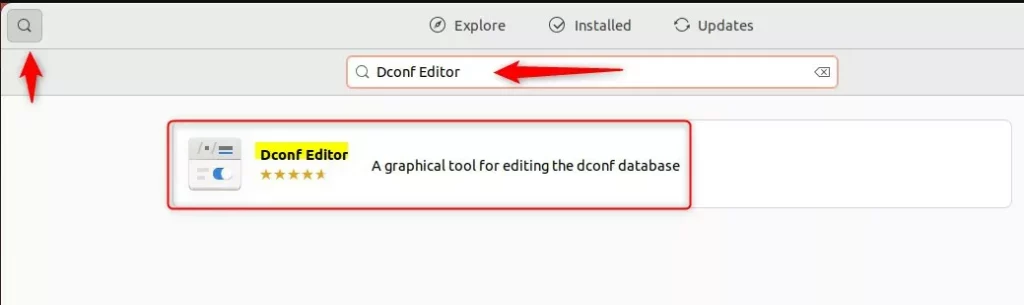
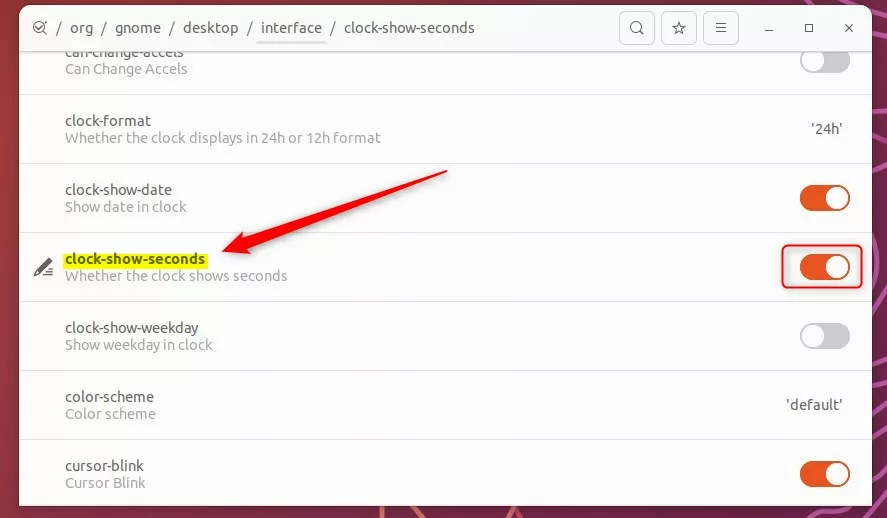
While older Ubuntu guides suggest using Dconf Editor or terminal commands to show clock seconds, these methods won’t work on newer versions like 23.10 and up.
If you’re familiar with Windows, you might think of Dconf Editor like the Windows Registry Editor. For modern Ubuntu, though, sticking with the Extension Manager is safer and simpler.
Conclusion
Even though Ubuntu no longer has a direct setting for showing seconds on the clock, you can easily add this feature back using tools like Extension Manager for better Ubuntu clock seconds customization.

Was this guide helpful?

About the Author
Richard
Tech Writer, IT Professional
Richard, a writer for Geek Rewind, is a tech enthusiast who loves breaking down complex IT topics into simple, easy-to-understand ideas. With years of hands-on experience in system administration and enterprise IT operations, he’s developed a knack for offering practical tips and solutions. Richard aims to make technology more accessible and actionable. He's deeply committed to the Geek Rewind community, always ready to answer questions and engage in discussions.



[…] previously wrote an article on how to show the seconds on the clock in Ubuntu. That post provided detailed steps to show the seconds on the clock. It’s not the easiest or […]