How to Show Seconds on Ubuntu’s Clock & Calendar

You can show seconds on Ubuntu’s clock and calendar by enabling a specific option within the system settings.
Ubuntu’s default clock and calendar on the top panel typically displays only hours and minutes. This is a common default for the Debian-based operating system.
Since Ubuntu 23.10, this feature is accessible directly through the user interface, eliminating the need for complicated command-line work.
This straightforward customization helps you get a more precise view of the time right on your desktop.
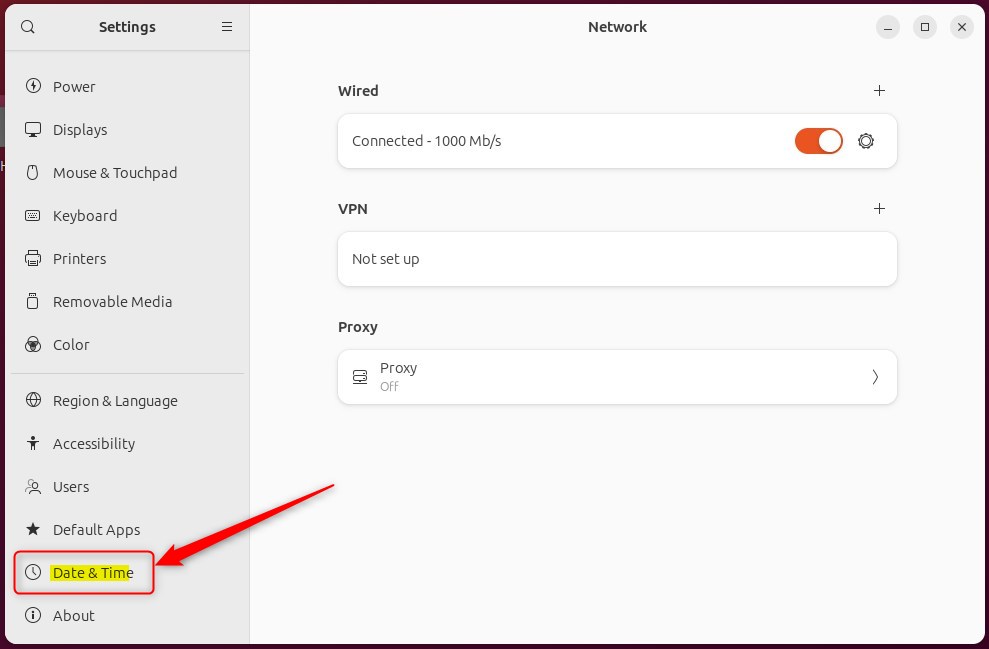
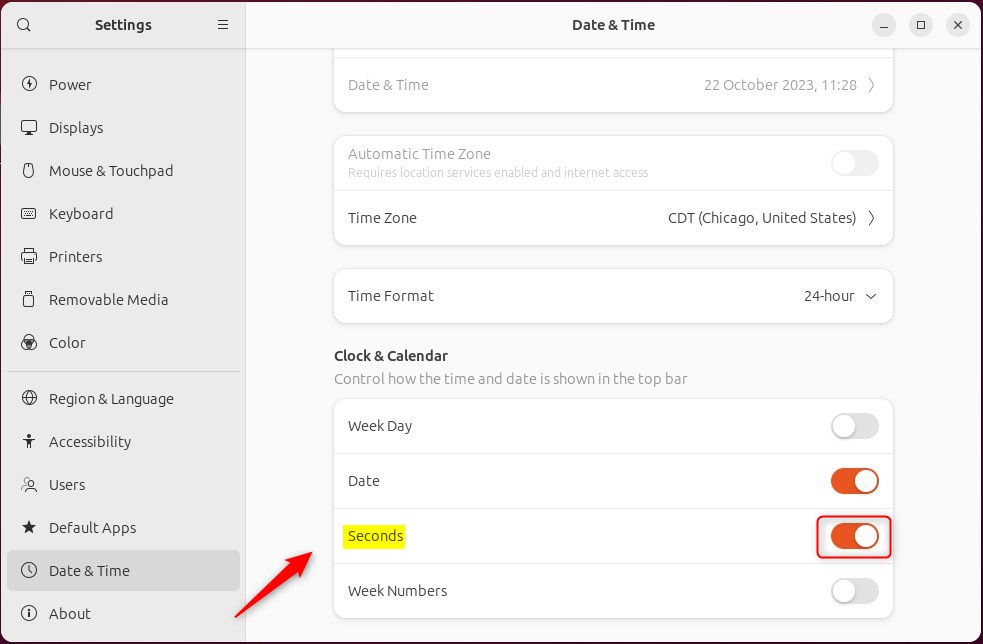
Open Settings, navigate to Date & Time, and toggle the Seconds switch to the On position. This will immediately display seconds on your Ubuntu clock and calendar.
Display seconds on the clock and calendar in Ubuntu Linux
You can easily show seconds on your Ubuntu clock and calendar by changing a simple setting in the system preferences.
Here’s how to do it.
First, click the system menu in the top right corner and select the Settings button (it looks like a gear).
Now, find ‘Date & Time‘ in the left-hand menu.
Look for the ‘Seconds’ option and toggle the switch to the On position.
To turn it off, toggle the switch button to the Off position.
You’ll then see the seconds appear on your clock and calendar on the top panel.
That should do it!
Conclusion:
- Displaying seconds on the clock and calendar in Ubuntu Linux is now easier than ever, thanks to the latest updates.
- The ability to toggle the display of seconds provides users with flexibility, catering to those who find it useful for specific tasks and those who prefer a simpler time display.
- The new method simplifies the process for all users, eliminating the need for complex steps and making it more accessible, even for beginners.
How do I show seconds in Ubuntu clock?
I right-click on the panel clock, select 'Preferences', and check the 'Show seconds' box, and BOOM my clock shows the seconds.
How to enable second display in Ubuntu?
Open Settings > Displays. Look for a Detect Displays button (usually in the bottom-left corner) Click it to force Ubuntu to search for connected monitors.
Was this guide helpful?

About the Author
Richard
Tech Writer, IT Professional
Richard, a writer for Geek Rewind, is a tech enthusiast who loves breaking down complex IT topics into simple, easy-to-understand ideas. With years of hands-on experience in system administration and enterprise IT operations, he’s developed a knack for offering practical tips and solutions. Richard aims to make technology more accessible and actionable. He's deeply committed to the Geek Rewind community, always ready to answer questions and engage in discussions.


No comments yet — be the first to share your thoughts!