How to Change Icon Position on Ubuntu Desktop

You change the default icon position on your Ubuntu desktop to control where new files automatically appear, making your workspace more organized.
This setting dictates the landing spot for new icons, such as when you download a file or create a new document. For example, you can set new icons to appear in the Top Left, Top Right, Bottom Left, or Bottom Right corners of your screen.
By default, Ubuntu might place new icons in a single designated area, but you can easily customize this to suit your workflow. You’ll see the change instantly after you make your selection.
Open Settings, navigate to Extensions, and select the Desktop Icons extension. Under Desktop Icons settings, choose your preferred position from Top Left, Top Right, Bottom Left, or Bottom Right to change where new icons appear.
Choose a new icon position on Ubuntu Linux
Follow these steps to set your preferred icon location.
Ubuntu keeps most settings in one place. To open System Settings, click the Show Applications grid and start typing “Settings”.
Alternatively, click the System menu at the top-right corner of your screen and select Settings.
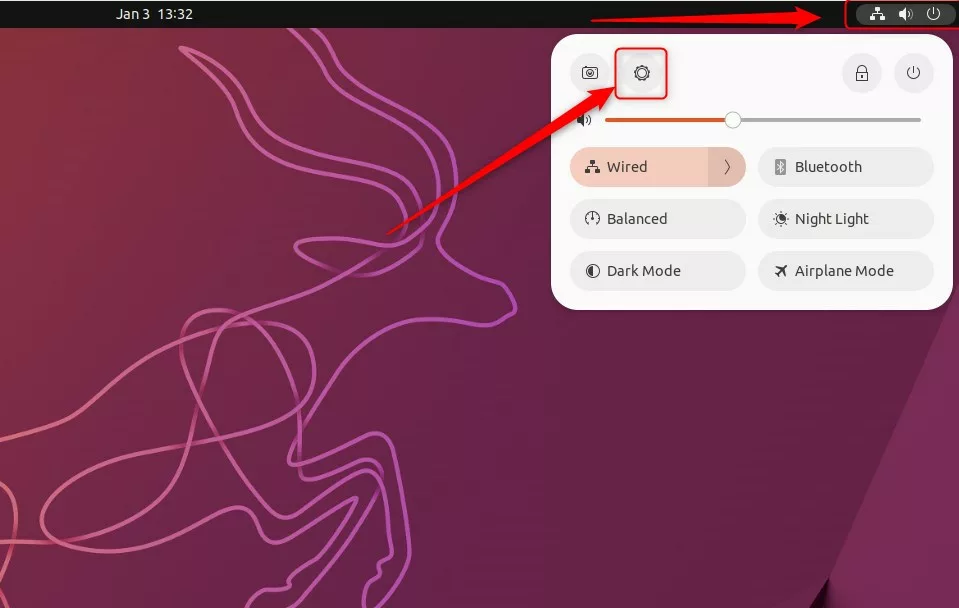
In the Settings app, open the Extensions app. You can also click the gear icon for the “Desktop Icons” extension, found in the Extensions manager.
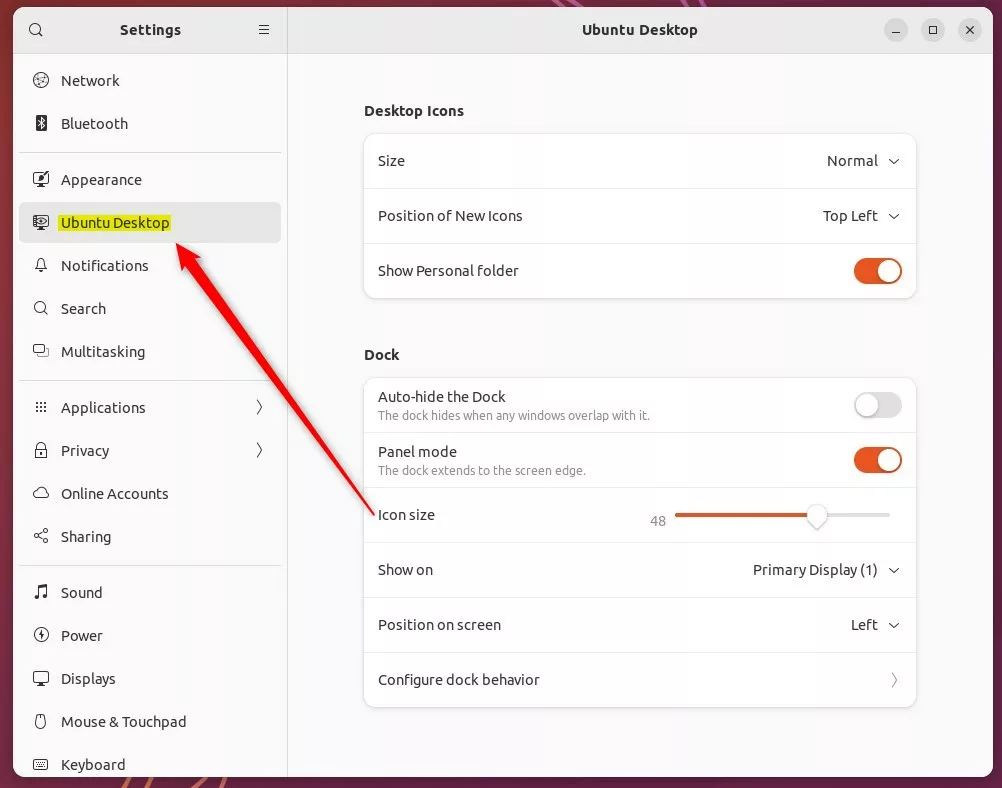
Under the Desktop Icons settings, look for the position options. Select your preferred spot for new icons:
- Top Left
- Top Right
- Bottom Left
- Bottom Right
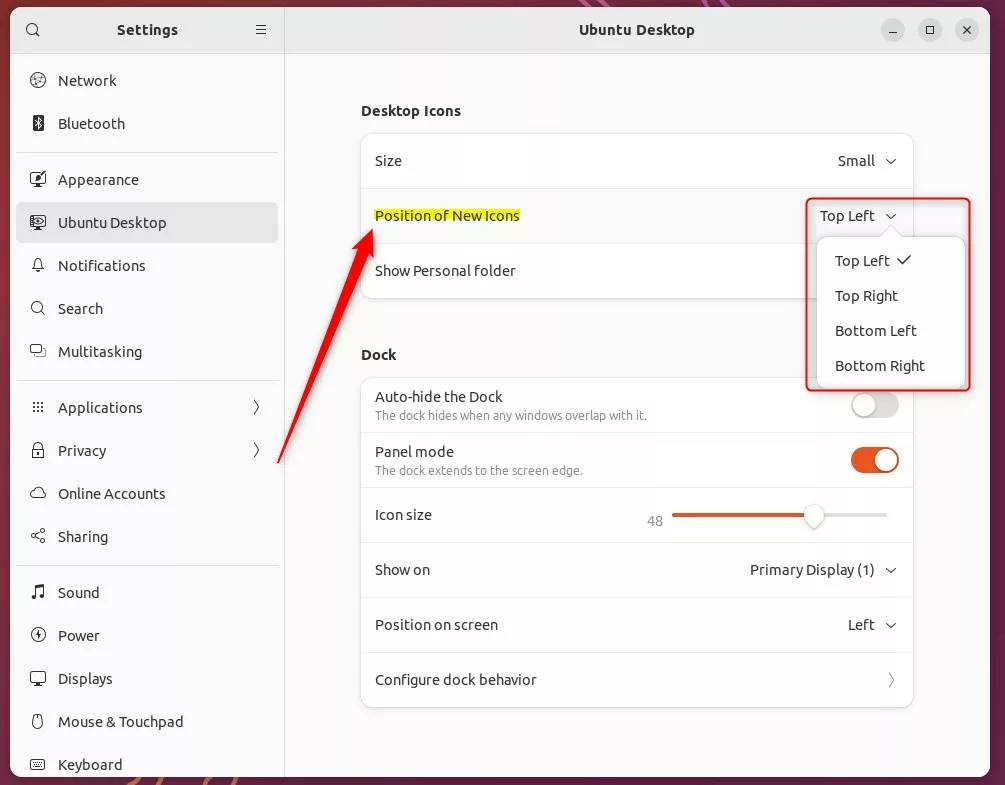
The changes apply as soon as you click your choice. Now, let’s look at how to add application icons to your desktop.
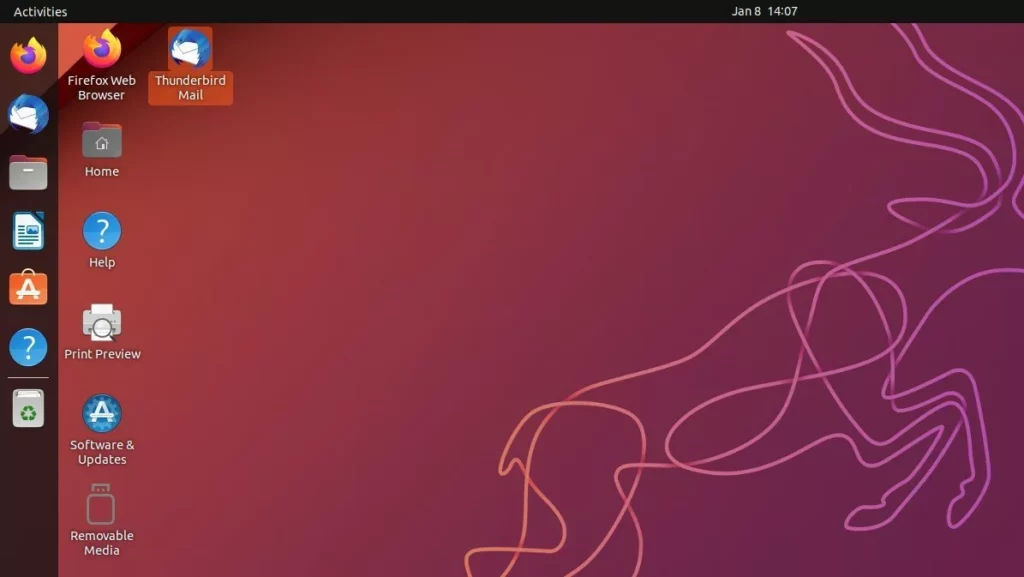
How to add application icons on the desktop on Ubuntu Linux
You might want to add shortcuts for your favorite programs to your desktop. Once you place a .desktop file on your desktop, you’ll need to do one extra step for it to work correctly.
Right-click the file and select “Allow Launching.” This ensures the icon renders correctly and looks like a real application shortcut.
That is all it takes! You can learn more about managing your desktop here: How to add application icons on the desktop on Ubuntu Linux..
Conclusion
Setting your icon position is a quick way to clean up your Ubuntu desktop. You can pick any of the four corners to keep your files neat. By using the “Allow Launching” feature, you can also keep your favorite apps just one click away.
Was this guide helpful?

About the Author
Richard
Tech Writer, IT Professional
Richard, a writer for Geek Rewind, is a tech enthusiast who loves breaking down complex IT topics into simple, easy-to-understand ideas. With years of hands-on experience in system administration and enterprise IT operations, he’s developed a knack for offering practical tips and solutions. Richard aims to make technology more accessible and actionable. He's deeply committed to the Geek Rewind community, always ready to answer questions and engage in discussions.


No comments yet — be the first to share your thoughts!