How to Add Desktop Icons in Ubuntu Linux

This guide explains how to add application icons to your desktop in Ubuntu Linux as of 2026.
To add desktop icons in Ubuntu, find the application’s .desktop file in /usr/share/applications or /var/lib/snapd/desktop/applications. Copy this file to your Desktop folder and then right-click the new icon and select “Allow Launching.
Introduction
Modern Ubuntu now uses an extension called DING (Desktop Icons NG). This extension makes managing your desktop much easier, offering a right-click menu and improved support for desktop icons. Why do this? Adding icons helps you reach your favorite programs faster. Once you’ve added them, you’ll see clickable icons right on your desktop background.
A typical Ubuntu desktop starts with a clean look, often showing only the Personal folder. Note that pinning apps to the dock is the preferred, more stable method for quick access in modern Ubuntu, but you can still add desktop icons if you prefer.
Copying .desktop files
Ubuntu does not have a drag-and-drop button for every app. You’ll typically need to locate the program’s “.desktop” file. These files are stored in specific folders:
- /usr/share/applications (for standard apps)
- /var/lib/snapd/desktop/applications (for Snap apps)
To add an icon, you can use the ‘Show Applications’ menu. You can often drag an icon directly to the desktop. If that does not work, use the DING extension’s “Add to Desktop” feature if it is available. Otherwise, open your Files or File Manager to manually copy the file from the folders listed above into your “Desktop” folder.
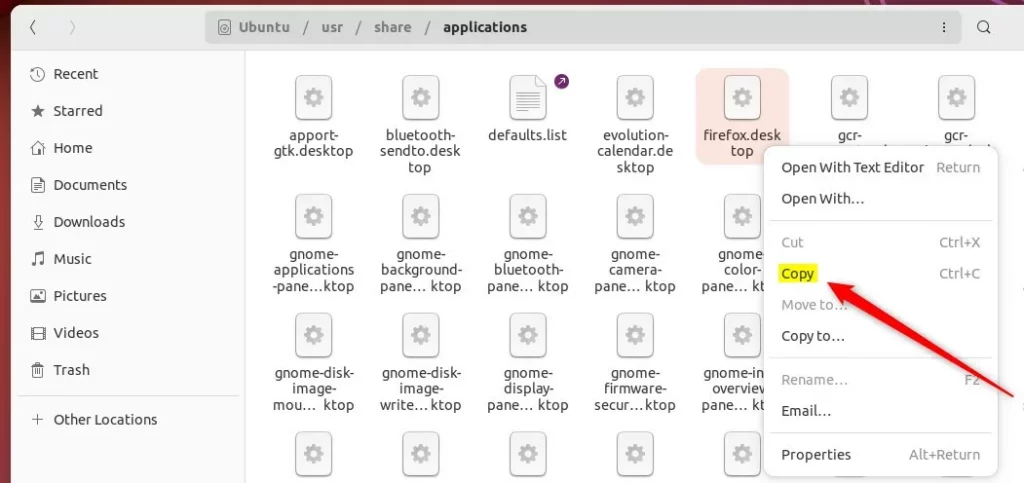
To copy the file, click it once, then right-click and choose Copy, or press Ctrl+C.
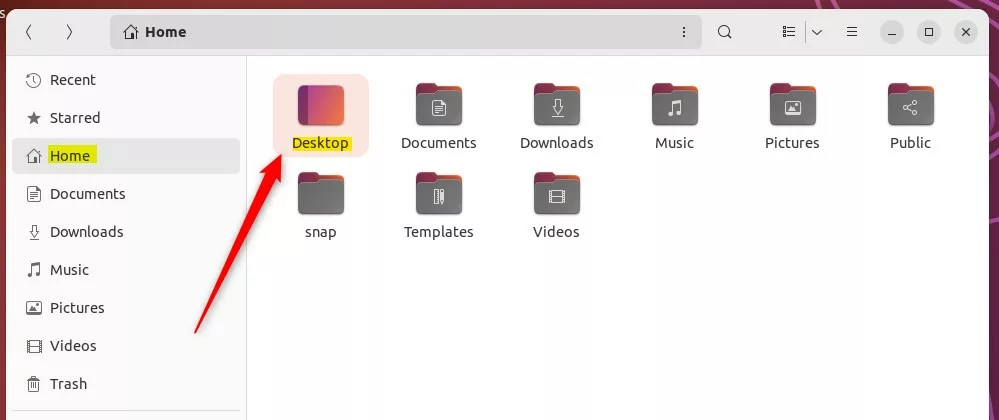
Go to your Home directory and open the Desktop folder.
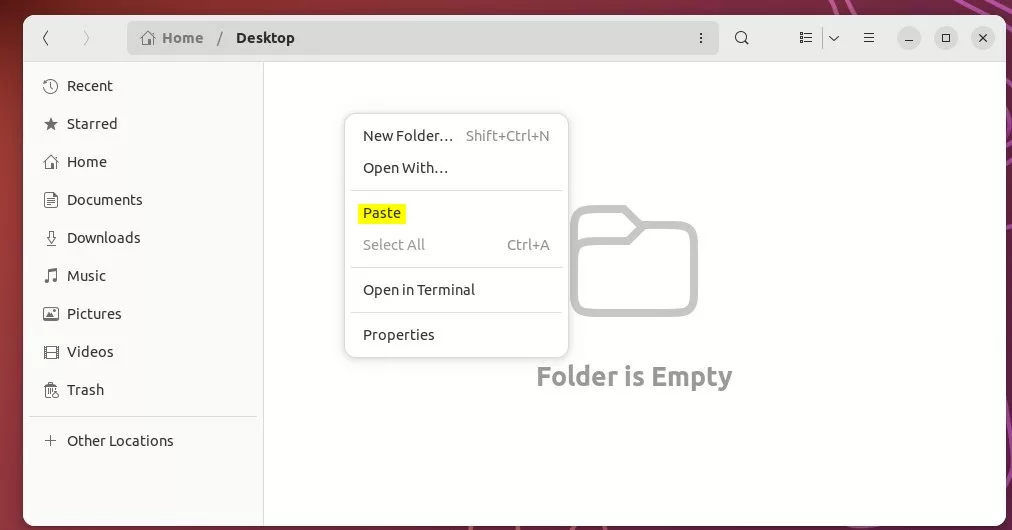
Right-click in the folder and select Paste, or press Ctrl+V.
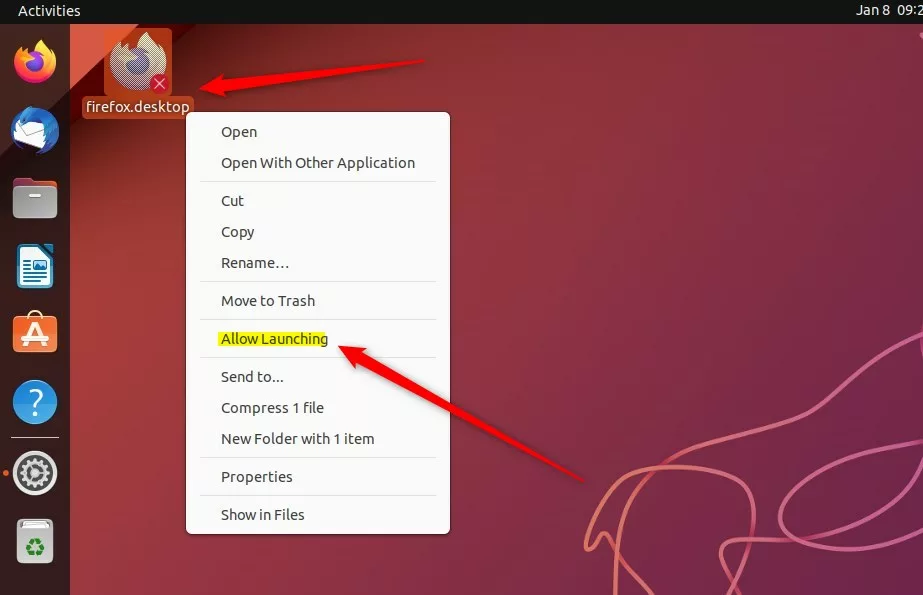
Allow Launching
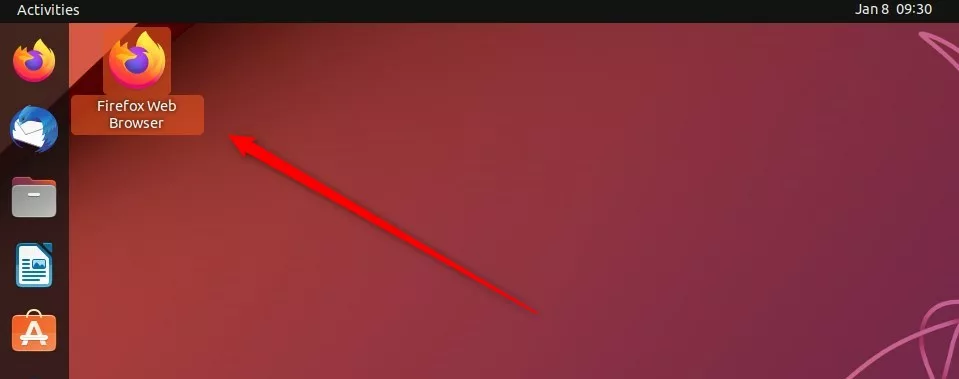
Once the file is on your desktop, you must enable it. Right-click the icon and select Allow Launching. This is a security feature of GNOME, the desktop environment you’re using. It keeps your computer safe by making sure you trust the file. You may need to provide administrative confirmation or check your extension settings to complete this step.
Your icon is now ready to use.
Conclusion
While pinning apps to the dock is the standard way to work in 2026, adding desktop icons is still possible. By using the DING extension and the “Allow Launching” security feature, you can keep your favorite tools exactly where you want them.
Was this guide helpful?

About the Author
Richard
Tech Writer, IT Professional
Richard, a writer for Geek Rewind, is a tech enthusiast who loves breaking down complex IT topics into simple, easy-to-understand ideas. With years of hands-on experience in system administration and enterprise IT operations, he’s developed a knack for offering practical tips and solutions. Richard aims to make technology more accessible and actionable. He's deeply committed to the Geek Rewind community, always ready to answer questions and engage in discussions.



[…] will come with a single (Personal) folder icon on the desktop after installation. However, you can add additional icons on the desktop, although it’s not the easiest thing to […]