How to Customize Quick Access in File Explorer on Windows 11

Customizing Quick Access in Windows 11 File Explorer lets you pin your most frequently used files, folders, and recent items for instant access.
Quick Access acts as a personalized shortcut hub directly within File Explorer, making it much faster to locate important documents and projects.
By pinning specific folders, like your ‘Work Projects’ folder which you might access 20 times a day, you significantly streamline your workflow and reduce desktop clutter.
This guide shows you exactly how to manage and personalize what appears in your Windows 11 File Explorer’s Quick Access pane to boost your PC efficiency.
Pin folders by right-clicking them and selecting “Pin to Quick Access.” Remove them by right-clicking and choosing “Unpin from Quick Access.” To disable recent files, go to File Explorer Options, uncheck “Show recently used files,” and click Apply.
How to pin or remove items
You can customize Quick Access in Windows 11 by pinning folders you use often, making them easy to find at the top.
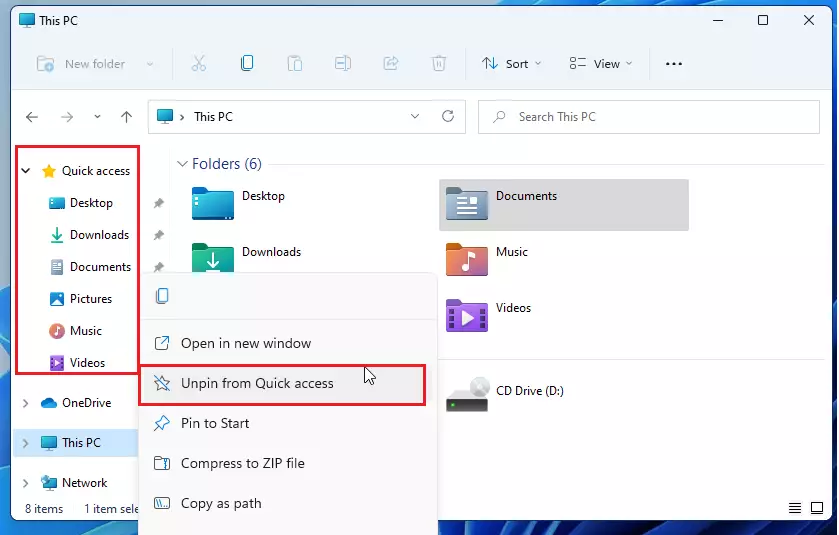
How to change Quick Access settings
You can easily change Quick Access settings in Windows 11 to show or hide things like recent files and folders, making File Explorer work just how you like it.
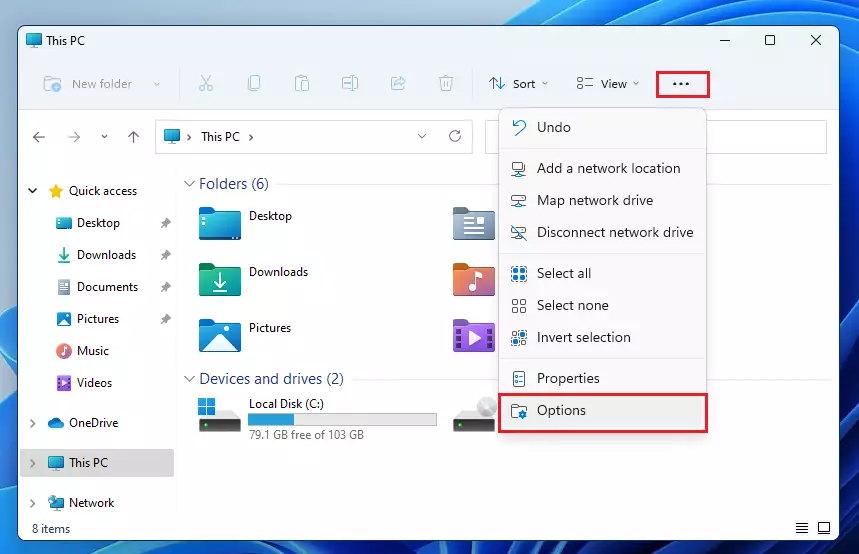
- Open File Explorer.
- Click the three dots (…) in the top menu.
- Select Options.
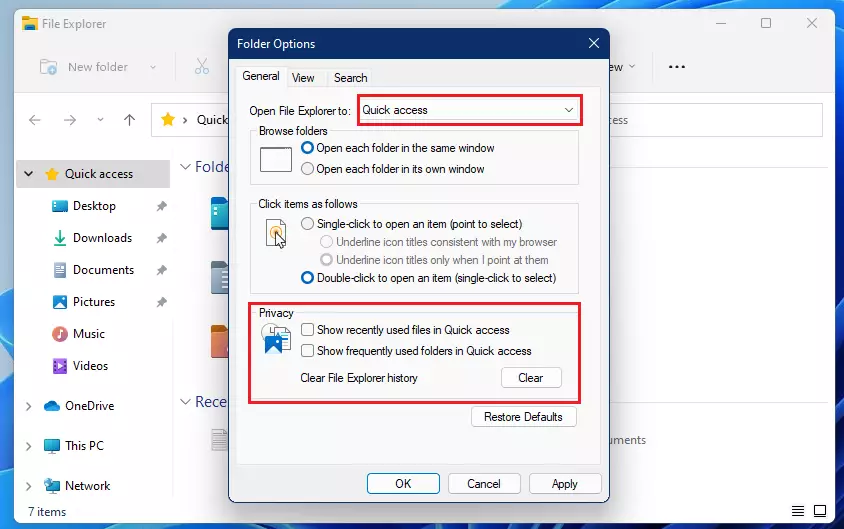
In the General tab, you can choose where File Explorer opens. For instance, if you’d rather see your computer drives than Quick Access when you first open it, change the Open File Explorer to setting to This PC.
Then, to stop Windows from showing your recent files, scroll down to the Privacy section at the bottom of the window:
- Uncheck the boxes for Show recently used files and Show frequently used folders.
- Click Apply to save your changes.

How to show only your pinned folders
Showing only your pinned folders in Quick Access on Windows 11 is simple; just change a setting to hide recent and frequent files, keeping your view clean and focused.
- Open File Explorer.
- Click the three dots (…) and choose Options.
- Ensure Open File Explorer to is set to Quick Access.
- In the Privacy section, uncheck the boxes for recent and frequent items.
- Click Apply.
Now, your Quick Access menu will only show the folders you have manually pinned.
Summary
Quick Access is a powerful tool to save time. By pinning your favorite folders, you stop wasting time searching. By adjusting your privacy settings, you can remove clutter and keep your workspace organized and focused on what matters most.
Was this guide helpful?

About the Author
Richard
Tech Writer, IT Professional
Richard, a writer for Geek Rewind, is a tech enthusiast who loves breaking down complex IT topics into simple, easy-to-understand ideas. With years of hands-on experience in system administration and enterprise IT operations, he’s developed a knack for offering practical tips and solutions. Richard aims to make technology more accessible and actionable. He's deeply committed to the Geek Rewind community, always ready to answer questions and engage in discussions.
📚 Related Tutorials

So there is no way to remove Quick Access in Windows 11??
And there seems to be no way to remove the Recommended section in the Start menu?!
This is ridiculous
You can remove Quick Acces via Registry editor. The W10 guide works fine.
The content of the Recommended section can be removed via Settings -> Personalisation -> Show recently… OFF Unfortunatelly the text “Recommended….” in Start menu can’t be removed.
I followed the instructions and nothing happened.
“You can remove Quick Access via Registry editor. The W10 guide works fine.” is your response to Luka – so where do I find W10 Guide? because I don’t want the stupid Quick Access.
Well, you can change the default folder to “This computer”, which is fine for me. (I never got the idea of quick access folder. All app I need to quickly access are pined to taskbar).
Cheers
Michala
[…] File Explorer version in Windows 11 now defaults to Home, which was previously referred to as Quick access. It lets you quickly access and view your frequently accessed folders (Quick […]
[…] Live captions can be turned on with the WINDOWS + CTRL + L keyboard shortcut or from the Accessibility flyout under Quick Settings. […]
[…] Live captions can be turned on with the WINDOWS + CTRL + L keyboard shortcut or from the Accessibility flyout under Quick Settings. […]
[…] The latest File Explorer version in Windows 11 now defaults to Home, which was previously referred to as Quick access. […]
[…] post shows students and new users steps to pin folders and files to File Explorer Quick access in Windows 11. Quick access is a navigation pane on the left of Windows File Explorer that allows […]
[…] you run into situations where the Taskbar, Quick Settings, and Notification area of the Taskbar aren’t working, you can quickly restore functionality […]
[…] default, File Explorer will open with Quick Access so you can access your frequently used items and quickly find files, folders, and settings in […]
[…] Quick access lets users conveniently access often-used files and folders. Located in the File Explorer, Quick Access allows you to pin specific items for easy access, quickly navigating to the most commonly used or recent files and directories without searching your entire system. […]
[…] Quick access lets users conveniently access often-used files and folders. You can pin specific items in the File Explorer for easy access, quickly navigating to the most commonly used or recent files and directories without searching your entire system. […]
[…] Live captions can be turned on with the WINDOWS + CTRL + L keyboard shortcut or from the Accessibility fly-out under Quick Settings. […]
[…] You can turn Live Captions on by pressing Windows + Ctrl + L on your keyboard. You can also find it in the Quick Settings menu under Accessibility. Learn more about Quick Settings here. […]
[…] How to Change Quick Access Settings in Windows 11 […]
[…] by pressing WINDOWS + CTRL + L on your keyboard. You can also find it in your system settings under Quick Settings. You can even change how the text looks using changing its on-screen positions and installing other […]
[…] are deaf or hard of hearing. You can turn it on by pressing WINDOWS + CTRL + L or by looking in the Quick Settings […]