How to Pin Recent Items in Windows 11 Quick Access

You can pin recent items in Windows 11 Quick Access to make your most-used files immediately accessible in File Explorer.
Quick Access in Windows 11 shows both folders you’ve pinned and files you’ve recently used. This gives you a handy shortcut to your most-accessed data, saving you from clicking through many folders.
This feature is a real time-saver if you regularly work with the same documents or projects. They’ll always be just a click away. Windows 11 automatically tracks your recent file activity, making it quick to add them to Quick Access.
Open File Explorer and navigate to your Recent Items folder by typing shell:recent in the address bar. Click the three dots in the top right corner and select Pin to Quick access to make your recent files easily accessible.
What is Quick Access?
Quick Access is a dedicated section in Windows 11’s File Explorer where you can stash your favorite or frequently used files and folders. Pinning items here means you can open them with a single click, saving you heaps of time.
What are Recent Items?
Recent Items shows you all the files you’ve recently opened or modified. When you add this list to Quick Access, you’ll have instant access to those files whenever you need them.
How to Pin Recent Items to Quick Access
You can easily pin recent items in Windows 11 to Quick Access to quickly find files you’ve recently worked on without needing to search. This makes it super simple to jump right back into your projects. Just open File Explorer by clicking the folder icon or pressing ⊞ Win+E.
Open File Explorer: You can open it by clicking the folder icon on your taskbar, or press the keyboard keys ⊞ Win+E together.
Go to Recent Items: Click on the address bar at the top of File Explorer, delete what’s there, then type this exactly and press Enter:
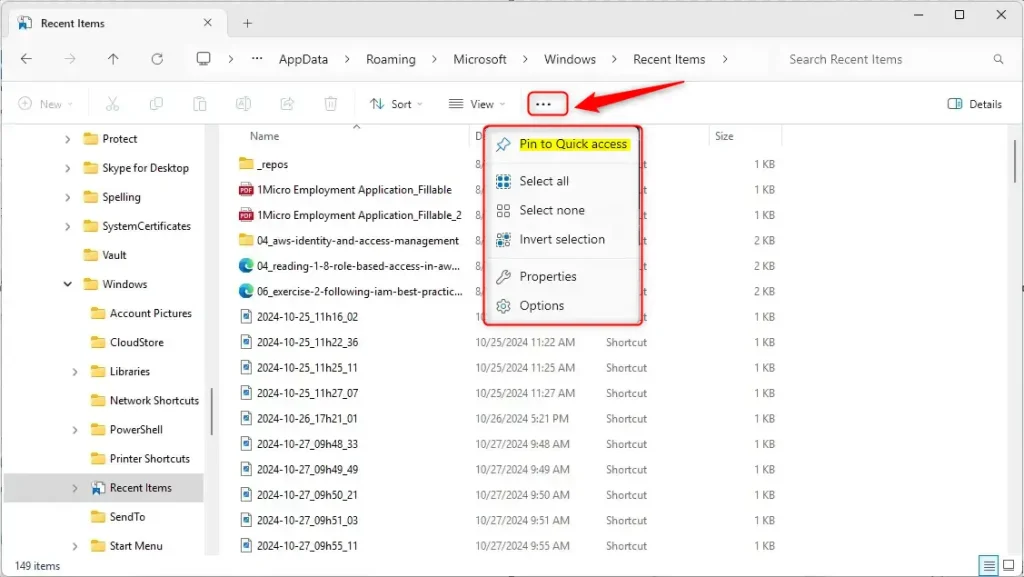
shell:recentYou will see your Recent Items folder open. Now, click the 3 dots (See more) button near the top right of the window.
From the menu, click Pin to Quick access.
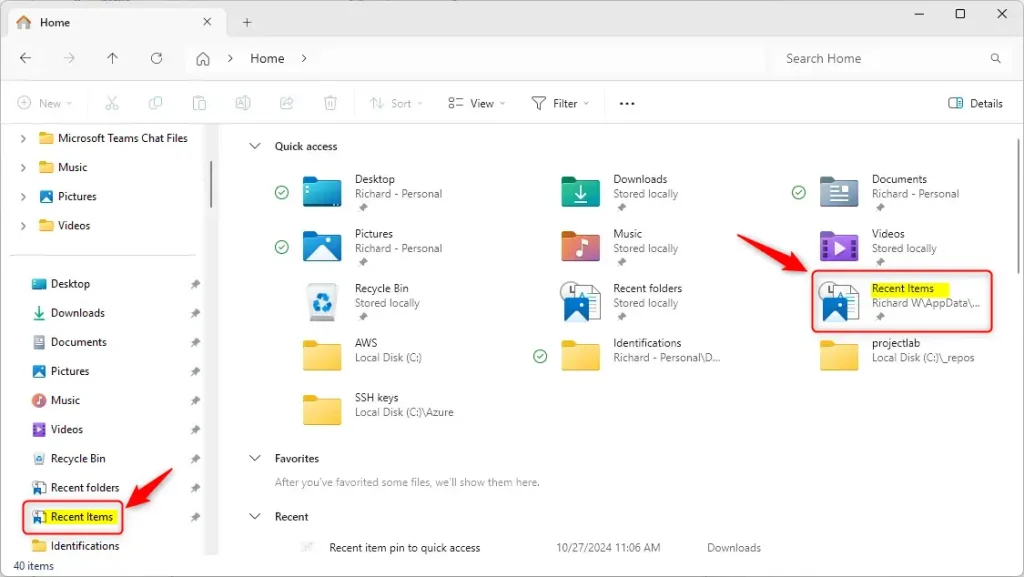
After this, you’ll see Recent Items listed in the Quick Access section on the left side of File Explorer.
How to Remove Recent Items from Quick Access
If you want to remove Recent Items from Quick Access later:
- Right-click on Recent Items in the Quick Access list.
- Select Unpin from Quick access.
Summary
Pinning recent items to Quick Access in Windows 11 saves you time, letting you open your newest files with just one click so you can get back to work faster. It’s a simple process with clear steps, and you can easily manage which items are pinned or unpinned whenever you like.
- Save Time: Open your recent files with one click.
- Easy to Do: Just a few simple steps to pin or unpin.
- Visual Help: The images above guide you through the process.
- Control: You can remove Recent Items anytime if you want.
Try this out and see how it makes finding your files faster and more efficient on Windows 11!
How to PIN recent files in 🪟 Windows 11?
To pin recent files in Windows 11, right-click (or long-press) the item and select ‘Pin to Quick access’. To unpin it later, simply right-click (or long-press again and choose ‘Unpin from Quick access’. You can choose to show only your pinned folders by turning off recent files or frequent folders.
Why is there no change PIN option in 🪟 Windows 11?
The section about changing a PIN in Windows 11 is unrelated to pinning recent items and should be removed. It’s confusing and doesn’t belong in this tutorial.
Was this guide helpful?

About the Author
Richard
Tech Writer, IT Professional
Richard, a writer for Geek Rewind, is a tech enthusiast who loves breaking down complex IT topics into simple, easy-to-understand ideas. With years of hands-on experience in system administration and enterprise IT operations, he’s developed a knack for offering practical tips and solutions. Richard aims to make technology more accessible and actionable. He's deeply committed to the Geek Rewind community, always ready to answer questions and engage in discussions.


No comments yet — be the first to share your thoughts!