How to Show or Hide Gallery in Windows 11 File Explorer

You can show or hide the Gallery feature in Windows 11 File Explorer to customize how you view your image files.
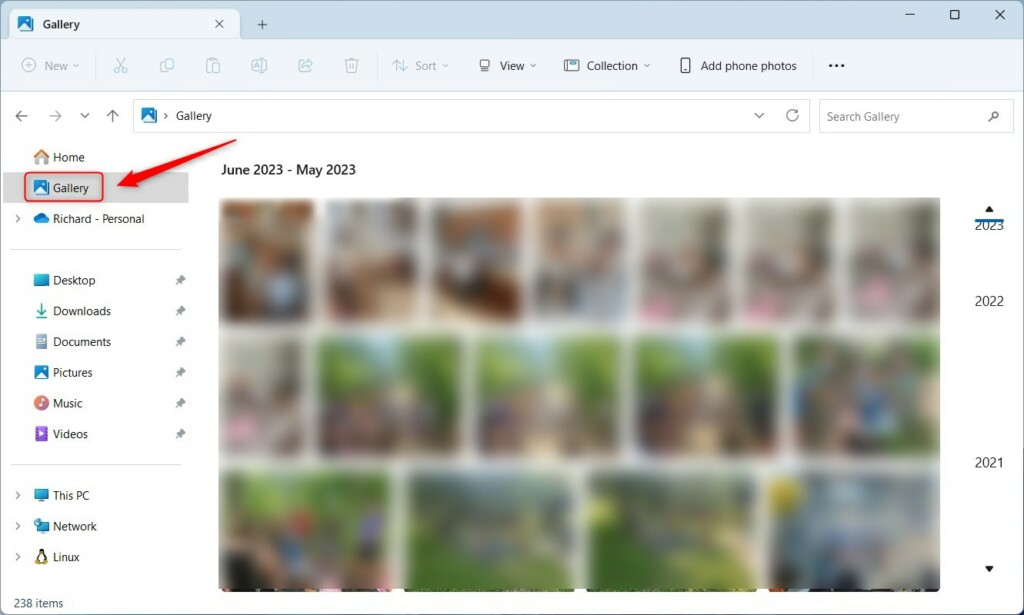
The Gallery in File Explorer is a special view that aggregates all your photos and images from various locations into a single, scrollable list, without actually moving your files.
This convenient feature, introduced in Windows 11 build 23435, allows you to quickly browse your entire photo collection.
If you find the Gallery view cluttering your File Explorer or don’t use it often, you can easily disable it to simplify your interface.
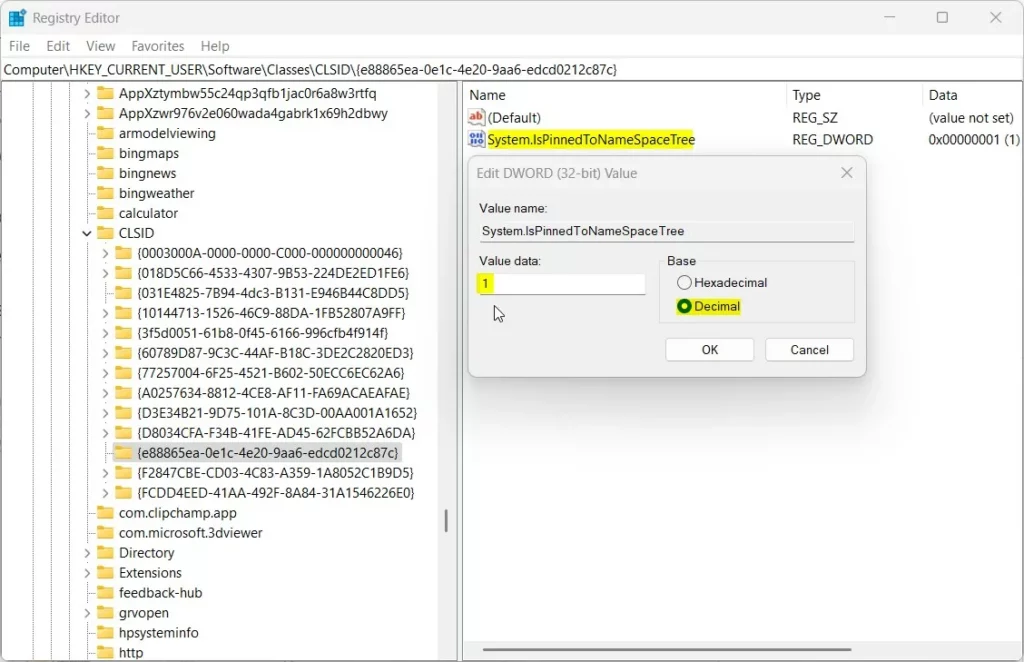
To show or hide the Gallery in Windows 11 File Explorer, edit the Registry. Navigate to 🗝️HKEY_CURRENT_USER\Software\Classes\CLSID\{e88865ea-0e1c-4e20-9aa6-edcd0212c87c}, create a DWORD named System.IsPinnedToNameSpaceTree, and set its value to 1 to show or 0 to hide. Restart your computer for changes to take effect.
Method 1Using the Registry Editor (Advanced)
You can show or hide the Gallery in Windows 11 File Explorer by changing a setting in the Registry Editor, but this is an advanced method that needs administrator permission.
- Open the Windows Registry by typing “regedit” in your search bar and pressing Enter.
- Navigate to this path:
HKEY_CURRENT_USER\Software\Classes\CLSID\{e88865ea-0e1c-4e20-9aa6-edcd0212c87c} - If you do not see the
{e88865ea-0e1c-4e20-9aa6-edcd0212c87c}folder, right-click on theCLSIDfolder, select New, and create the subkey.
- Right-click in the empty space on the right side of the window.
- Select New, then choose DWORD (32-bit) Value.
- Name the new item:
System.IsPinnedToNameSpaceTree - Double-click your new
System.IsPinnedToNameSpaceTreeitem. - Set the Base to Decimal.
- Change the Value data to 1 to show the Gallery or 0 to hide it.
Save your changes and restart your computer to see the update.
Troubleshooting and Permissions
If the Registry method doesn’t work to show or hide the Gallery in Windows 11, it’s often due to permissions or not having admin rights.
Summary
Customizing your File Explorer by choosing to show or hide the Gallery in Windows 11 helps keep things tidy and organized.
Does removing the Gallery from the navigation pane delete my actual photos?
Removing the Gallery from the File Explorer navigation pane in Windows 11 does not delete your photos; it only hides the shortcut.
Is it possible to restore the Gallery after removing it?
Yes, you can restore the Gallery. Follow the registry steps again and change the value of System.IsPinnedToNameSpaceTree from 0 back to 1. After you restart your computer or refresh File Explorer, the Gallery icon will reappear in your navigation pane exactly as it was before.
Does this change affect all user accounts on the PC?
The change to show or hide the Gallery in Windows 11 File Explorer only affects the user account you’re currently logged into, not all accounts on the PC.
Was this guide helpful?

About the Author
Richard
Tech Writer, IT Professional
Richard, a writer for Geek Rewind, is a tech enthusiast who loves breaking down complex IT topics into simple, easy-to-understand ideas. With years of hands-on experience in system administration and enterprise IT operations, he’s developed a knack for offering practical tips and solutions. Richard aims to make technology more accessible and actionable. He's deeply committed to the Geek Rewind community, always ready to answer questions and engage in discussions.



[…] and Redo commands, enable or disable File Explorer folder options, show or hide the details pane, show or hide the Gallery, and […]
I’m confused because although blurred, the gallery is still visible after the registry modification.
The registry modification provided is also ineffective for regular users like myself because Wins 11 registry key(s) DEFAULT TO A HEXADECIMAL BASE therefore the provided registry modification won’t work.
[…] article explains how to add or remove folders in the File Explorer Gallary collection on Windows […]
[…] open File Explorer and open your Google Drive folder. You can find it in the File Explorer navigator pane, Quick access, or in “This […]