How to Add or Remove the Windows 11 Gallery Folder

You can add or remove the Windows 11 Gallery folder in File Explorer to control which image locations it displays.
The Windows 11 Gallery is a dedicated view within File Explorer that consolidates images from specific folders you designate, acting as a unified photo collection separate from the main Photos app.
This feature helps you organize your visual content by allowing you to include or exclude folders. For example, you might add your “Vacation Pics 2023” folder for easy access, or remove a folder containing thousands of temporary screenshots to keep your Gallery clean and focused.
Open File Explorer, click Gallery, then Collection, and Manage collection. Use the Add button to include folders or select and click Remove to exclude them. This customizes where File Explorer finds your photos without moving files.
Add or remove folders in File Explorer
Adding or removing folders from your Windows 11 Gallery is straightforward using File Explorer. Simply open File Explorer, select Gallery, then choose Collection and Manage collection to add new folders or remove existing ones.
- Open File Explorer and click on Gallery in the side menu.
- Select Collection and then Manage collection in the top menu bar.
- Click the Add button to pick a folder from your PC. The files will stay in their original location, such as
C:\Users\Username\Pictures\NewFolder.
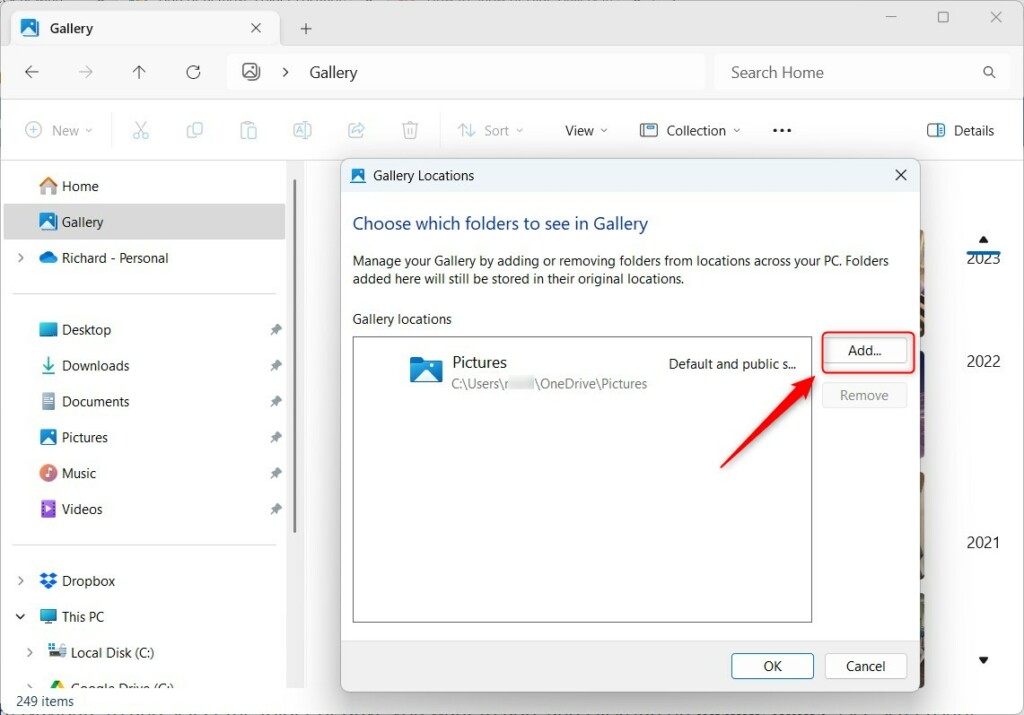
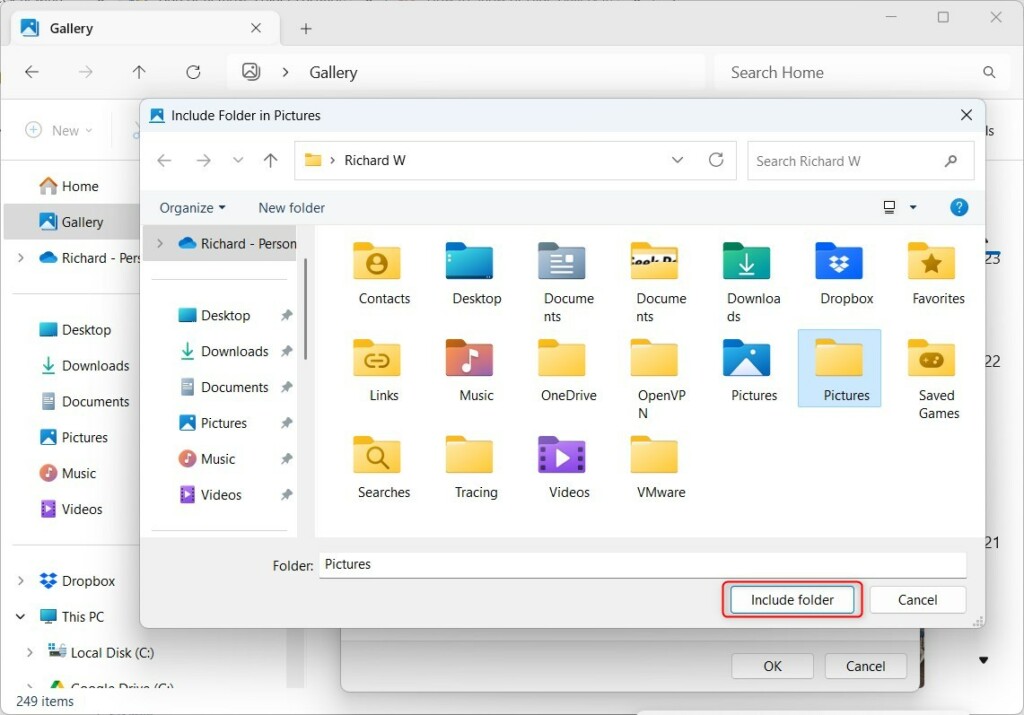
- Select the folder you want and click Include folder.
To remove a folder later:
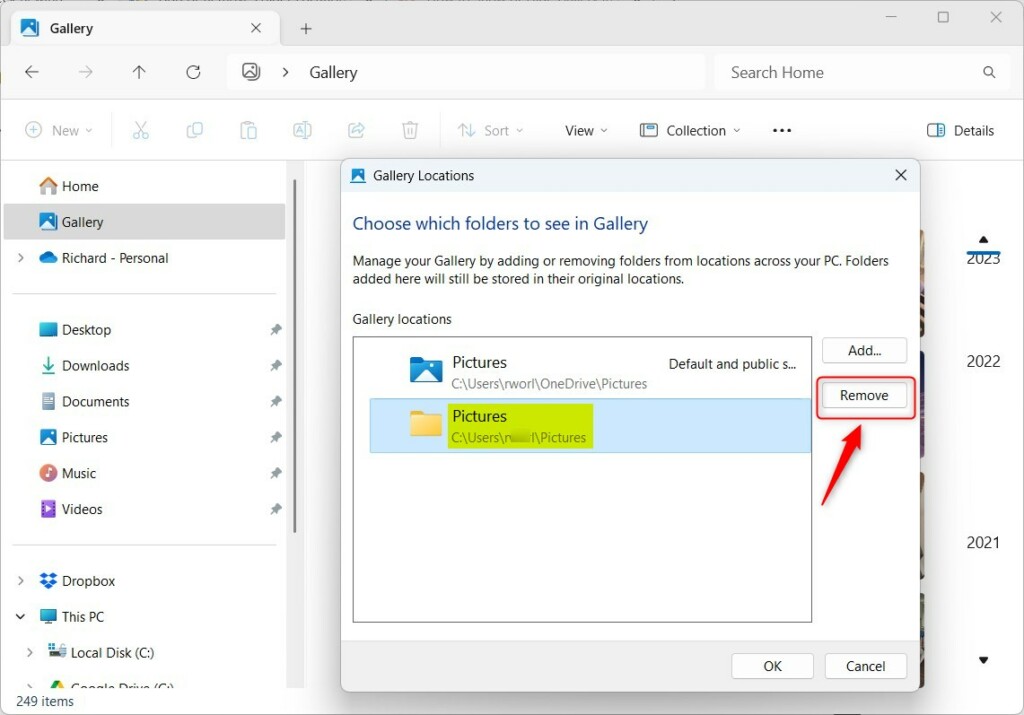
- Go back to Collection and then Manage collection in the File Explorer command bar.
- Select the folder you want to remove and click Remove.
Advanced Management: Registry and PowerShell
You can hide the Windows 11 Gallery folder from File Explorer using the Registry Editor for more advanced control. To do this, open the Registry Editor, go to a specific location, and create a new setting called DisableGallery, setting its value to 1.
To hide the Gallery from the navigation pane, navigate to HKEY_LOCAL_MACHINE\SOFTWARE\Microsoft\Windows\CurrentVersion\Explorer. You’ll need to create a new DWORD value and name it DisableGallery. Then, set its value to 1.
Cloud Integration: OneDrive and iCloud
Your Gallery works automatically with OneDrive’s Camera Roll Backup feature. If you use iCloud for Windows, ensure your iCloud Photos folder is included in your collection settings to see those images in the Gallery.
Summary
Managing your Gallery helps keep your digital decluttering efforts on track. Whether you use the simple File Explorer interface or advanced Registry tweaks, you have full control over your media management. Remember that the Gallery is just a view; your files stay exactly where you put them.
Does removing the Gallery from the navigation pane delete my photos?
No. Removing a folder from the Gallery view or hiding the Gallery itself only changes how the files are displayed in File Explorer. Your actual image files remain safely stored in their original folders on your hard drive or cloud storage.
Can I customize which folders appear in the Gallery view?
Yes. You can customize the Gallery by using the Manage Collection feature. This allows you to manually add or remove specific folders from your PC, ensuring that only the directories you care about appear in your aggregated photo view.
Is the Gallery feature available in all versions of 🪟 Windows 11?
The Gallery feature was introduced in Windows 11 build 23435. It is available in all current versions of Windows 11 that have received the latest feature updates. If you do not see it, ensure your system is fully updated via Windows Update.
Was this guide helpful?

About the Author
Richard
Tech Writer, IT Professional
Richard, a writer for Geek Rewind, is a tech enthusiast who loves breaking down complex IT topics into simple, easy-to-understand ideas. With years of hands-on experience in system administration and enterprise IT operations, he’s developed a knack for offering practical tips and solutions. Richard aims to make technology more accessible and actionable. He's deeply committed to the Geek Rewind community, always ready to answer questions and engage in discussions.



No comments yet — be the first to share your thoughts!