How to Display Full Path in Windows 11 File Explorer

You can display the full path of a file or folder in the Windows 11 File Explorer title bar by enabling an option in the View menu.
The full path shows the complete location of your file or folder, starting from the root drive (like C:) all the way down to the specific item. This feature is particularly useful in Windows 11, where the default view often hides deeper directory information.
By default, File Explorer in Windows 11 typically displays only the name of the current folder in its title bar. Activating the full path setting provides a much clearer understanding of your file system’s structure, akin to older Windows versions.
This simple adjustment helps you avoid confusion with deeply nested files and makes copying precise locations much easier.
Enable the full path in File Explorer by opening Folder Options, going to the View tab, and checking “Display the full path in the title bar.” Alternatively, use the Settings app under “For developers” or modify the Windows Registry at Computer\🗝️HKEY_CURRENT_USER\Software\Microsoft\Windows\CurrentVersion\Explorer\CabinetState.
How to Show Full Path in File Explorer
Method 1Using Folder Options
- Open File Explorer Folder Options.
- Click on the View tab.
- Check the box next to “Display the full path in the title bar.”
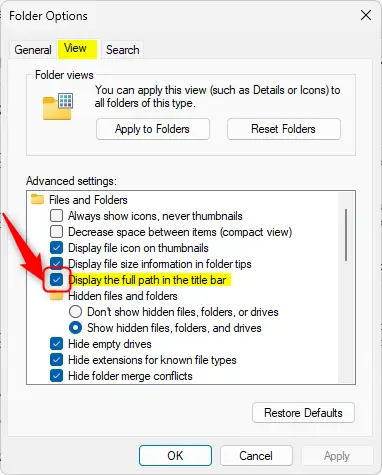
Click OK to save your changes.
Method 2Using the Settings App
You can turn this feature on or off using the system settings.
- Open the Developer feature in Windows 11.
- Go to Start menu > Settings > System > For developers.
- Find the File Explorer section and click to open it.
- Toggle the button for the full path to on or off.
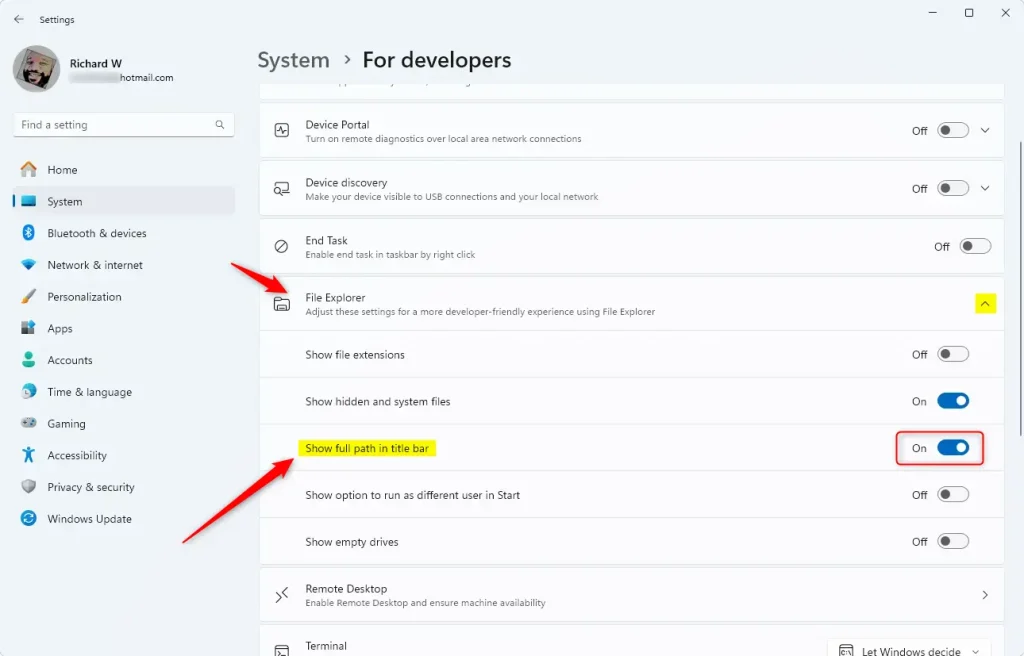
Close the Settings app when you are finished.
Method 3Using the Windows Registry
⚠️ Requires admin privileges
You can also adjust this setting using the Windows Registry Editor.
- Open the Windows Registry and go to this path:
Computer\HKEY_CURRENT_USER\Software\Microsoft\Windows\CurrentVersion\Explorer\CabinetState- Right-click CabinetState > New > DWORD (32-bit) Value and name it
FullPath. - Double-click
FullPathand change the value to 1 to show the path. - Enter 0 to hide the path.
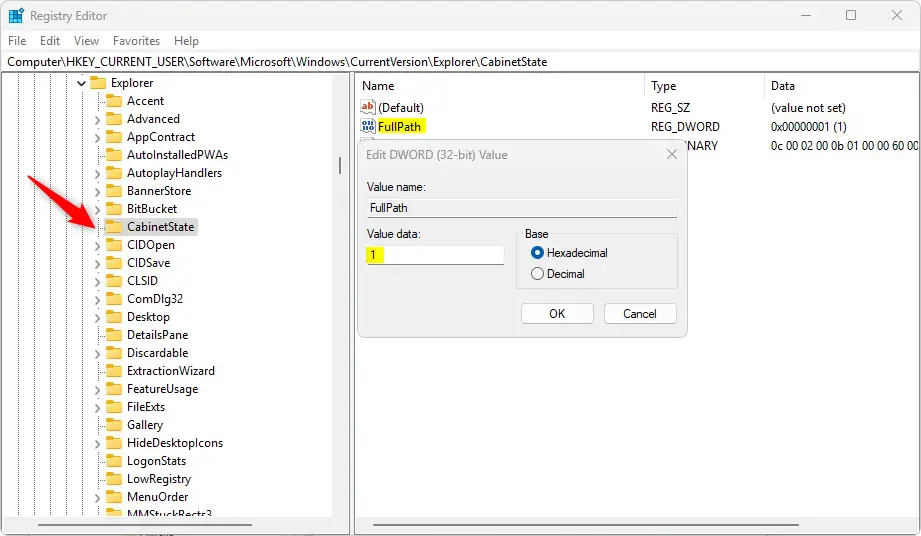
You might need to restart your computer for these changes to take effect.
Summary
Knowing the full path in File Explorer helps you navigate Windows 11 more effectively. Here is what you need to know:
- Three Ways to Enable: You can use Folder Options, the Settings app, or the Windows Registry.
- Easy to Toggle: You can turn the feature on or off whenever you like.
- Better Navigation: Seeing the full path helps you understand exactly where you are in your files.
- Quick Preview: If you don’t want the path visible always, you can hover your mouse over a tab to see it in a popup.
- Restart May Be Needed: If you use the Registry method, restart your computer to apply the changes.
How do I show the full file path in 🪟 Windows 11?
Open File Explorer or press ⊞ Win+E. Select the View tab, then Options, and then Change folder and search options. In the Folder Options window, click the View tab. Under Advanced settings, toggle Display the full path in the title bar.
How do you display the full path?
To see the full path of your current directory, you can use the ‘pwd’ command. This command outputs the complete file location, starting from the root directory (represented by ‘/’). Slashes ‘/’ separate each folder name in the path.
How to show full drive path?
To see the full path for your mapped drives, type ‘command’ in the Windows search bar and press Enter to open the Command Prompt. Once it’s open, type ‘net use’ and press Enter again. This will list all your mapped drives and their corresponding UNC paths (network locations).
Was this guide helpful?

About the Author
Richard
Tech Writer, IT Professional
Richard, a writer for Geek Rewind, is a tech enthusiast who loves breaking down complex IT topics into simple, easy-to-understand ideas. With years of hands-on experience in system administration and enterprise IT operations, he’s developed a knack for offering practical tips and solutions. Richard aims to make technology more accessible and actionable. He's deeply committed to the Geek Rewind community, always ready to answer questions and engage in discussions.


No comments yet — be the first to share your thoughts!