How to Remove Home Folder from Windows 11 File Explorer

You can remove the Home folder from Windows 11 File Explorer’s navigation pane to create a cleaner, more personalized view.
File Explorer is the essential tool Windows uses for managing all your files and folders. In Windows 11, File Explorer includes a prominent “Home” shortcut in the navigation pane by default.
This feature, appearing in recent Windows 11 updates, allows you to quickly access frequently used files and folders. However, if you prefer a less cluttered interface, you can easily hide the Home folder.
Edit the Windows Registry to remove the Home folder. Navigate to Computer\🗝️HKEY_LOCAL_MACHINE\SOFTWARE\Microsoft\Windows\CurrentVersion\Explorer, create a DWORD value named HubMode and set its data to 1, then delete the {f874310e-b6b7-47dc-bc84-b9e6b38f5903} key in the NameSpace folder. Restart your computer for changes to take effect.
Hide the Home Folder in File Explorer
Why do this? You might want to hide the Home folder to make your File Explorer look cleaner and less cluttered.
What happens when done? The Home folder will no longer appear in your File Explorer side menu.
Step 1Open the Registry Editor
Open the Windows Registry and go to the following folder path:
Computer\HKEY_LOCAL_MACHINE\SOFTWARE\Microsoft\Windows\CurrentVersion\Explorer
⚠️ Admin required: You must have administrator privileges to change these settings.
Step 2Create a New DWORD Value
Right-click the ‘Explorer’ folder, then choose ‘New’ and ‘DWORD (32-bit) Value’. Name this new file ‘HubMode’.
Double-click ‘HubMode’. Change the value from 0 to 1, then click OK.
Step 3Delete the Home Folder Key
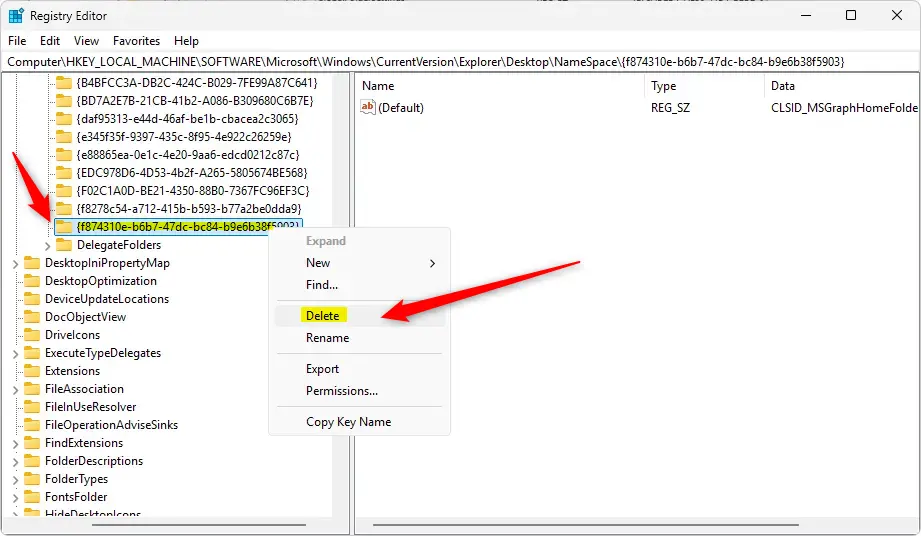
Next, navigate to this folder path:
Computer\HKEY_LOCAL_MACHINE\SOFTWARE\Microsoft\Windows\Enter\Explorer\Desktop\NameSpace
Right-click the key named ‘{f874310e-b6b7-47dc-bc84-b9e6b38f5903}’ and select Delete.
Step 4 Restart Your Computer
A quick restart might be needed to finalize these changes. Once finished, File Explorer will open to “This PC” or your chosen default folder instead of Home.
Restore the Home Folder
If you want to bring back the Home folder in Windows 11 File Explorer after hiding it, you can easily reverse the changes you made.
What happens when done? The Home folder will reappear in your File Explorer side menu.
- Delete the HubMode Value: Right-click the
HubModeentry you created earlier and select Delete. - Create the NameSpace Key: Go to the
NameSpacefolder path. Right-click it, select New, and click Key. - Name the Key: Name the new key
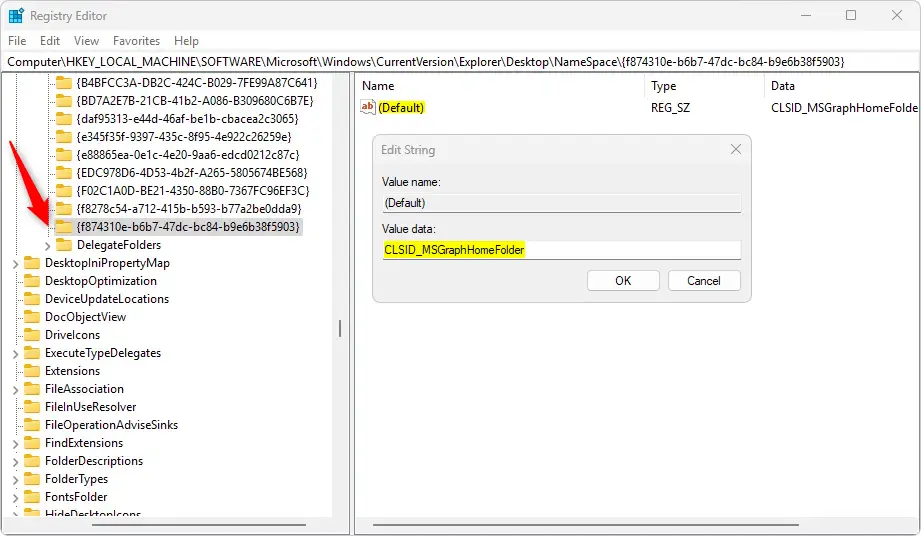
{f874310e-b6b7-47dc-bc84-b9e6b38f5903}and press Enter. - Set the Value: Right-click the Default string inside that new key, change the value to
CLSID_MSGraphHomeFolder, and click OK.
Summary
You can easily change your Windows 11 File Explorer by hiding or bringing back the Home folder using simple steps.
What is the home folder on 🪟 Windows 11?
By default, File Explorer opens to ‘Quick access,’ which was renamed to ‘File Explorer Home’ in Windows 11, Version 22H2. We recommend Home as your landing page in File Explorer, where you can: Access your most recent and favorited Office.com files quickly.
Was this guide helpful?

About the Author
Richard
Tech Writer, IT Professional
Richard, a writer for Geek Rewind, is a tech enthusiast who loves breaking down complex IT topics into simple, easy-to-understand ideas. With years of hands-on experience in system administration and enterprise IT operations, he’s developed a knack for offering practical tips and solutions. Richard aims to make technology more accessible and actionable. He's deeply committed to the Geek Rewind community, always ready to answer questions and engage in discussions.


No comments yet — be the first to share your thoughts!