How to View Point-in-time Restore Points List in Windows 11

You can view a list of point-in-time restore points in Windows 11 to recover your system from problems.
A point-in-time restore, also known as System Restore, creates a snapshot of your system files, installed applications, and registry settings at a specific moment. This allows you to revert your PC to a previous working state if a recent software installation, driver update, or system change causes issues.
For instance, if Windows 11 suddenly becomes unstable after installing a new program, you can use a restore point created just before that installation to undo the changes without losing your personal files.
Knowing how to access this list is crucial for troubleshooting and maintaining a stable computing experience. This guide shows you exactly how to find all available restore points on your Windows 11 PC.
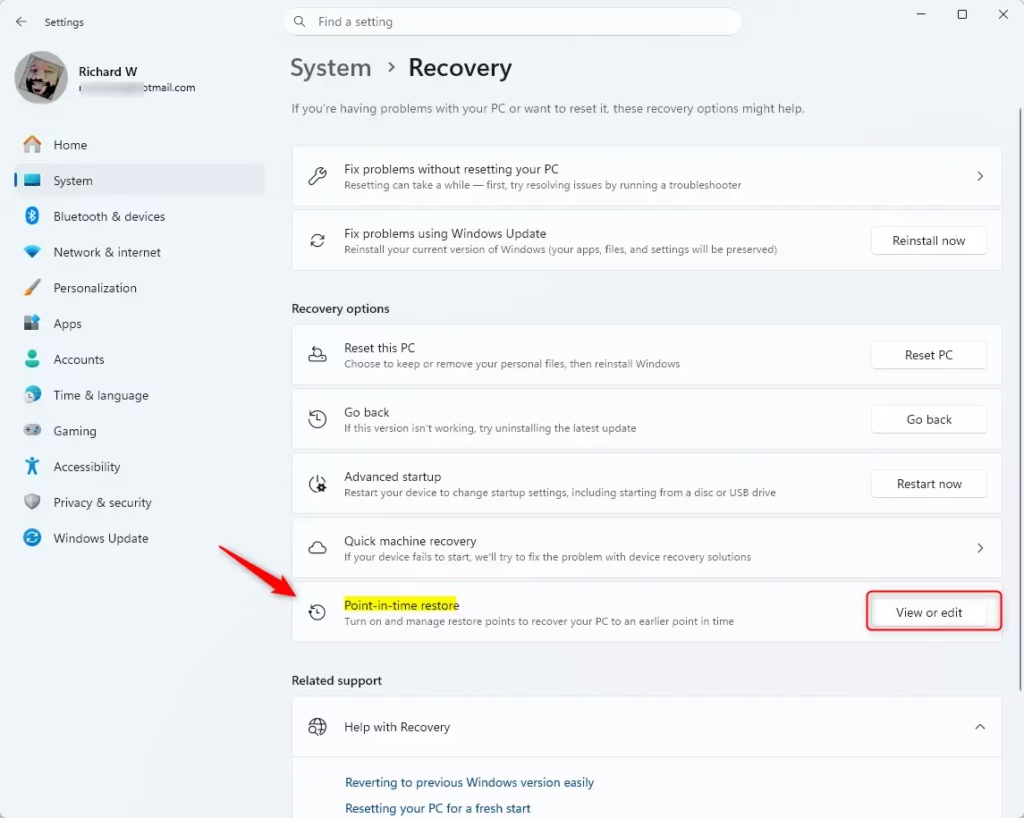
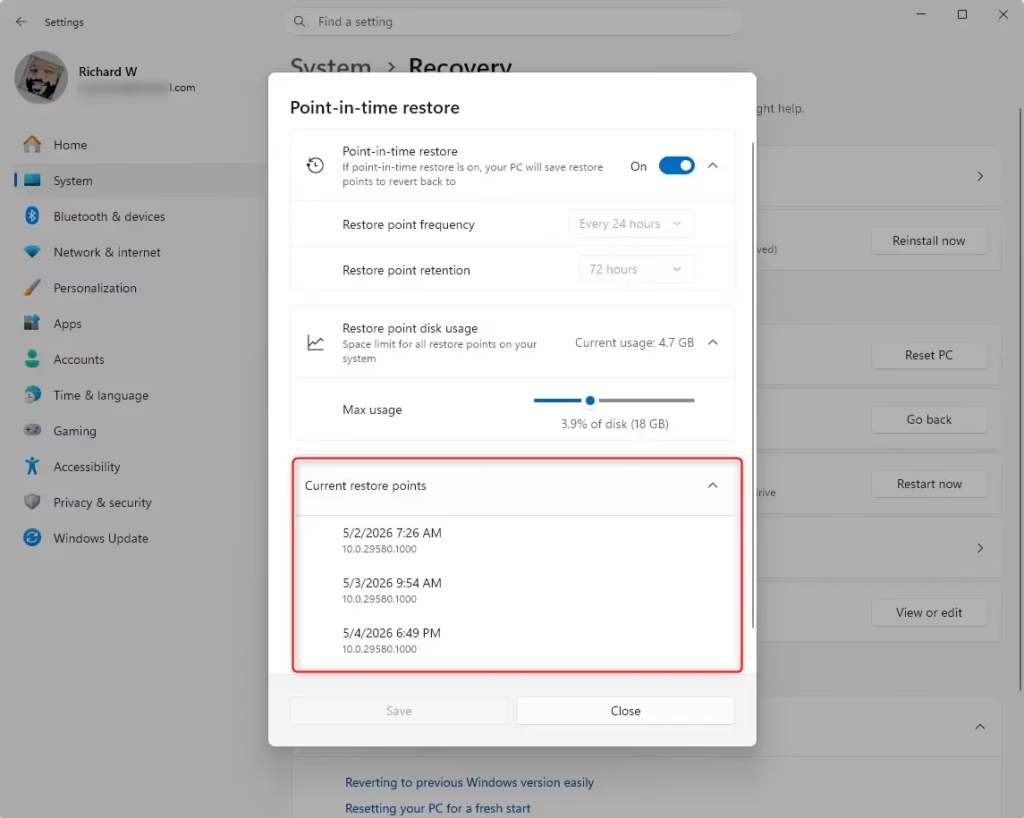
Open Settings by pressing ⊞ Win+I, navigate to System > Recovery, then click “View or edit” under “Point-in-time restore” to see available snapshots. You can also use the Command Prompt with the command vssadmin list shadows.
How to View Restore Points in Settings
You can easily view your Windows 11 restore points list right within the Settings app, showing you all the saved snapshots available to roll back your system.
Steps:
- Press ⊞ Win+I to open Settings.
- Go to System and click on Recovery.
- Find Point-in-time restore and click View or edit.
- [ADMIN REQUIRED] Click Yes on the User Account Control (UAC) prompt.
- You will see a list of available snapshots under Current restore points.
| Criteria | Point-in-time restore | System Restore |
|---|---|---|
| Configuration | System settings | Control panel |
| Restore point trigger | Scheduled frequency (automatic only) | Event-triggered or manual |
| Retention | Max 72 hours per restore point | Indefinite (subject to disk usage/cleanup) |
| Target scope | Full system state | System files and settings; app/user data coverage varies |
| Management | Will support remote management* | No modern management |
| Configuration | Defaults | Options |
|---|---|---|
| Feature On/Off | On | On, Off |
| Restore point frequency | Every 24 hours | 4, 16, 12, 24 hours |
| Restore point retention | 72 hours | 6, 12, 16, 24, 72 hours |
| Maximum usage limit | 2% of disk | Percent of disk (min 2GB, max 50GB equivalent) |
Viewing Restore Points via Command Line
If you prefer using commands, you can view your Windows restore points using the Command Prompt, which lists all available shadow copies for your system.
Steps:
- Press ⊞ Win+S and type cmd.
- Right-click Command Prompt and select Run as administrator.
- [ADMIN REQUIRED] Type the following command and press Enter:Code
vssadmin list shadows
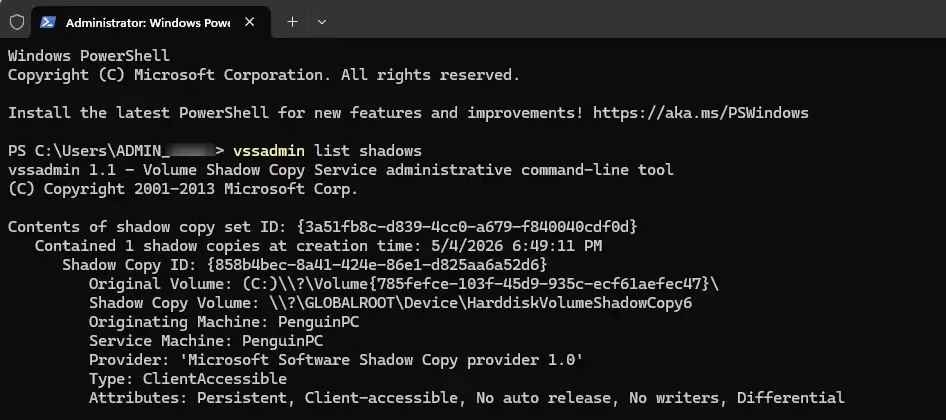
This command lists all shadow copies currently stored on your drive. If the list is empty, no restore points are available.
Troubleshooting Missing Restore Points
If you’re trying to view restore points but can’t find any, it’s likely due to System Protection being off, low disk space, or the restore points having expired.
- System Protection is Off: Go to System Properties > System Protection and ensure it is turned On for your drive.
- Disk Space: If your drive is nearly full, Windows may delete old restore points to make room for new files.
- Age Limit: Restore points are typically kept for a maximum of 72 hours. If your last point is older than that, it may have been deleted automatically.
Summary
Viewing your Windows 11 restore points is simple through Settings or Command Prompt, helping you fix system issues, but remember they are temporary and depend on disk space.
Why are my restore points not showing up in the list?
Restore points may not appear if System Protection is disabled for your drive or if your disk space is critically low. Additionally, Windows automatically deletes restore points older than 72 hours. Ensure your system protection settings are configured correctly in the System Properties menu to allow for regular snapshot creation.
How do I delete old restore points to free up disk space?
You can manage disk space by opening System Properties, selecting your drive, and clicking Configure. From there, you can adjust the Maximum Usage slider to limit how much space restore points consume. You can also click Del to remove all existing restore points for that drive immediately.
Can I view restore points without initiating a restore?
Yes. Using the View or edit button in the Recovery settings menu allows you to see a list of available restore points without starting the recovery process. Similarly, using the vssadmin list shadows command in the Command Prompt lets you view technical details about your shadow copies safely.
Was this guide helpful?

About the Author
Richard
Tech Writer, IT Professional
Richard, a writer for Geek Rewind, is a tech enthusiast who loves breaking down complex IT topics into simple, easy-to-understand ideas. With years of hands-on experience in system administration and enterprise IT operations, he’s developed a knack for offering practical tips and solutions. Richard aims to make technology more accessible and actionable. He's deeply committed to the Geek Rewind community, always ready to answer questions and engage in discussions.


No comments yet — be the first to share your thoughts!